Claude Code Deployment
This document describes the basic steps to install, configure, and use Claude Code on Quectel Pi H1. Claude Code assists in the terminal with tasks such as code writing, file modification, command execution, and project analysis, making it suitable for board-level application development, script debugging, and sample project validation.
For the official Claude Code documentation, please refer to: Claude Code Docs.
Prerequisites
Before proceeding with the installation, ensure the following conditions are met:
The device is connected to the network;
The current user has
sudoprivileges;You have obtained the Claude Code service address, access token, and model name configuration parameters.
In the examples below, replace <your_api_token>, <your_base_url>, and <model_name> with the actual parameters you have obtained.
Installation Steps
Install Basic Tools
Update the system package list and install basic tools such as curl, git, etc.:
sudo apt update
sudo apt install -y curl git ca-certificates build-essential jq
Install Node.js 22
Claude Code is installed via npm. Node.js 22 or later is recommended. Install Node.js 22 via NodeSource:
curl -fsSL https://deb.nodesource.com/setup_22.x | sudo -E bash -
sudo apt install -y nodejs
After installation, verify the Node.js and npm versions:
node -v
npm -v
If the terminal outputs version numbers, the Node.js environment is ready.
Install Claude Code
Install Claude Code globally using npm:
sudo npm install -g @anthropic-ai/claude-code
After installation, verify Claude Code is available:
claude --version
If the terminal outputs a version number, the installation was successful.
Configuring Access Parameters
Using the Official Service
If you are using the official Claude Code service directly, set the access token in your current terminal:
export ANTHROPIC_AUTH_TOKEN=<your_api_token>
Using a Proxy or Enterprise Gateway
If accessing through a proxy service or enterprise gateway, configure the service address, access token, and model parameters:
export ANTHROPIC_BASE_URL=<your_base_url>export ANTHROPIC_AUTH_TOKEN=<your_api_token>export API_TIMEOUT_MS=600000export CLAUDE_CODE_DISABLE_NONESSENTIAL_TRAFFIC=1export ANTHROPIC_MODEL=<model_name>export ANTHROPIC_SMALL_FAST_MODEL=<small_fast_model_name>
Parameter descriptions:
Parameter |
Description |
|---|---|
ANTHROPIC_BASE_URL |
API service address. Usually not required for the official service. |
ANTHROPIC_AUTH_TOKEN |
Claude Code access token. |
API_TIMEOUT_MS |
API request timeout. Increase if the network or model response is slow. |
CLAUDE_CODE_DISABLE_NONESSENTIAL_TRAFFIC |
Set to 1 to disable non-essential traffic. |
ANTHROPIC_MODEL |
Default primary model. |
ANTHROPIC_SMALL_FAST_MODEL |
Default lightweight fast model. |
The export commands above only take effect in the current terminal session. To make them persistent, add the environment variables to ~/.bashrc or another shell configuration file.
Starting Claude Code
After completing the installation and environment variable configuration, start Claude Code from the terminal:
claude
On the first launch, Claude Code may perform login verification, configuration confirmation, or permission prompts. Follow the on-screen instructions to complete the initialization.
Usage Examples
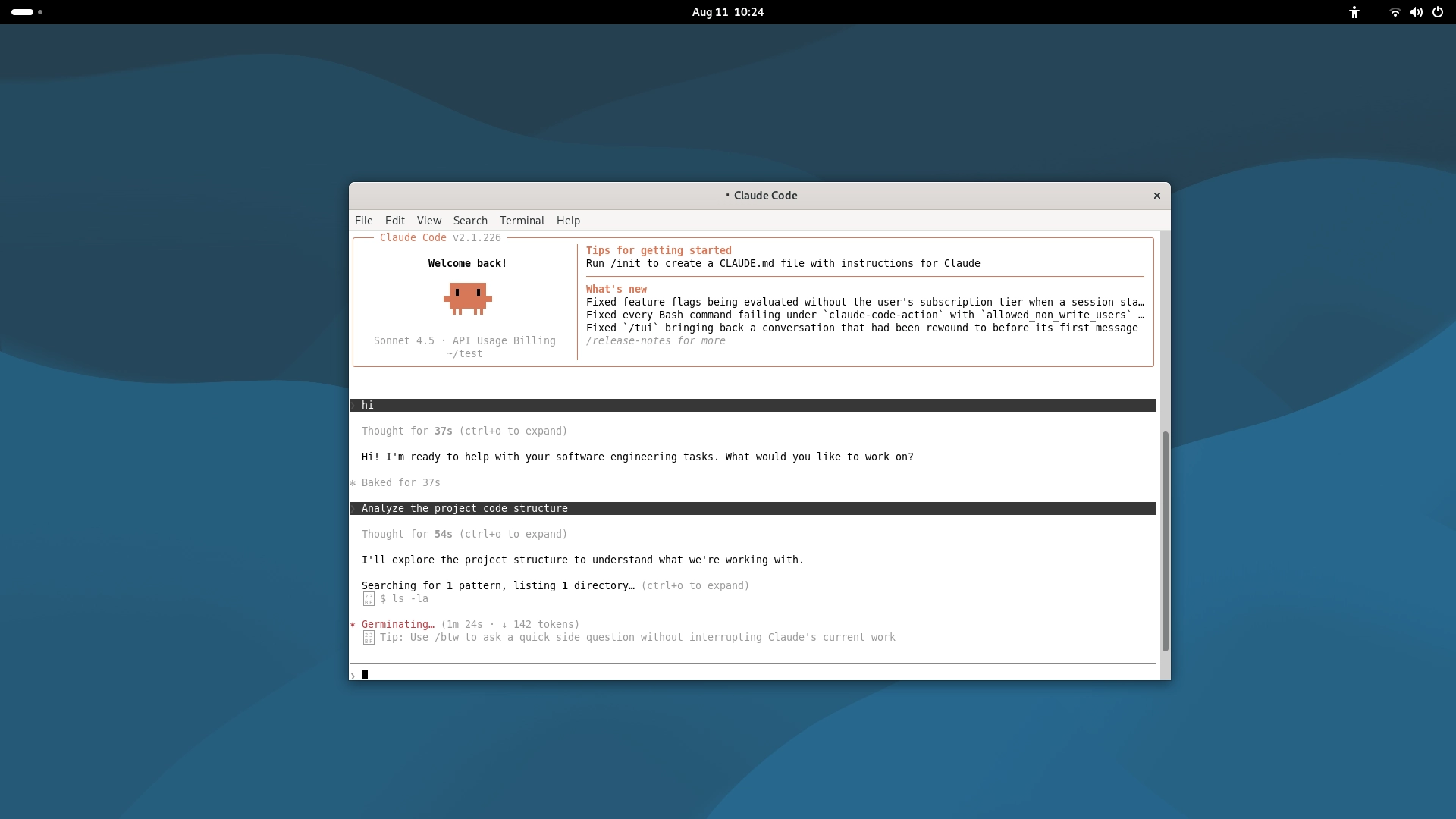
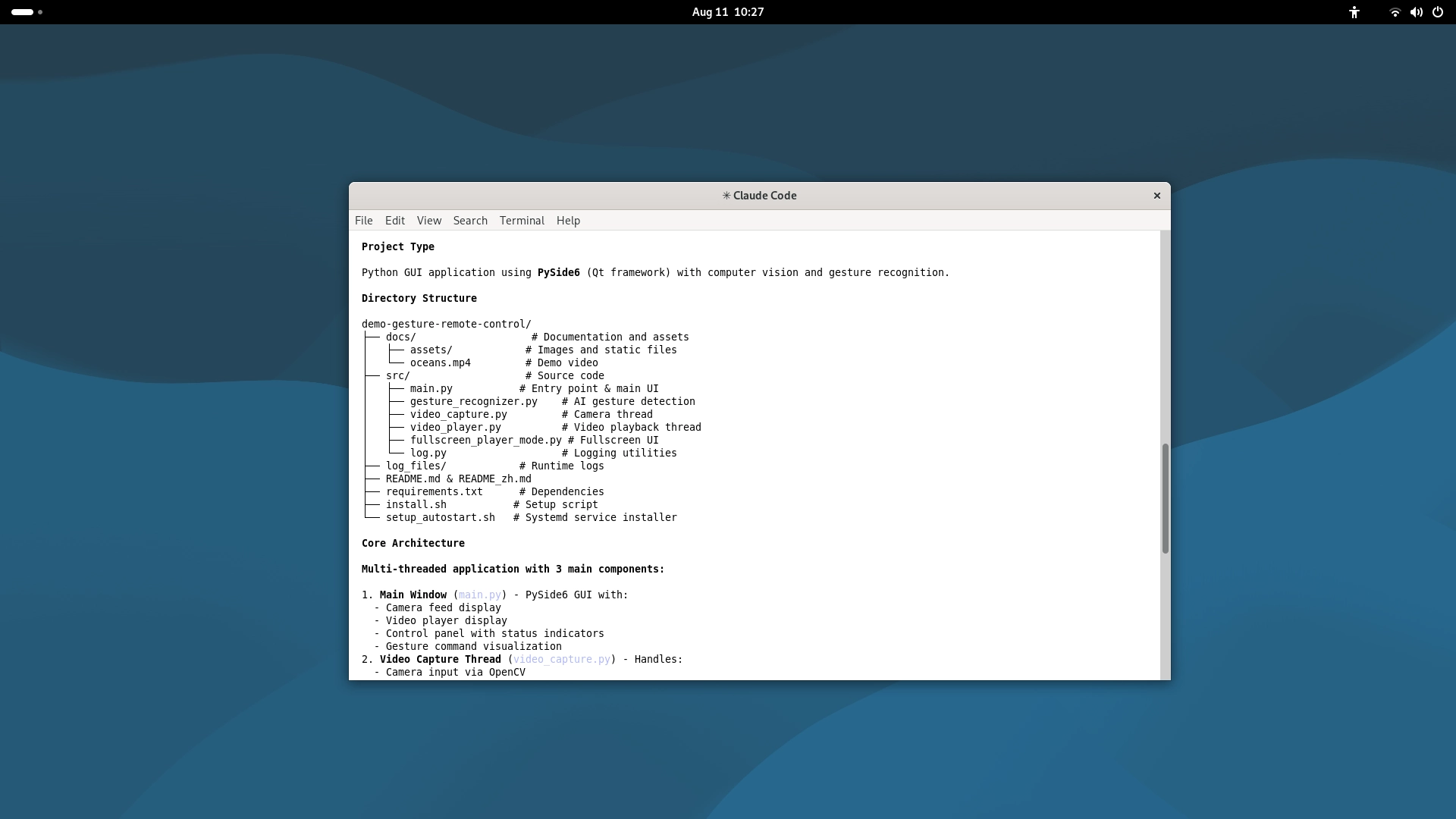
Analyzing Project Code Structure
Navigate to the project directory and start Claude Code:
cd ~/my_project
claude
Enter a task description in the Claude Code interactive interface, for example:
Analyze the code structure of the current project, listing the main modules, entry files, and dependencies.
Claude Code will automatically read the project files and directories, outputting a code structure overview, module division, and call relationships to help you quickly understand the overall architecture of an unfamiliar project.
Common Commands
Check Claude Code version:
claude --version
View Claude Code help information:
claude --help
Enter a project directory and start Claude Code:
cd <project_path>
claude
Manage conversations:
Command |
Function |
|---|---|
claude –continue |
Resume the most recent session in the current directory |
claude –resume |
Open the Session Manager |
claude –resume |
Resume a named session directly |
claude –from-pr |
Resume a session linked to that pull request |
/resume |
Switch to a different conversation from within an active session |
Troubleshooting
If
claudeis not found after installation, verify that the npm global installation succeeded and that the npm global bin directory is in yourPATH;If
npm installis slow, configure an npm mirror source based on your network environment and reinstall;If authentication fails at startup, check whether
ANTHROPIC_AUTH_TOKENis configured correctly;If unable to connect after configuring a proxy or enterprise gateway, verify
ANTHROPIC_BASE_URL, the model name, and network connectivity;For hardware control tasks, first confirm the pin multiplexing configuration, GPIO access permissions, and peripheral connections.