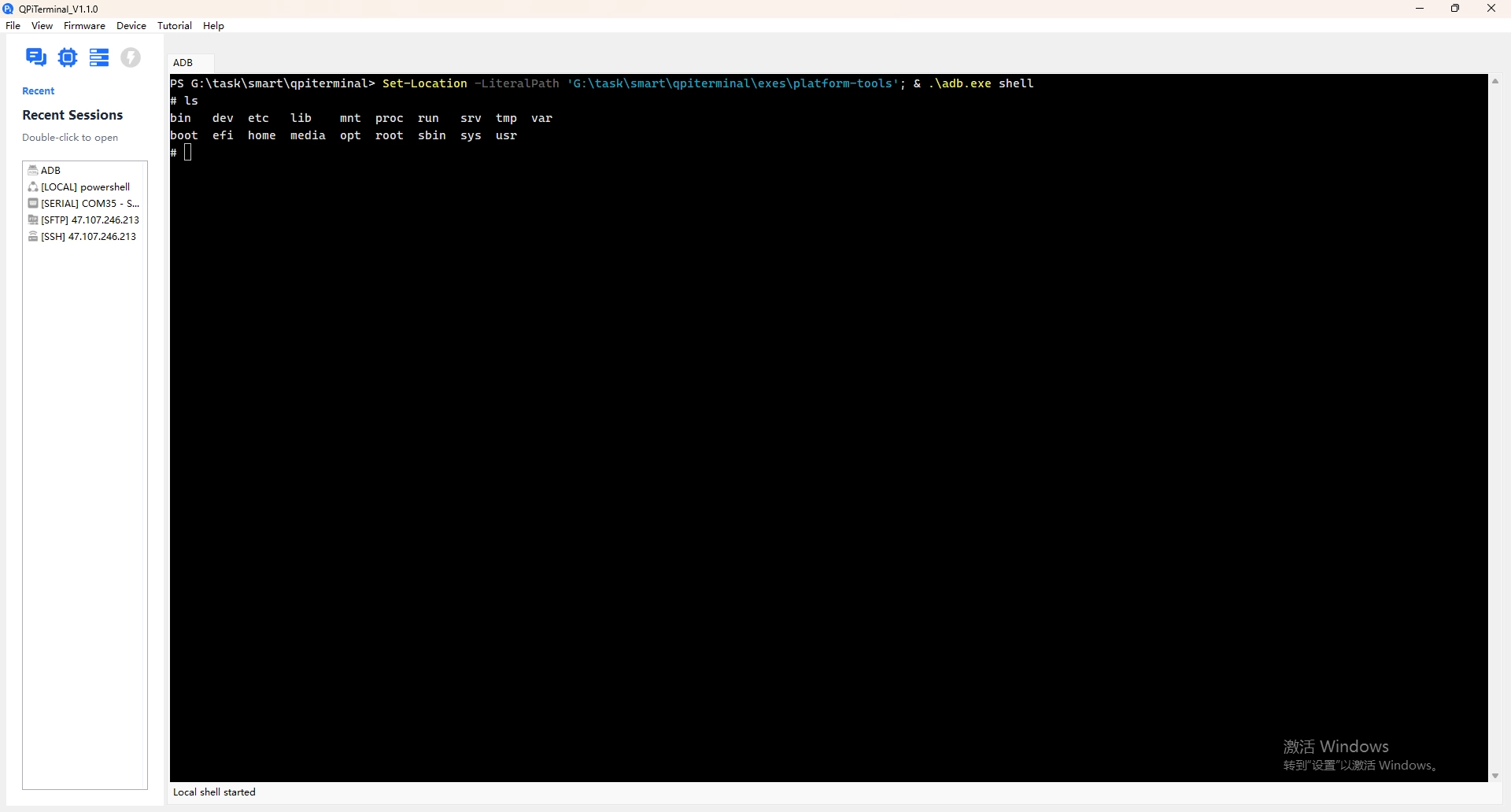
New Session
Copyright © Quectel Wireless Solutions Co., Ltd. 2026. All rights reserved.
This chapter mainly introduces the QPiTerminal tool for creating multiple session functions.
SSH
‘New Session–>SSH’ Open SSH connection interface
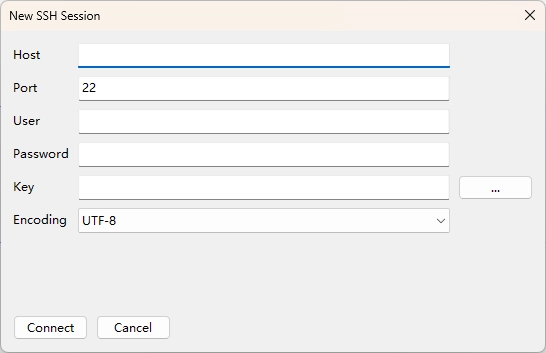
Fill in the server information and click connect to create a new SSH terminal page. The connection record will be saved on the left side and can be opened again by double clicking.
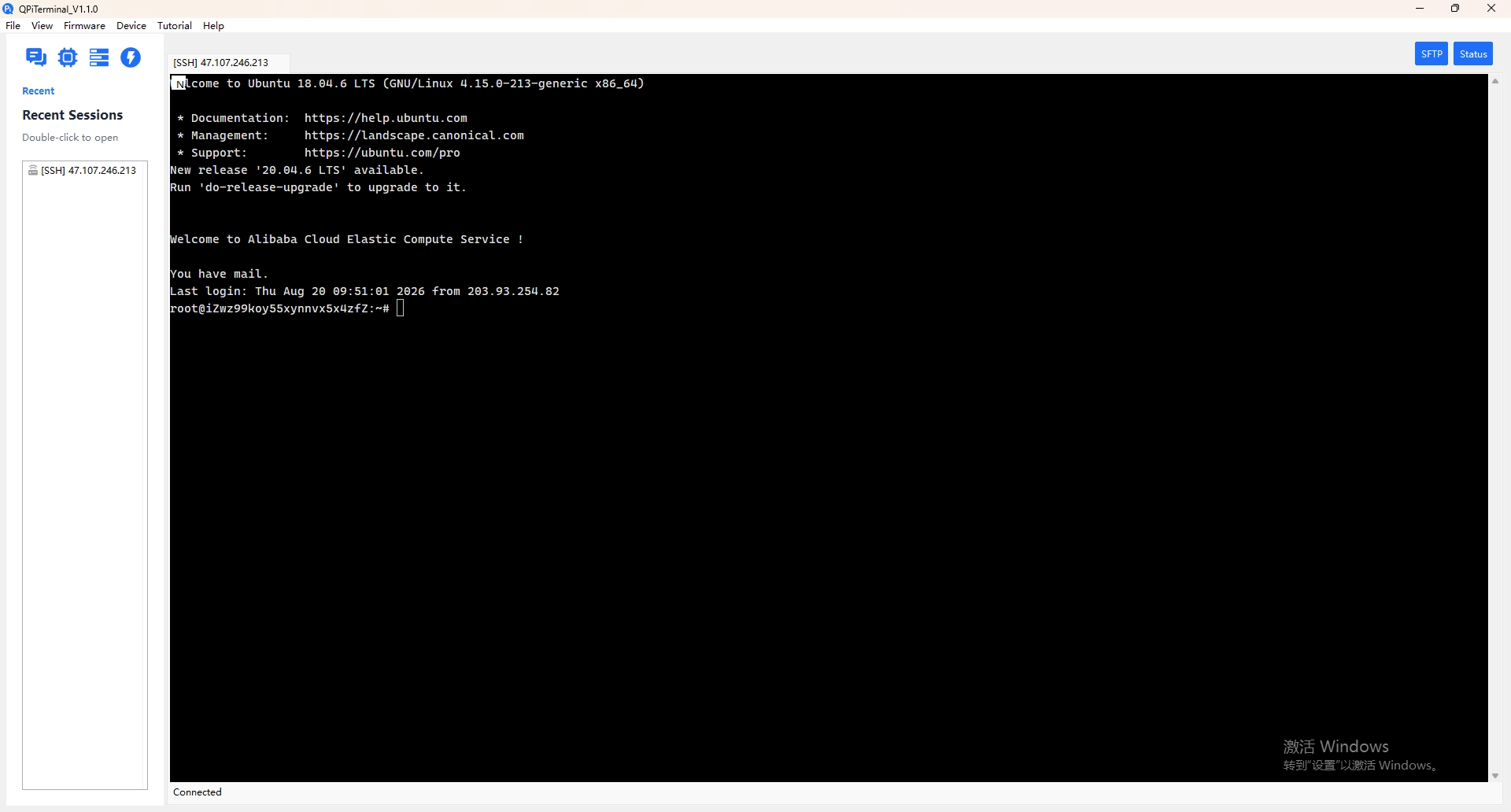
There are two buttons in the upper right corner of the SSH terminal page, SFTP and Status, which can respectively open the SFTP file transfer and status panel on the current page.
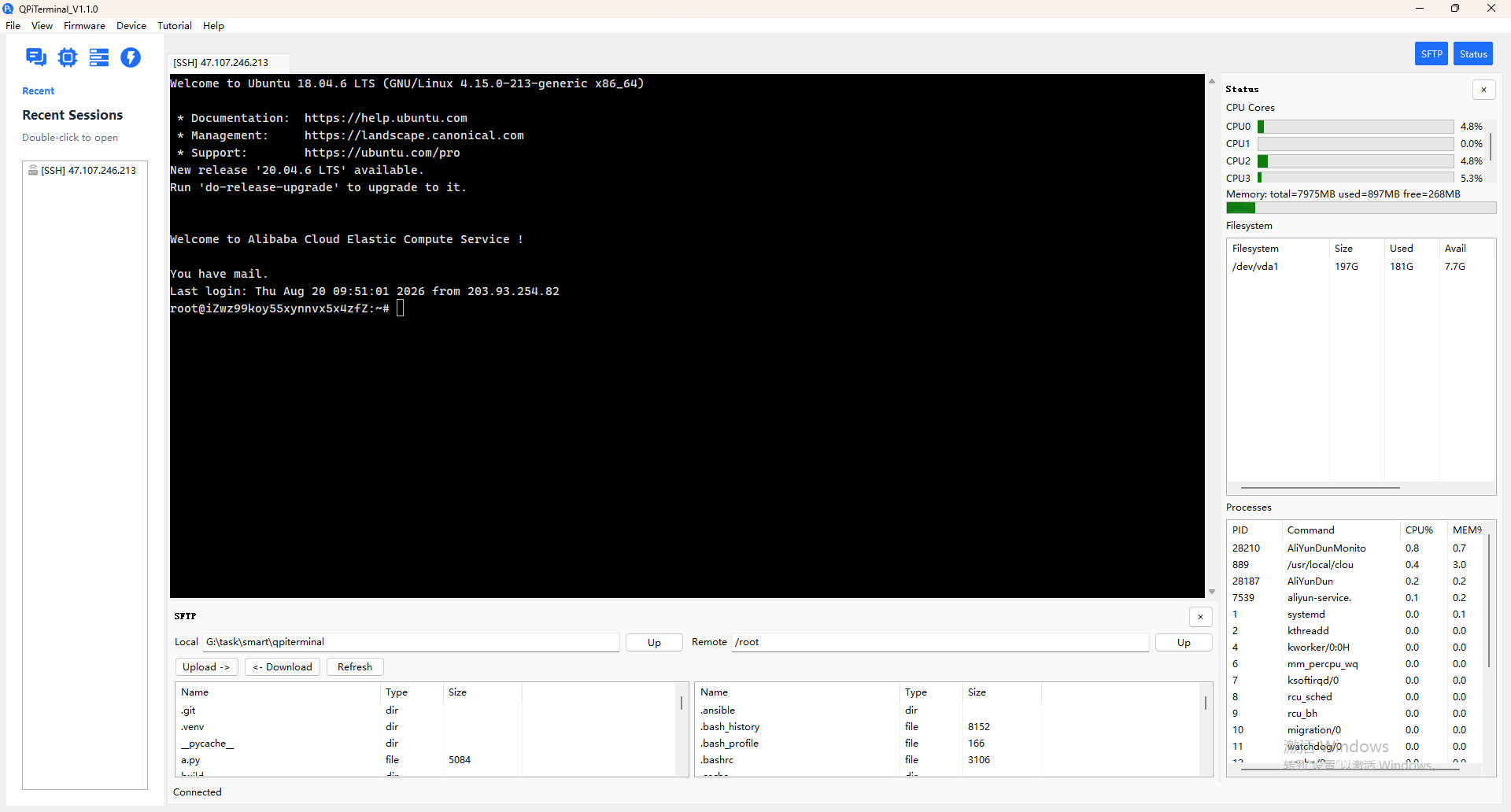
SFTP
‘New Session–>SFTP’ Open SFTP connection interface
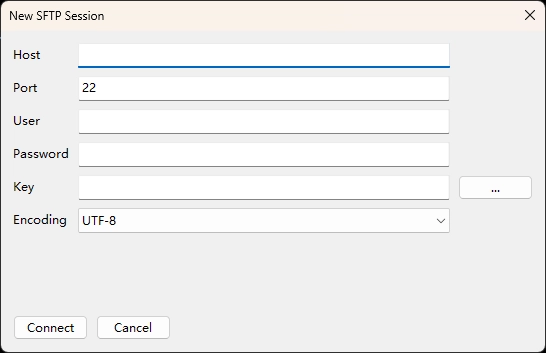
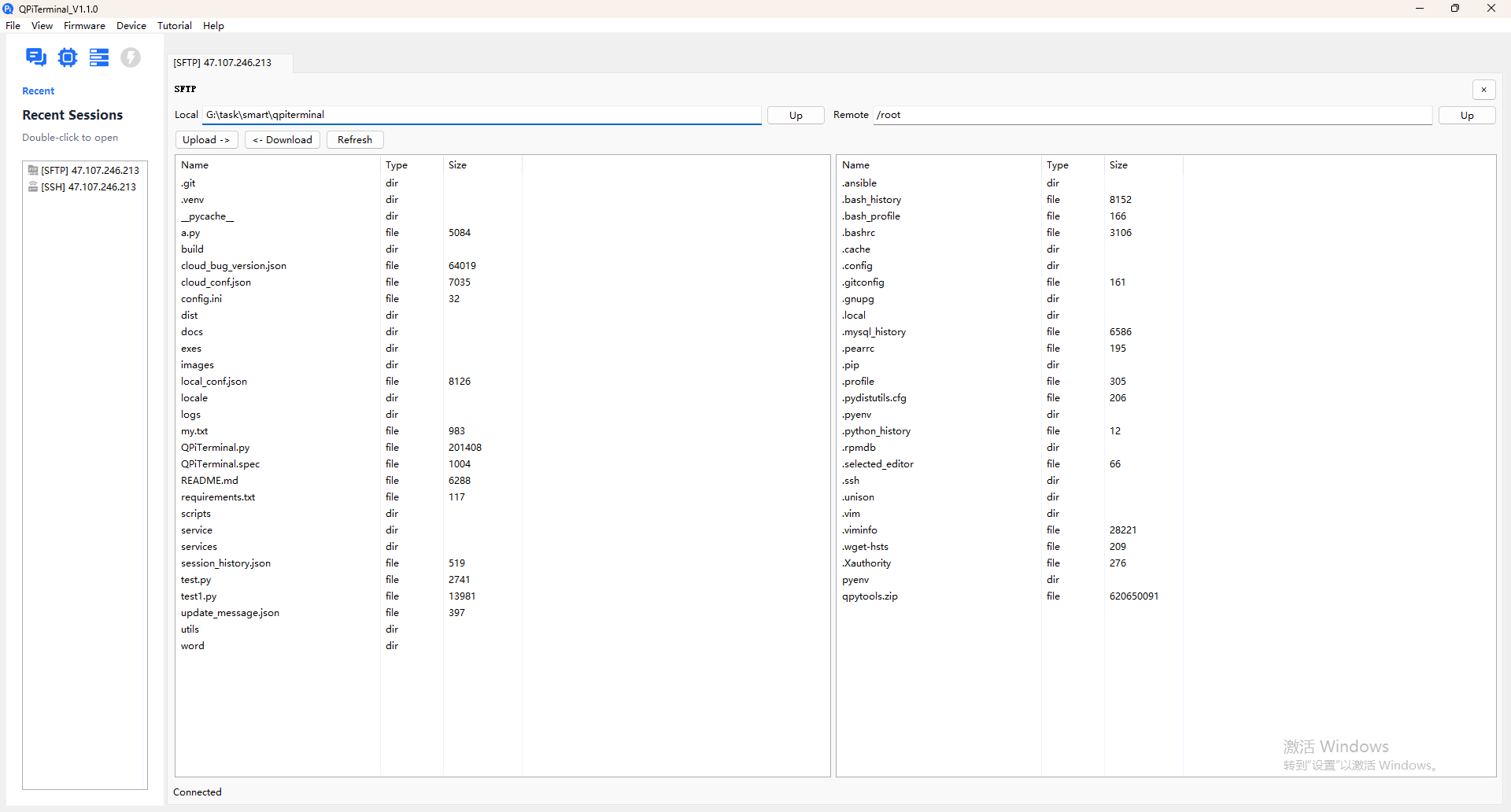
Fill in the server information and click connect to create a new SFTP page. The connection record will be saved on the left side and can be opened again by double clicking.
Serial
‘New Session–>Serial’ Open the Serial Connection interface
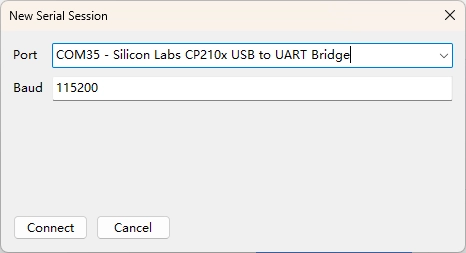
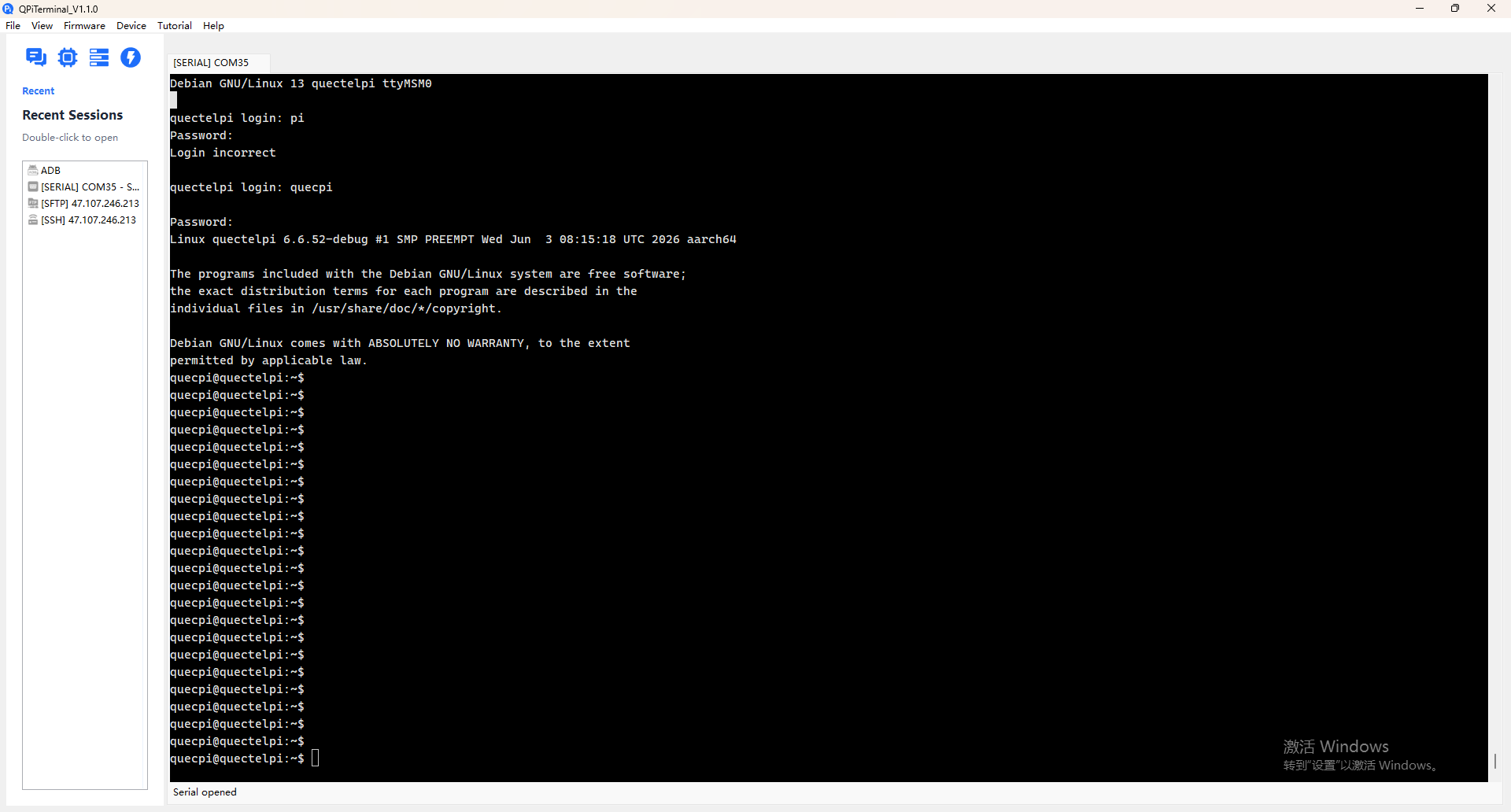
Select the correct serial port, click Connect to create a new Serial page, and the connection record will be saved on the left side, which can be opened again by double clicking.
Local
‘New Session–>Local’ Open the Local Connection interface
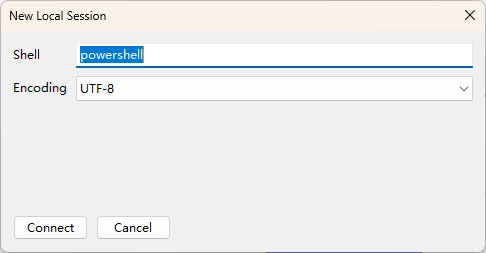
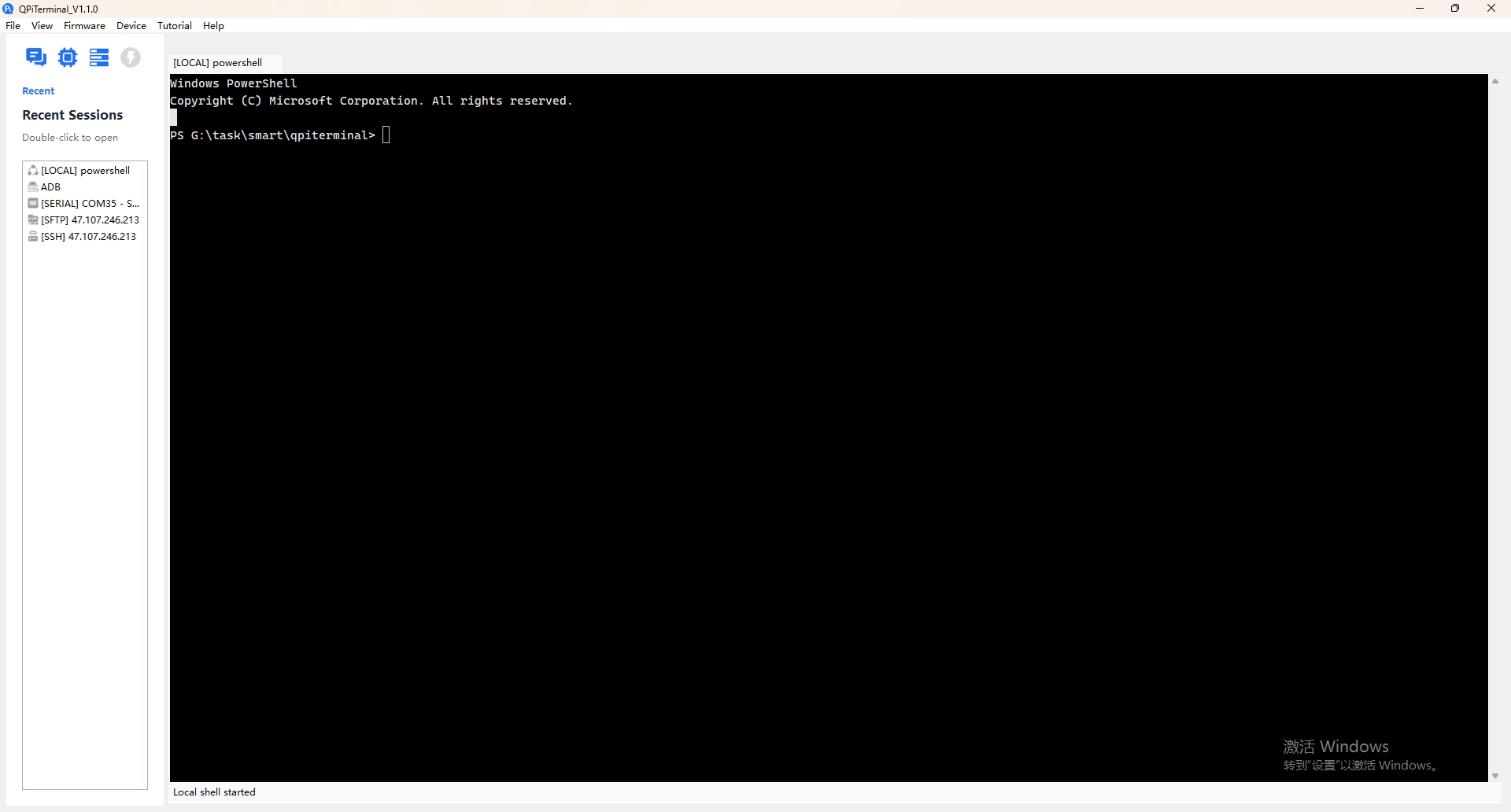
At present, only PowerShell is supported. Clicking on the connection will create a new PowerShell terminal page, and the connection record will be kept on the left side, which can be opened again by double clicking.
ADB
‘New Session–>ADB’ Open ADB interface