Display Configuration
This document mainly introduces the various system configuration methods for the Quectel Pi M1 / L1 smart main control board running the Android operating system.
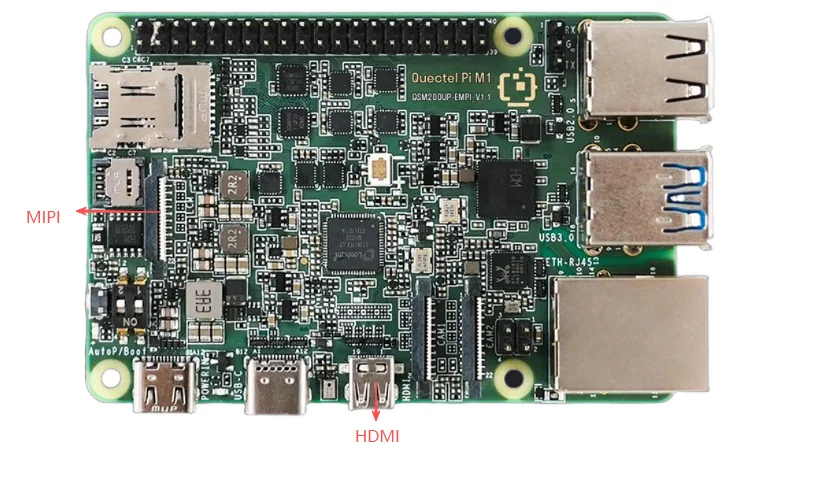
The Quectel Pi M1 / L1 smart main control board provides HDMI and MIPI display interfaces. The HDMI interface supports hot-plug functionality, while the MIPI interface does not support this feature.
Screen Rotation
Use the ADB tool to execute the following commands to rotate the screen:
adb root    #Switch to root user
adb shell setprop persist.panel.orientation 90  #Rotate the screen by 90 degrees
adb reboot     #Reboot
Adjust DPI Size
Use the ADB tool to execute the following commands to adjust the screen DPI:
adb shell wm density   #Check current DPI size
adb shell wm density 320  #Set to 320 DPI
adb shell wm density reset    #Restore default DPI
For display configuration details, please refer to the MIPI and Micro HDMI chapters.
Audio Settings
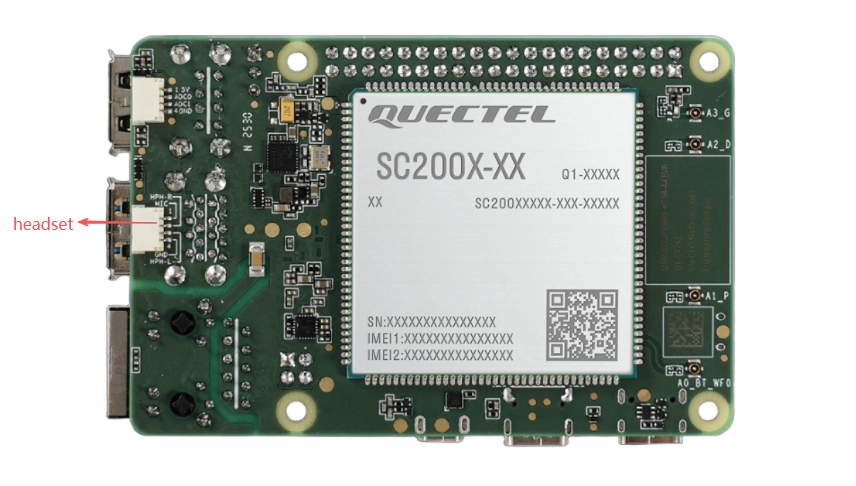
The audio interfaces supported by the Quectel Pi M1 / L1 include headset.
Audio Parameter Settings
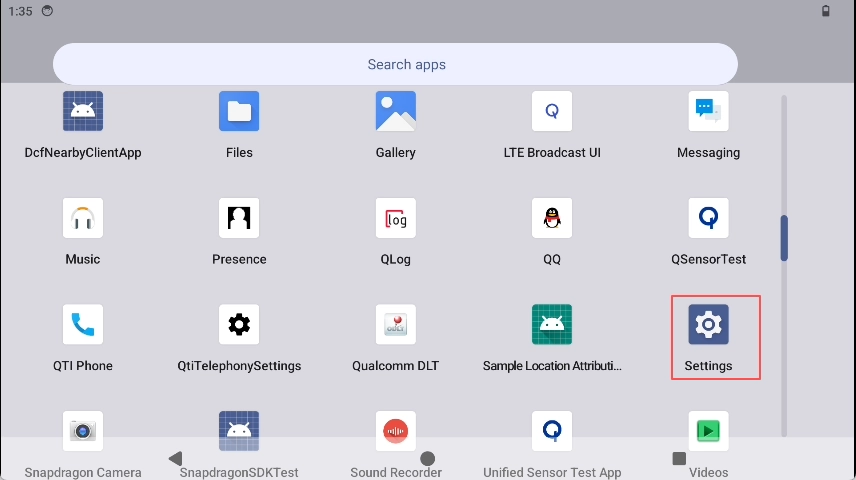
Swipe up from the desktop to enter the menu interface and open “Settings”;
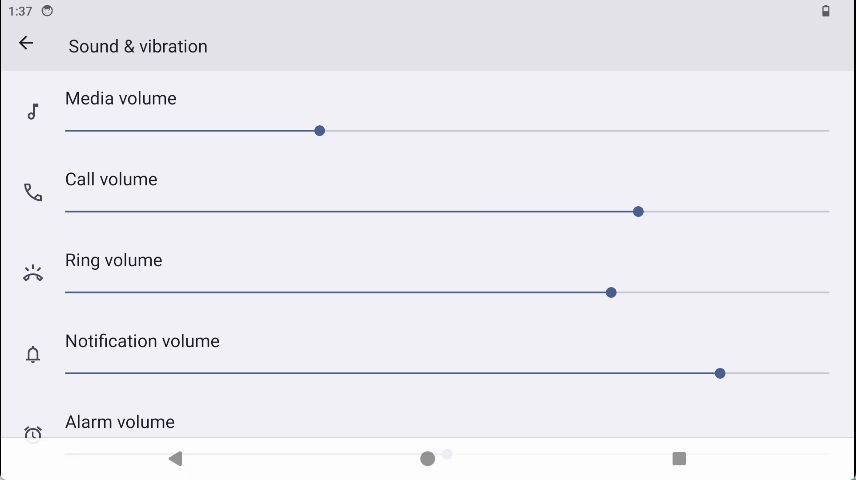
Click the “Sound & Vibration” tab to configure settings.
Network Settings
This section introduces the network interfaces and configuration methods of the Quectel Pi M1 / L1.
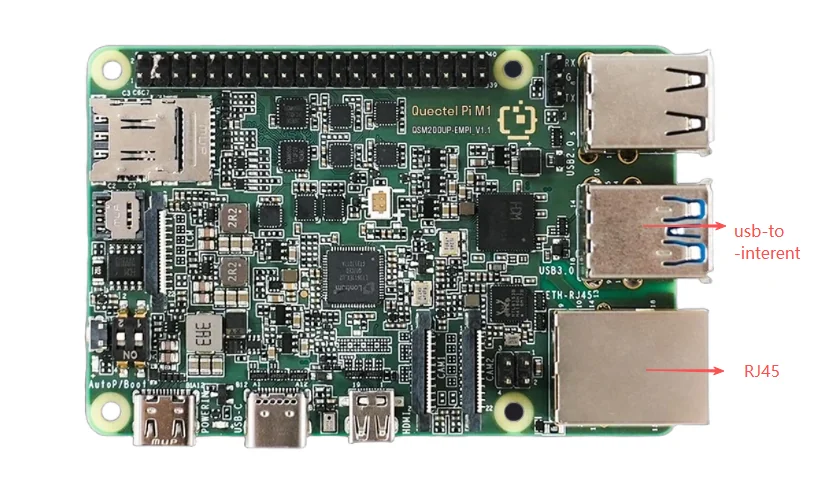
Wi-Fi Network
Preparation
Prepare a Wi-Fi hotspot that can connect to the internet.
Software Configuration
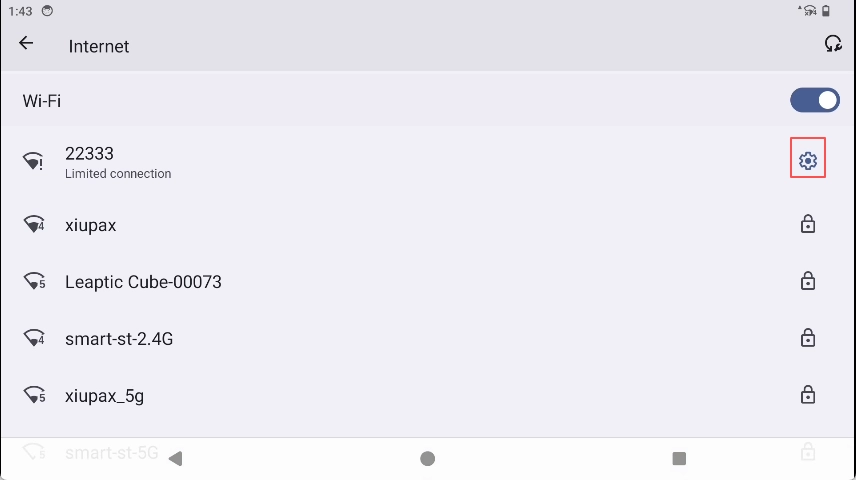
1.On the Android desktop, swipe down to open the status bar and click the arrow on the right side of Wi-Fi;
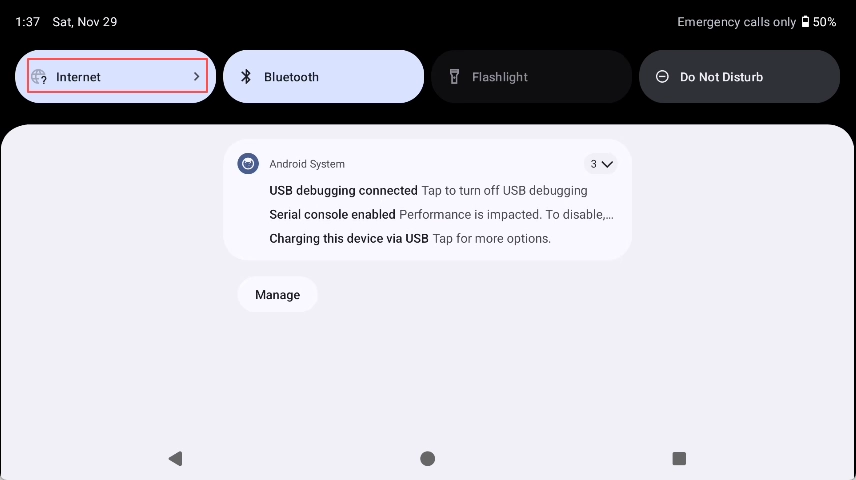
Click “All” and select the wireless network you want to connect to;
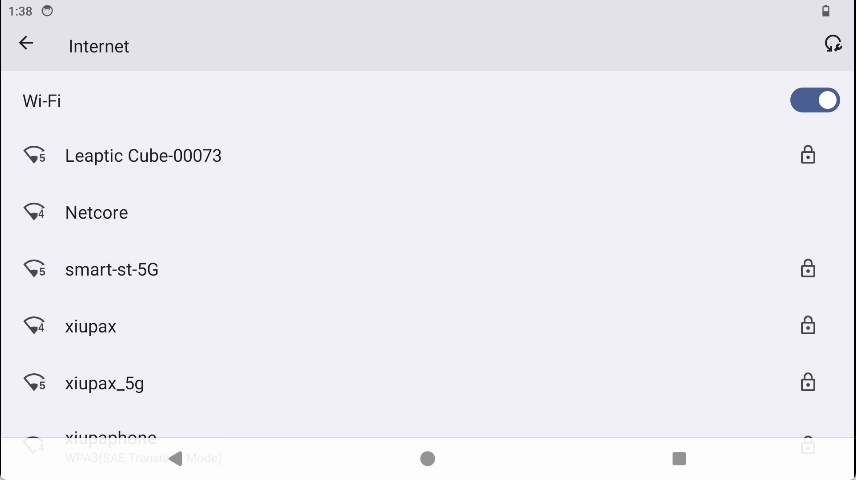
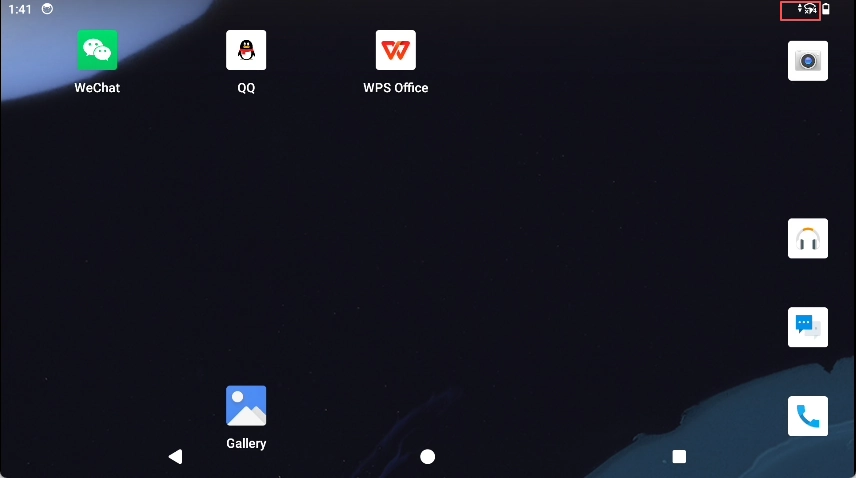
After a successful connection, a Wi-Fi connection icon will appear in the top-right corner of the screen.
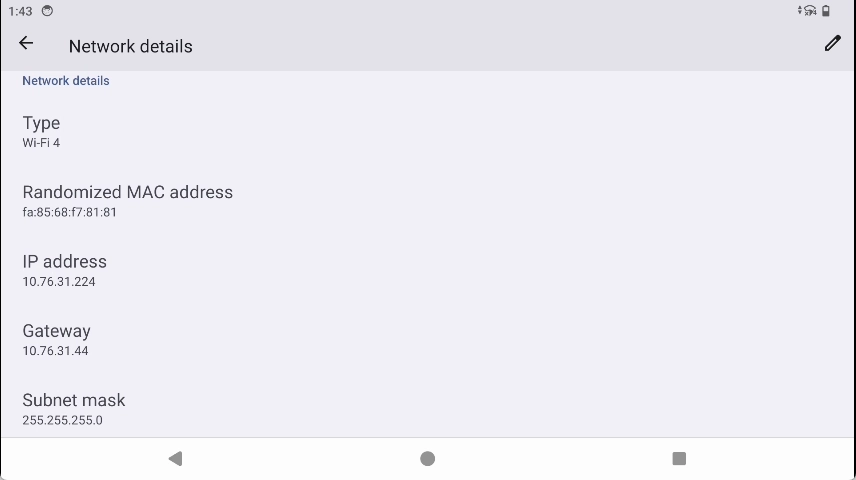
Query Network Information
Click the options button on the right side of the connected wireless network to view related network information.