Network Configuration
This chapter mainly introduces the network interfaces and network configuration methods of the Quectel Pi M1 smart control board.
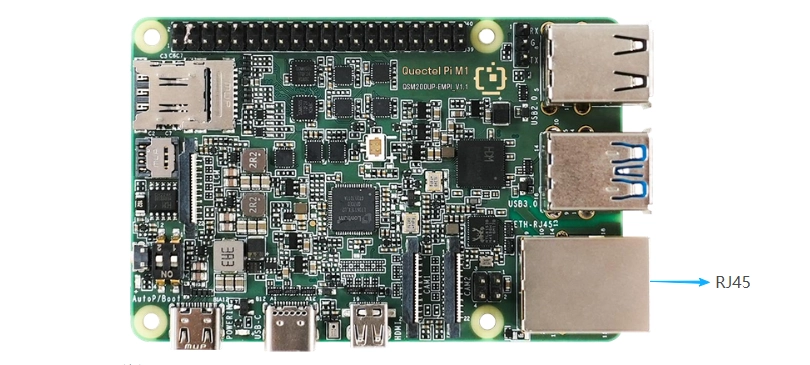
The Quectel Pi M1 smart control board supports an RJ45 Ethernet interface and a built-in wireless network adapter.
Network Interfaces
Ethernet
Preparation
To use a wired network connection, connect an Ethernet cable to the RJ45 port.
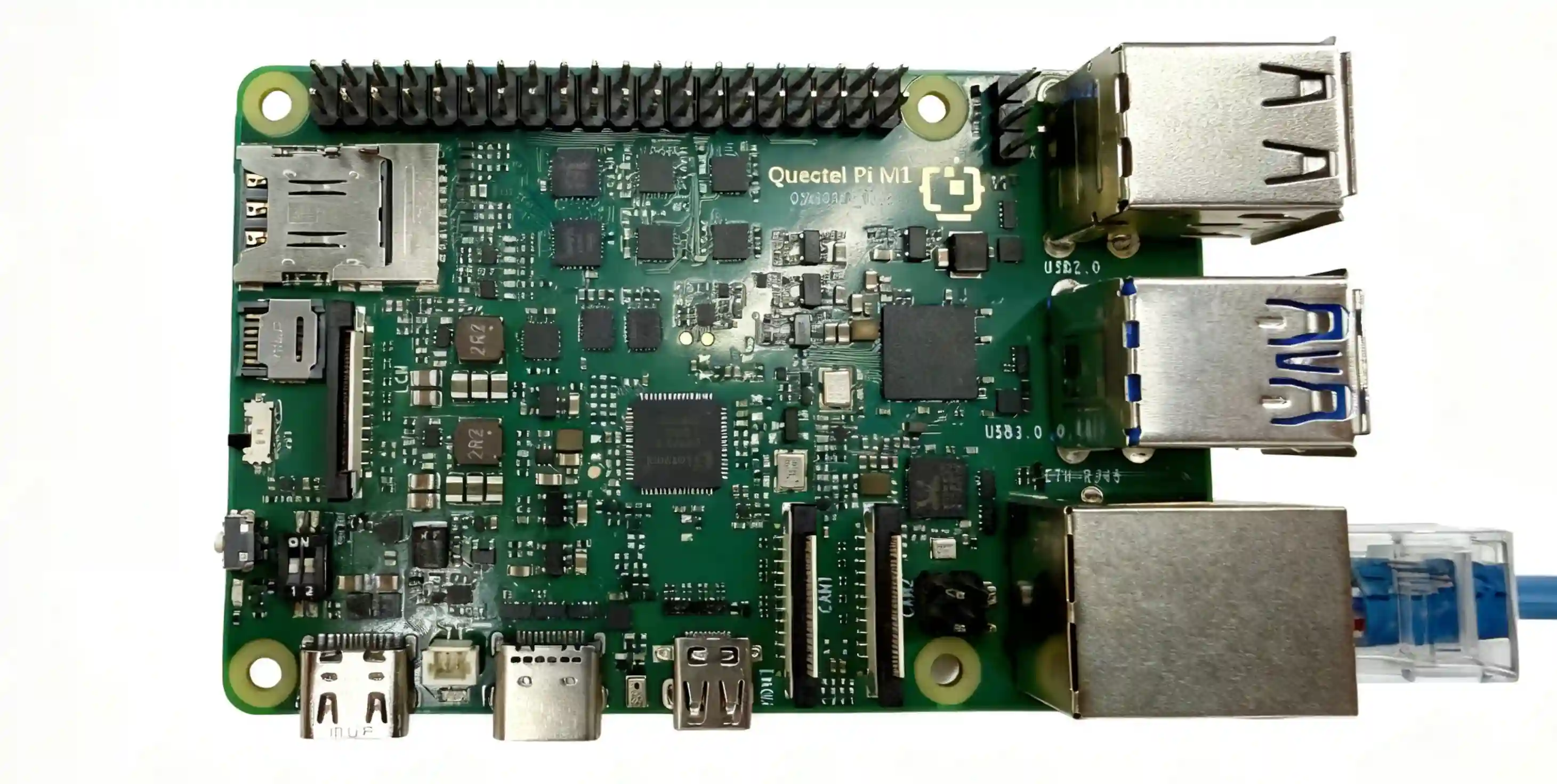
Software Configuration
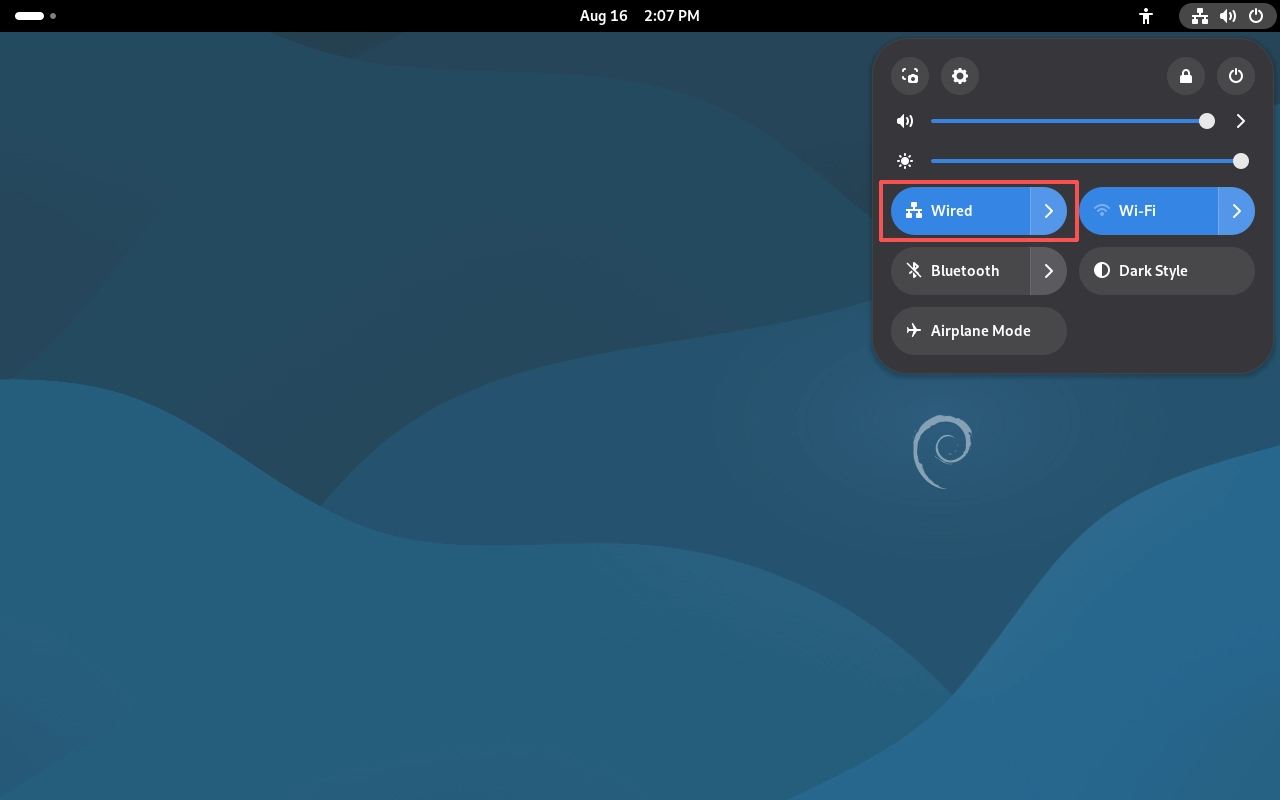
After the connection is established successfully, a network connection icon will appear in the status bar in the upper-right corner of the desktop.
View Network Information
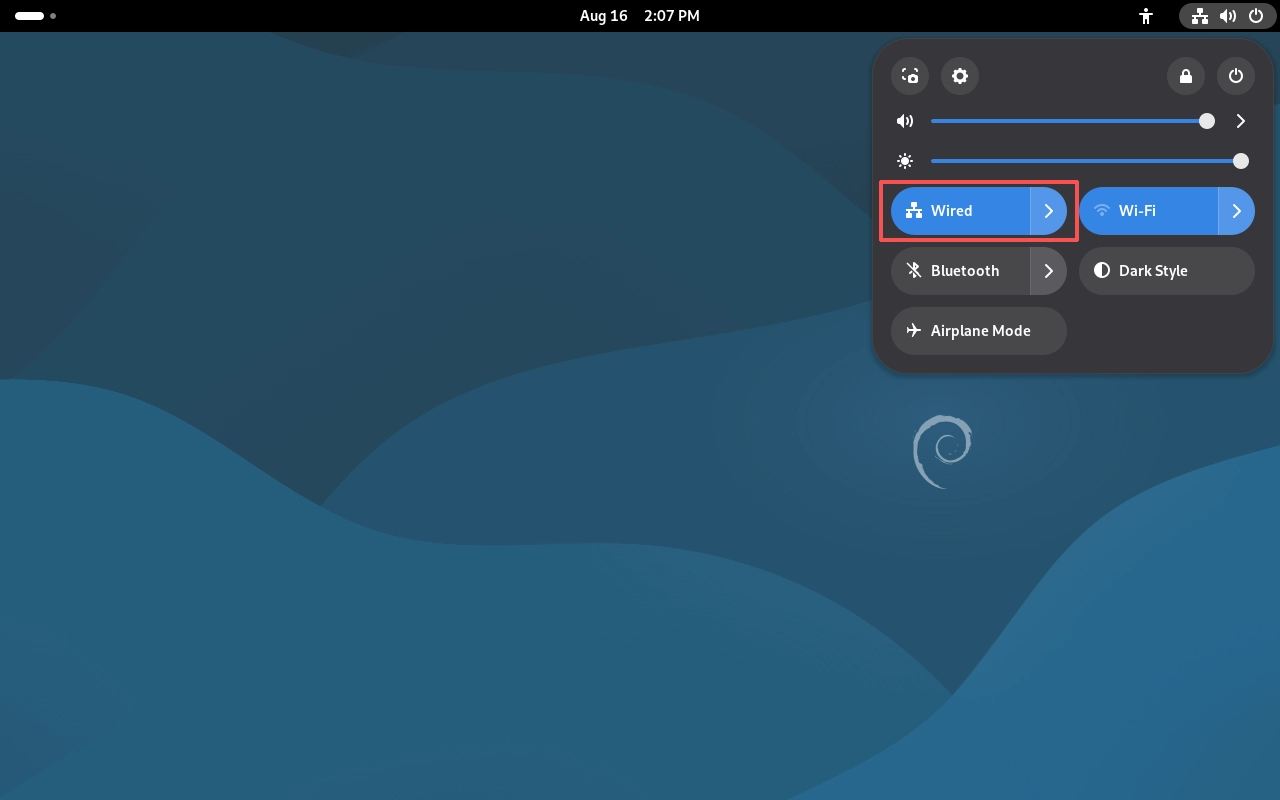
Click the arrow to the right of “Wired”.
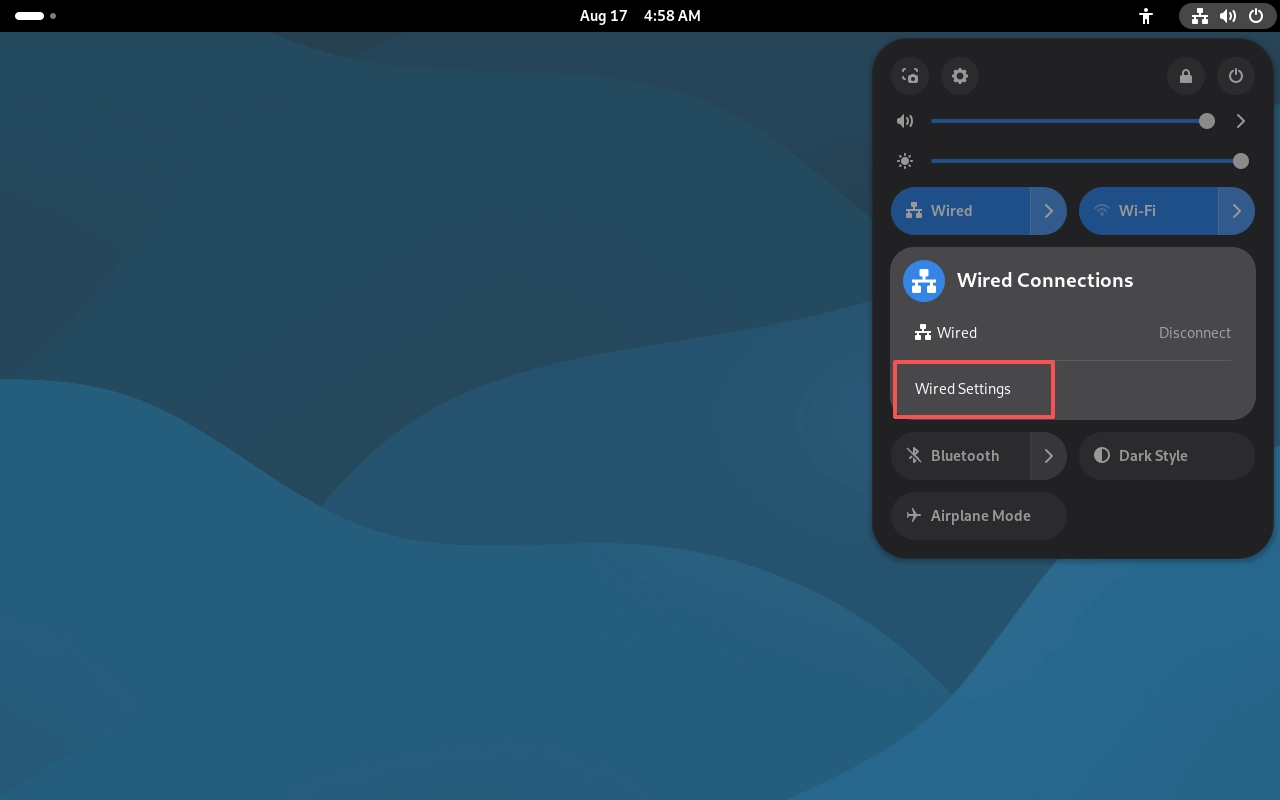
Click “Wired Settings”.
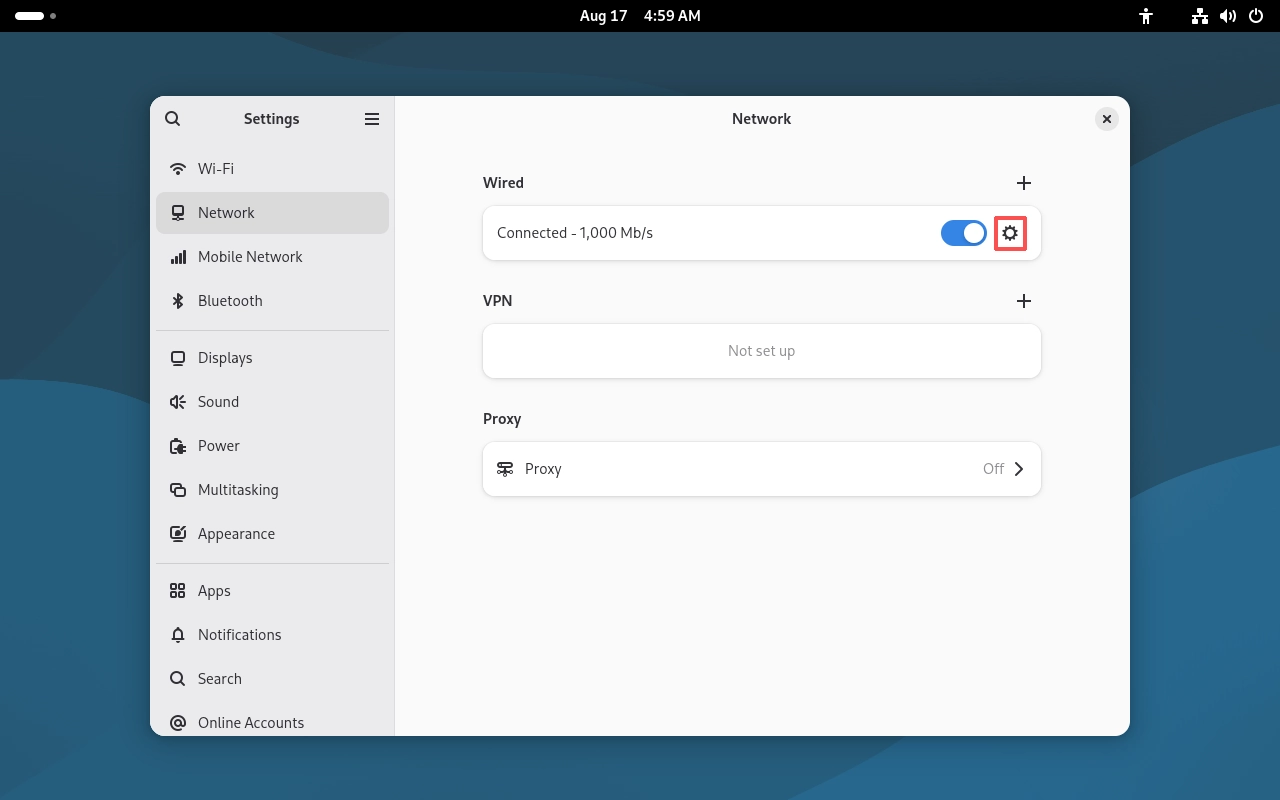
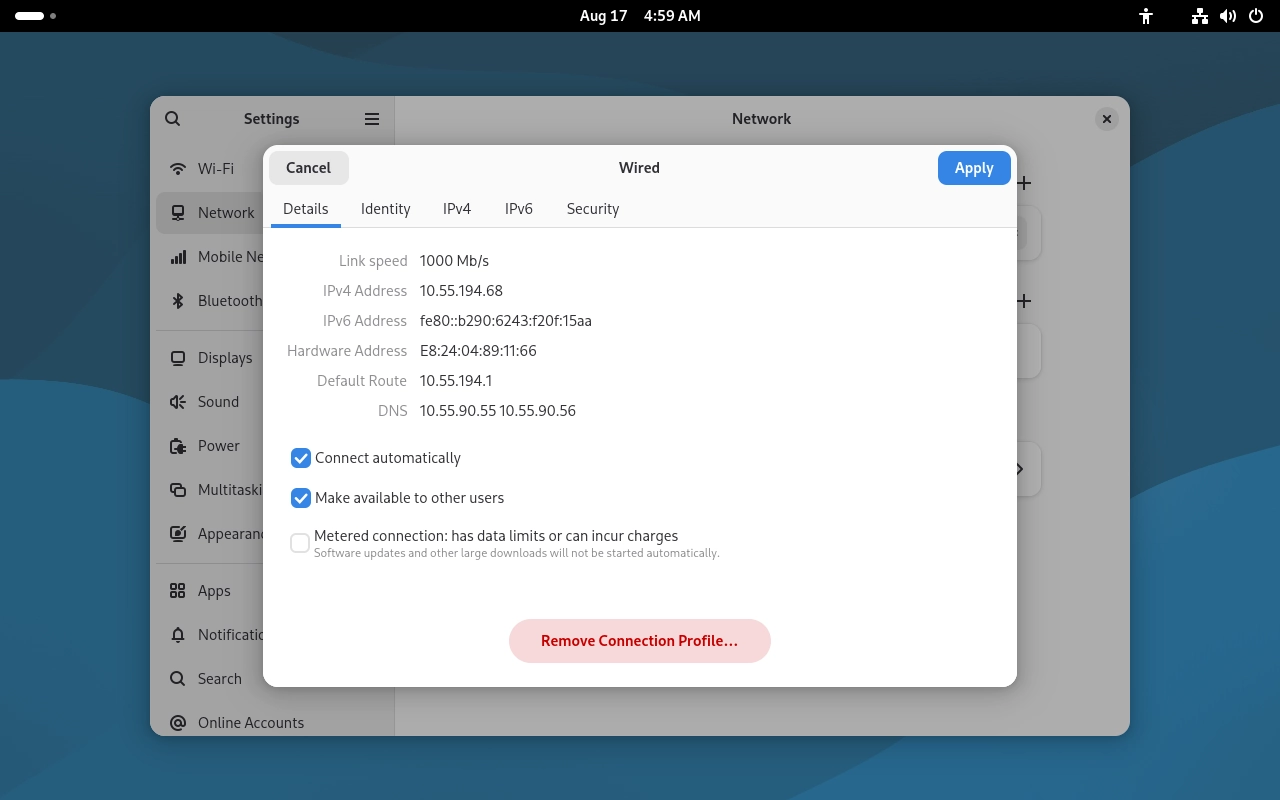
Click the options button on the right side of the connected network to view the relevant network connection information.
Wireless Network
Preparation
Prepare a Wi-Fi hotspot with Internet access.
Software Configuration
Click the status area in the upper-right corner of the GNOME desktop, then click the arrow to the right of “Wi-Fi” and select “All Networks”.
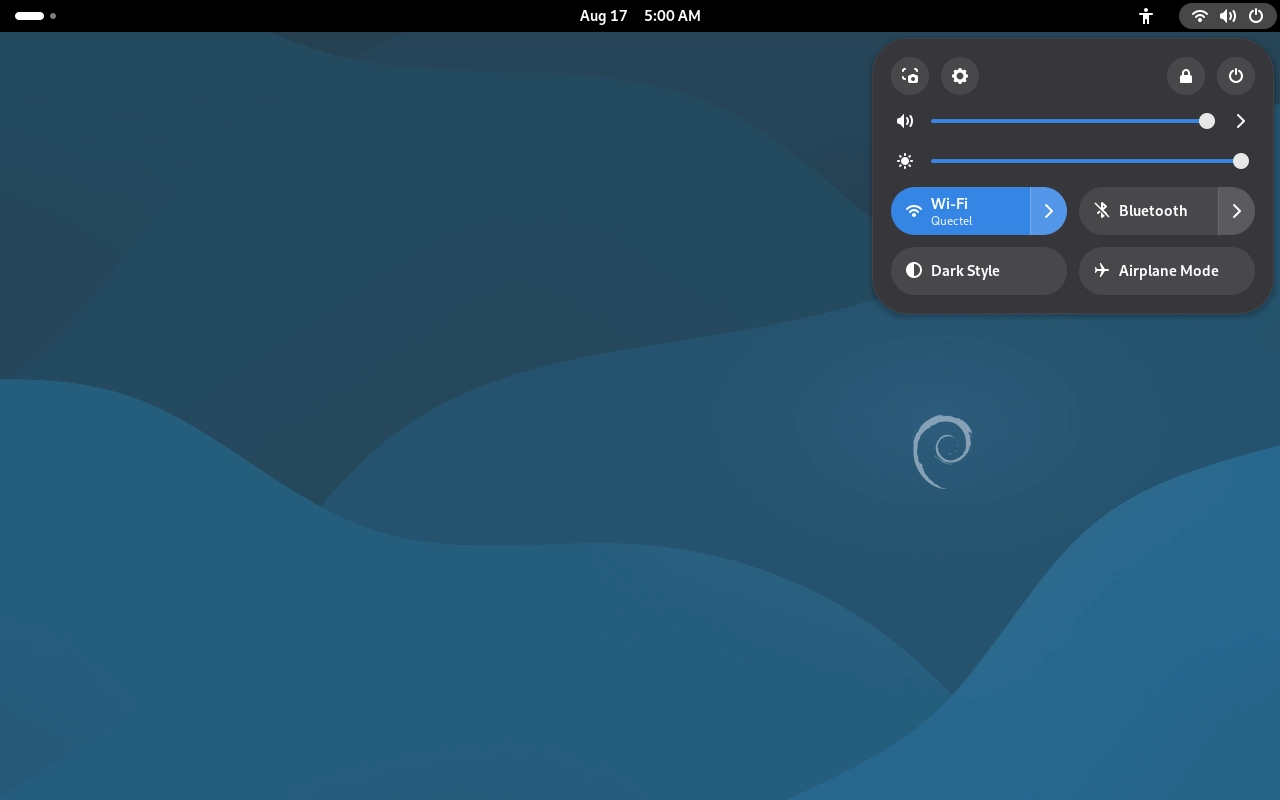
Select the wireless network you want to connect to, enter the password, and connect.
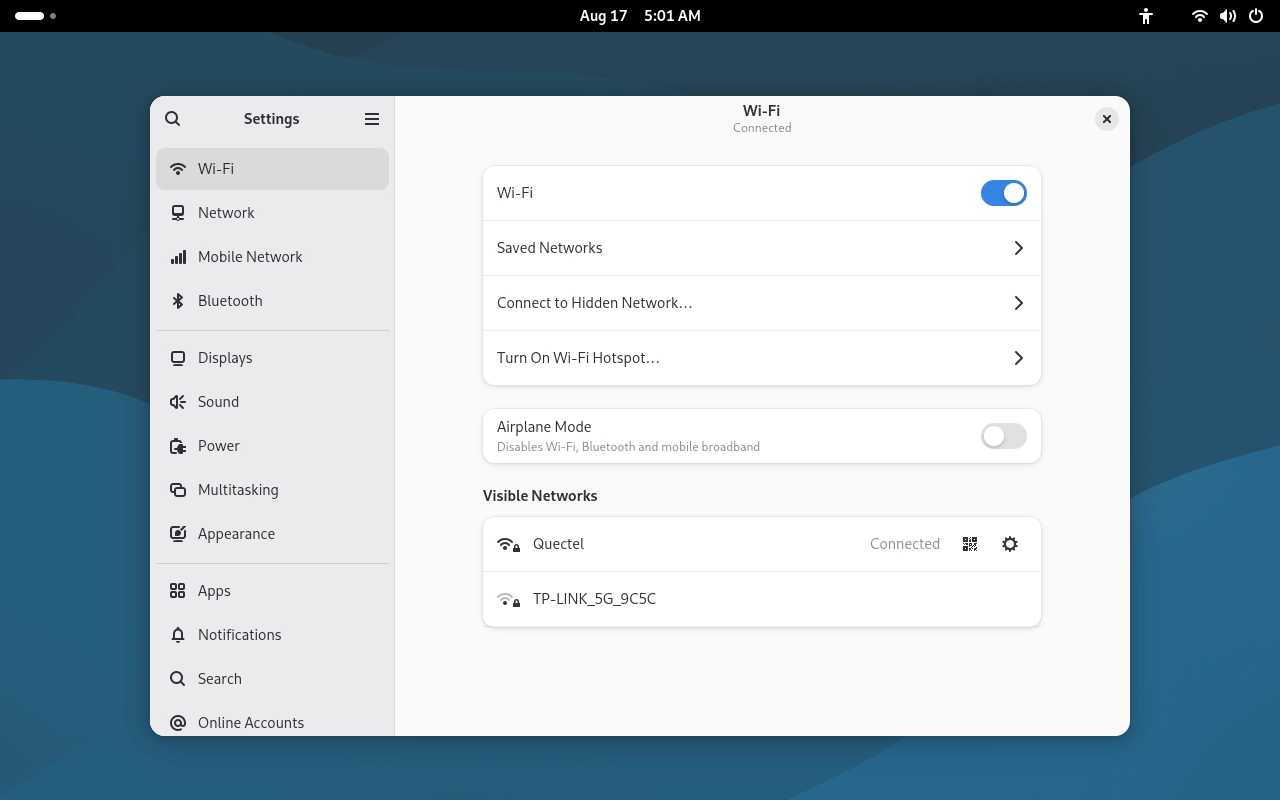
View Network Information
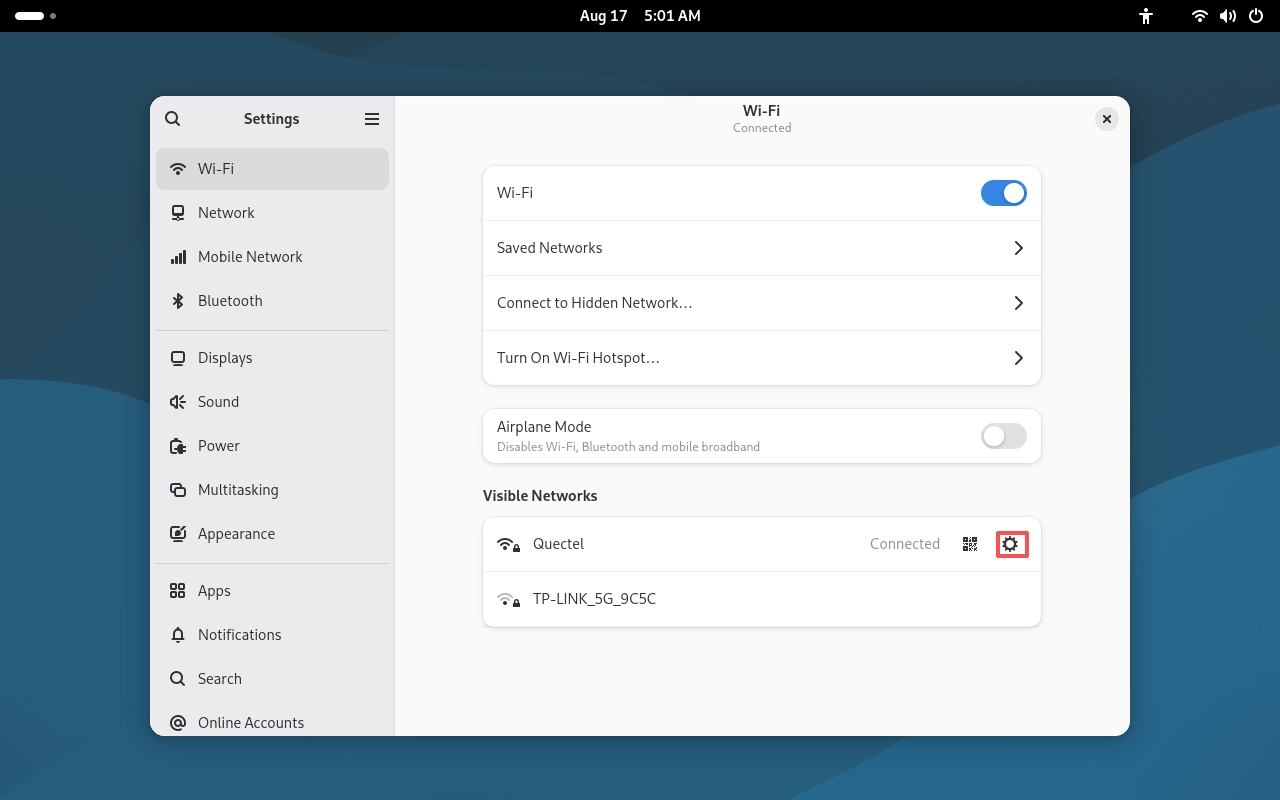
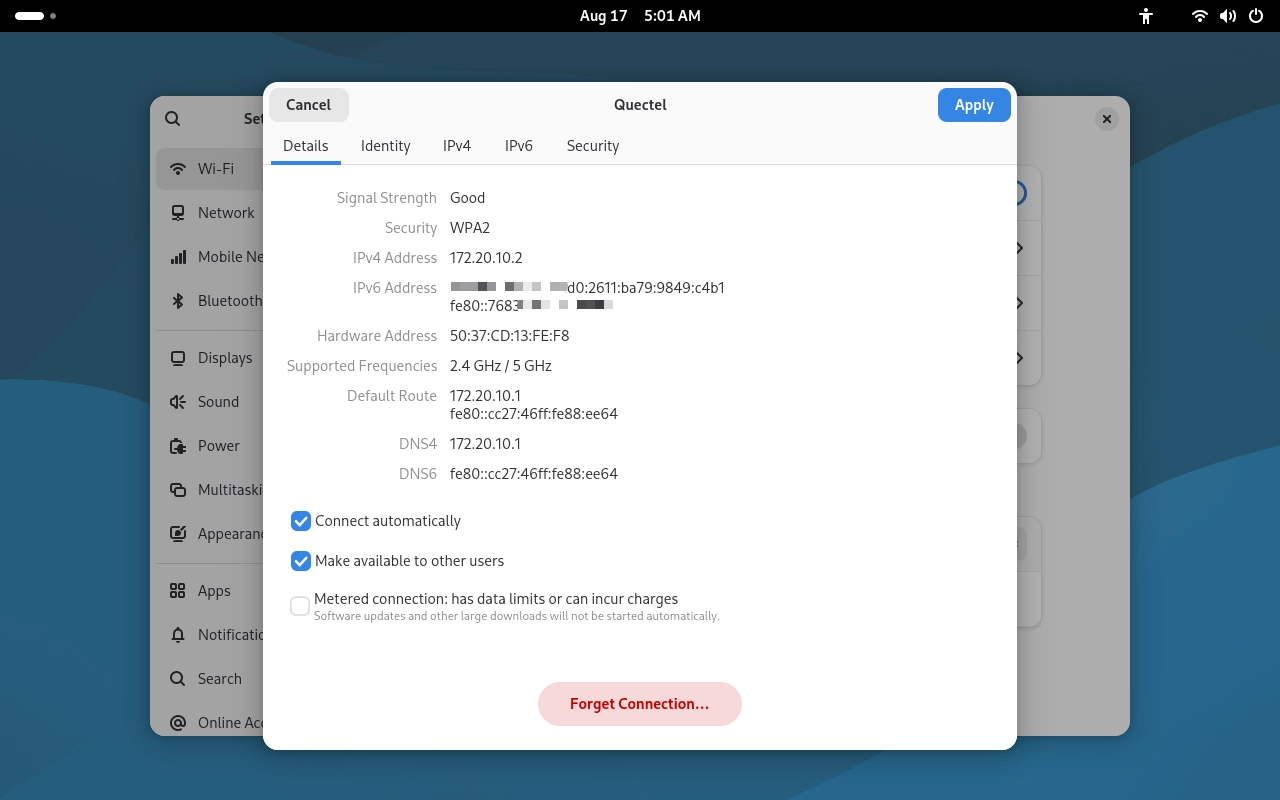
Click the options button on the right side of the connected network to view the relevant network connection information.
USB Network
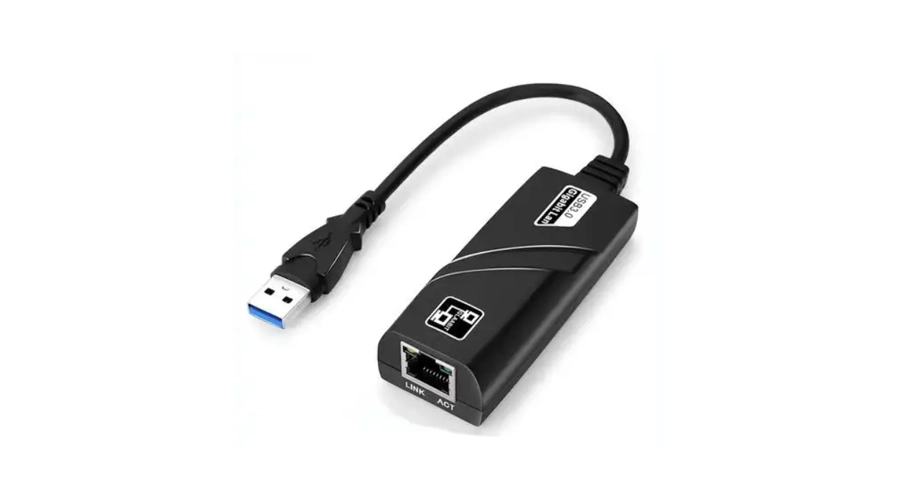
To use a USB network connection, prepare a USB Ethernet adapter. Connect the adapter to the device, and then connect an Ethernet cable to the adapter’s RJ45 port. For subsequent configuration, refer to the Ethernet configuration described above.