Productivity & Office
IBus Chinese Input Method
Introduction
Chinese input is an important feature for office use on Linux desktops. By configuring the IBus Chinese input method, users can enter Chinese text in the Debian GNOME desktop environment for daily tasks such as document editing, web browsing, and instant messaging.
This document describes how to install, configure, and verify the IBus Chinese input method on the Quectel Pi M1 Debian system, helping users quickly set up a Chinese input environment.
Applicable Scenarios
After IBus is configured, Chinese text can be entered in applications such as:
Firefox browser
Text Editor
LibreOffice and other office applications
Terminal
Other applications that support GTK / Qt input frameworks
Applicable Platform
[电子表格]
Installation and Configuration
Install IBus Packages
Note: The following operations are performed through ABD Shell.
Update the package repository:
apt update
Install IBus and the Pinyin input engine:
apt install ibus ibus-pinyin
Configure User Environment Variables
Switch to the desktop user through ADB:
su - <username> For example:su - pi
Create the .xprofile file:
cat > ~/.xprofile <<EOF
export GTK_IM_MODULE=ibus
export QT_IM_MODULE=ibus
export XMODIFIERS=@im=ibus
EOF
Check the configuration:
cat ~/.xprofile
The following content should be displayed:
export GTK_IM_MODULE=ibus
export QT_IM_MODULE=ibus
export XMODIFIERS=@im=ibus
This indicates that the IBus environment variables have been configured successfully.
Start IBus
Start IBus:
ibus-daemon -drx
Check the IBus processes:
ps -ef | grep ibus
Normally, IBus-related processes should be displayed, for example:
/usr/bin/ibus-daemon -drx
/usr/libexec/ibus-engine-simple
/usr/libexec/ibus-ui-gtk3
Configure GNOME Input Sources
Check the current input sources:
gsettings get org.gnome.desktop.input-sources sources
For example:
[('xkb', 'cn')]
Add the IBus Pinyin input source:
gsettings set org.gnome.desktop.input-sources sources "[('xkb','cn'),('ibus','pinyin')]"
Verify the configuration:
gsettings get org.gnome.desktop.input-sources sources
The following should be displayed:
[('xkb', 'cn'), ('ibus', 'pinyin')]
Configure the Shortcut Key
Set Ctrl + Space as the input source switching shortcut:
gsettings set org.gnome.desktop.wm.keybindings switch-input-source "['<Control>space']"
Verify the configuration:
gsettings get org.gnome.desktop.wm.keybindings switch-input-source
The following should be displayed:
['<Control>space']
Configure the IBus Input Engine
Configure the input engines to be loaded:
gsettings set org.freedesktop.ibus.general preload-engines "['xkb:us::eng', 'pinyin']"
Check the configuration:
gsettings get org.freedesktop.ibus.general preload-engines
The following should be displayed:
['xkb:us::eng', 'pinyin']
Configure the input engine switching order:
gsettings set org.freedesktop.ibus.general engines-order "['xkb:us::eng', 'pinyin']"
Check the configuration:
gsettings get org.freedesktop.ibus.general engines-order
The following should be displayed:
['xkb:us::eng', 'pinyin']
Disable the global engine:
gsettings set org.freedesktop.ibus.general use-global-engine false
Check the configuration:
gsettings get org.freedesktop.ibus.general use-global-engine
The following should be displayed:
false
Restart and Verify Chinese Input
After completing the above configuration, restart the device to apply the environment variables, GNOME input sources, and IBus settings.
LibreOffice Installation and Verification
Introduction
LibreOffice is a free and open-source office suite that supports common office functions such as word processing, spreadsheets, presentations, and drawing, making it suitable for everyday office use.
Install LibreOffice
apt install libreoffice -y
Function Verification
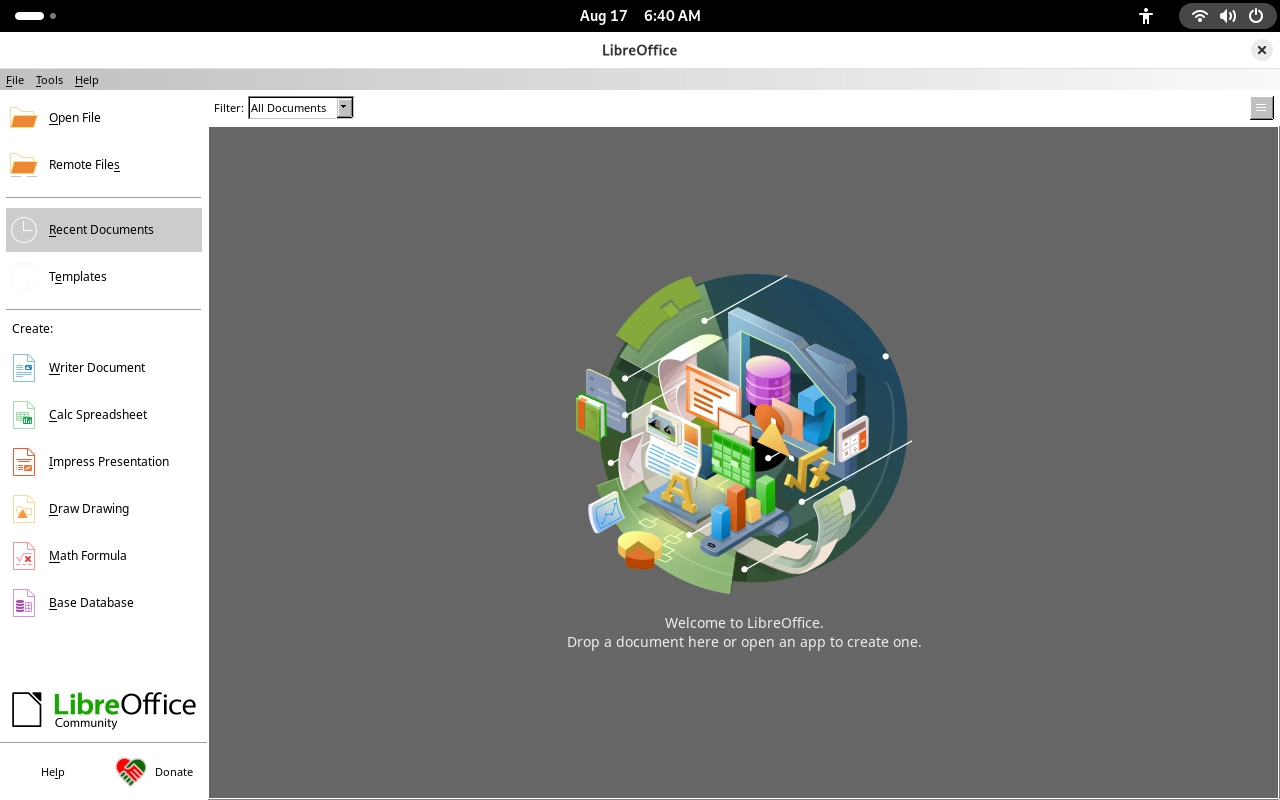
After the installation is complete, you can use the display module to verify the corresponding functions.
LibreOffice Main Interface
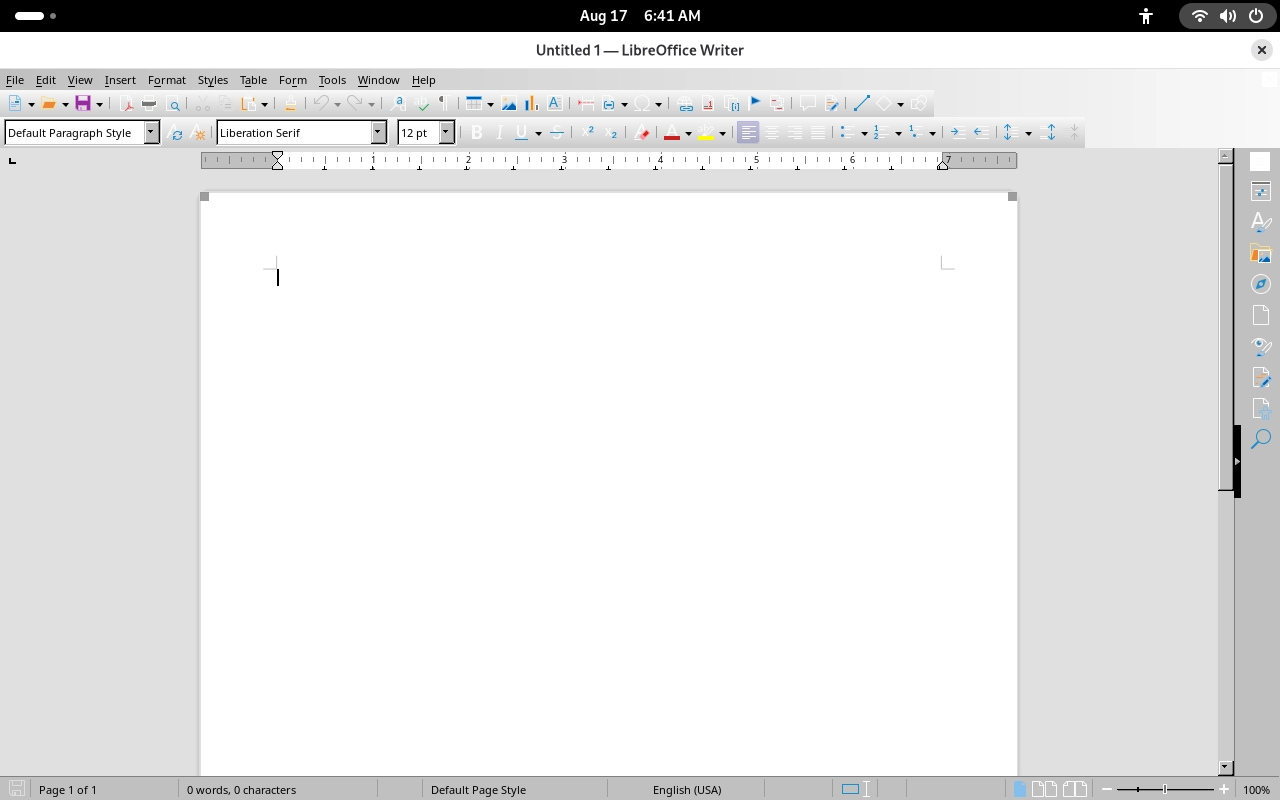
Writer Function Verification
Open Writer. A new text document can be created successfully, and the editing interface is displayed correctly.
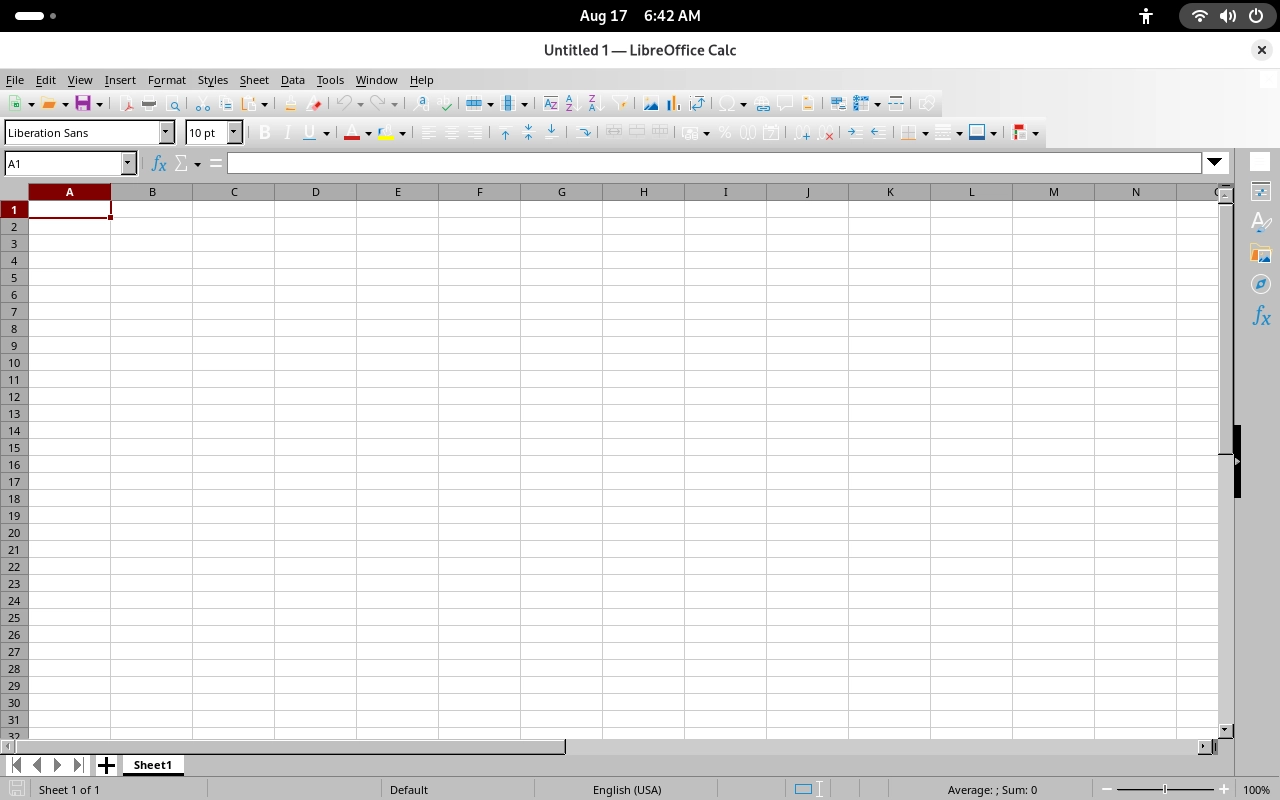
Calc Function Verification
Open Calc. A new spreadsheet can be created successfully, and the worksheet and toolbar are displayed correctly.
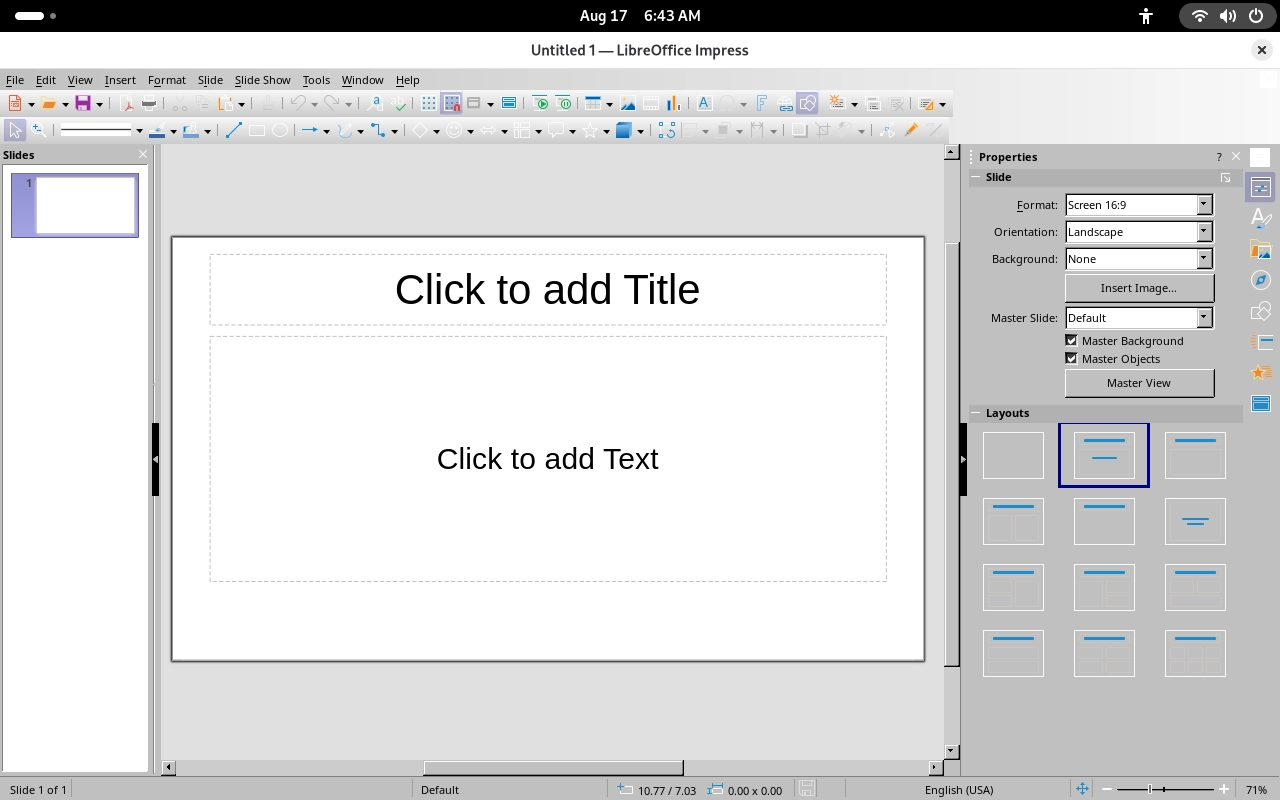
Impress Function Verification
Open Impress. A new presentation can be created successfully, and the default template can be loaded correctly.
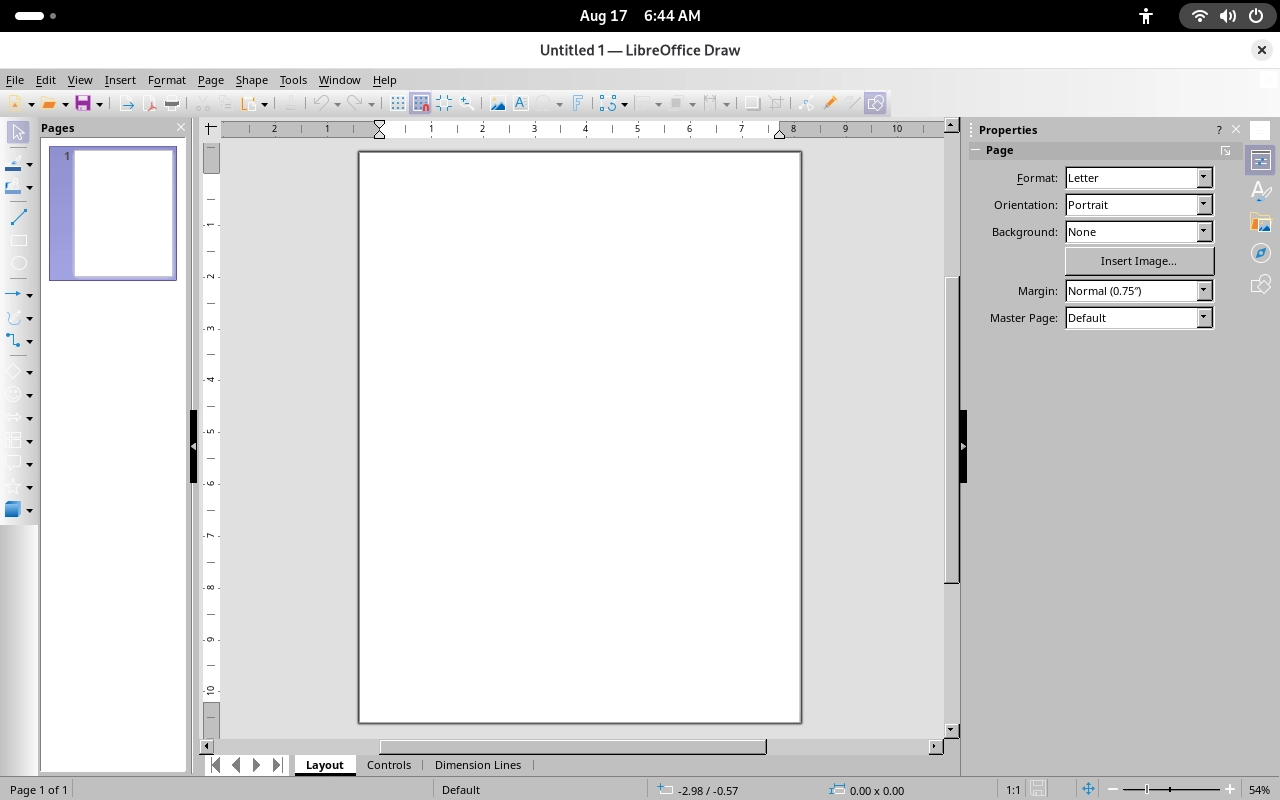
Draw Function Verification
Open Draw. A new drawing document can be created successfully, and the drawing page and toolbar are displayed correctly.
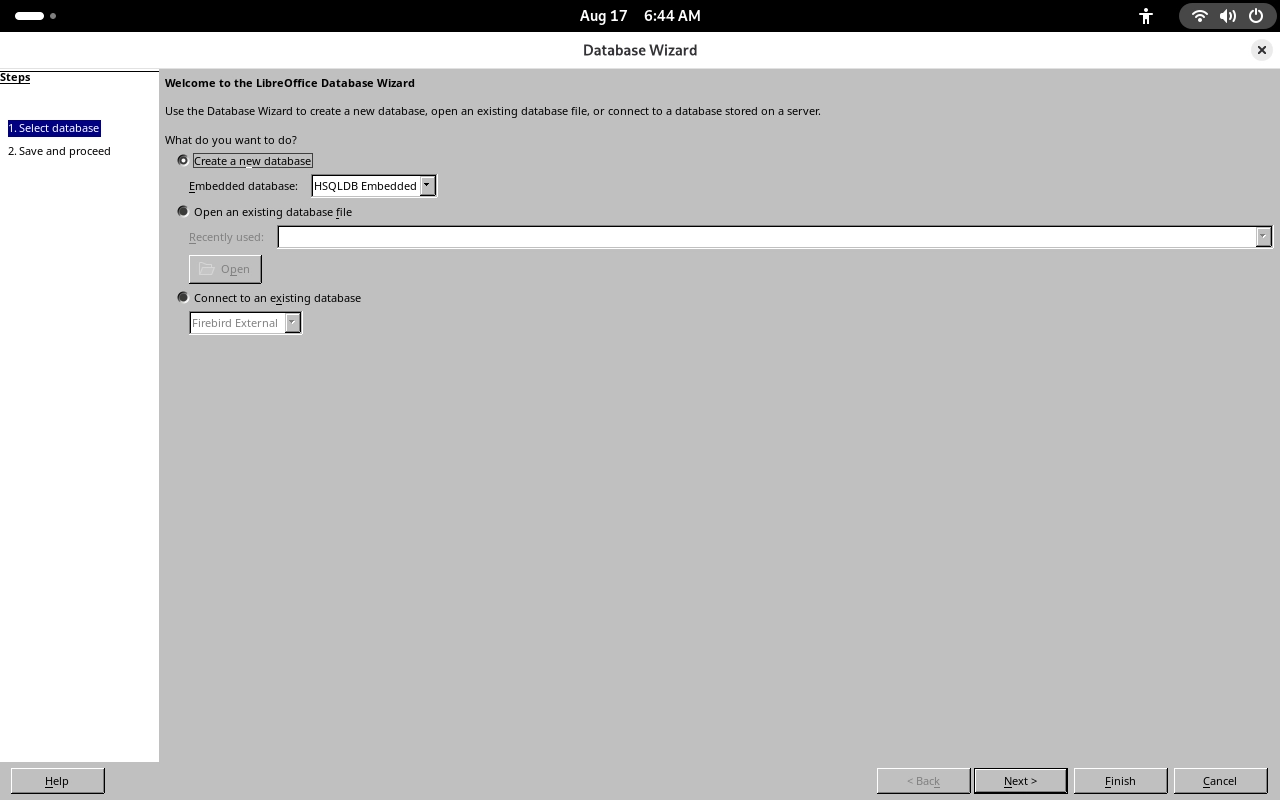
Base Function Verification
Open Base. The Database Wizard opens successfully, allowing you to create a new database, open an existing database, or connect to an external database. The interface is displayed correctly.
All office applications can be launched successfully, and their graphical interfaces are displayed correctly, meeting the daily office requirements of the Debian system.