Cellular Network
Copyright © Quectel Wireless Solutions Co., Ltd. 2026. All rights reserved.
Quectel Pi development board supports the Cellular Network feature, which uses a USIM card to connect to the operator’s LTE network for mobile data communication. This document describes how to connect the USIM card and cellular antenna, the automatic network registration logic on boot, and how to verify network status and troubleshoot common issues on the board.
After the system boots, it automatically completes modem initialization, SIM identification, operator network registration, and data dialing. Under normal conditions, the user does not need to run any dialing commands manually.
💡 Automatic registration on boot: After inserting a valid USIM card and connecting the cellular antenna, the board will automatically attempt to register with the operator’s network and establish a data connection once powered on. After a successful registration, the system creates a cellular data interface such as
rmnet_data0and obtains an IP address. If no IP is obtained, please first check the SIM card status, antenna connection, signal coverage, and the operator’s data plan.
Hardware Connection
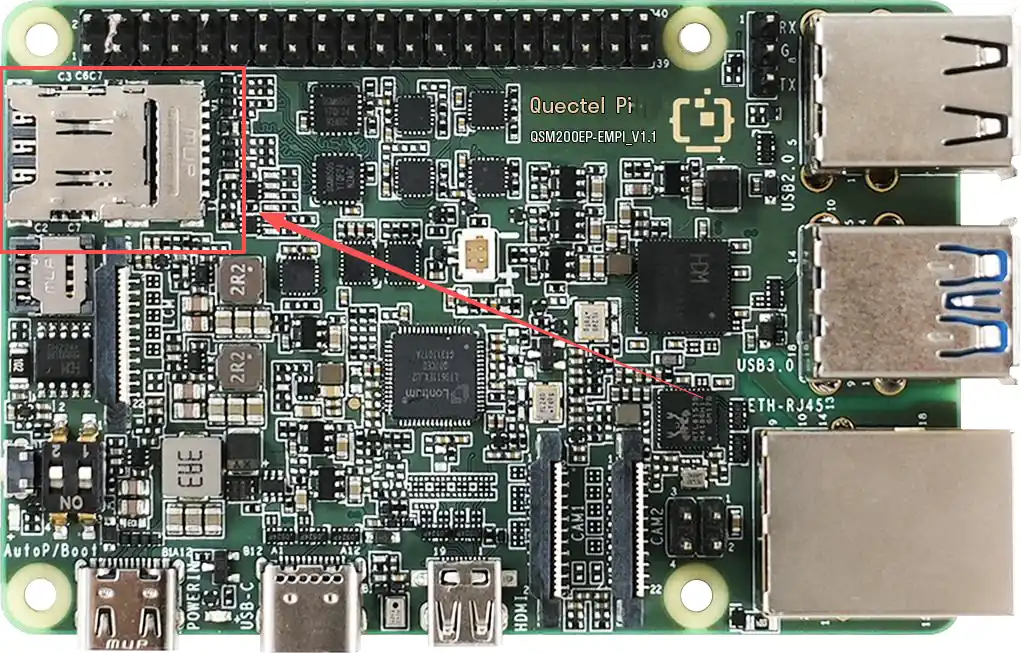
SIM card slot: Nano SIM push-pull socket. Insert a usable USIM card before powering on. Pay attention to the card orientation and contact reliability.
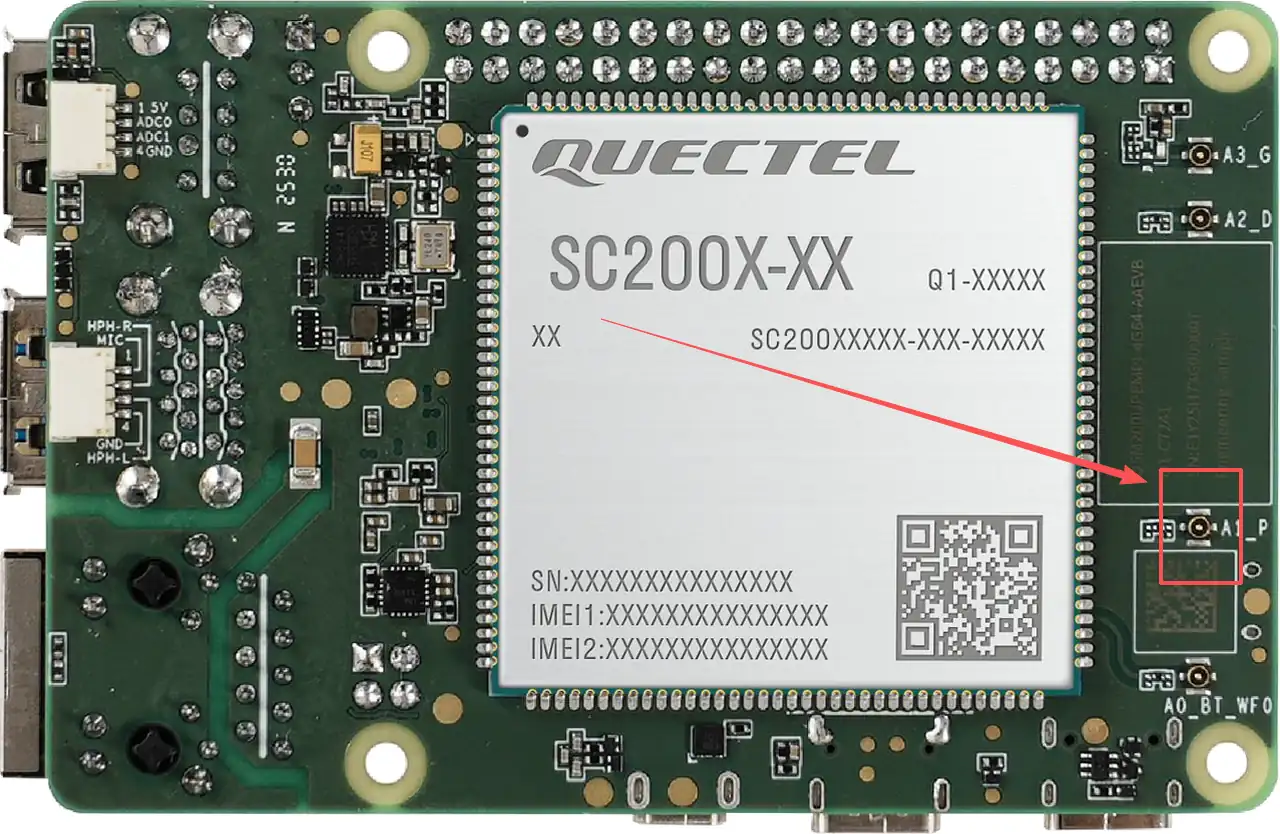
Cellular antenna connector: IPEX-4TH antenna socket. Before testing, connect the LTE main antenna and verify the network in a location with good signal and minimal obstruction.
Quick Start
Automatic Network Registration on Boot
After inserting the USIM card, connecting the cellular antenna, and powering on the board, the system automatically performs cellular network registration and data dialing. Once the system UI is up, you can open the on-device terminal or connect to the board via ADB and run the following commands to check the network status.
# Enter the on-device terminal
adb shell

# Check whether the cellular data interface is created and has an IP
ifconfig rmnet_data0
# or
ip addr show rmnet_data0

# Check the default route
ip route

# Verify external network connectivity
ping -c 4 8.8.8.8
ping -c 4 www.baidu.com
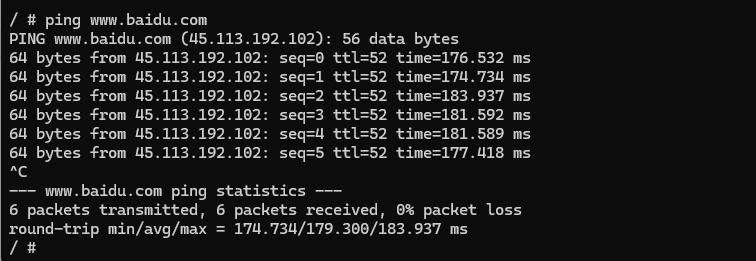
If rmnet_data0 is in the UP state and shows a valid inet addr / inet address, the cellular data dial-up is successful; at this point you can run the ping command to verify external network connectivity. The image below shows an example of cellular network connectivity verification.
Make a Call
Run the qlril-api-test command from the command line to make a call.
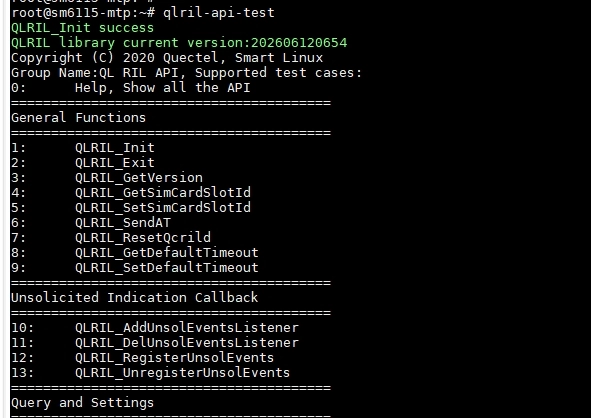
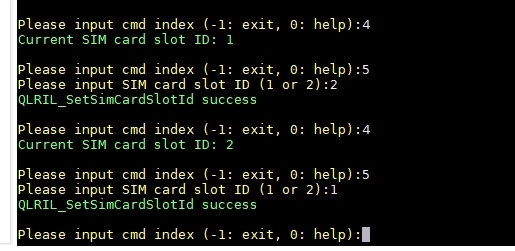
Enter 4 to query whether the current default is SIM 1 or SIM 2, and enter 5 to switch the default SIM.
The following are common commands related to voice calls.
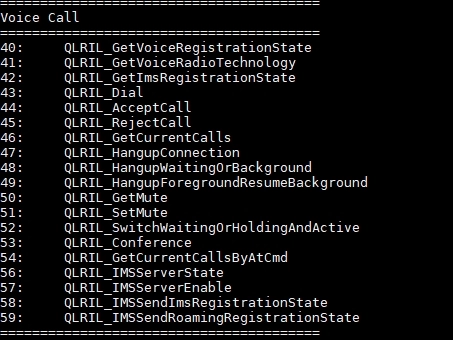
Enter 43, then enter the target phone number as prompted to make a call.

Answer a Call
When an incoming call is received, the window will show the call information. At this point, enter 44 to answer the call, 45 to reject it, and 47 to hang up.
Troubleshooting
Symptom |
Possible Cause |
Suggested Troubleshooting |
|---|---|---|
|
The modem is not initialized, the RIL/data service is abnormal, or the cellular data link has not been brought up. |
Run |
|
The SIM card is not properly recognized, network registration is incomplete, the signal is weak, the data plan is not enabled, or the APN configuration is incorrect. |
Confirm that the USIM card is usable and inserted in the correct orientation. Check the antenna connection and signal environment; if necessary, replace the card, change the location, or check the modem/SIM status. |
IP obtained but external network is unreachable |
The default route, DNS, operator network, or connectivity to the target address is abnormal. |
First run |
Unstable network or intermittent connection |
The antenna is poorly connected, signal coverage is weak, or the test environment has obstruction or interference. |
Re-plug and secure the antenna. Move the board to a location with better signal, and observe the |
On-Device Verification Commands
When performing maintenance or troubleshooting, you can first collect the following information to confirm the interface, routing, and network connectivity:
adb shell
ifconfig -a
ip addr show rmnet_data0
ip route
ping -c 4 8.8.8.8
ping -c 4 www.baidu.com

# If ModemManager is integrated, you can further check the modem/SIM status
mmcli -L
mmcli -m 0
Conclusion
The cellular network automatically registers and establishes a data connection after boot. Under normal conditions, after inserting a valid USIM card and connecting the cellular antenna, the system will show rmnet_data0 with an IP address; the user only needs to follow the commands in this document to confirm the interface, routing, and connectivity.