IPC Console
Copyright © Quectel Wireless Solutions Co., Ltd. 2026. All rights reserved.
This project uses the Quectel Pi M2 intelligent main control board as the edge computing and desktop application running platform, which is suitable for RTSP-enabled network cameras as well as intelligent vision scenarios that require PTZ control, real-time preview, snapshot and video recording. The application manages ONVIF and RTSP separately: RTSP is responsible for real-time preview and video recording, while ONVIF takes charge of device information, media configuration, snapshot address and PTZ control.
List of Development Accessories
Note: The following are recommended development accessories, which can be flexibly adjusted according to the target platform, camera type and display scenario in actual use.
Part Name |
|
Specifications or Requirements |
|---|---|---|
Quectel Pi M2 Intelligent Main Control Board 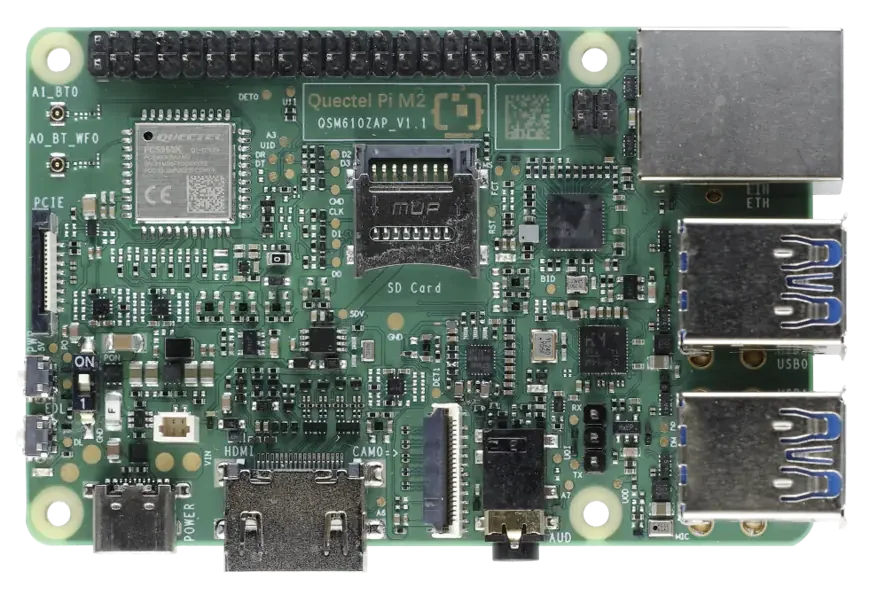 |
1 unit |
Quectel Pi M2 Intelligent Main Control Board |
webcam 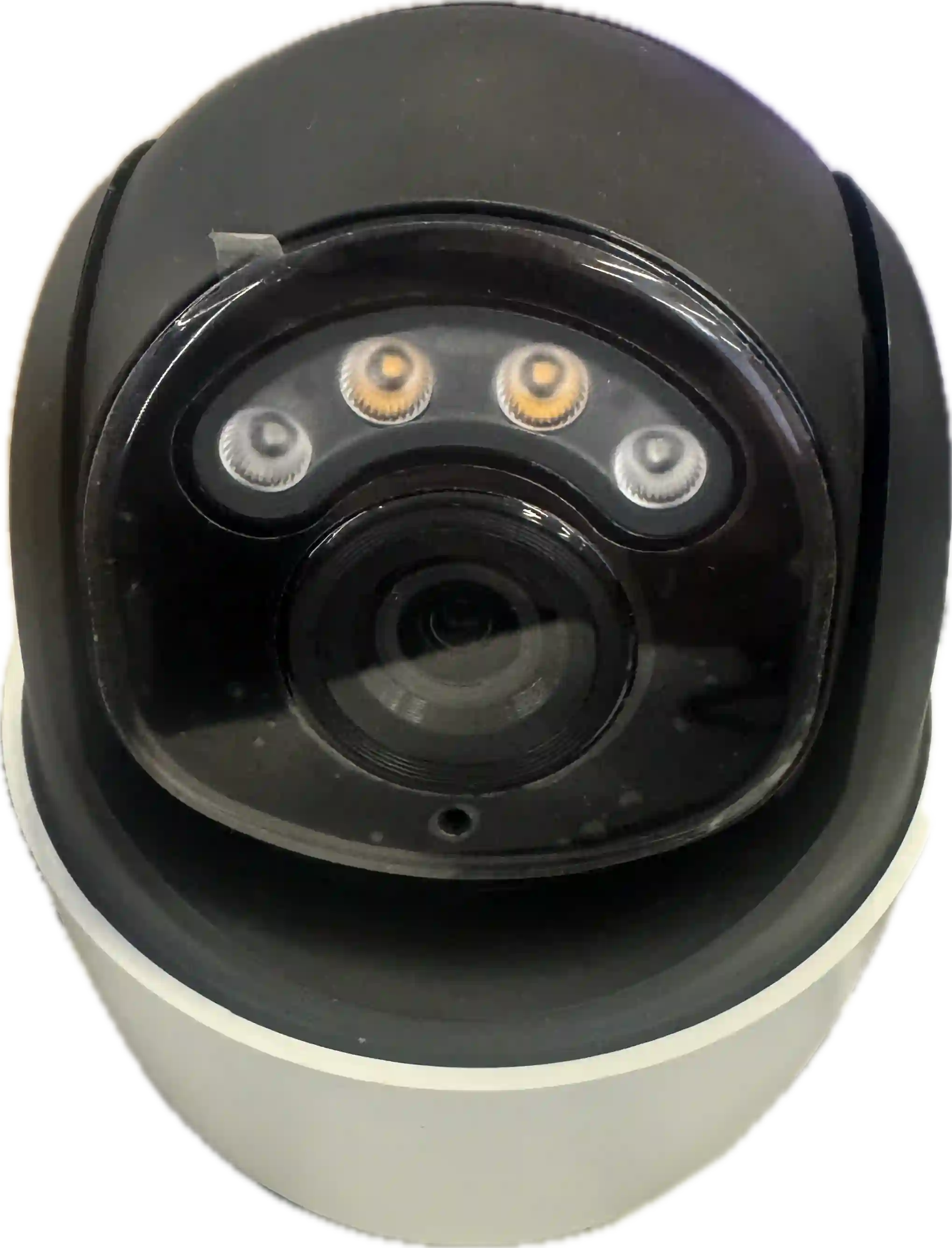 |
one |
RTSP supported; ONVIF PTZ support is required if PTZ and zoom functions are needed |
Network Connecting Device  |
1 set |
Routers, switches, or wireless networks that can access the camera subnet |
monitor  |
1 unit |
Minimum recommended: 960 × 680; preferred: 1280 × 800 or higher |
Quick Start
Operational Requirements
This project uses Quectel Pi M2 as the main verification platform. After Quectel Pi M2 runs Linux desktop environment, it can directly carry the GTK3 graphical interface, OpenCV video preview, and FFmpeg recording tasks of this project. In addition to Quectel Pi M2, 64-bit ARM or x86 Linux hosts with the same software conditions can also be used for development and compatibility verification.
hardware requirements
Quectel Pi M2 Intelligent Main Control Board; other 64-bit ARM or x86 Linux hosts/development boards are also acceptable for compatibility verification.
Minimum: dual-core CPU, 1 GB RAM; Recommended: quad-core CPU, 2 GB RAM or more.
X11 or Wayland desktop session.
Minimum display resolution: 960 × 680; recommended resolution: 1280 × 800 or higher.
The host can access the ONVIF service port and RTSP port of the camera.
The camera supports RTSP; ONVIF PTZ is additionally required when pan-tilt and zoom functions are needed.
Software Requirements
Python 3.9 or a later version.
GTK3 and PyGObject.
OpenCV Python bindings.
FFmpeg and ffprobe.
Bash。
Install system dependencies
The following commands take Debian/Ubuntu as an example:
sudo apt update
sudo apt install -y python3 python3-gi gir1.2-gtk-3.0 python3-opencv ffmpeg
Check whether critical commands are available:
python3 --version
ffmpeg -version
ffprobe -version
Check network connectivity
Replace the camera address and port in the command with the actual values:
ip route get 192.168.1.100
nc -vz 192.168.1.100 80
nc -vz 192.168.1.100 554
Some cameras disable ICMP, so a ping failure does not necessarily mean that ONVIF or RTSP is unavailable. It is recommended to use nc to check the corresponding service port first.
Create a configuration file
Navigate to the project directory and copy the configuration template:
cd project/camera-control
cp .env.example .env
Edit . env, and replace the sample address, account and password with the actual camera configurations:
CAMERA_IP=192.168.1.100
CAMERA_USER=admin
CAMERA_PASSWORD=your-camera-password

ONVIF_USER=admin
ONVIF_PASSWORD=your-camera-password
ONVIF_PORT=80
ONVIF_URL=http://192.168.1.100:80/onvif/device_service
RTSP_URL=rtsp://192.168.1.100:554/Streaming/Channels/101
ONVIF paths, RTSP paths, ports, and account permissions may vary across different manufacturers and models. The application interface also supports direct editing of complete ONVIF service URLs and RTSP stream URLs.
Launch the application
After completing the system startup of the Quectel Pi M2, monitor connection, network connection and camera connection, navigate to the project directory in the terminal of the main control board. It is recommended to connect the camera and the Quectel Pi M2 to the same local area network, or configure a route for the main control board that can access the camera’s subnet.
It is recommended to use the startup script provided by the project:
./run_desktop.sh
The startup script will enter the project directory and automatically load . env (if it exists) to supplement the default environment variables, then execute:
python3 desktop_app.py
Application Interface Description
Main Interface Layout
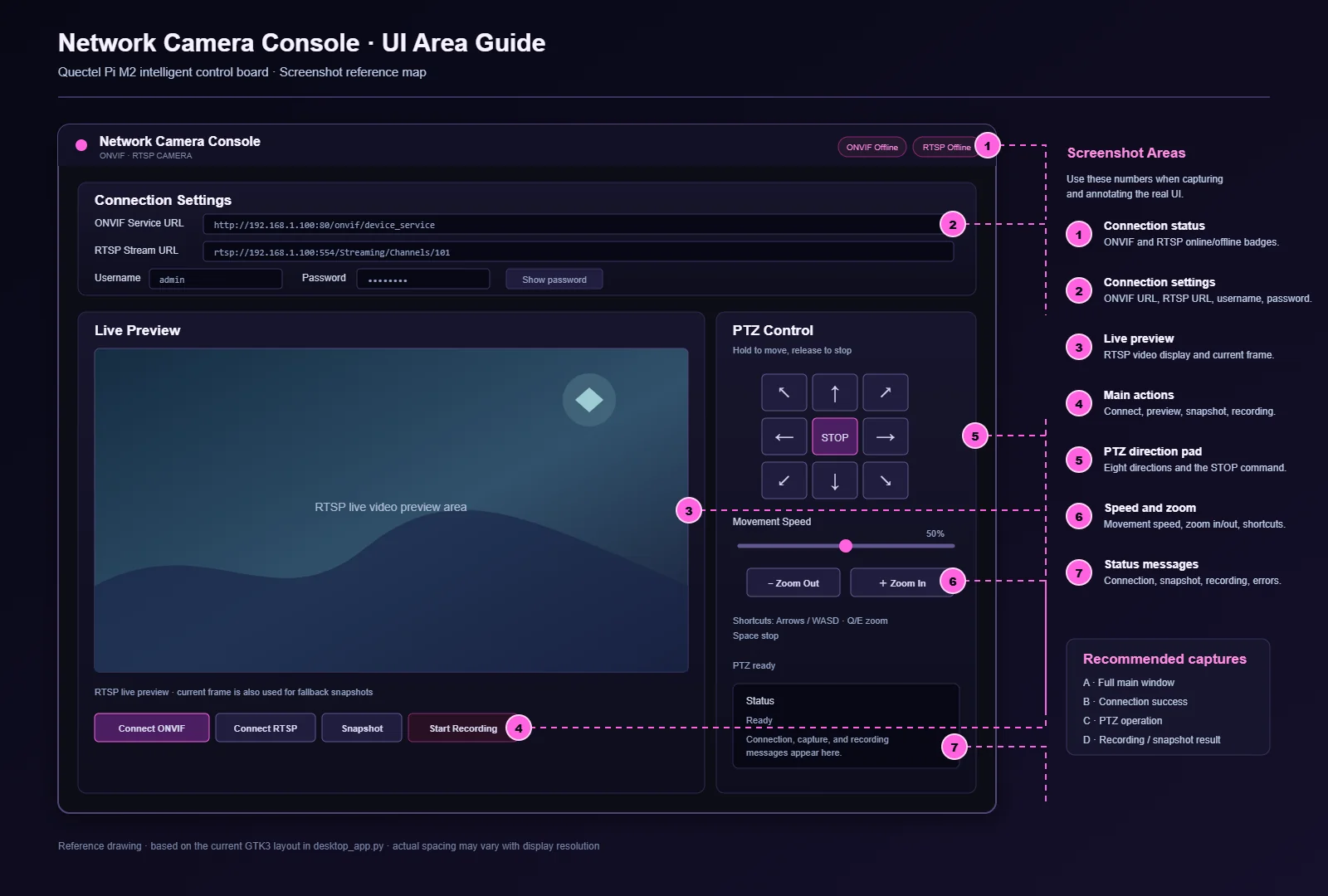
The main interface mainly consists of the following areas:
Top Title and Connection Status: Displays the application name, as well as the current status of ONVIF and RTSP.
Connection Settings: Fill in the ONVIF service URL, RTSP stream URL, username and password.
Live Preview: Displays real-time RTSP video feed.
Operation buttons: provide
Connect ONVIF,Connect RTSP,SnapshotandStart Recording.PTZ Control: Supports 8-directional movement, stop, zoom, and movement speed adjustment.
Status Area: Displays connection, preview, snapshot, video recording and error information.
Meaning of Connection Status
Status |
Meaning |
|---|---|
|
Not connected or ONVIF connection failed |
|
Detecting ports and initializing the ONVIF service |
|
ONVIF initialized successfully, PTZ is available; if the device supports it, ONVIF snapshot is also available |
|
RTSP preview has not been started |
|
Opening RTSP stream |
|
RTSP preview is working properly |
|
The RTSP address, account, port, or network is unavailable |
ONVIF and RTSP can be connected in any order. Live preview and video recording do not rely on ONVIF; PTZ control requires a successful ONVIF connection.
Basic Operations
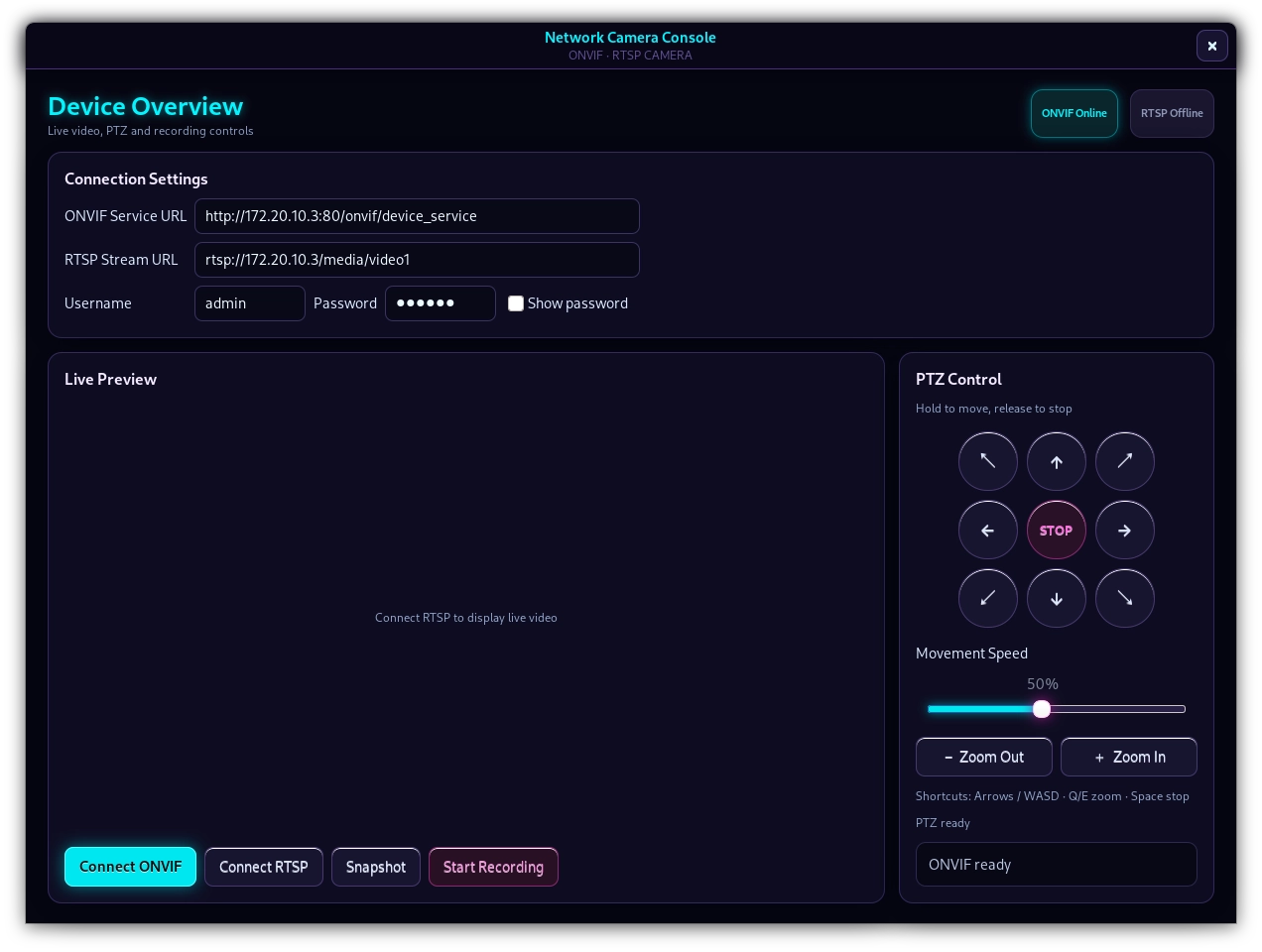
Connect to ONVIF
Enter the complete ONVIF device service address in the
ONVIF Service URLfield.Enter
UsernameandPassword.Click
Connect ONVIF.Wait for the top status to switch to
ONVIF Online.The application will attempt to read the device information, capabilities, media configuration, video stream address and snapshot address.
If the camera supports GetStreamUri, the application may synchronize the video stream address returned by the camera to the RTSP settings. If the device does not support GetSnapshotUri, the application will use the current frame in the RTSP preview screen as the source for snapshot capture.
Connect to RTSP and view the preview
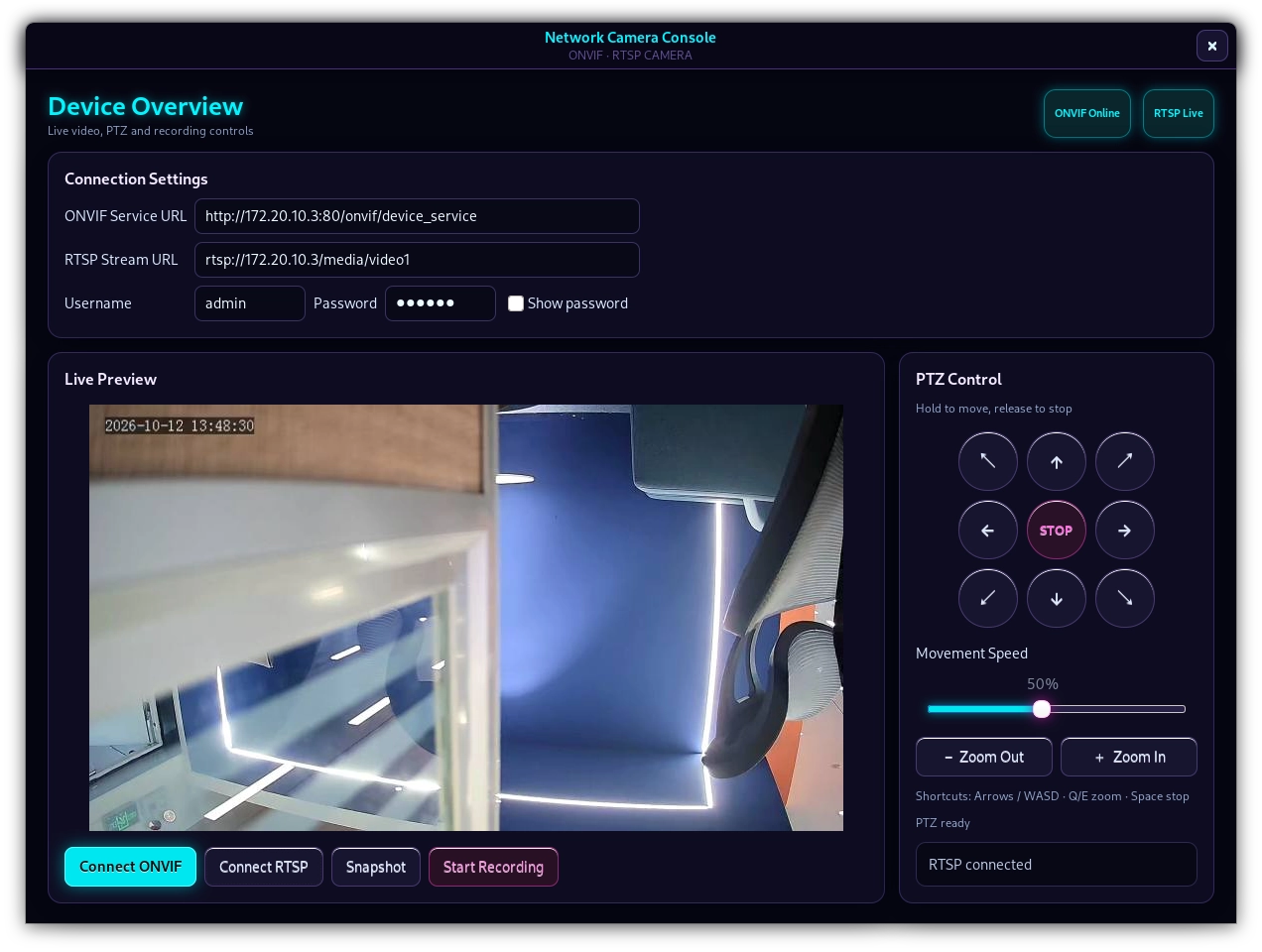
Enter the full RTSP address in the
RTSP Stream URLfield.Verify that the account credentials are correct; the application will encode the authentication information contained in the RTSP URL.
Click
Connect RTSP.Wait for the top status to display
RTSP Live, and the real-time video will be shown in theLive Previewarea.
If the RTSP preview is already running, connecting to a new address again will first stop the old preview before opening the new address.
PTZ Pan/Tilt Control
PTZ control requires the camera to support ONVIF PTZ and have successfully connected to ONVIF.
In the
Movement Speedslider, select the movement speed, which ranges from 10% to 100%.Hold the direction button to move the gimbal, and release the button to stop the movement.
Click the
STOPbutton in the middle to send a stop command immediately.Use
Zoom OutandZoom Into adjust the zoom; you also need to hold down the controls and release them once done.
Supports eight directions: up, down, left, right, top-left, top-right, bottom-left, and bottom-right.
You can also use keyboard shortcuts:
button |
Operation |
|---|---|
Arrow Keys / |
PTZ movement |
|
Zoom Out |
|
Zoom In |
Spacebar |
Stop |
When the cursor is in the URL, username or password input box for editing, keyboard shortcuts will not trigger PTZ operations.
Capture
First connect to ONVIF, or start RTSP preview first.
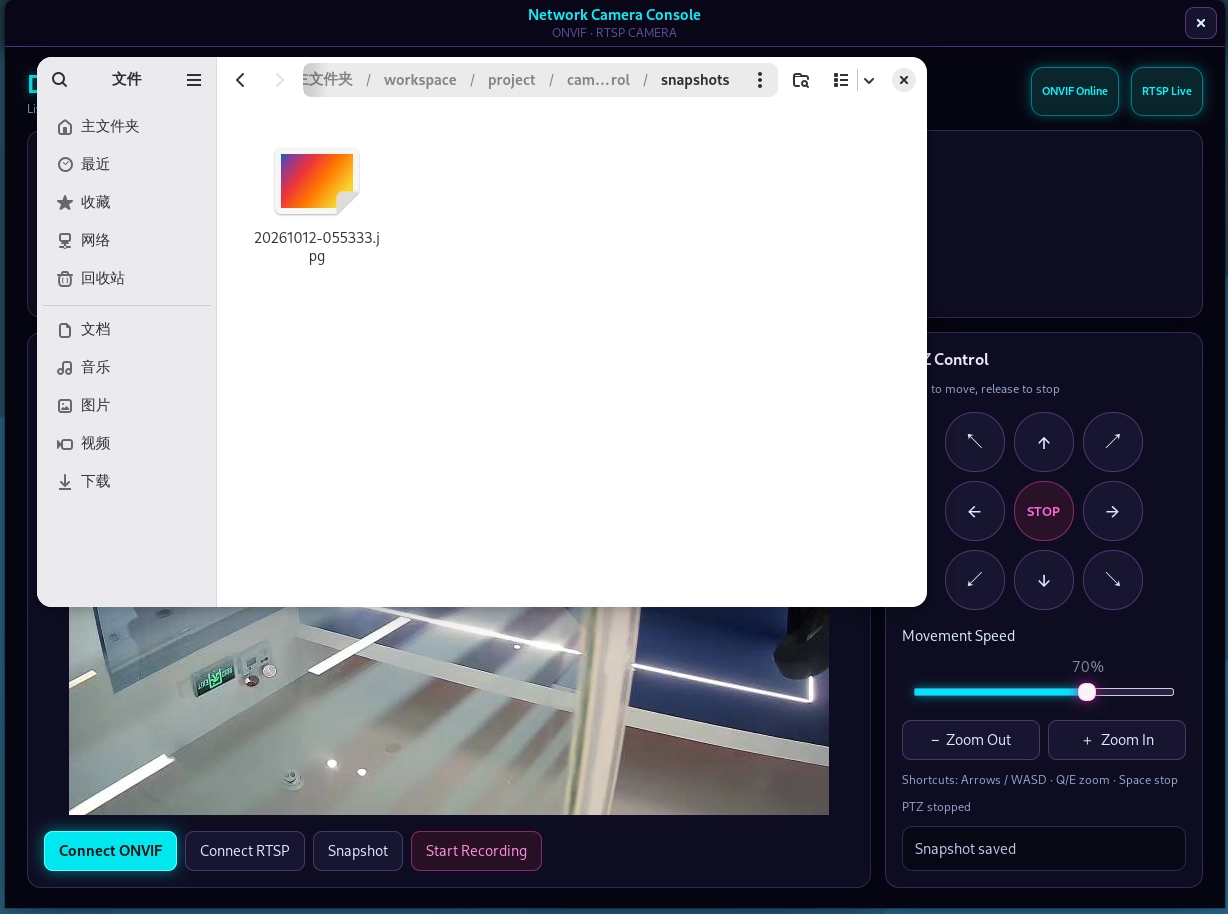
Click
Snapshot.The waiting status area displays
Snapshot saved.Check the JPG files in the
snapshots/directory of the project.
The capture source is selected in the following order:
If ONVIF provides a snapshot capture address, ONVIF snapshot capture shall be used with priority.
If ONVIF does not support the snapshot address, save the current RTSP preview frame.
When capturing the current frame via RTSP, you must wait until the preview screen is successfully displayed first.
The output file name format is as follows:
snapshots/snapshot-YYYYMMDD-HHMMSS.jpg
video
First click
Connect RTSP, and confirm that the status isRTSP Live.Click
Start Recordingto start recording.The button will switch to the stop state, and the status area will display the file name being written.
Click the recording button again to stop recording.
Wait for the MP4 encapsulation to complete, then check the file in the
recordings/directory.
The video is recorded using FFmpeg to read video streams via RTSP over TCP:
The first video stream is saved in direct copy mode without re-encoding H. 264/HEVC.
The optional first audio stream is converted to MP4-compatible AAC.
Send an interrupt signal when stopping the recording to give FFmpeg a chance to complete the MP4 encapsulation properly.
The output file name format is as follows:
recordings/recording-YYYYMMDD-HHMMSS.mp4
Output Files and Data Security
The following directories will be created automatically when the project is running:
recordings/   # MP4 recordings
snapshots/    # JPG snapshots
It is recommended to note the following items:
Do not submit a
. envfile that contains real passwords.Do not submit private addresses, real accounts, sensitive videos or captured images to public repositories.
It is recommended to create a dedicated account with restricted permissions for the camera.
Recording will continuously occupy disk space. During long-term operation, regular cleanup or additional disk quota management should be implemented.
HEVC preview may consume significant CPU resources; if the video appears laggy, you can lower the bit rate, reduce the resolution, or switch to an H. 264 stream instead.
Troubleshooting for Common Issues
The application fails to start, prompting that GTK or PyGObject is missing
Verify that system dependencies are installed:
sudo apt update
sudo apt install -y python3-gi gir1.2-gtk-3.0 python3-opencv ffmpeg
Verify that the current session is running a desktop environment and that a usable display environment (X11 or Wayland) is available.
ONVIF connection failed
Check
the ONVIF Service URLto confirm it is a complete address, and that the path and port match the camera model.Check
ONVIF_USER,ONVIF_PASSWORDor the account and password on the interface to make sure they are correct.Use
nc -vz camera_IP ONVIF_portto check the port connectivity.Ensure that the camera has ONVIF enabled and the current account has ONVIF/PTZ permissions.
View detailed diagnostic output in the terminal; the interface displays a brief status, while the terminal outputs more specific error details.
RTSP fails to open or shows the status RTSP Unreachable
Check the protocol, IP address, port and path of the RTSP URL.
Confirm that the default RTSP port is usually 554, but the specific value shall be subject to the camera configuration.
Check the RTSP account, password and stream permissions.
Use
nc -vz Camera_IP 554to check the port.Make sure that the camera does not restrict the Client IP, and that the host route points to the correct camera network.
RTSP connected but no video displayed
Confirm that the camera outputs a valid video stream.
Preferentially test the main stream or sub-stream address of the camera.
Check whether the system has installed the FFmpeg support for OpenCV.
If HEVC is used, check whether the host CPU is capable of handling software decoding; switch to H. 264 stream when necessary.
Close and reconnect the RTSP stream, and check whether any frame reading errors appear in the terminal output.
Capture failed
If using ONVIF for snapshot capture, confirm that the camera has implemented
GetSnapshotUri.If the device does not support ONVIF snapshot, first connect to RTSP and wait for the video to display, then click
Snapshot.Check the write permission for the
snapshots/directory and the disk space.
Failed to start recording or the MP4 file cannot be played
Confirm that the RTSP preview has been successfully connected.
Confirm
ffmpegandffprobeare installed and executable.Check for FFmpeg errors in the terminal output, with focus on the RTSP address, audio and video encoding, and permissions.
Ensure that
recordings/directory is writable and there is sufficient disk space.Please wait for the status indication after stopping the recording
Recording saved, and do not force quit the application before the file encapsulation is completed.
Application Demo
Technical Support and Contributions
You are welcome to submit Issues or Pull Requests to provide feedback on device compatibility, ONVIF/RTSP address discrepancies, UI issues and feature suggestions. If you encounter any problems during use, please feel free to Quectel Official Forum to submit a technical consultation, and our technical support team will respond to you promptly.