USB Camera
Copyright © Quectel Wireless Solutions Co., Ltd. 2026. All rights reserved.
This project adopts Quectel Pi M2 as the main operating platform for camera applications, supporting real-time preview, photo capture, video recording, multi-camera selection, camera re-scanning and error prompts, and is applicable to desktop cameras, development board camera terminals, edge vision devices and product function demonstrations based on Quectel Pi M2.
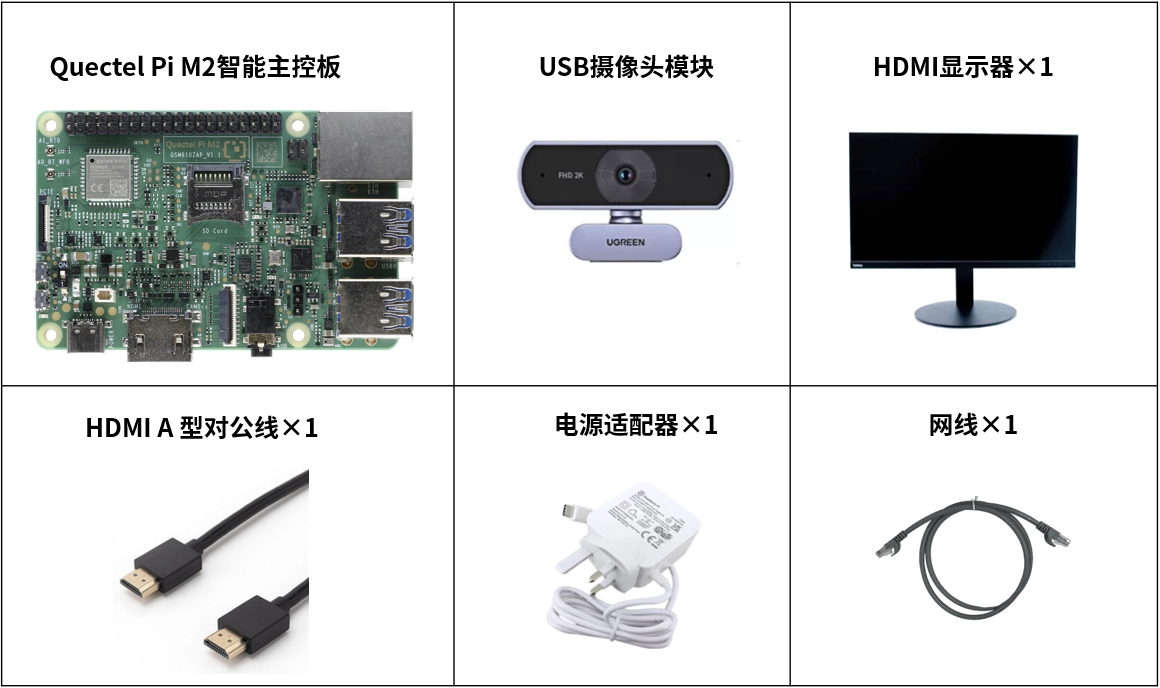
List of Development Accessories
Note: The following are recommended development accessories, which can be flexibly adjusted according to the target platform and display scenario in actual use.
Part Name |
|
Specifications or Requirements |
|---|---|---|
Quectel Pi M2 Intelligent Main Control Board |
1 piece |
Quectel Pi M2 Intelligent Main Control Board |
USB UVC Camera |
one or more |
Can be recognized by Quectel Pi M2 Intelligent Main Control Board as a V4L2 device; MJPEG format with 30 FPS or higher frame rate is recommended. |
USB data cable |
one or more |
Used to connect cameras and Quectel Pi M2 Intelligent Main Control Board; for multi-camera scenarios, please confirm the USB bandwidth and power supply capacity |
monitor |
1 unit |
Used to run desktop applications and view real-time previews |
keyboard, mouse |
1 each |
for application operations in desktop environments |
Parts Physical Reference
Quick Start
Environmental Requirements
Quectel Pi M2 Intelligent Main Control Board runs a Linux desktop environment.
Linux hosts with the same software specifications can be used for development and compatibility verification, but the project is primarily targeted at deployment on the Quectel Pi M2.
Qt 5.15 or a compatible version.
A C++ compiler that supports C++ 11.
qmake,make, andpkg-config.GStreamer 1.0 runtime and development packages.
One or more accessible V4L2 cameras.
The video recording function requires at least one available H. 264 encoder plugin.
Install basic dependencies
This project uses the Quectel Pi M2 intelligent main control board as the primary verification platform. Please first ensure that the main control board has successfully booted into the Linux desktop environment, with a display, keyboard and mouse connected, then follow the steps below to install dependencies. In addition to the Quectel Pi M2, Linux hosts equipped with the same Qt, GStreamer and V4L2 software requirements can also be used for compatibility verification.
Software package names may vary across different Linux distributions. The following commands are provided for reference based on Debian/Ubuntu systems, please adjust them according to the Qt version and GStreamer package names of your target system.
sudo apt update
sudo apt install -y \
  build-essential \
  qt5-qmake qtbase5-dev qtdeclarative5-dev \
  pkg-config \
  libgstreamer1.0-dev \
  libgstreamer-plugins-base1.0-dev \
  gstreamer1.0-tools \
  gstreamer1.0-plugins-base \
  gstreamer1.0-plugins-good \
  gstreamer1.0-plugins-bad \
  gstreamer1.0-plugins-ugly \
  gstreamer1.0-libav
Note: Some systems may require additional installation of runtime packages related to Qt Quick Controls 2. If using a hardware H. 264 encoder, the GStreamer encoder plugin corresponding to the target platform also needs to be installed.
Check the camera and plugins
Check if the system detects the camera:
ls /dev/video*
Check the plug-ins required for preview:
gst-inspect-1.0 v4l2src
gst-inspect-1.0 appsink
gst-inspect-1.0 jpegdec
gst-inspect-1.0 videoconvert
Check the video encoder:
gst-inspect-1.0 mpph264enc
gst-inspect-1.0 x264enc
gst-inspect-1.0 openh264enc
gst-inspect-1.0 avenc_h264
As long as at least one H. 264 encoder check succeeds, the application can attempt to start the video recording function.
Set camera access permissions
If the application prompts that there is no camera access permission, first check the user group to which the current user belongs:
groups
Add the current user to the video user group and log in again:
sudo usermod -aG video "$USER"
You can also check the device permissions temporarily:
ls -l /dev/video*
compile the project
Navigate to the project directory and run:
cd camj/camapp_latest
qmake camapp.pro
make -j"$(nproc)"
If multiple Qt versions are installed on the system at the same time, please use the one corresponding to the target Qt version qmake.
Launch the application
./camapp
After startup, the app will automatically scan the camera and attempt to select the best capture mode. By default, MJPEG is preferred, with comprehensive consideration given to both frame rate and resolution.
Application Usage Instructions
Main Interface
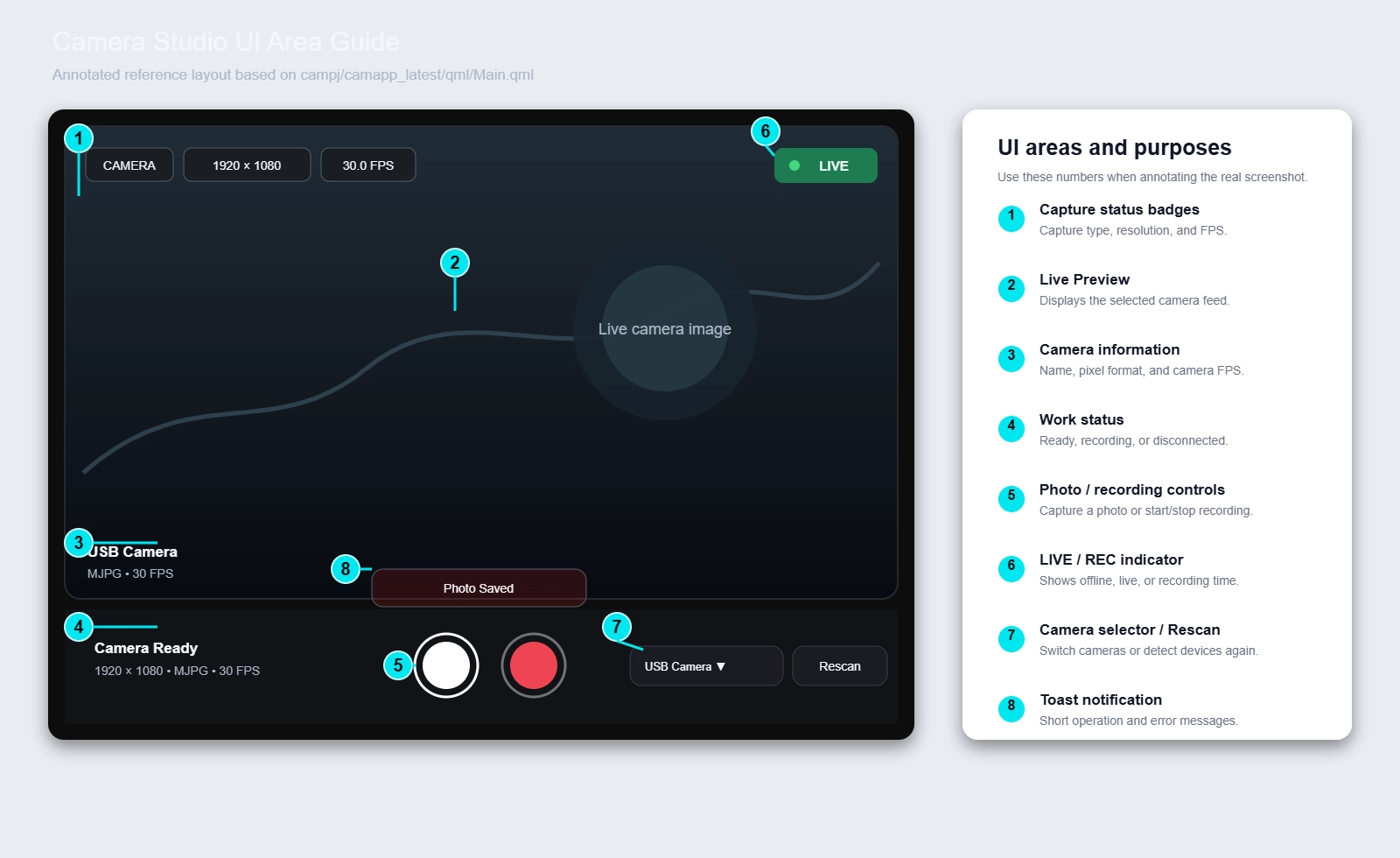
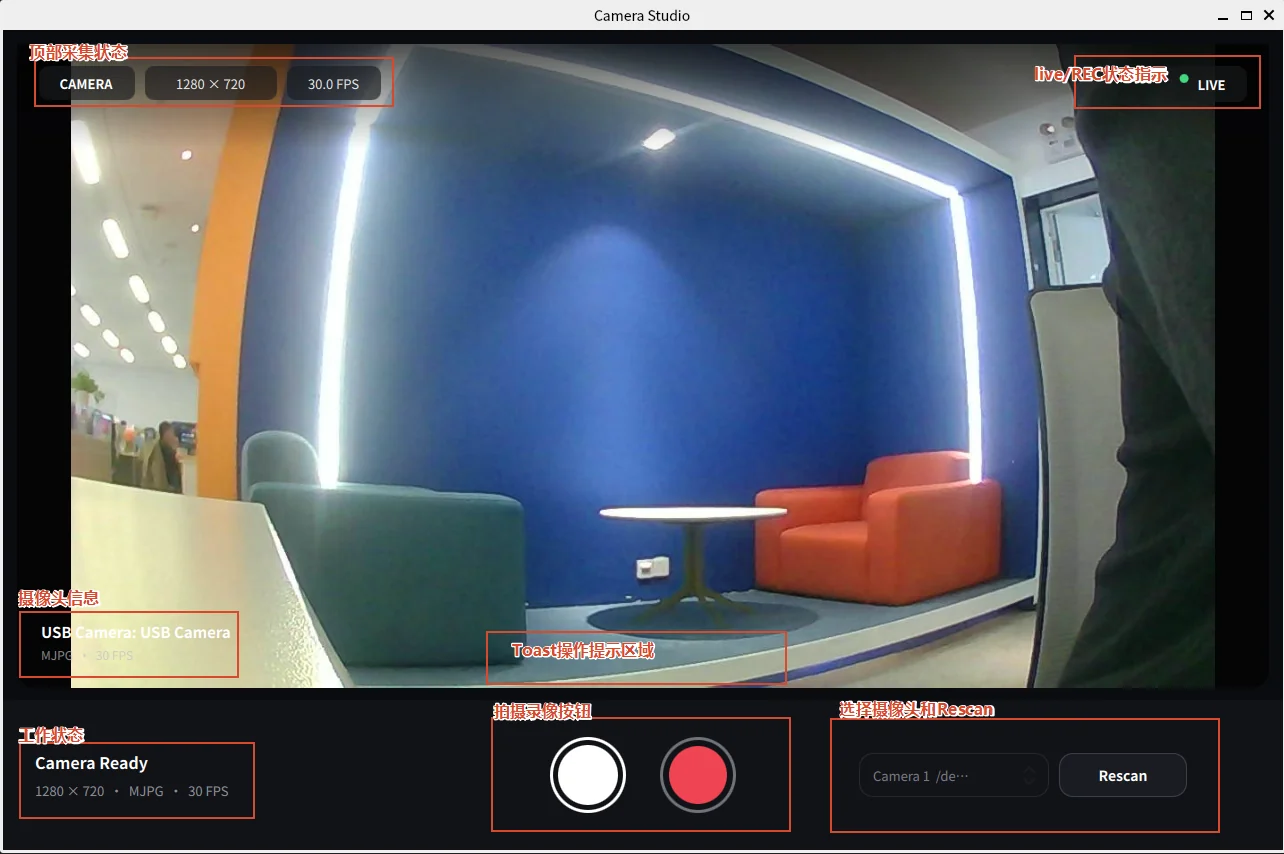
The main interface mainly consists of the following areas:
Top collection status
Live Preview Area
Camera Information
working status
Photo/Video Button
LIVE/REC Status Indicator
Camera Selection and Rescan
Toast operation prompt
Take a photo
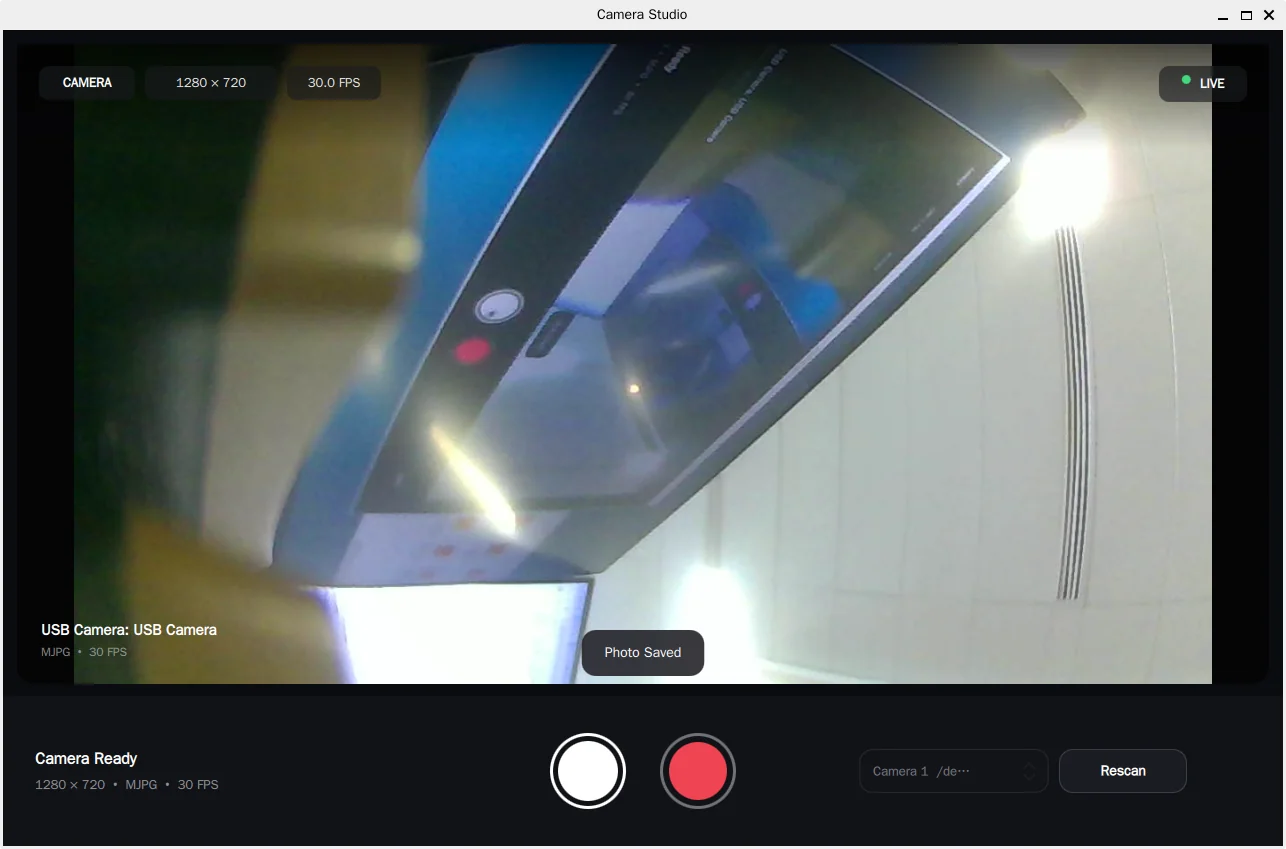
Connect and confirm that the camera is displaying a live feed.
Tap the photo button.
Wait for the on-screen prompt to confirm that the photo has been saved successfully.
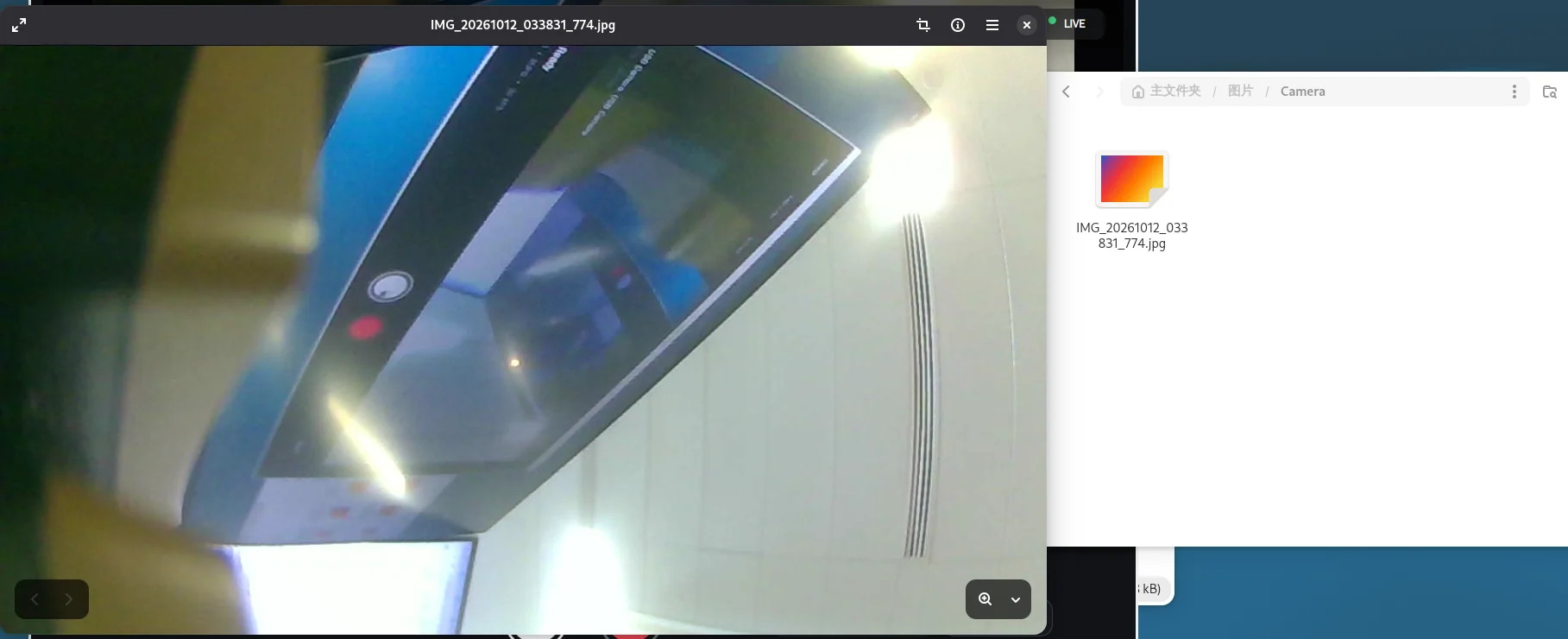
View JPG files in the default photo directory.
In MJPEG mode, the application preferentially saves the collected raw JPEG data; in YUYV mode, the application saves the current preview frame as a JPG file.
Photos are saved by default to:
~/Pictures/Camera/
The file name format is as follows:
IMG_yyyyMMdd_HHmmss_zzz.jpg
The actual path is determined by the system’s QStandardPaths. If the system does not return a standard image directory, the app will fall back to the Pictures directories under the user’s home directory.
video recording
Verify that there is at least one available H. 264 encoder in the system.
Click the video recording button to start recording, and the interface status will switch to REC.
The recording duration can be observed during the recording process.
Click the recording button again to stop the recording.
View MP4 files in the default video directory.
Camera switching will be disabled during recording, and you can reselect the device only after stopping the recording.
Videos are saved by default to:
~/Videos/Camera/
The file name format is as follows:
VID_yyyyMMdd_HHmmss.mp4
The actual path is determined by the system’s QStandardPaths. If the system does not return a standard image or video directory, the app will fall back to the Videos directories under the user’s home directory.
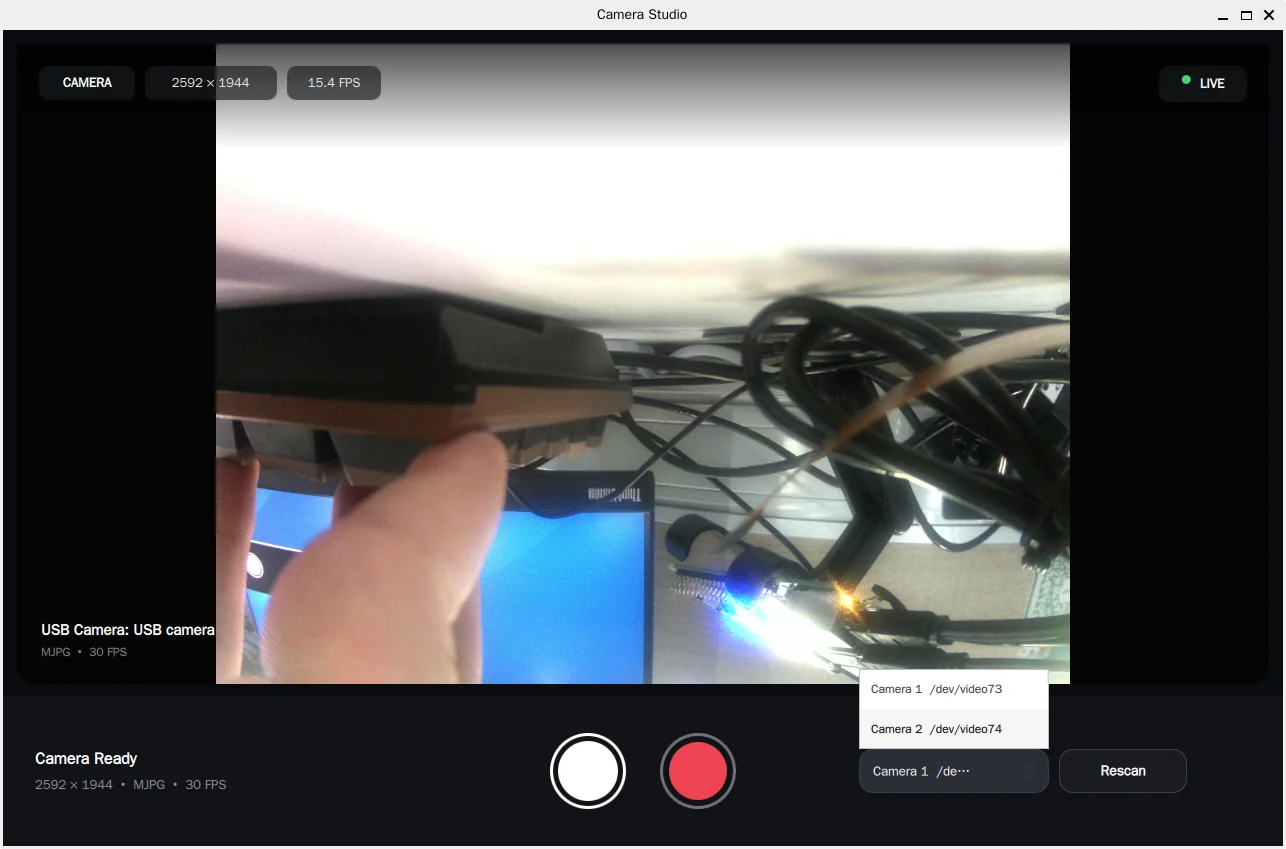
Switch Camera
After connecting multiple cameras, the camera drop-down list at the bottom of the application will display the available devices:
Stop the current recording (if a recording is in progress).
Open the camera drop-down list.
Select the target camera.
The application will stop the old pipeline, recheck the capabilities of the new device, and start the new preview pipeline.
Rescan the camera
After plugging in or unplugging the camera or replacing a USB device, you can click the Rescan button:
Click to rescan.
Re-enumerate applications
/dev/v4l/by-id/*video-index0and/dev/video*.Select an available camera and resume the preview.
Video Encoder Configuration
By default, the application will automatically select the first available encoder in the following order:
mpph264enc → x264enc → openh264enc → avenc_h264
You can specify the encoder via CAMAPP_VIDEO_ENCODER:
CAMAPP_VIDEO_ENCODER=x264enc ./camapp
The supported values are:
mpph264enc
x264enc
openh264enc
avenc_h264
If the specified encoder does not exist, the application will prompt you to install the corresponding GStreamer plugin or cancel this environment variable. For hardware platforms, it is recommended to prioritize using the hardware encoder provided by the platform to reduce CPU usage.
Application Demo
Troubleshooting for Common Issues
No camera image after startup
Check if the camera is connected by running
ls /dev/video*.Verify that the current user has permission to access the video device.
Confirm that the camera supports MJPEG or YUYV.
Check
v4l2src,appsink,jpegdecandvideoconvertare installed.Close other applications that may be using the camera, then restart Camera Studio.
Application prompt: No permission
Confirm that the current user has been added to the video user group, then log out and log back in to the system. You can also run ls -l /dev/video* to check the permissions of the device nodes.
Application is missing GStreamer plugins
Install the missing elements according to the on-screen prompts. Real-time preview generally requires v4l2src, appsink, jpegdec and videoconvert; video recording additionally requires appsrc, an H. 264 encoder, h264parse and mp4mux.
Failed to start recording
Check in sequence:
Whether at least one H. 264 encoder is installed.
Whether the encoder supports the current platform and input formats.
Is a non-existent
CAMAPP_VIDEO_ENCODERspecified?Is there sufficient disk space to write to the video directory?
You can first unset the environment variable to restore automatic selection:
unset CAMAPP_VIDEO_ENCODER
./camapp
Multiple cameras cannot be used stably at the same time
Check the power supply of the USB hub, USB bandwidth and camera resolution. You can reduce the number of cameras connected simultaneously, or use a USB hub with independent power supply.
Qt or GStreamer not found during compile
Verify that qmake --version, make --version, pkg-config --version and gst-inspect-1.0 --version are all executable. If multiple Qt versions exist on your system, use the corresponding version of qmake to regenerate the project file.
Technical Support and Contributions
If you encounter any issues during usage or secondary development, it is recommended to provide the following information in the project Issue: Linux distribution and version, Qt version, GStreamer version, camera model, complete error prompts, and relevant command outputs. If you encounter problems during use, you are welcome to submit technical inquiries on Quectel Official Forum.