Gesture remote control
Copyright © Quectel Wireless Solutions Co., Ltd. 2026. All rights reserved.
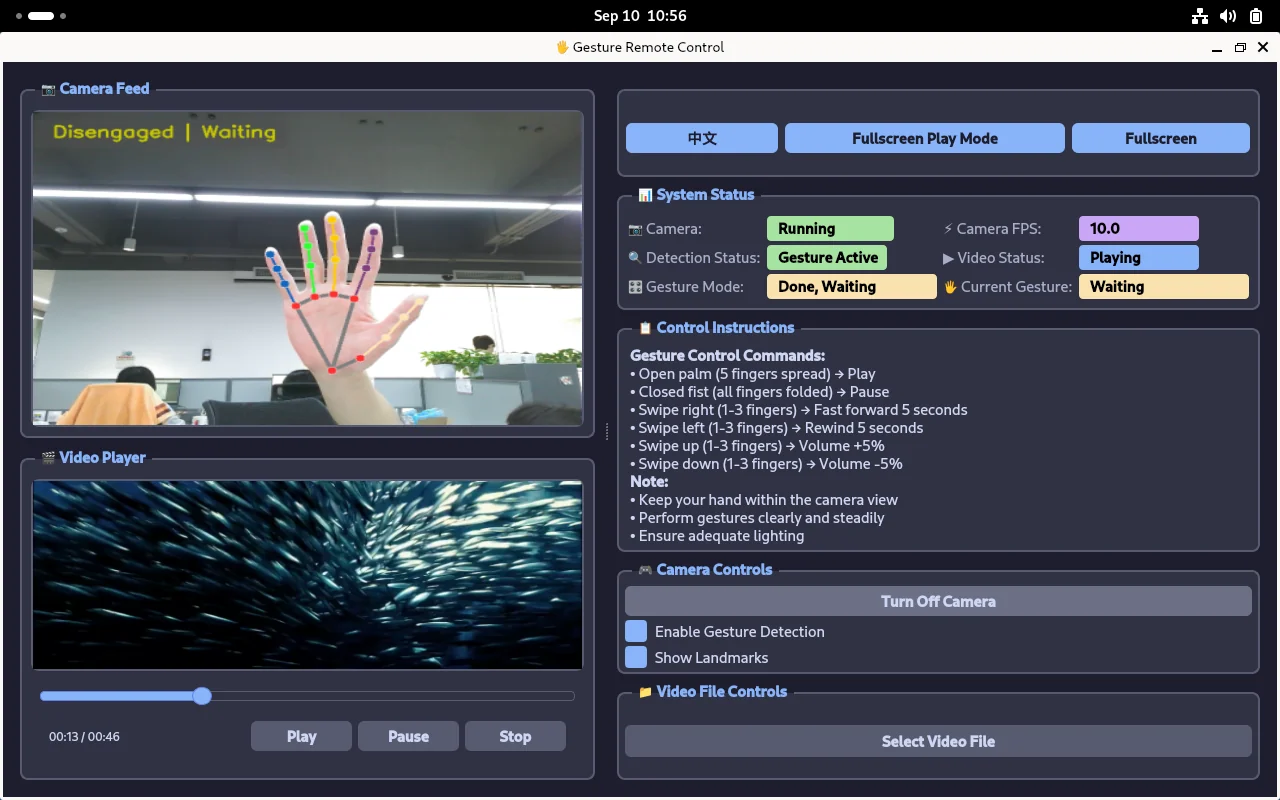
This project is a gesture recognition remote video control demo based on the Quectel Pi M2 Smart Single-Board Computer.
The system captures hand images via a camera and combines AI gesture recognition algorithms to achieve a natural interaction experience for controlling video playback, progress, and volume through mid-air gestures.
Development Resources
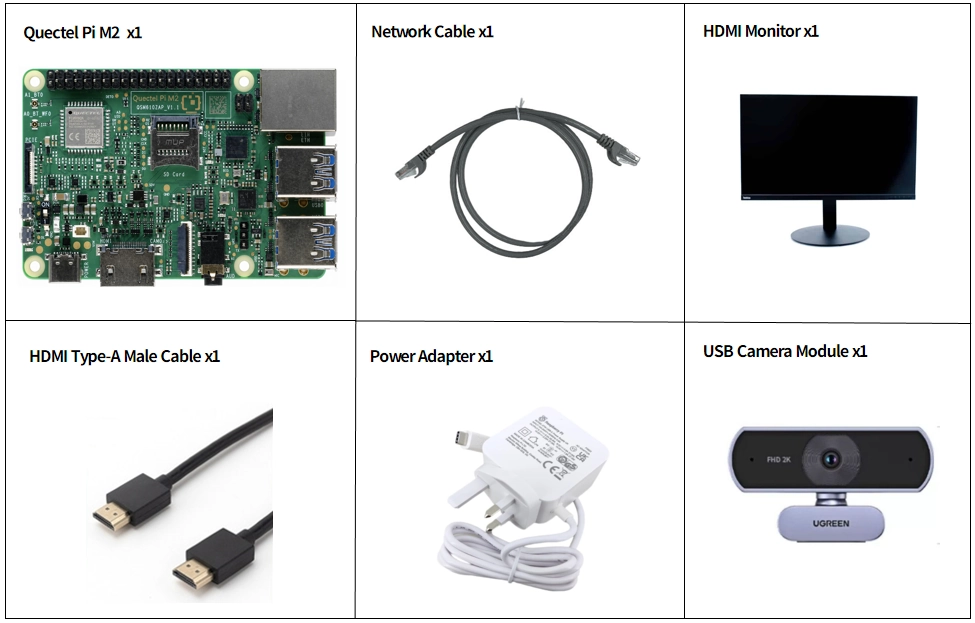
Development Accessories List
Note: The development accessories are for reference only. Different development environments may vary. For example, if you develop via SSH remote connection, a display may not be required.
Accessory |
Quantity |
Specifications |
|---|---|---|
Quectel Pi M2 Smart Single-Board Computer |
1 |
- |
USB-C Power Cable & Charger |
1 |
Official 45W USB Type-C Power Supply for Raspberry Pi 5, White Color, US Plug |
HDMI Type-A Male Cable |
1 |
HDMI 2.0; cable length 1 m; connectors: HDMI-A (male) to HDMI-A (male) |
Ethernet Cable |
1 |
Length: 1m; Speed: Gigabit |
USB Camera Module |
1 |
|
Display |
1 |
24-inch HDMI Monitor |
Accessories Reference Photo
Quick Start
Preparation
The Quectel Pi M2 Smart Single-Board Computer comes pre-installed with the Debian 13 system image, so there is no need to flash the image again. Simply follow the steps below.
Hardware Connection
Complete all the following hardware connections. The numbering corresponds to the interface diagram:
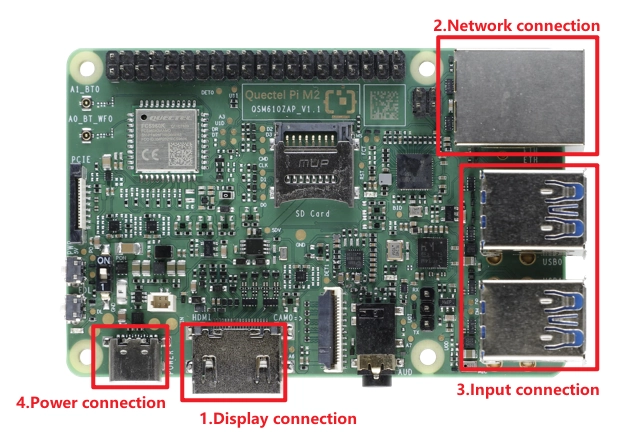
Display Connection: Choose the connection method based on your monitor’s interface. Here we use Option 2: connect one end of the Micro HDMI cable to the main board’s Micro HDMI port and the other end to the monitor’s HDMI port.
Option 1 (HD): Connect one end of the FPC ribbon cable to the MIPI port on the Quectel Pi M2, and the other end to the monitor’s MIPI port. Refer to the MIPI for details.
Option 2 (Compatible): Connect one end of the HDMI cable to the HDMI port on the Quectel Pi M2, and the other end to the monitor’s HDMI port.
Network Connection: Connect the Quectel Pi M2 Ethernet port to the router’s LAN port using an Ethernet cable.
Peripheral Connection: Plug the USB keyboard, mouse, and USB camera into the USB-A ports on the Quectel Pi M2. For wireless keyboard/mouse, simply plug the receiver into a USB port.
Power Connection: Finally, plug the USB-A end of the power cable into the power adapter, and the USB-C end into the power port on the Quectel Pi M2.
Project Setup
Open a terminal on the Smart Single-Board Computer and clone the project code using git.
sudo apt update
sudo apt install -y git
git clone https://github.com/Quectel-Pi/demo-gesture-remote-control.git
After execution, a demo-gesture-remote-control folder should be generated in the current directory.
Run the following commands sequentially in the terminal on the Smart Single-Board Computer. If the terminal displays Deployment complete, the deployment is successful.
cd demo-gesture-remote-control
sudo chmod 755 install.sh
./install.sh
If an error occurs during the execution of ./install.sh, or if the terminal does not display “Deployment complete”, do not proceed with the subsequent steps. First verify that the network connection is working, then return to the project root directory and re-run install.sh.
Open a new terminal and verify the Python version. An output of Python 3.10.15 indicates a successful installation.
python3 --version
Running the Program
Navigate to the src directory and run main.py to start the program. If the program starts successfully, a camera feed window will open.
cd demo-gesture-remote-control/src/
python3 main.py
Gesture Mapping
Ensure the camera is facing the user’s operating area with stable lighting conditions.
Gesture |
Control Function |
|---|---|
Open Palm (5 fingers) |
Play |
Fist |
Pause |
Swipe Right |
Fast Forward 5s |
Swipe Left |
Rewind 5s |
Swipe Up |
Volume +5% |
Swipe Down |
Volume -5% |
FAQ & Troubleshooting
Camera Not Recognized
Symptom:
No available camera device found
Solution:
Check if the camera is properly connected to the USB port.
Use the following command to check if the camera is detected:
ls -la /dev/video*
Try a different USB port.
If the issue persists, use a powered USB hub.
Re-plug the USB camera.
“No module named cv2” Error When Running main.py
Symptom:
ModuleNotFoundError: No module named 'cv2'
Solution:
This usually means install.sh did not complete successfully. Return to the project root directory and re-run the installation script:
cd demo-gesture-remote-control
./install.sh
Application Demo
Technical Support & Contributions
If you encounter any issues during use, feel free to submit a technical inquiry on the Quectel Official Forum. Our technical support team will respond promptly.
Open-source project repository: https://github.com/Quectel-Pi/demo-gesture-remote-control
Issues and Pull Requests for bug reports and code contributions are welcome!