VSCode Plugin Usage
Copyright © Quectel Wireless Solutions Co., Ltd. 2026. All rights reserved.
The official Quectel Pi plugin is now available on the Microsoft Marketplace. Users can search for, download, and install it from the Microsoft Marketplace on their own. The plugin provides a visual and user-friendly UI interface to facilitate operations such as SDK download, development, compilation, and flashing.
Plugin Acquisition
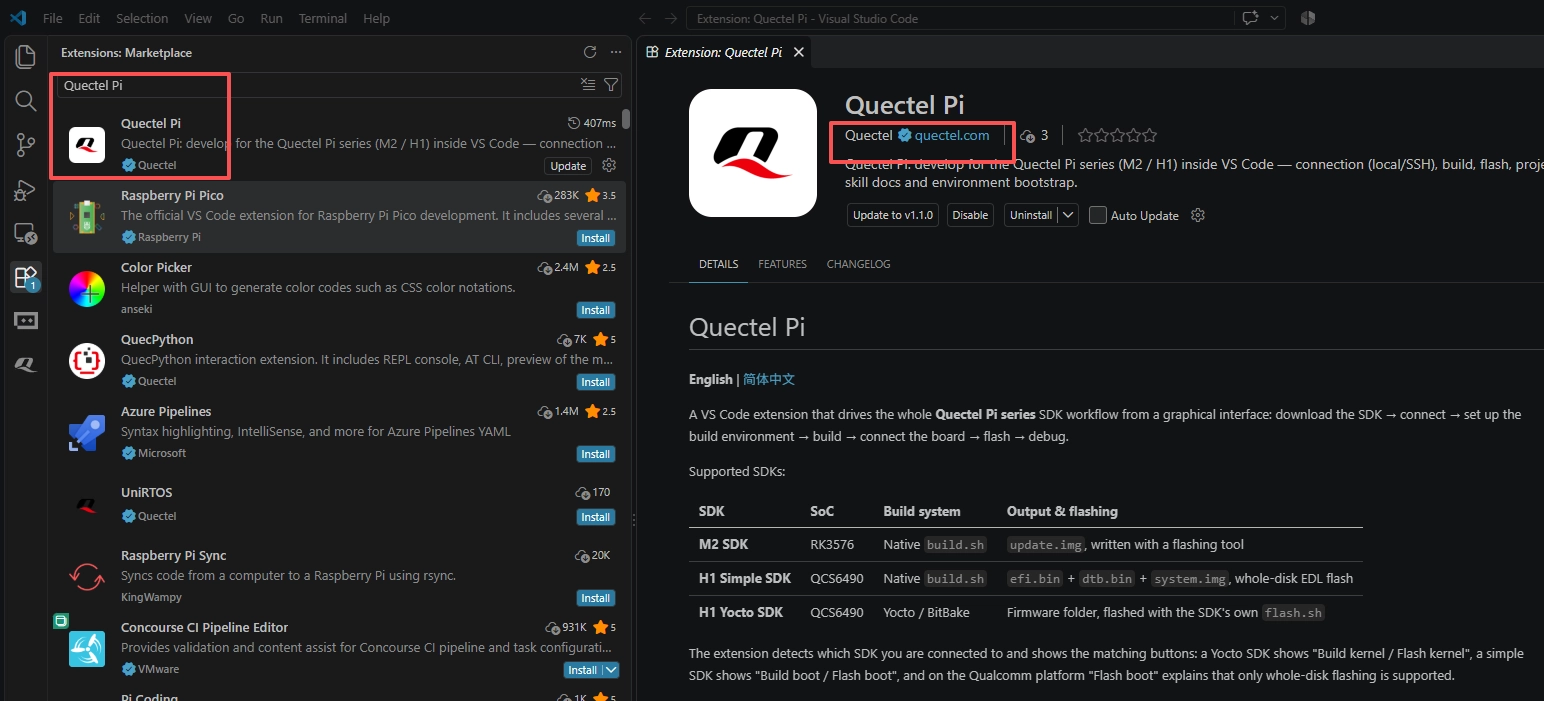
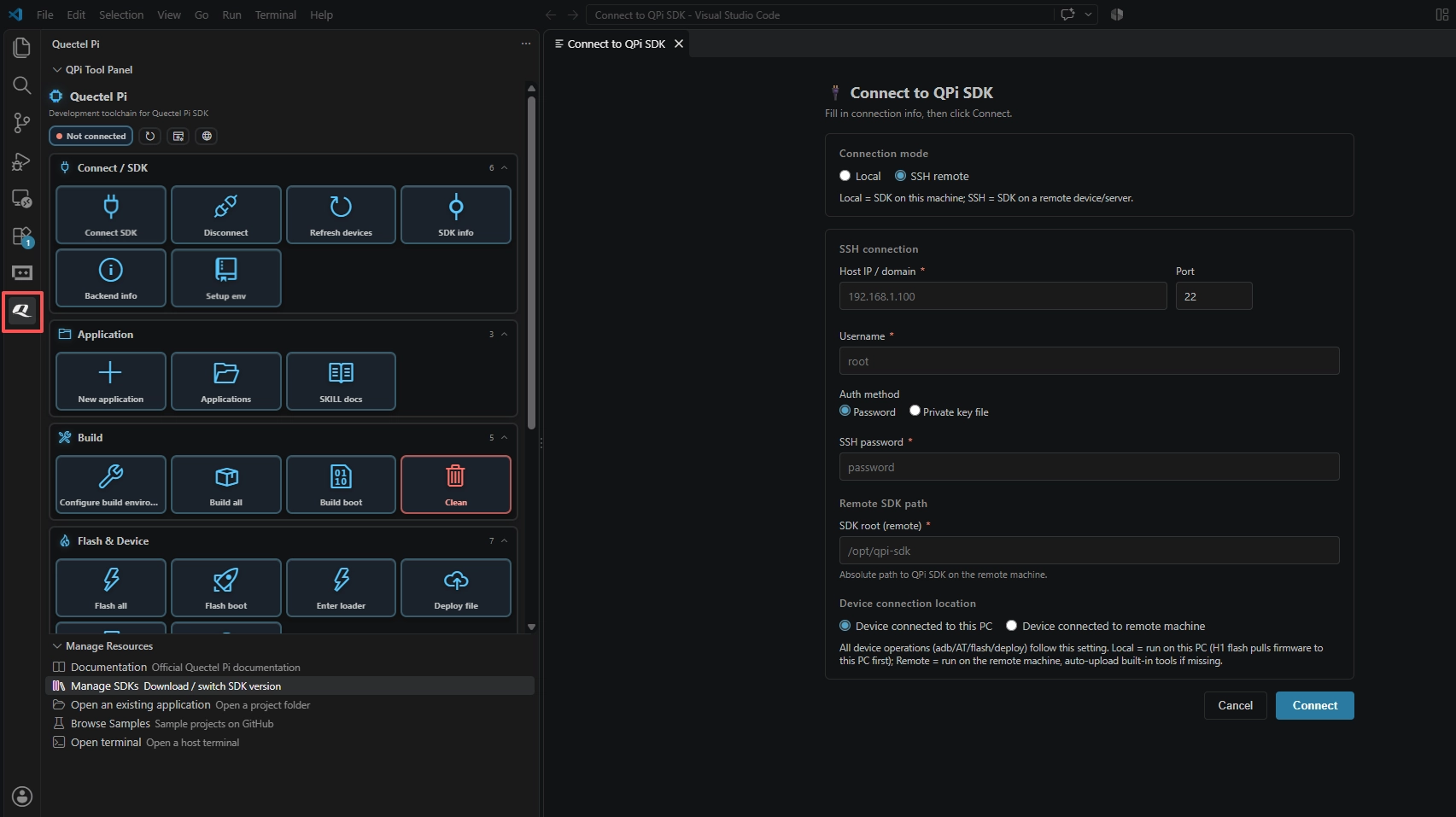
Search for Quectel Pi in the VSCode Marketplace. After downloading and installing it, you will see the plugin’s logo in the left sidebar.
Plugin Usage
SDK compilation requires a Linux environment, so we recommend downloading the SDK to a host running the Ubuntu system. You can use VSCode’s SSH feature for remote connection. If you are using a Windows computer, you can configure the WSL Ubuntu subsystem and then use VSCode to connect to WSL.
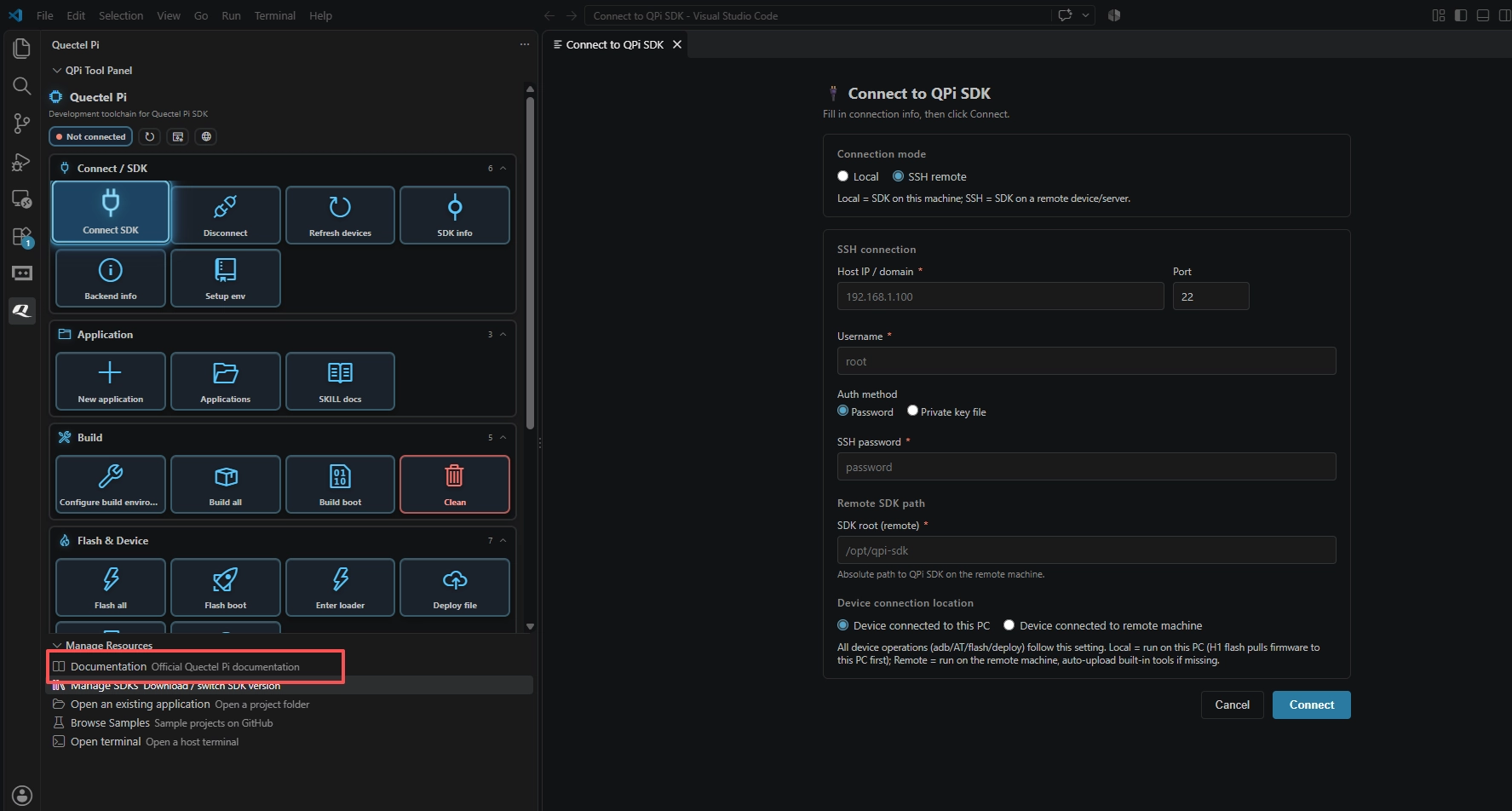
If you need more detailed documentation or driver downloads during use, you can click Documentation to access the official documentation.
Download SDK
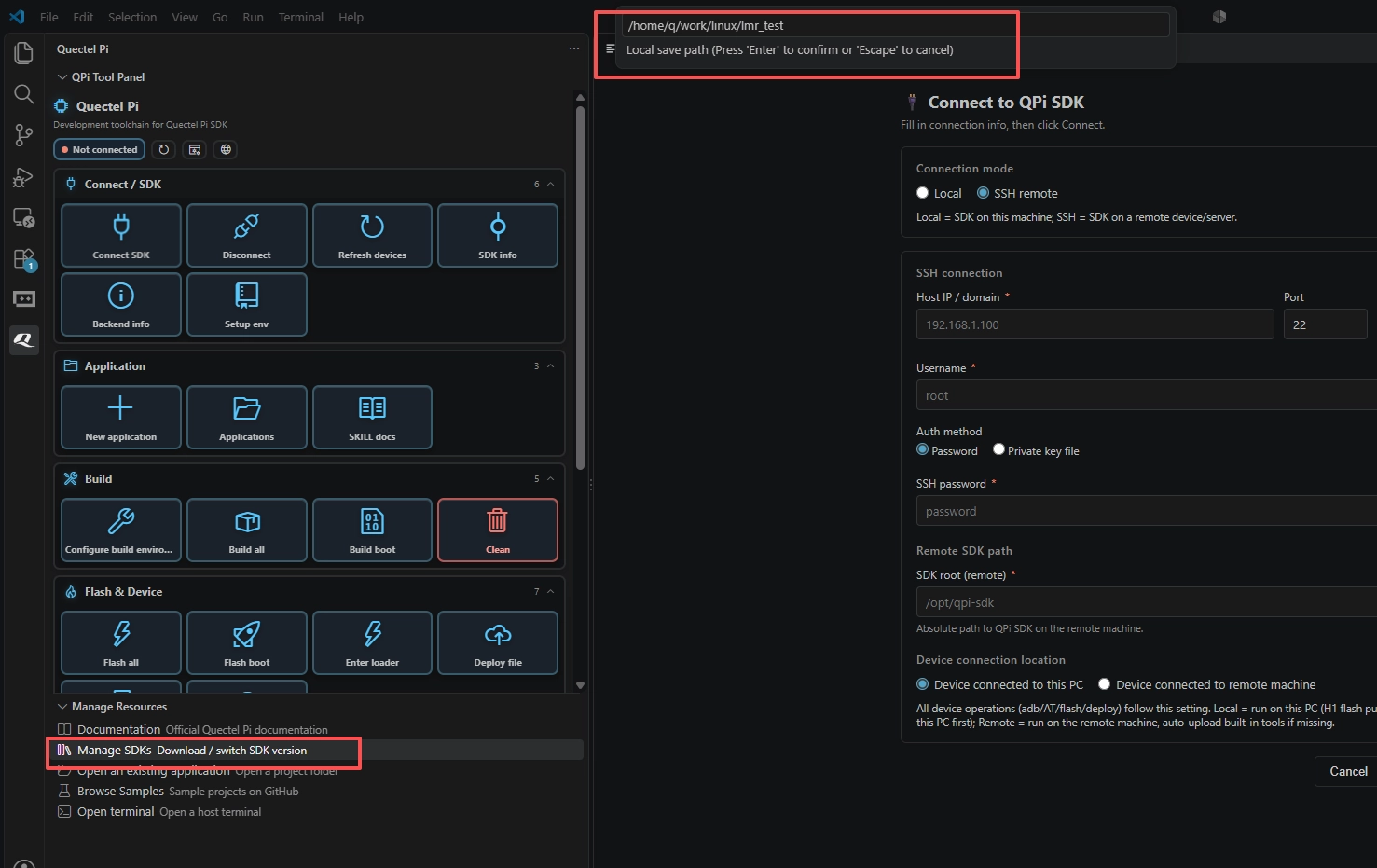
After connecting to the Ubuntu subsystem, click Manager SDK, select the M2 series SDK to download, then enter a path to save the SDK and press Enter.
Connect to SDK
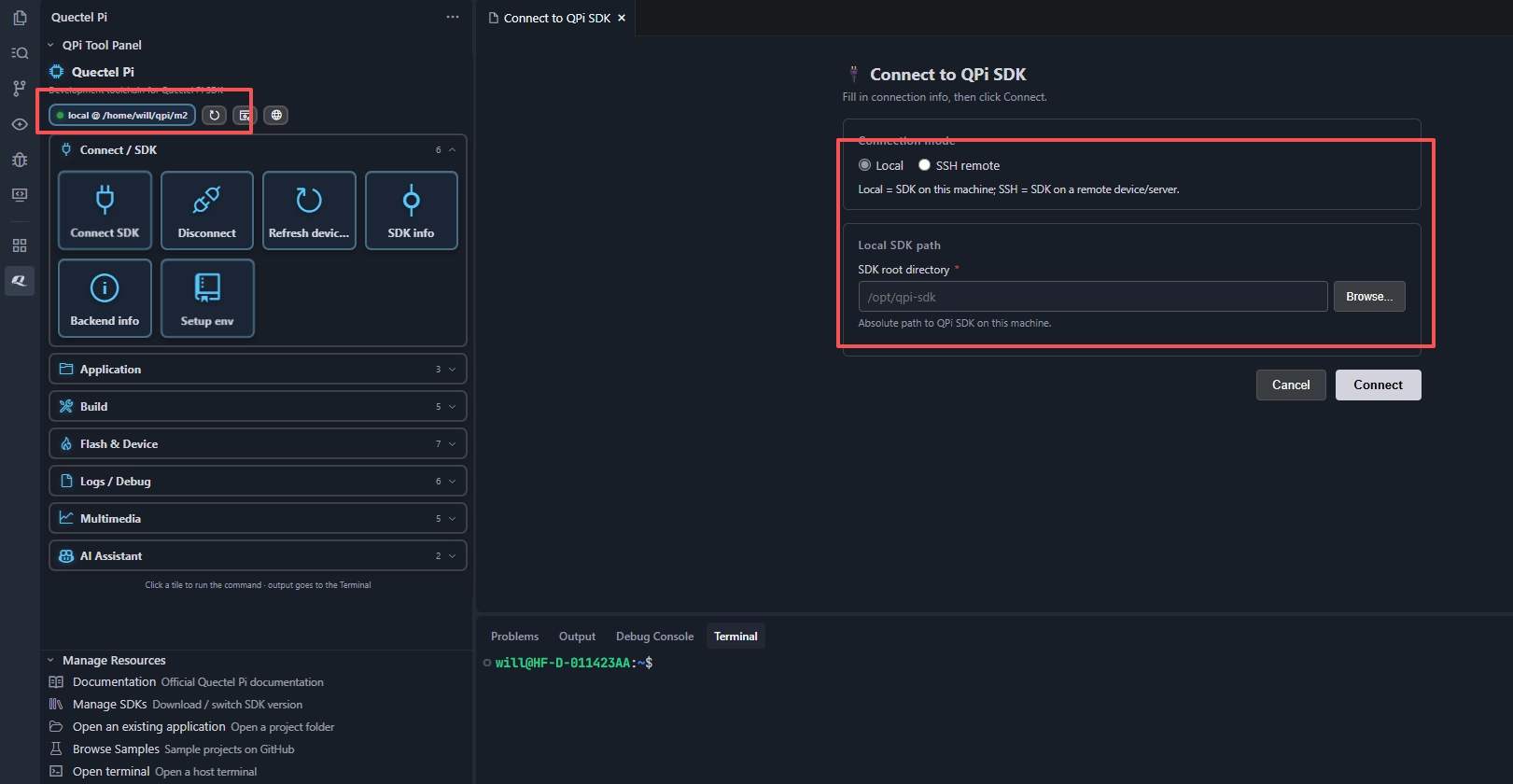
After downloading the SDK, you need to connect to the SDK. You can choose either local connection or SSH remote connection, which correspond to the SDK being downloaded on the local machine or the remote machine respectively (you can also download the SDK on the remote machine first, and then use a local Windows environment to remotely connect to the SDK for operation).
Full Compilation
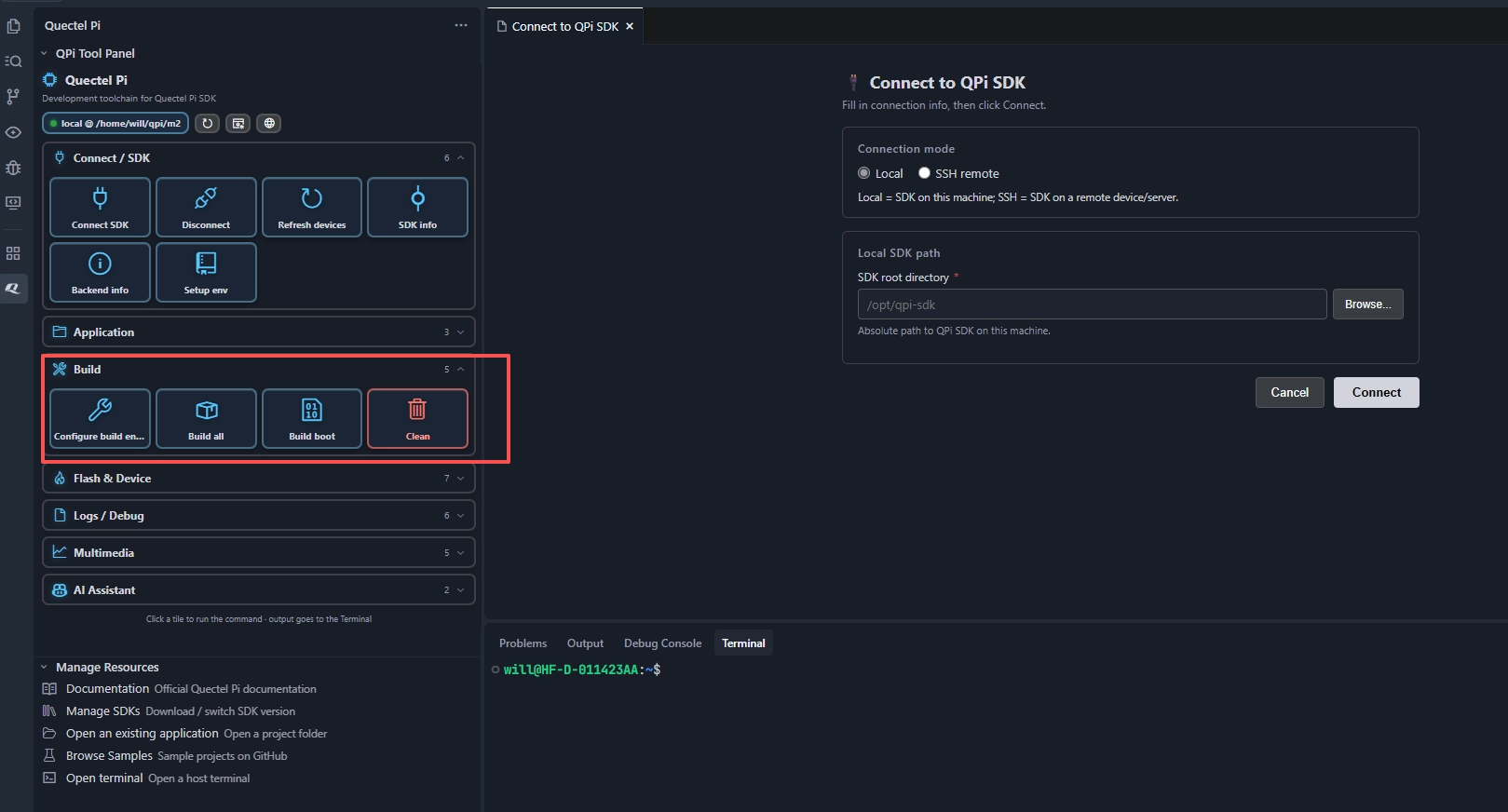
After connecting to the SDK, you can enter the compilation section, select Configure Build Environment to check the SDK environment, and then click Full Compilation to quickly compile the SDK.
Full Flashing
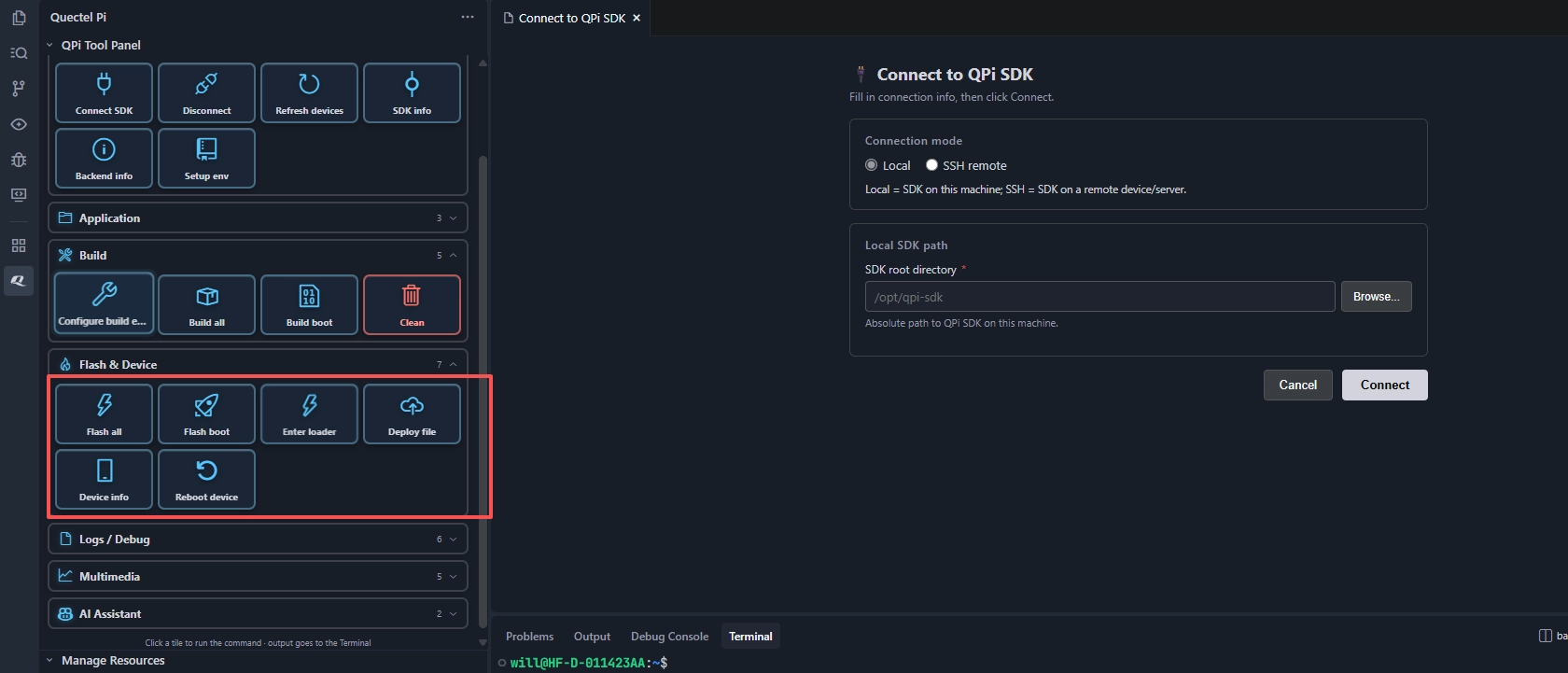
After the compilation is completed, click Flash to perform full flashing. First make sure the development board is connected and has entered Loader mode. If adb can recognize the device, you can also click Enter Loader to enter Loader mode.
Application Compilation
In the Applications section, you can create an application based on the existing application template and modify it as needed, then compile the application.
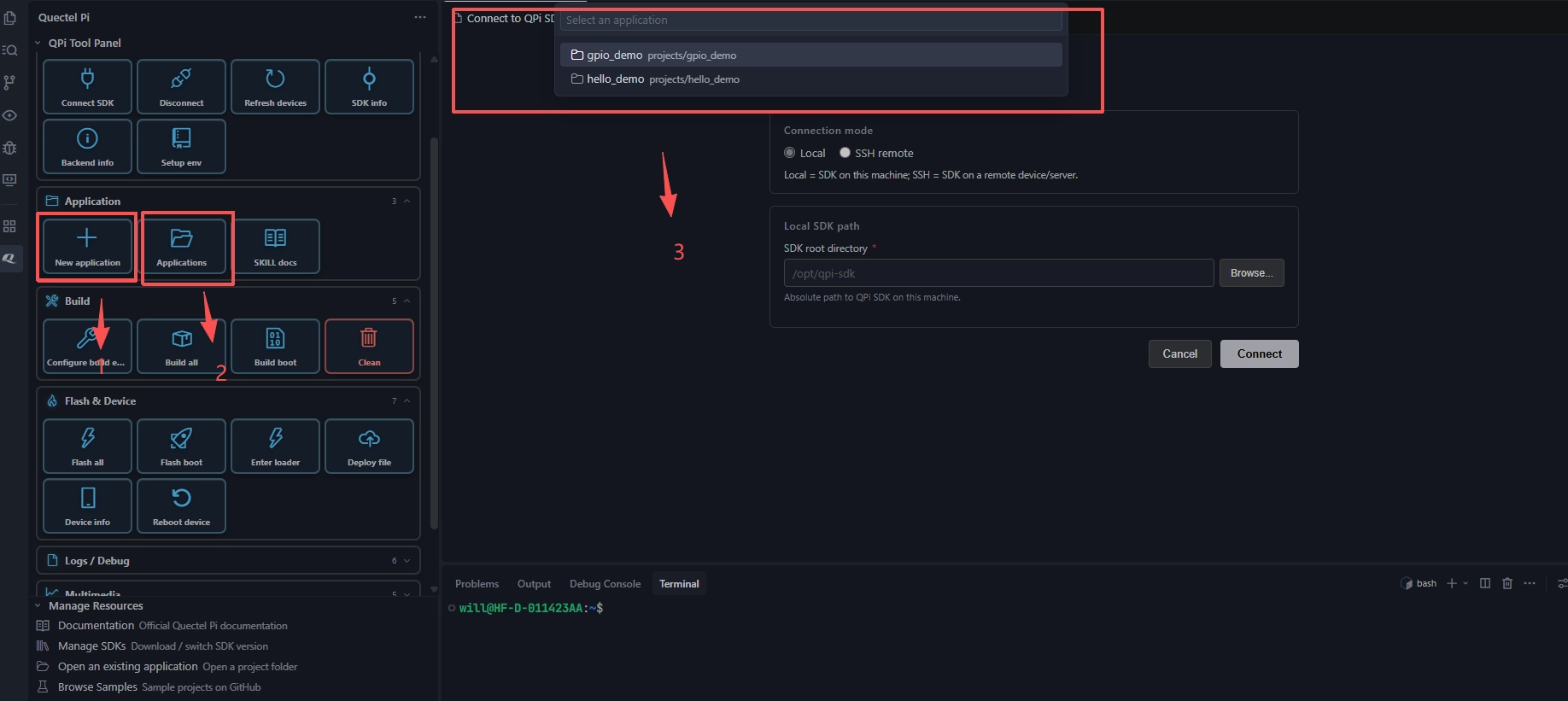
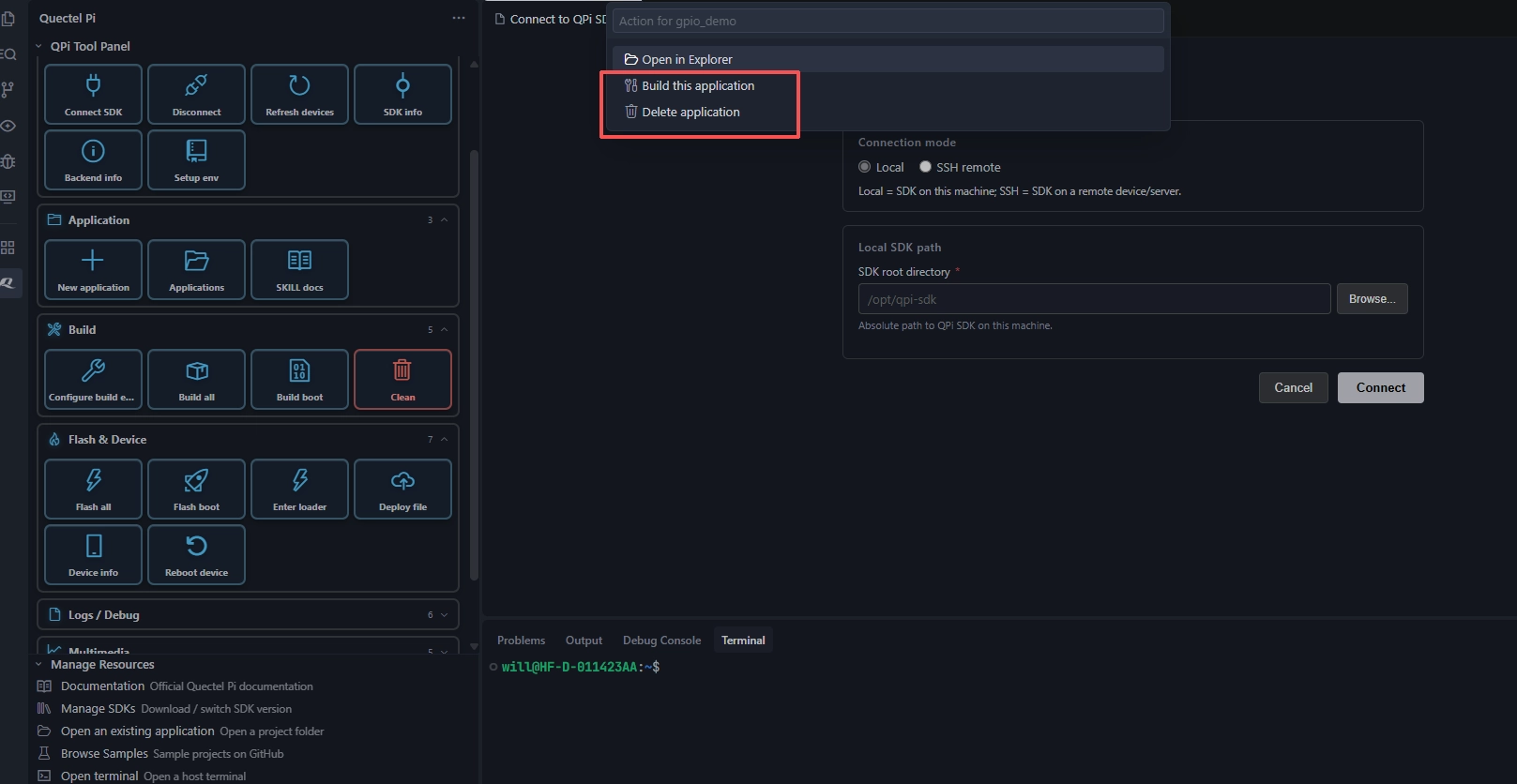
After the compilation is completed, you can push it to the device for use.