Audio configuration
Copyright © Quectel Wireless Solutions Co., Ltd. 2026. All rights reserved.
Audio Configuration
The Quectel Pi M2 supports onboard audio input/output and external headset functions. Audio input devices, output devices, and volume can be configured through the system sound settings.
Hardware Audio Interfaces
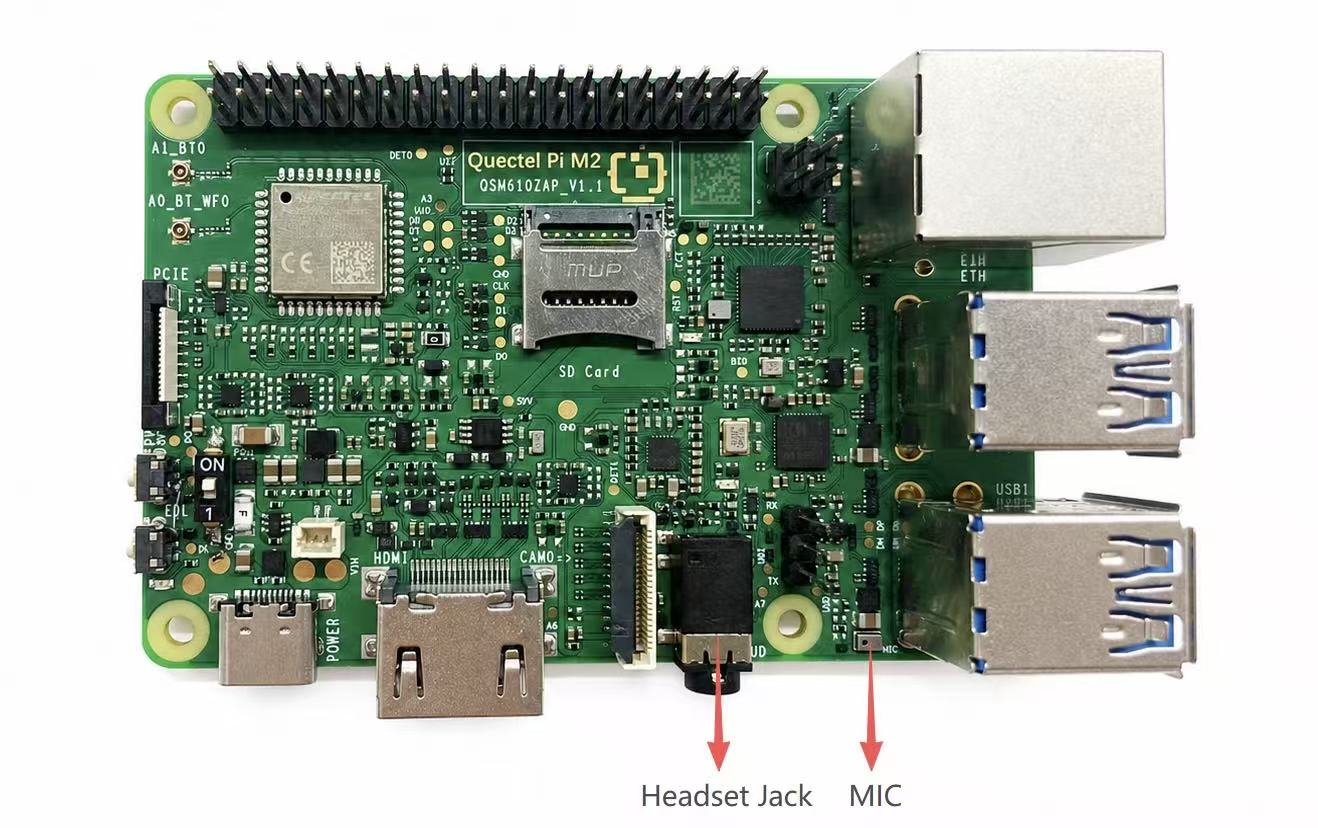
The Quectel Pi M2 is equipped with an onboard ES8389 audio codec and provides an onboard MEMS microphone, a 3.5 mm headset jack, and speaker output.
Audio Interface |
Description |
|---|---|
Onboard MEMS MIC |
Used for audio capture and can be used as the system’s built-in microphone |
3.5 mm Headset Jack |
Supports headphone audio output and headset microphone input |
Speaker Output |
Supports audio playback through the speaker. |
Basic System Audio Settings
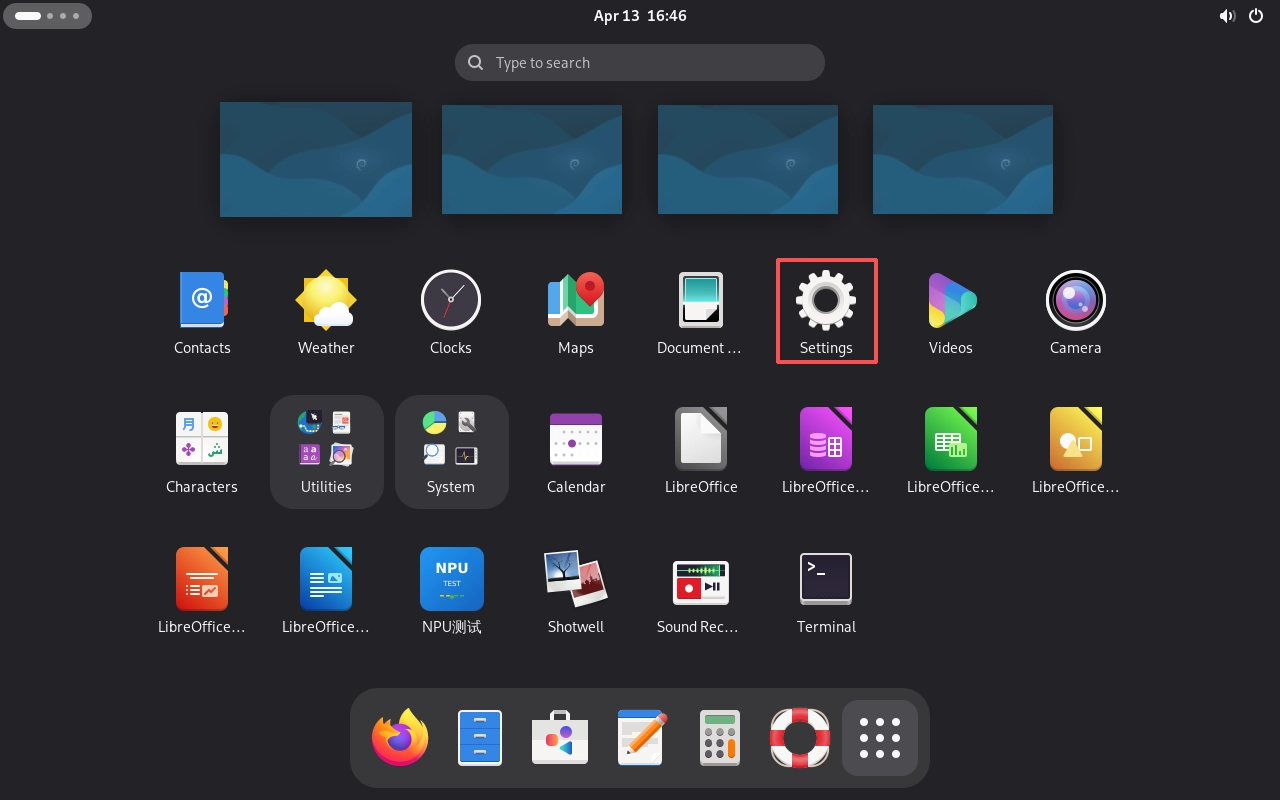
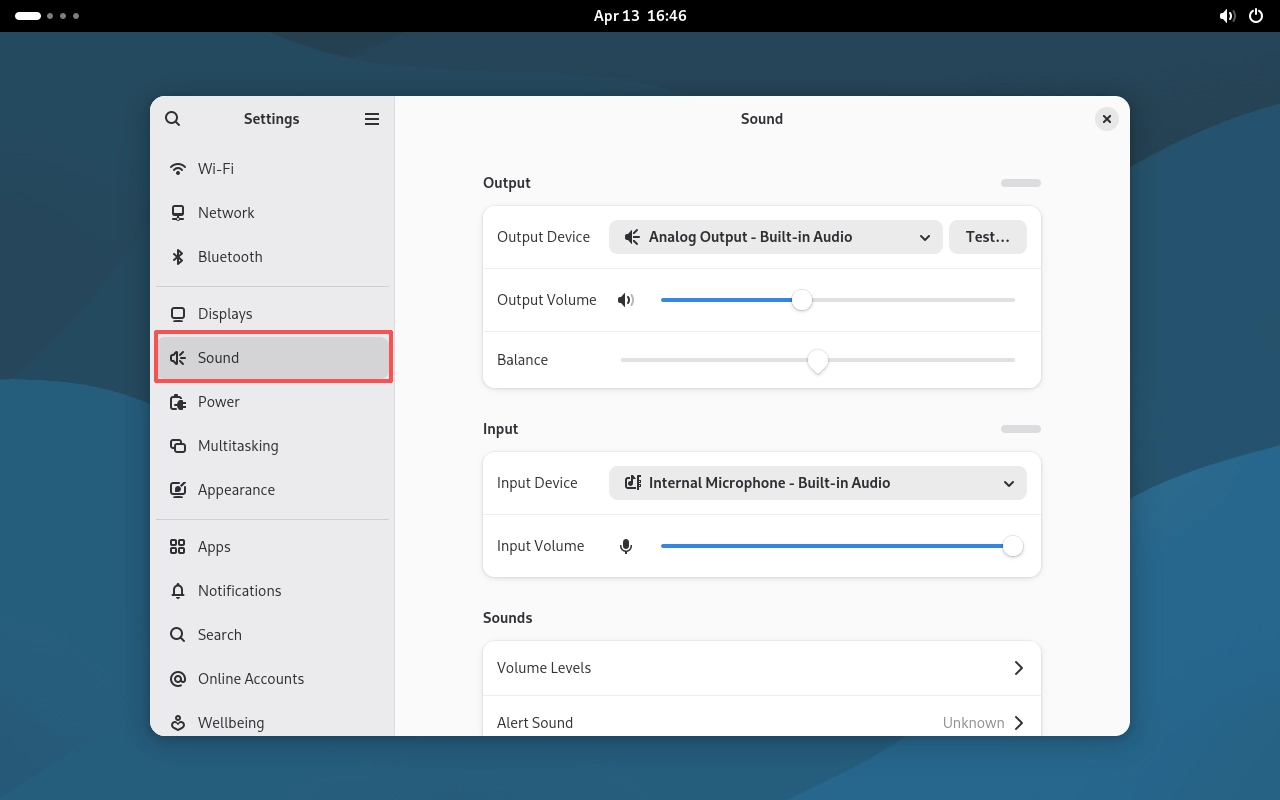
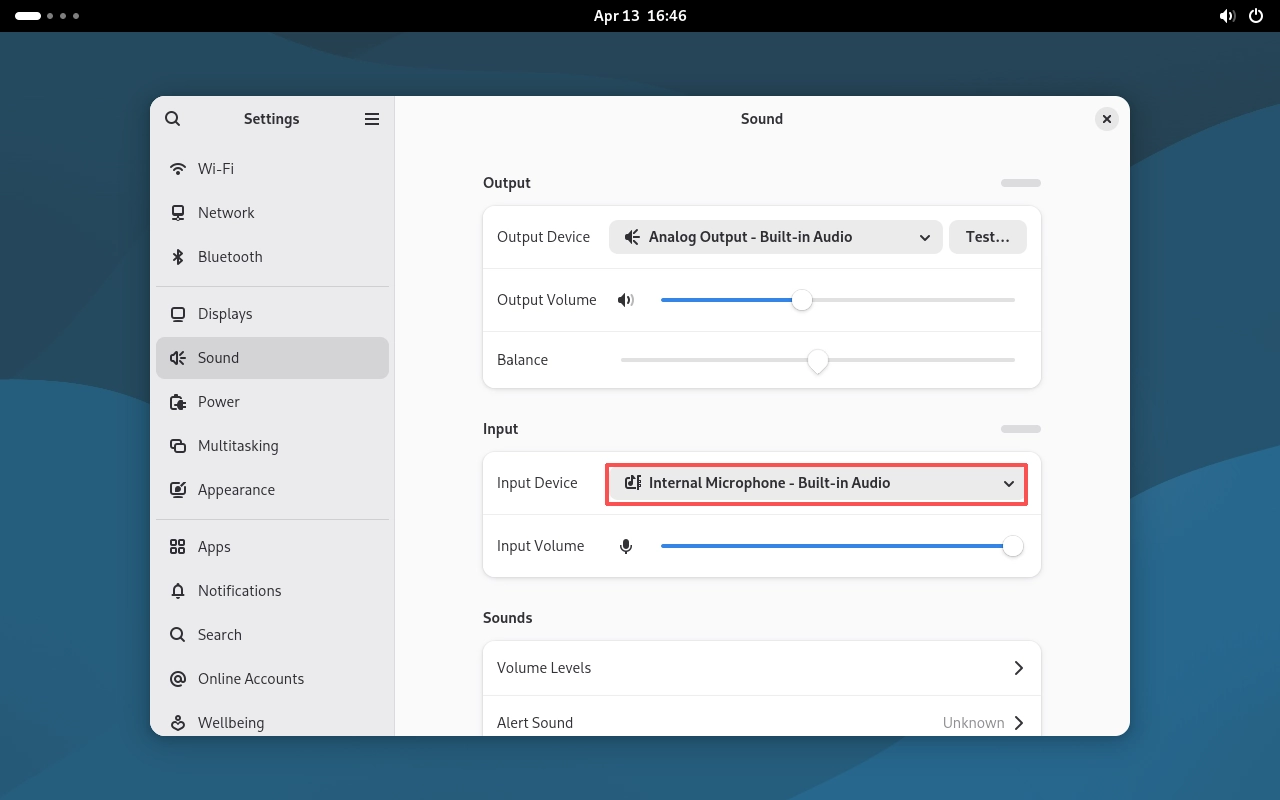
Enter the GNOME desktop and open Settings → Sound. You can configure the system’s output device , output volume , input device , and input volume separately.
Output Device
When no external headset is connected, the system can detect the audio output device Analog Output - Built-in Audio. The playback volume can be adjusted using Output Volume, and the left and right audio channels can be adjusted using Balance.
Input Device
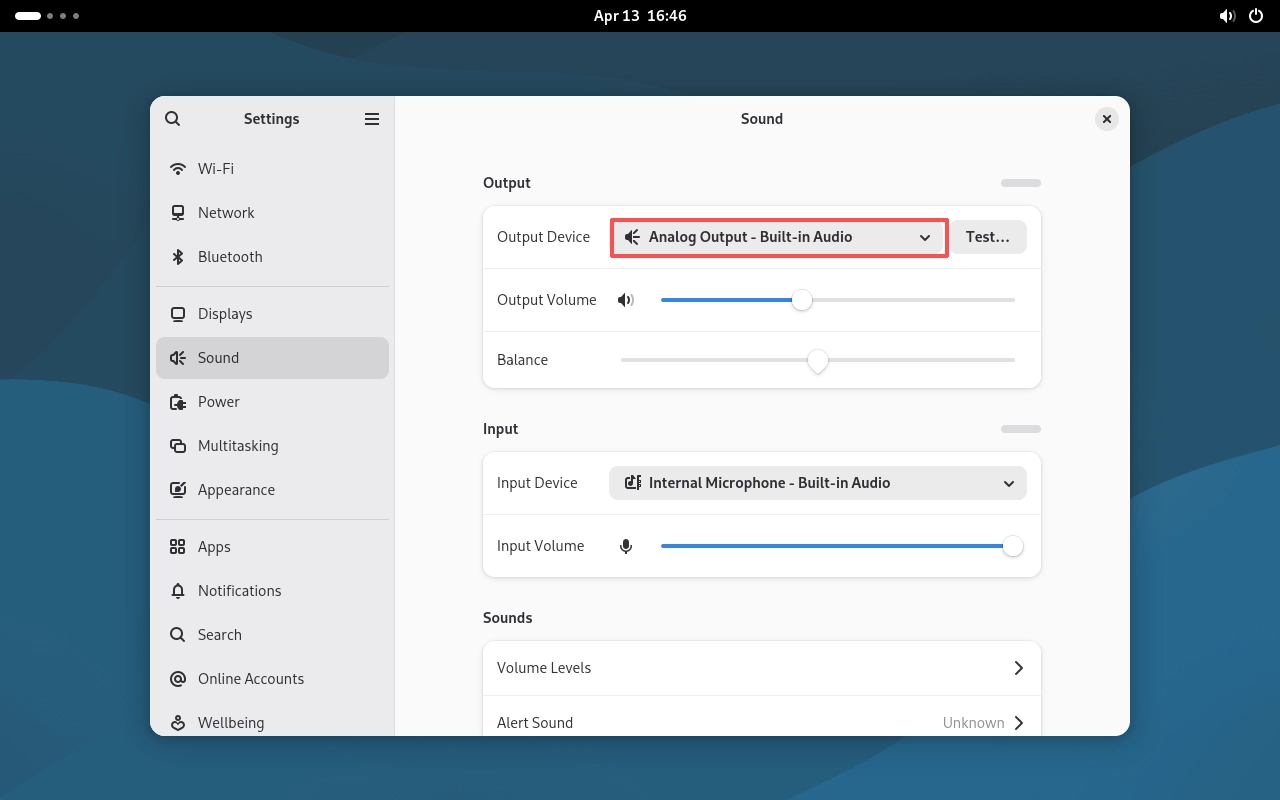
When using the onboard microphone, the system can detect the input device Internal Microphone - Built-in Audio. The microphone input volume can be adjusted using Input Volume.
External Headset
The Quectel Pi M2 provides a 3.5 mm CTIA headset jack, supporting headphone audio output and headset microphone input.
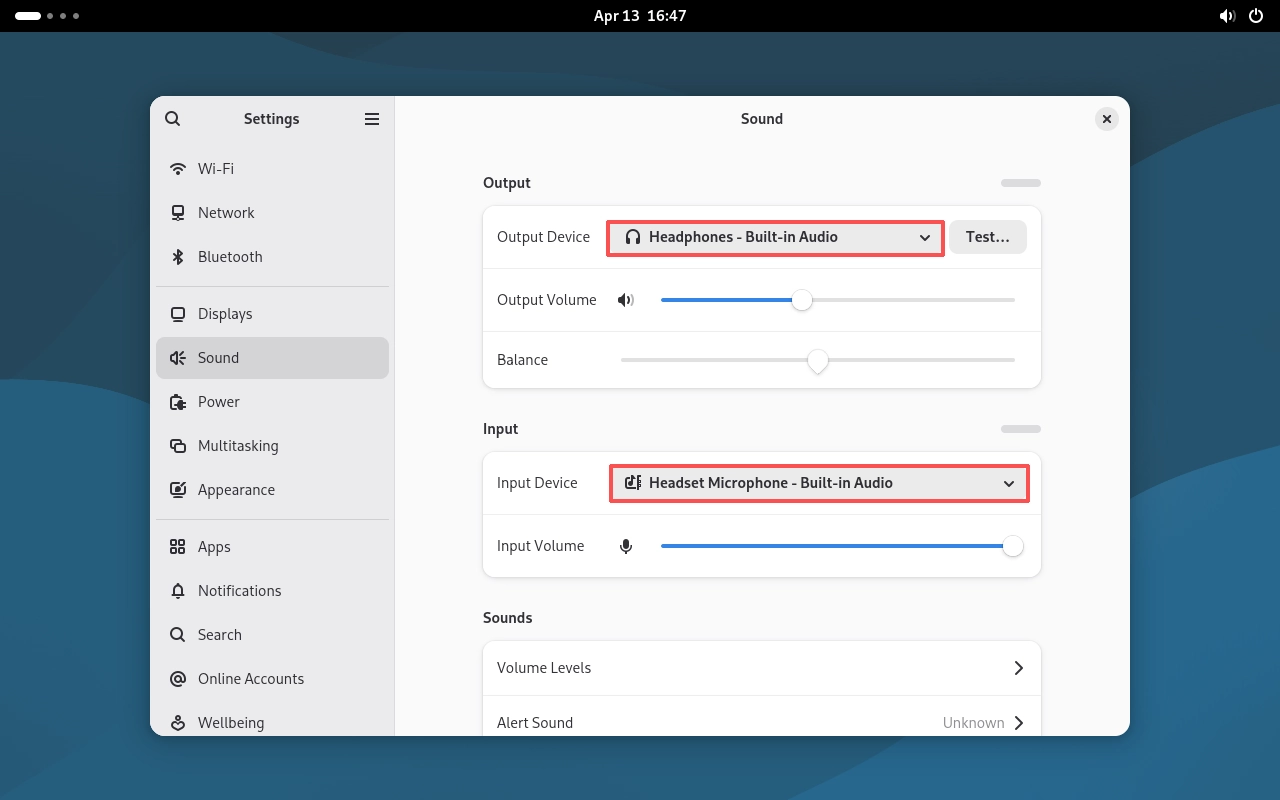
After connecting a headset with a microphone, the system can detect the following devices:
Output device: Headphones - Built-in Audio
Input device: Headset Microphone - Built-in Audio
Headphone Playback
Insert the 3.5 mm headset into the headset jack of the Quectel Pi M2.
After the system detects the headset, it automatically switches the audio output to the headphones. No manual output device configuration is required.
Play an audio or video file.
If the sound can be heard normally through the headphones, the headphone audio output function is working properly.
Headset Microphone Recording
Insert a 3.5 mm CTIA headset with a microphone into the headset jack of the Quectel Pi M2.
After the system detects the headset, it automatically switches the audio input to the headset microphone. No manual input device configuration is required.
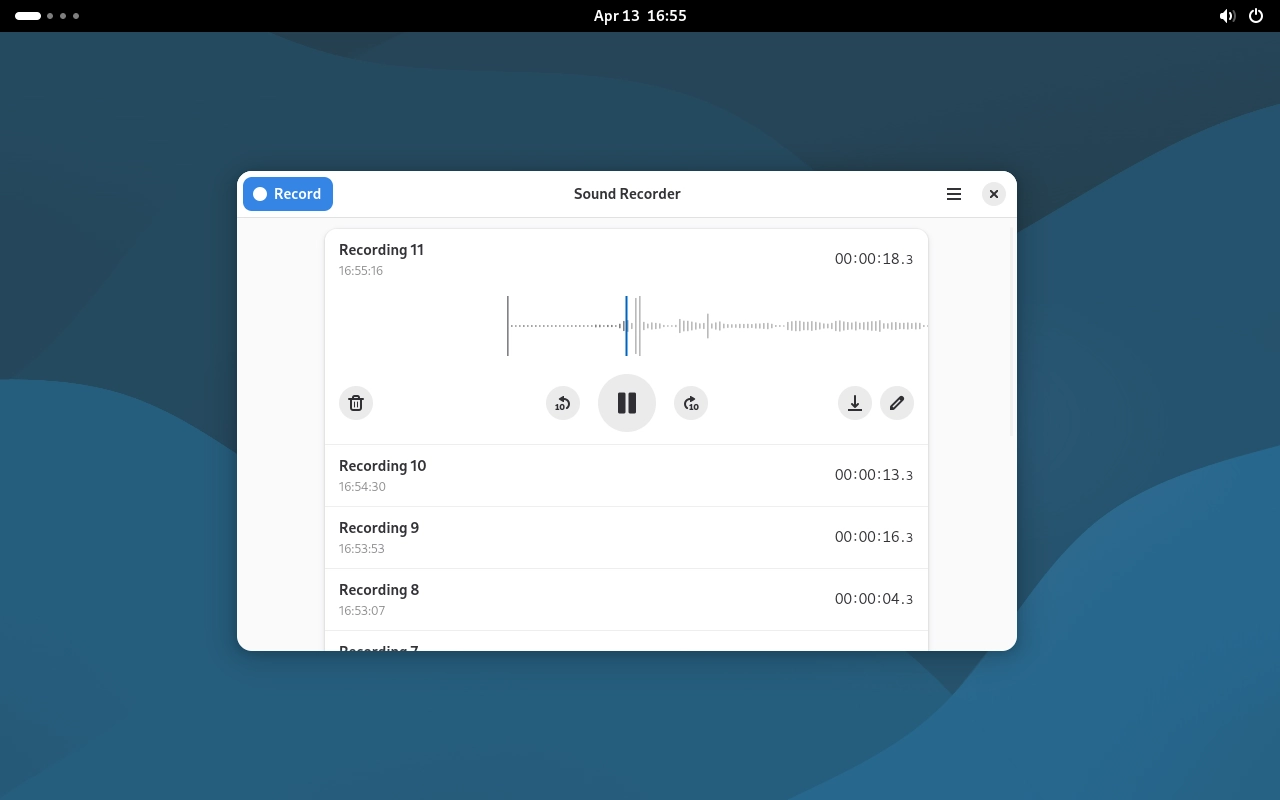
Open the system Sound Recorder application.
Start recording and input sound through the headset microphone.
After recording, play the recorded audio file. If the recorded sound can be heard normally, the headset microphone recording function is working properly.
Onboard Microphone (Built-in MIC) Recording
The Quectel Pi M2 is equipped with an onboard MEMS microphone, which can be used directly for audio capture without connecting an external microphone.
Recording Settings
Disconnect the external headset.
Go to Settings → Sound.
Confirm that the Input Device is set to Internal Microphone - Built-in Audio.
Adjust the input volume as needed.
Recording Test
Open the system Sound Recorder application.
Start recording and speak into the onboard microphone.
Save the recorded file after recording is complete.
Connect the headphones and play the recorded file.
If the audio recorded by the onboard microphone can be played normally through the headphones, the onboard microphone recording function is working properly.
Speaker Playback Test
The Quectel Pi M2 supports audio playback through the speaker.
Test Steps
Disconnect the external headphones.
Go to Settings → Sound.
Confirm that the output device is set to Analog Output - Built-in Audio.
Increase the system output volume as needed.
Play an audio or video file.
Confirm that sound can be heard normally through the speaker.