System login
Copyright © Quectel Wireless Solutions Co., Ltd. 2026. All rights reserved.
After installing the system, you need to configure the initial settings on the first boot.
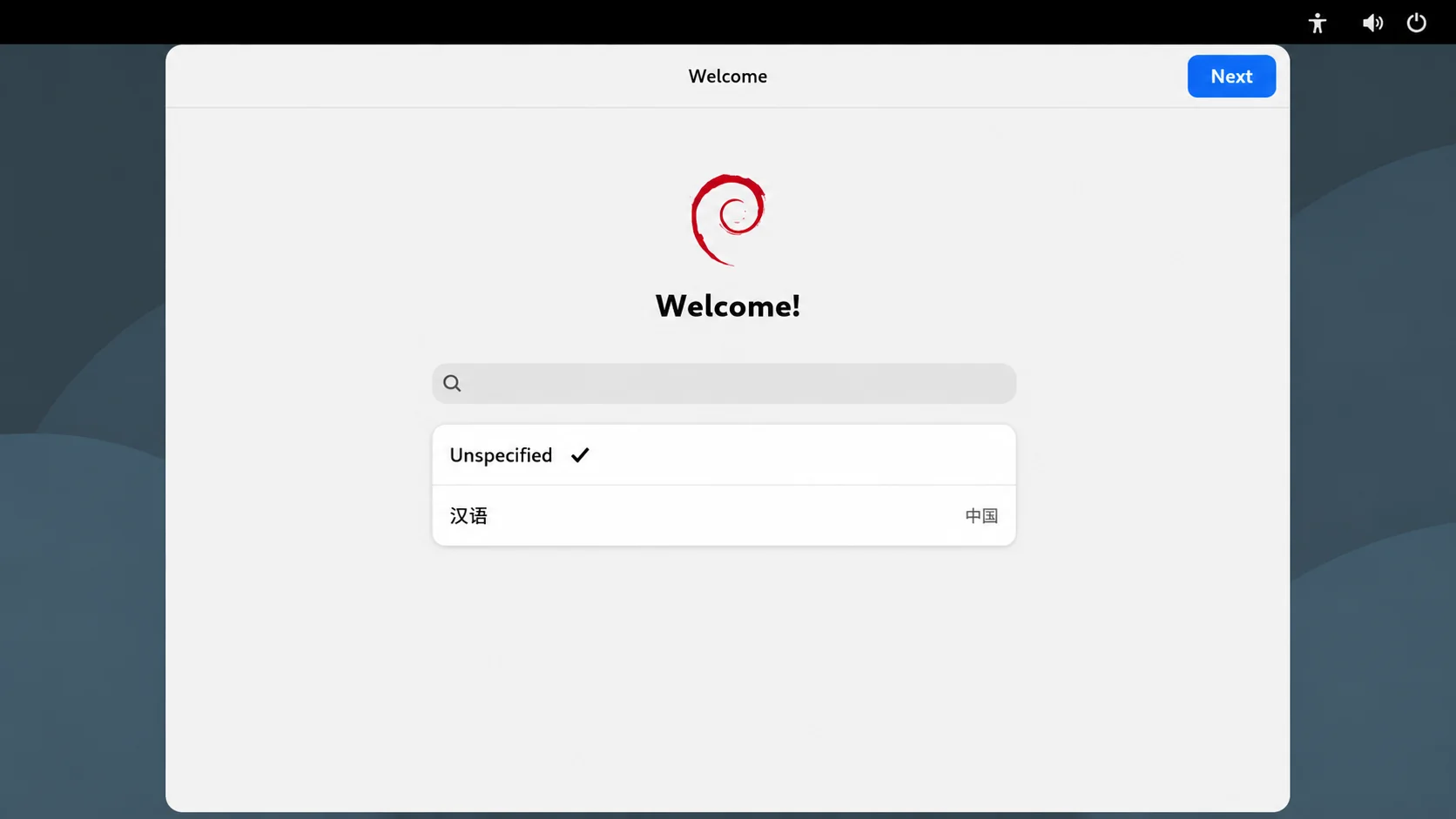
Select the language.
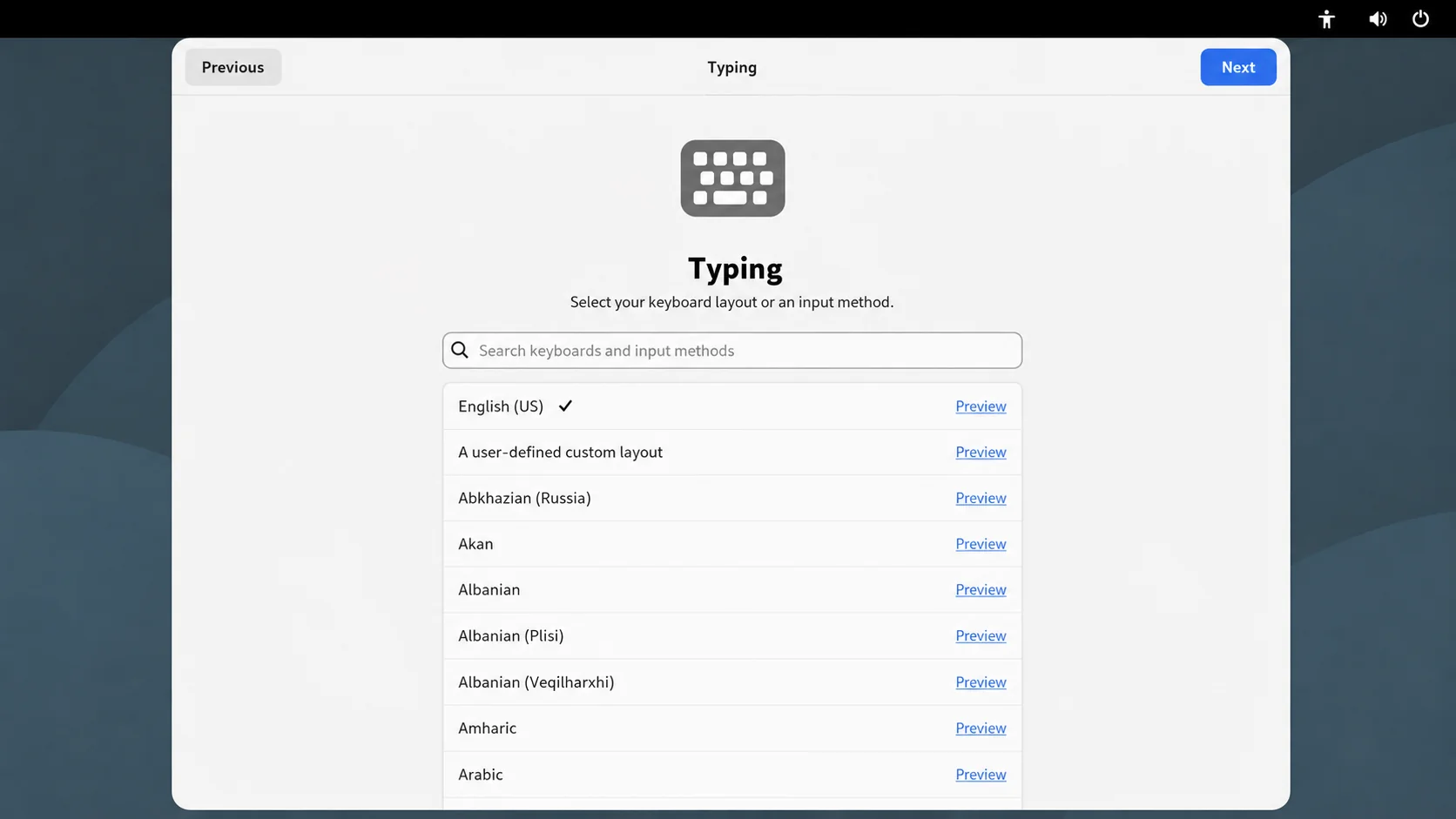
Select the input method.
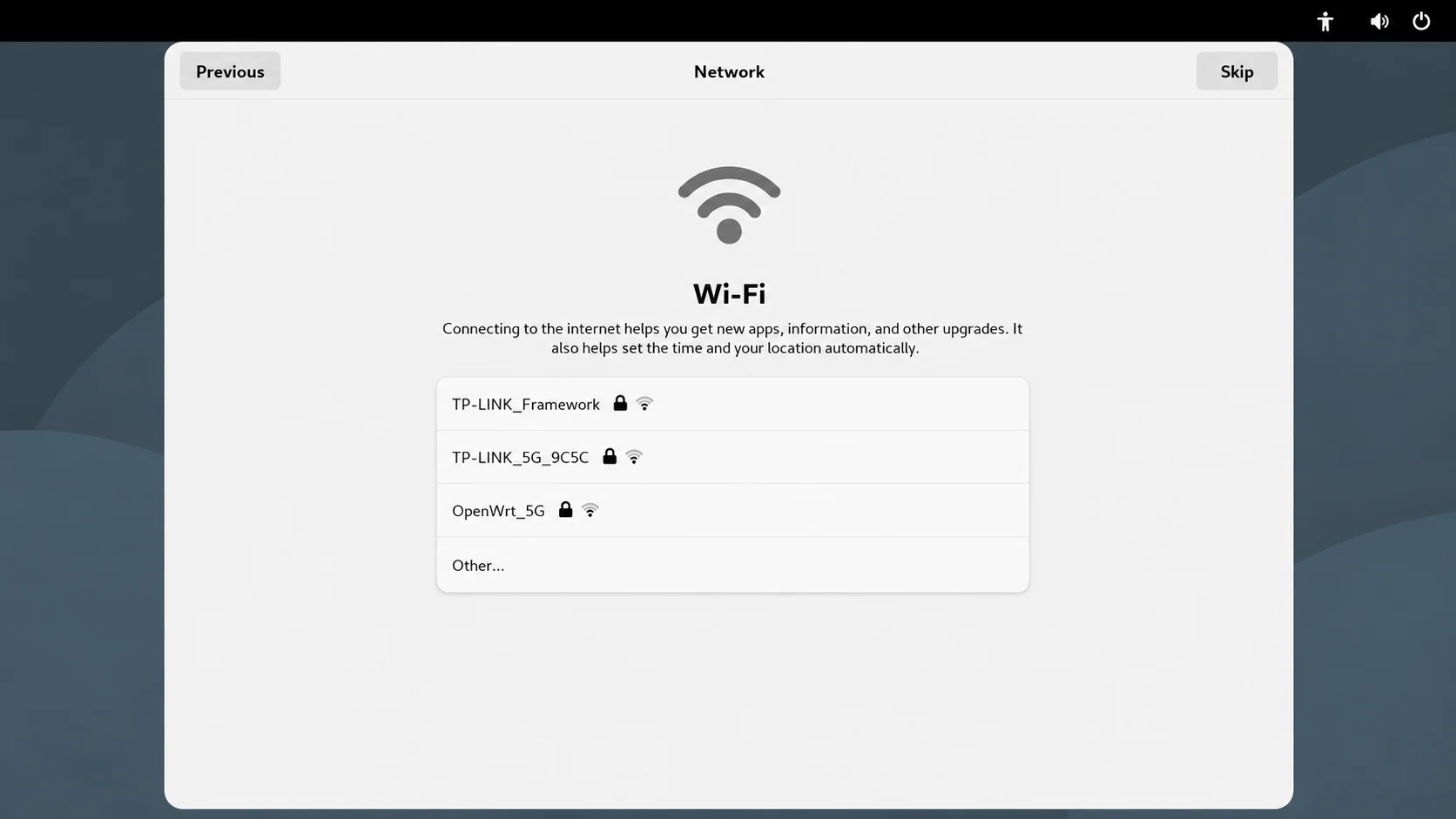
Select a Wi-Fi network. If you do not want to connect at this time, click Skip in the upper-right corner.
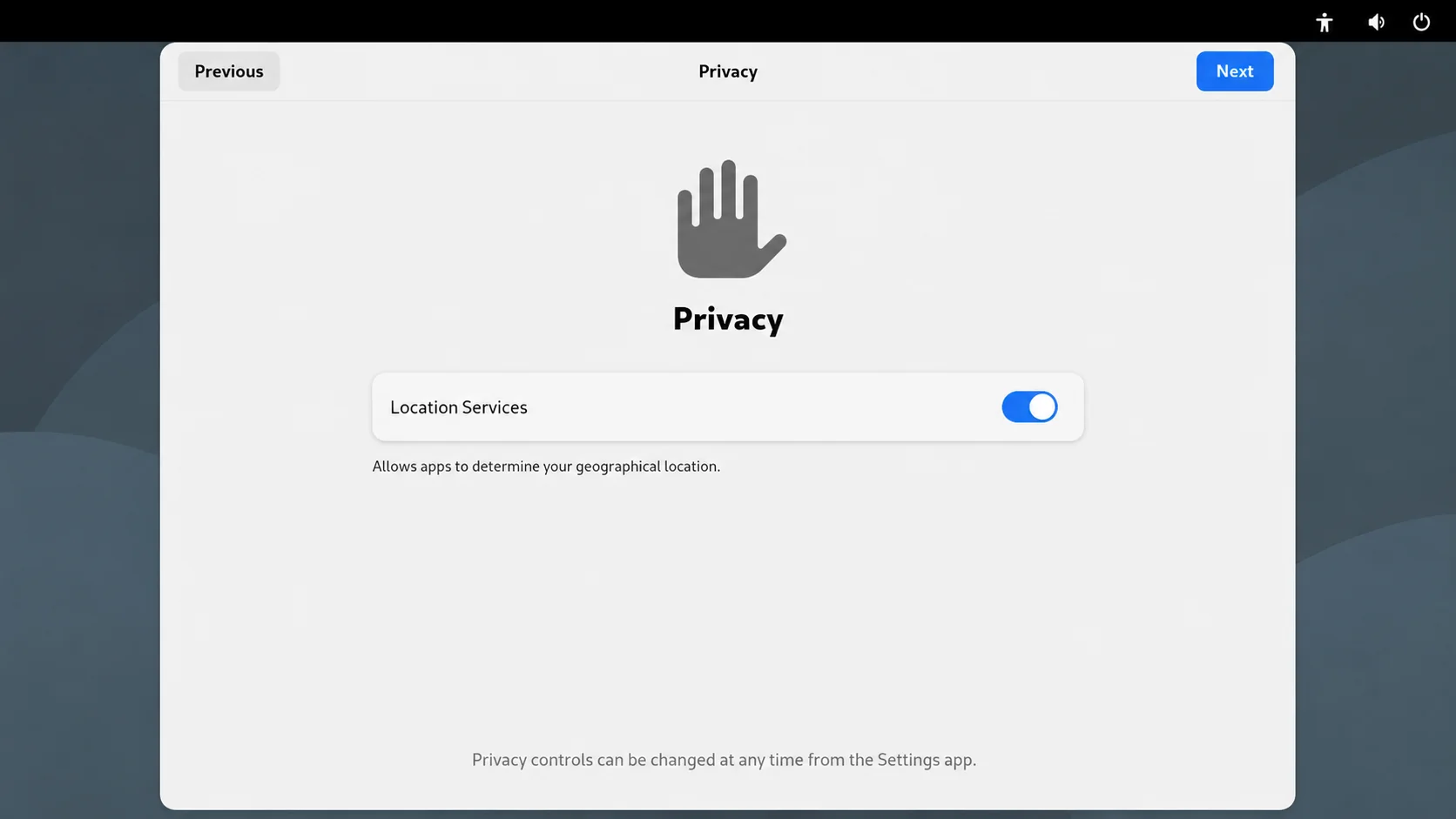
Configure Location Services.
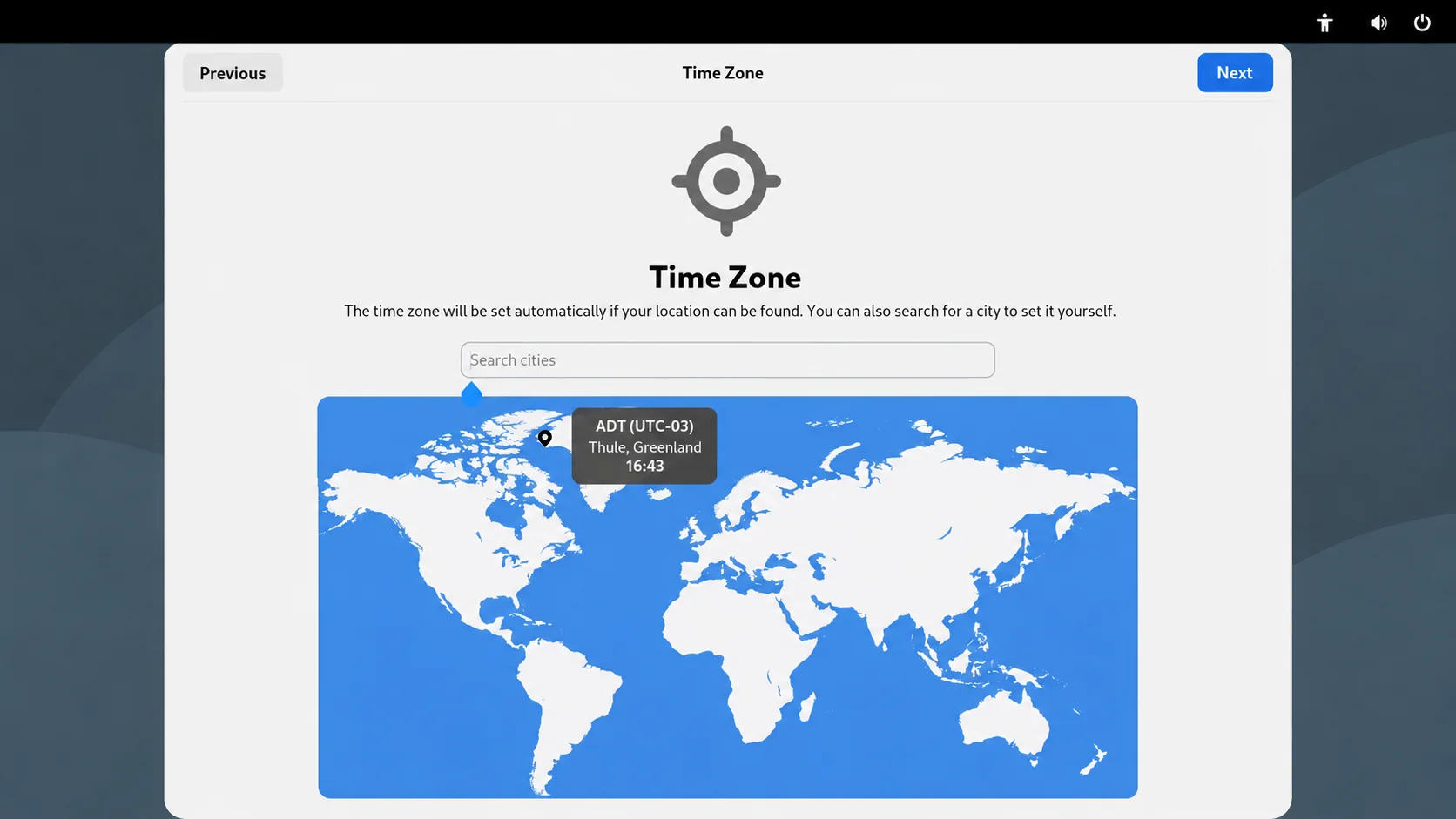
Set the time zone.
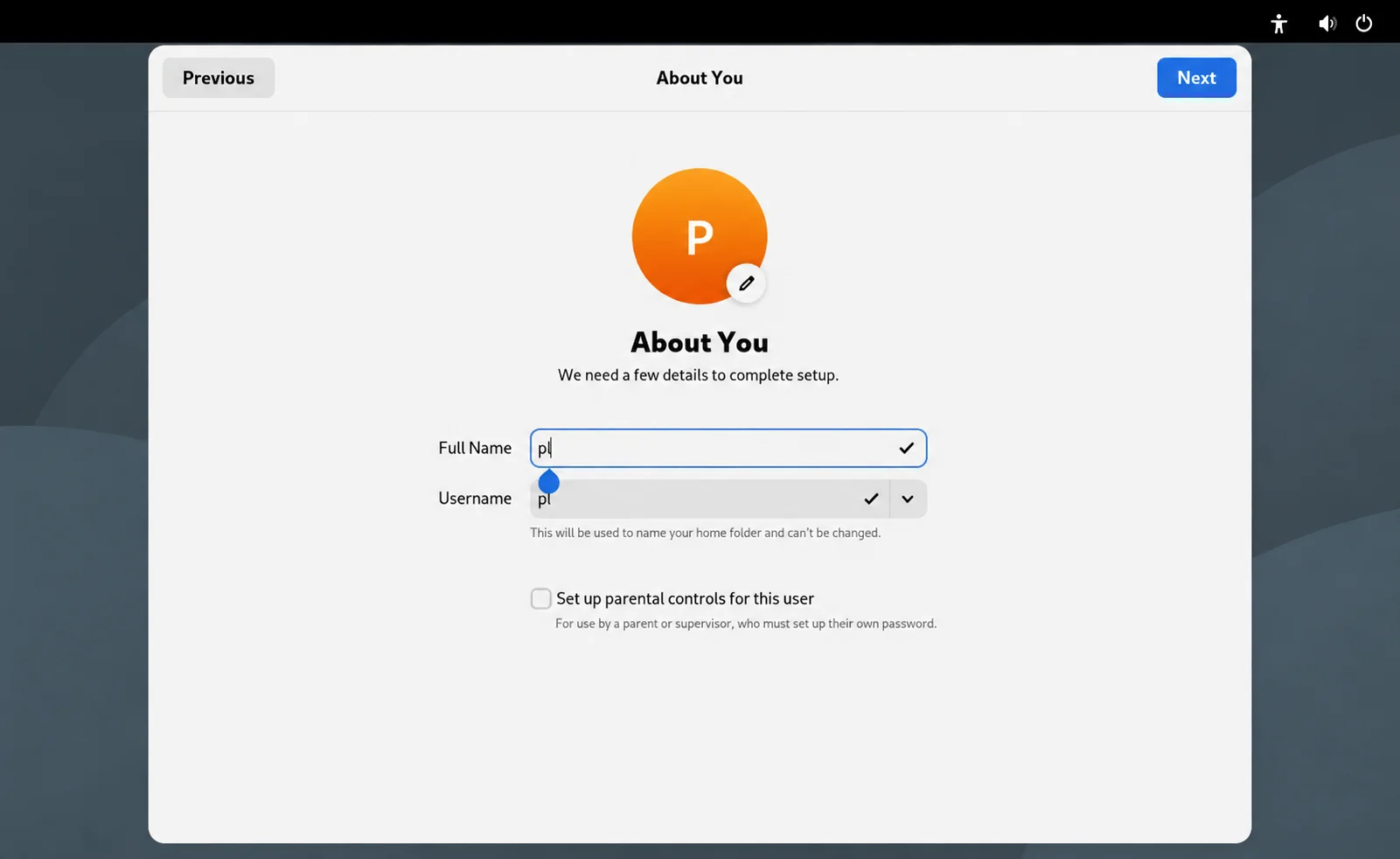
Set the username.
Set the login password.
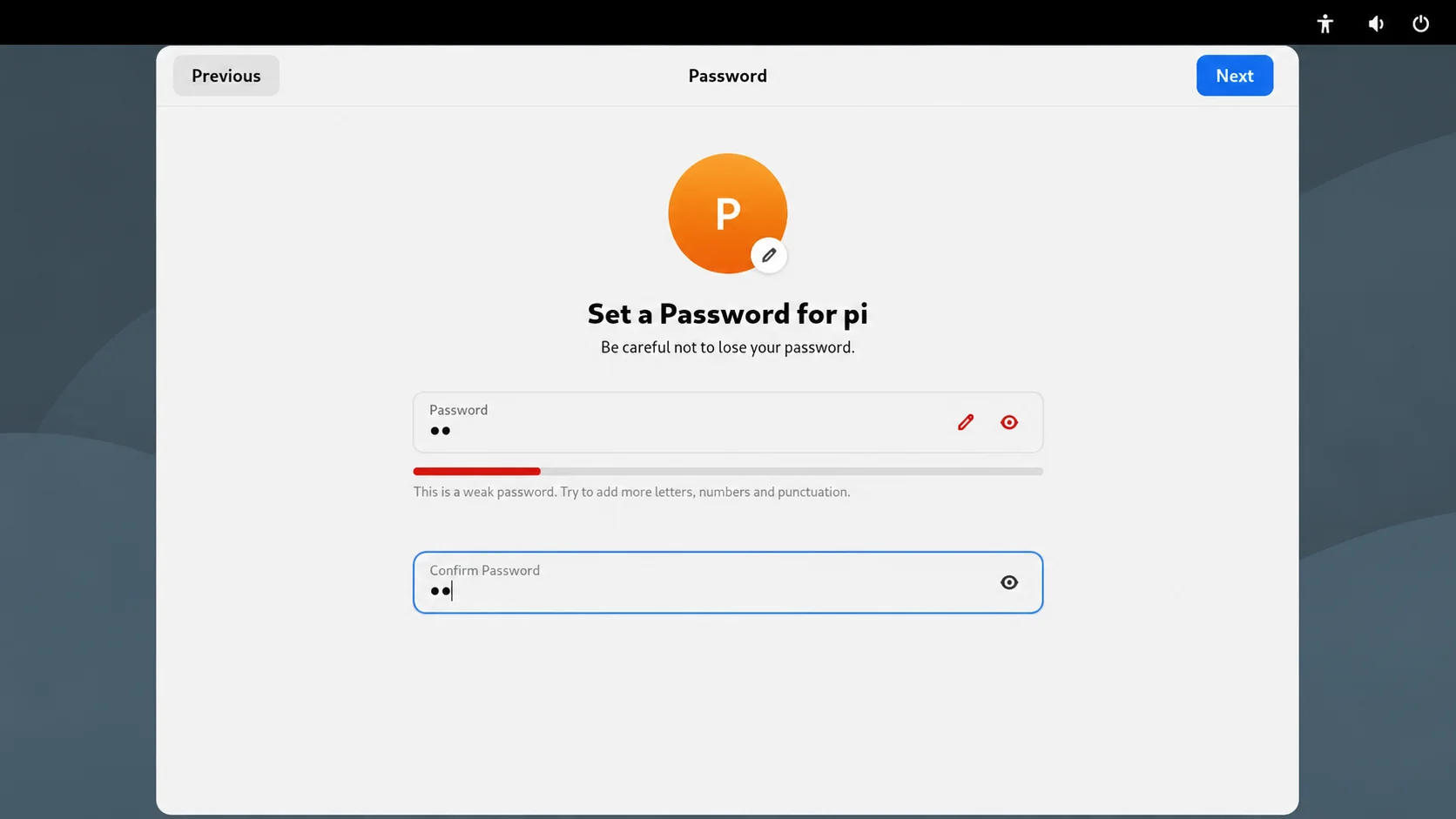
Note: Please remember your username and password, as they will be required for future logins.
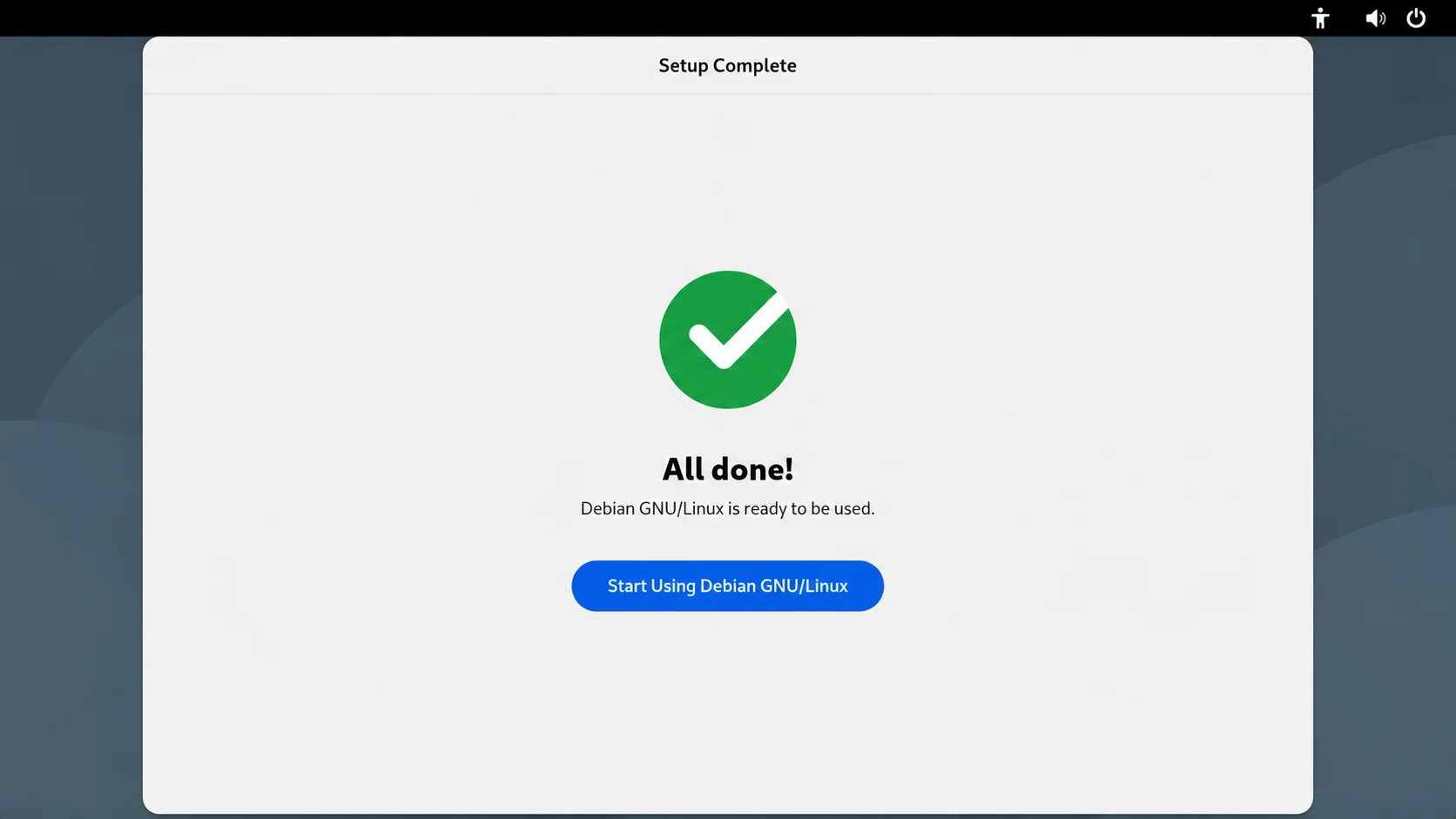
The initial setup is complete.
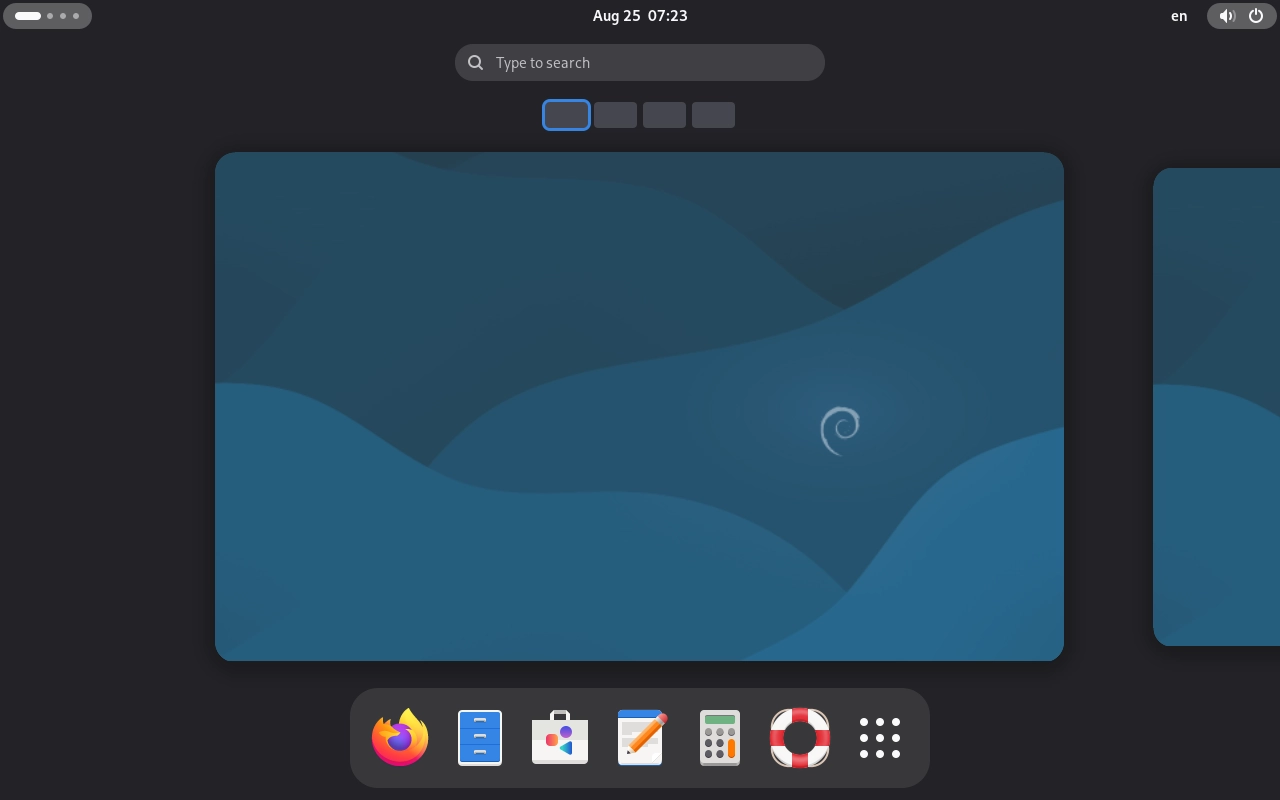
After logging in, the desktop appears as shown below: