First startup
Copyright © Quectel Wireless Solutions Co., Ltd. 2026. All rights reserved.
Safety Instructions (Must Read)
💡 - Hardware Usage Guidelines (Preventing Damage)
- Please use the included USB-A power cable (5A). Do not use power supplies below 3A current (such as phone chargers), as this may cause the smart single-board computer to be underpowered and crash frequently. If external high-power modules (e.g., motors) are needed, power them separately. Do not draw power from the smart single-board computer USB port or GPIO port (to avoid overloading and damaging the board).
- Always disconnect power before plugging or unplugging accessories (such as camera FPC cables or Ethernet cables). Hot-plugging may damage interface chips. The USB-C port is for firmware flashing and host mode communication only — do not use it to power the board.
- Operating temperature:-20 ~ +70 °C. Do not use the device in high-temperature (e.g., direct sunlight), high-humidity (humidity >80%), or dusty environments. Before handling, touch a metal object to discharge static electricity; avoid touching chip pins on the board with bare hands.
System and Software Precautions
Only official system images provided by Quectel are supported. Do not flash images intended for other boards (e.g., Raspberry Pi), as this will cause driver incompatibility and boot failures.
When installing software, use the apt command to download from official repositories. Avoid installing packages from unknown sources to prevent system compromise or crashes.
What You Need to Prepare
Depending on your use case, there are two configuration options: external monitor and ADB connection. √ indicates required, ○ indicates optional.
Accessory |
Specification |
External Monitor |
ADB Connection |
|---|---|---|---|
Quectel Pi M2 smart single-board computer |
— |
√ |
√ |
Power Adapter |
5V/5A or 9V/3A PD |
√ |
√ |
Ethernet Cable |
Connect to router or use Wi-Fi |
○ |
○ |
Monitor |
PC / Laptop / MIPI Display |
√ |
○ |
HDMI Type-A Male Cable |
Connect to monitor |
○ |
○ |
Keyboard/Mouse |
USB Wired/Wireless |
√ |
√ |
PC / Laptop |
For running terminal software |
○ |
√ |
USB Type-C to USB Type-A Data Cable |
Connect development board to PC |
○ |
√ |
Pre-Power-On Preparation
DIP switch status description:
DIP Switch 1 |
Operating Mode / Purpose |
|---|---|
ON |
System starts automatically on boot |
OFF |
The system needs to be manually started by pressing and holding the PWRKEY button |
Choose Your Use Case
The Quectel Pi M2 smart single-board computer comes pre-loaded with a Debian 13 system image — no additional image flashing is required. Please choose the corresponding boot method based on your available equipment:
Scenario |
Applicable Conditions |
Jump To |
|---|---|---|
With External Monitor |
Has HDMI/USB-C DP/MIPI monitor, keyboard and mouse |
|
Without External Monitor |
No monitor available, has a USB-C data cable and a computer |
Scenario 1: Boot with External Monitor
Hardware Connection
⚠️ Warning: Disconnect all power before making connections to avoid hardware damage from hot-plugging!
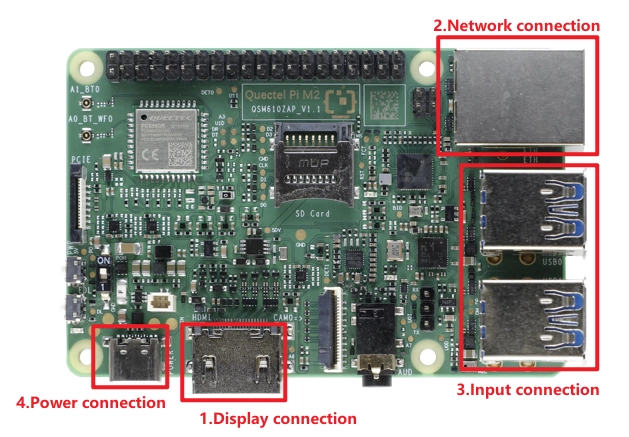
Display Connection: Choose the connection method based on your monitor’s interface. Here we use Option 2: connect one end of the Micro HDMI cable to the main board’s Micro HDMI port and the other end to the monitor’s HDMI port.
Option 1 (High Definition): Connect one end of the FPC ribbon cable to the MIPI port on the Quectel Pi M2, and the other end to the monitor’s MIPI port. For details, refer to the MIPI.
Option 2 (Compatible): Connect one end of the HDMI cable to the HDMI port on the Quectel Pi M2, and the other end to the monitor’s HDMI port.
Network Connection: Connect the Quectel Pi M2 Ethernet port to the router’s LAN port using an Ethernet cable.
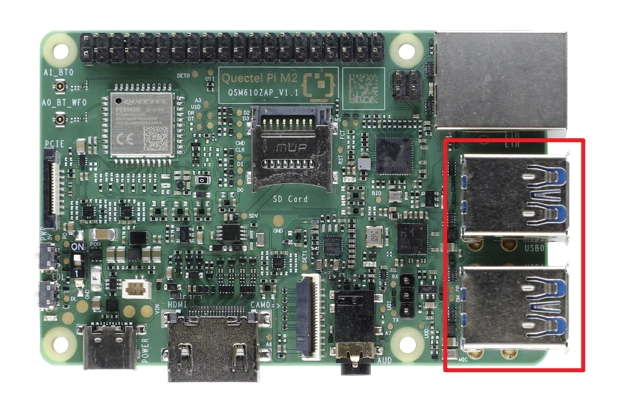
Peripheral Connection: Plug a USB keyboard and mouse into the two USB-A ports on the Quectel Pi M2. For wireless keyboard/mouse, simply plug the receiver into a USB port.
Power Connection: Finally, connect the USB-A end of the power cable to the power adapter, and the USB-C end to the power port of the Quectel Pi M2.
System Boot
⚠️ After connecting power, press and hold the PWRKEY button on the left side of the Quectel Pi M2 for 3-5 seconds until the system starts.
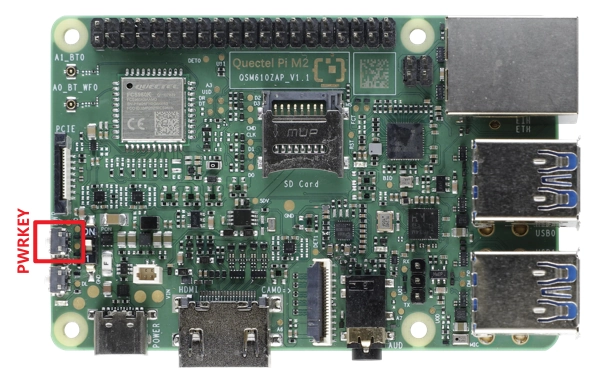
Turn on the monitor and confirm that the input source is switched to the corresponding interface (e.g., USB-C or HDMI).
Quectel Pi M2 smart single-board computer boot behavior : When you turn on the power for the Quectel Pi M2 (with the power cable plugged in), the power indicator on the Quectel Pi M2 (usually blue) will light up, showing that the system is starting up.
Wait approximately 1 minute, and the monitor will display the system desktop.
Quectel Pi M2 smart single-board computer System Login
For login username and password settings, please refer to the System login chapter.
Note
The root account has no password by default and must be set manually.
If you accidentally enter the Enterprise Login interface and cannot exit when creating a user, click Enterprise Login again to switch back to the user creation interface.
The M1’s Debian system uses the GNOME desktop by default.
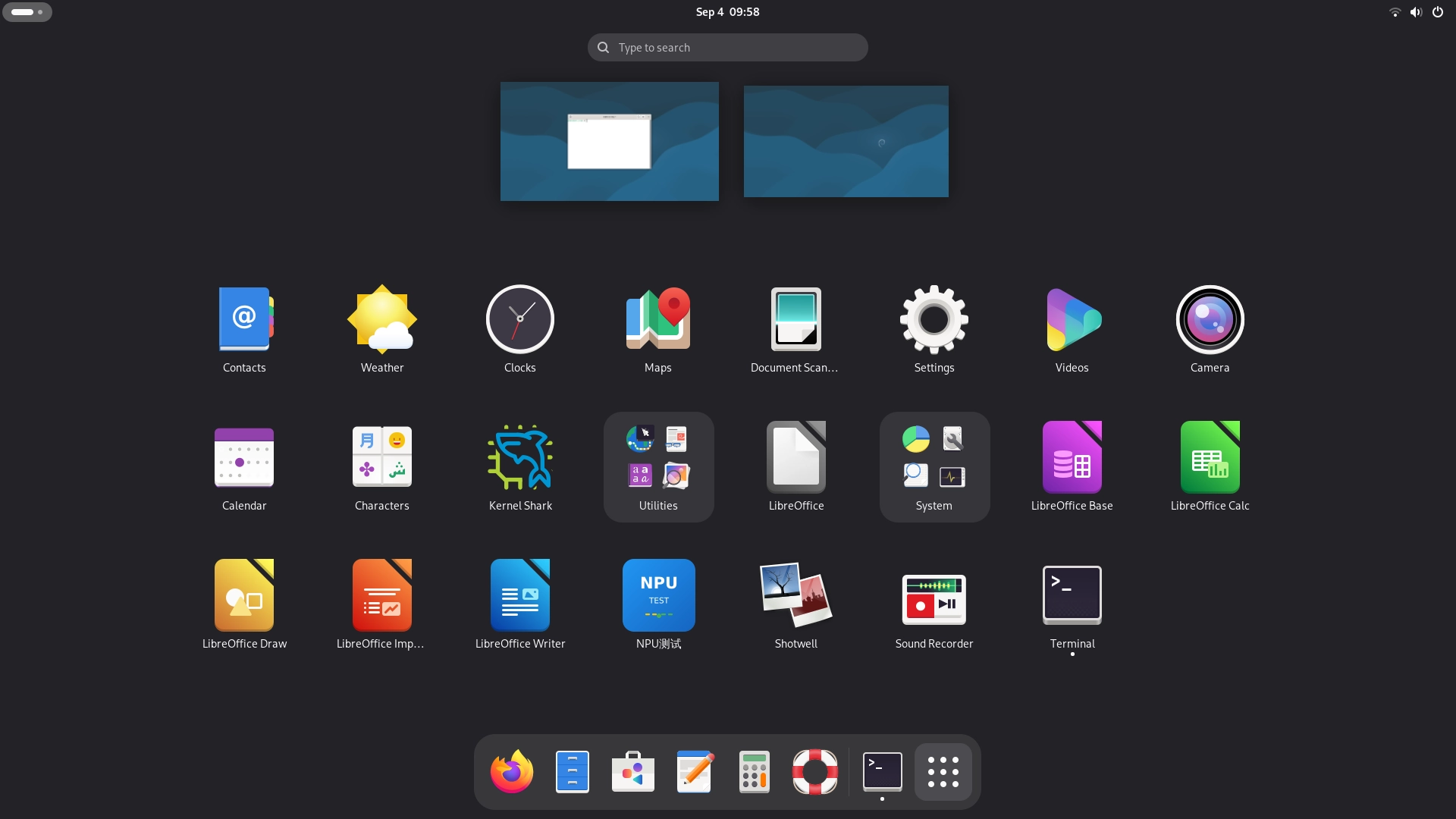
Language Settings
Navigate to System > Region & Language > Language > Select Language, and the changes will take effect after re-login.
Note
If you switch the system language to Chinese, please keep the old folder names after re-login. Otherwise, you will not be able to access paths like Desktop in the terminal.
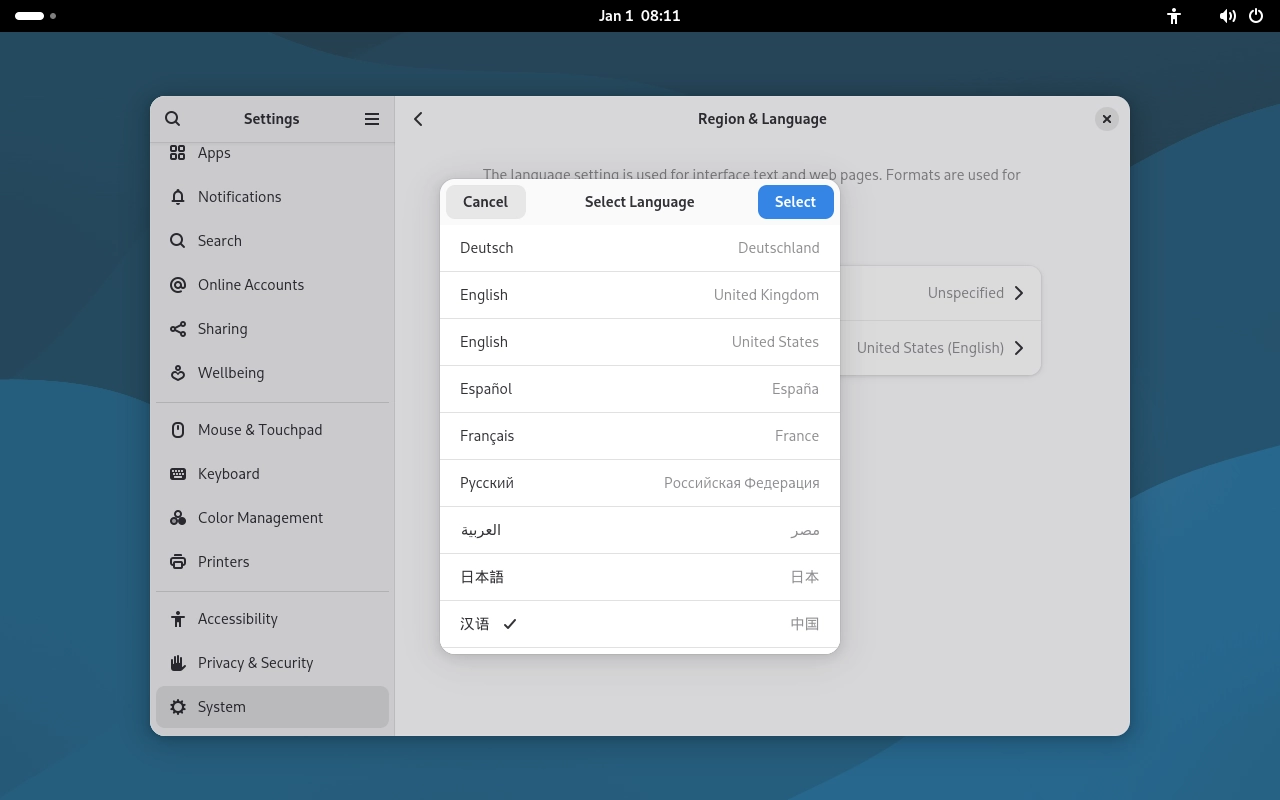
Network Settings
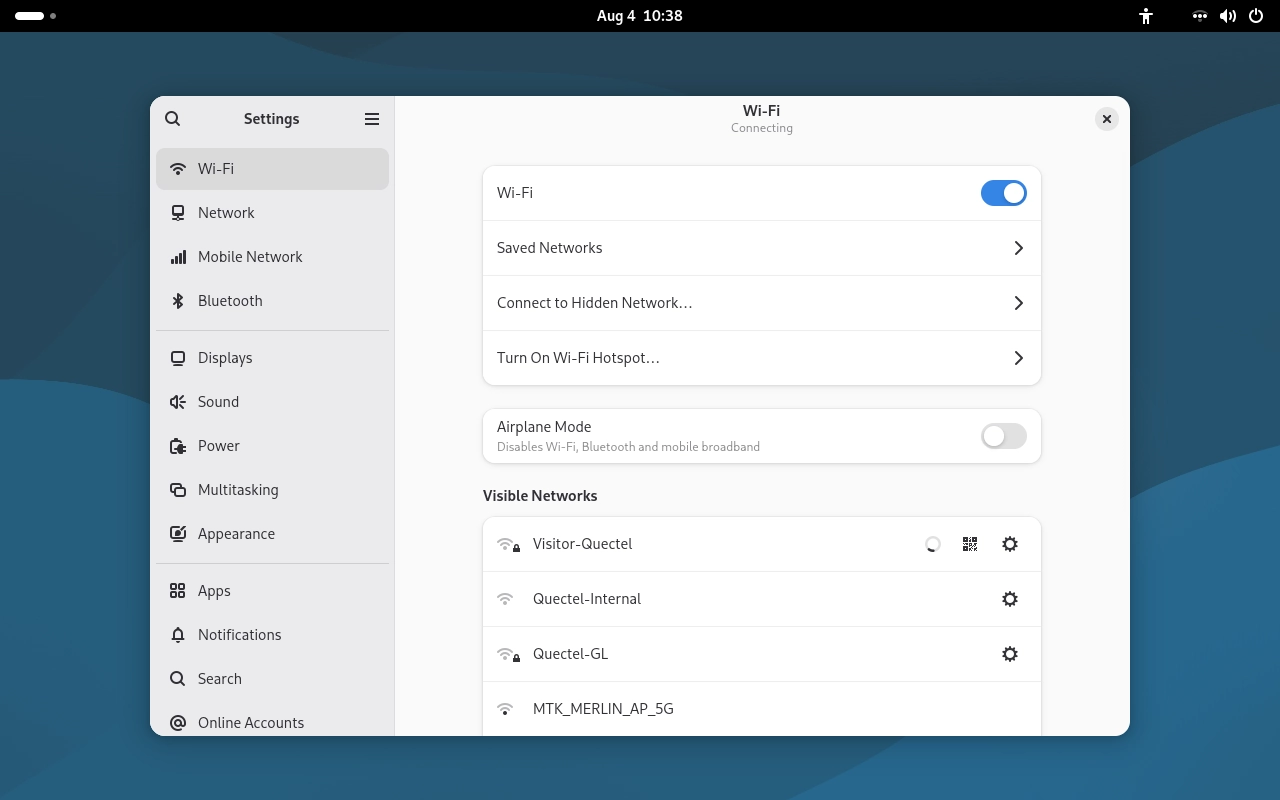
Connect to Wi-Fi by entering the password for the desired network in Settings.
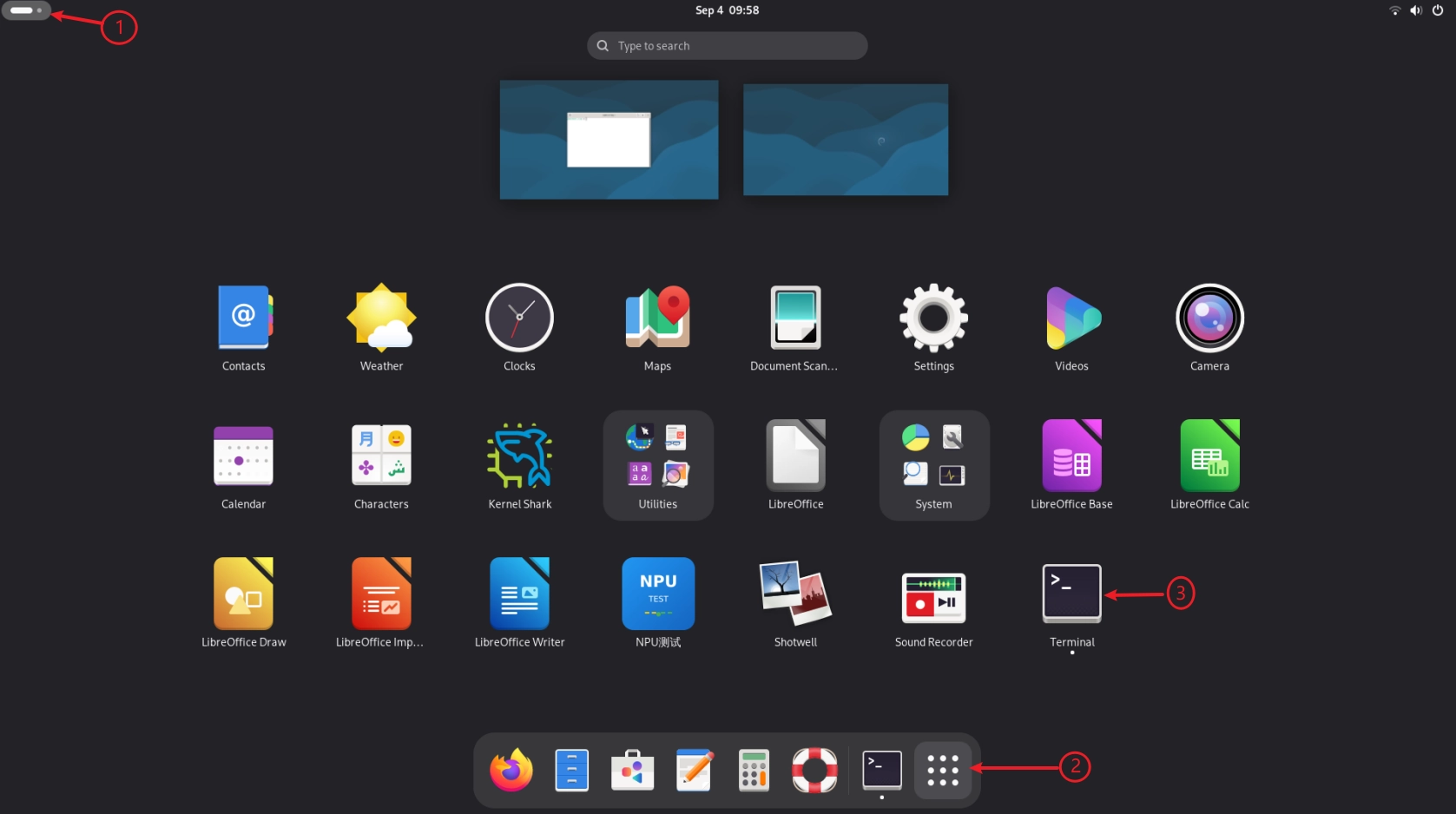
Opening the Terminal Command Line
Scenario 2: Boot without Monitor
If you do not have a monitor, keyboard, and mouse connected to the Quectel Pi M2 smart single-board computer, you can remotely control it from another computer.
To remotely control the Quectel Pi M2, you need to connect it to a network and then access it through a client on another device. Use SSH for remote command-line terminal access; use RDP for remote graphical desktop access. If the device is not yet connected to the network, you can use ADB to complete the initial network configuration.
For more remote access methods, please refer to the Device connection.
Method |
Description |
Prerequisites |
Tutorial Link |
|---|---|---|---|
RDP |
Remote graphical desktop access |
Device is connected to network |
|
SSH |
Remote command-line terminal access |
Device is connected to network |
Note
For the first boot, it is recommended to complete Wi-Fi configuration via ADB first, then you can use RDP or SSH for daily operations.
ADB Boot
Hardware Connection
Prepare a USB Type-A extension cable. Connect one end to the USB port on the Quectel Pi M2 and the other end to the host computer.
ADB Installation
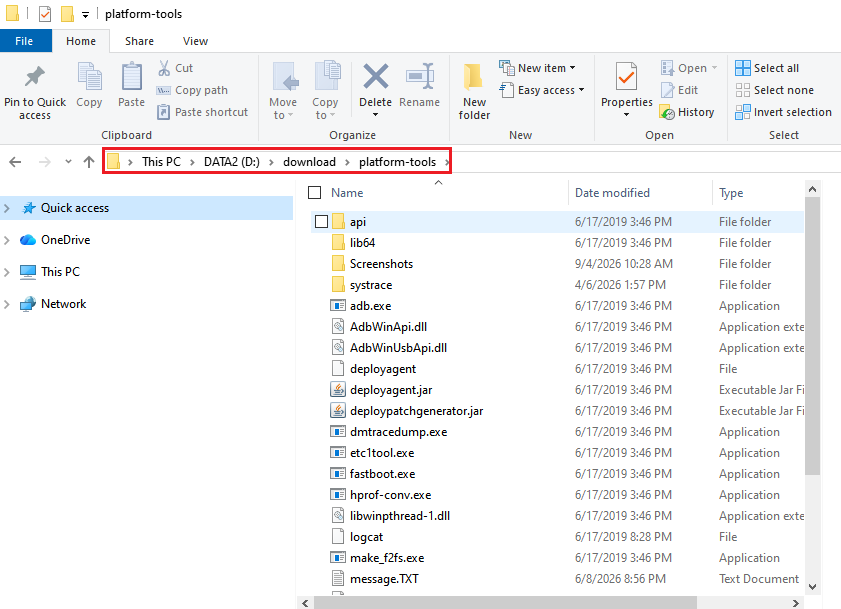
Download the ADB tool: platform-tools.
Extract the downloaded platform-tools to a folder on your computer.
Open the folder where the platform-tools are located, type cmd in the address bar at the top, and press Enter to open the ADB terminal, then execute the command:
adb devices
Example output:
List of devices attached
790c2fb9        device
Create a Regular User
The default system only has the root user. It is recommended to create a regular user for daily operations.
Create User
Here we use pi as an example username; you can change the username as needed.
# Here pi is the username being created
adduser pi
The system will interactively prompt you to set a password. Enter the password twice as prompted.
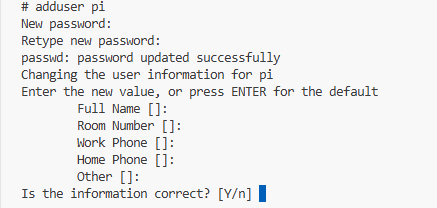
After user creation is complete, the system will automatically generate /home/username as the user’s home directory. You can store personal files, project code, etc. in this directory.
Grant sudo Privileges
usermod -aG sudo pi
Switch User
# Verify user
id pi

# Switch user
su - pi

# Test privileges
whoami
sudo whoami
# Should output root, verifying sudo privileges
Connect to Wi-Fi
The development board has a built-in qpi-config tool for quick Wi-Fi connection management.
Scan for Nearby Wi-Fi Networks
qpi-config wifi scan

Connect to Wi-Fi
# Connect to WiFi
qpi-config wifi connect "Your_WiFi_Name" "Your_WiFi_Password"

# View saved WiFi connections
qpi-config wifi show

# Remove a saved WiFi connection
qpi-config wifi remove <connection uuid>
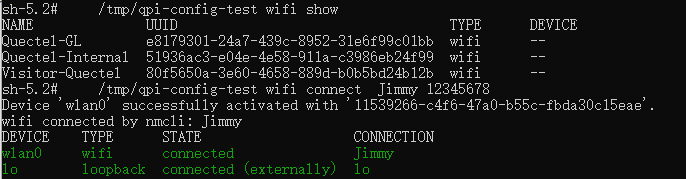
Verify Network Connectivity
ping www.baidu.com
Purpose
Android Debug Bridge (ADB) is a set of command-line tools provided by the Android SDK, used to establish communication between a computer and Android devices (physical devices / emulators), enabling device debugging, management, and development testing capabilities.
Serial Console
Hardware Connection
⚠️ When using a USB serial cable to log in to the smart single-board computer via serial port, make sure the pin connections are correct. Incorrect pin connections may cause hardware damage to the smart single-board computer.
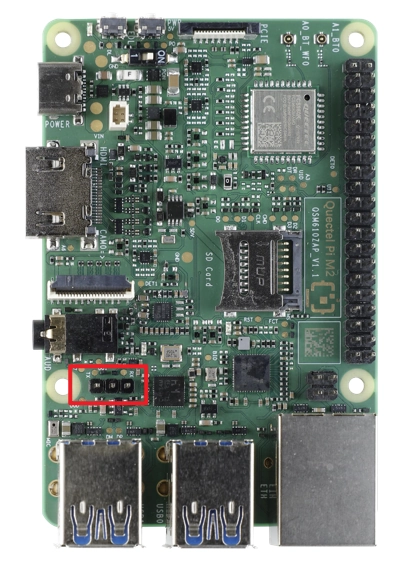
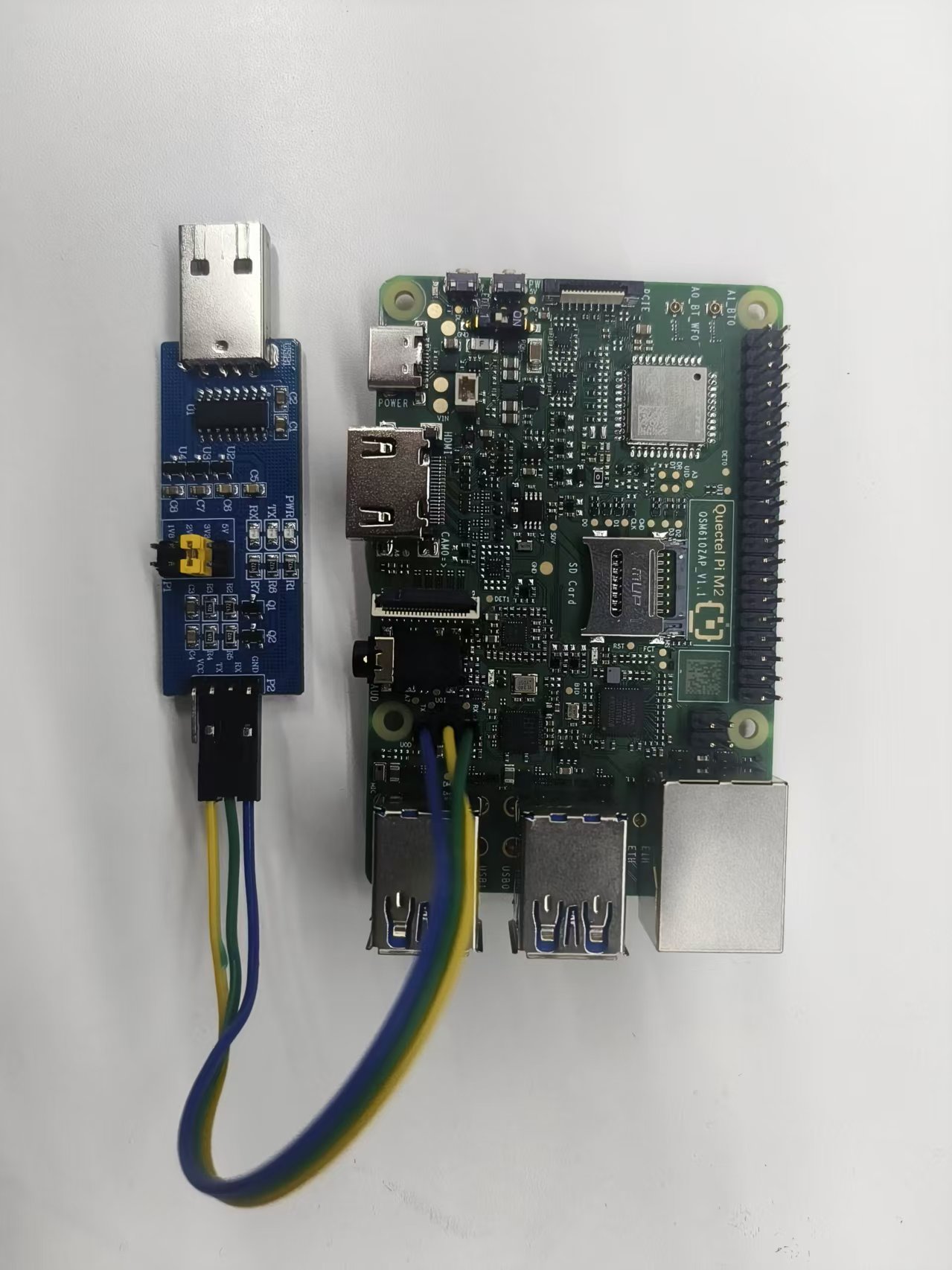
Connection Method
Connect the GND pin of the Quectel Pi M2 smart single-board computer to the GND pin of the USB serial cable
Connect the TXD pin of the Quectel Pi M2 smart single-board computer to the RXD pin of the USB serial cable
Connect the RXD pin of the Quectel Pi M2 smart single-board computer to the TXD pin of the USB serial cable
Serial Login
Note
The CH340 driver must be installed on the system first, otherwise the serial port will not be recognized.
It is recommended to download the QPiTerminal tool for serial connection.
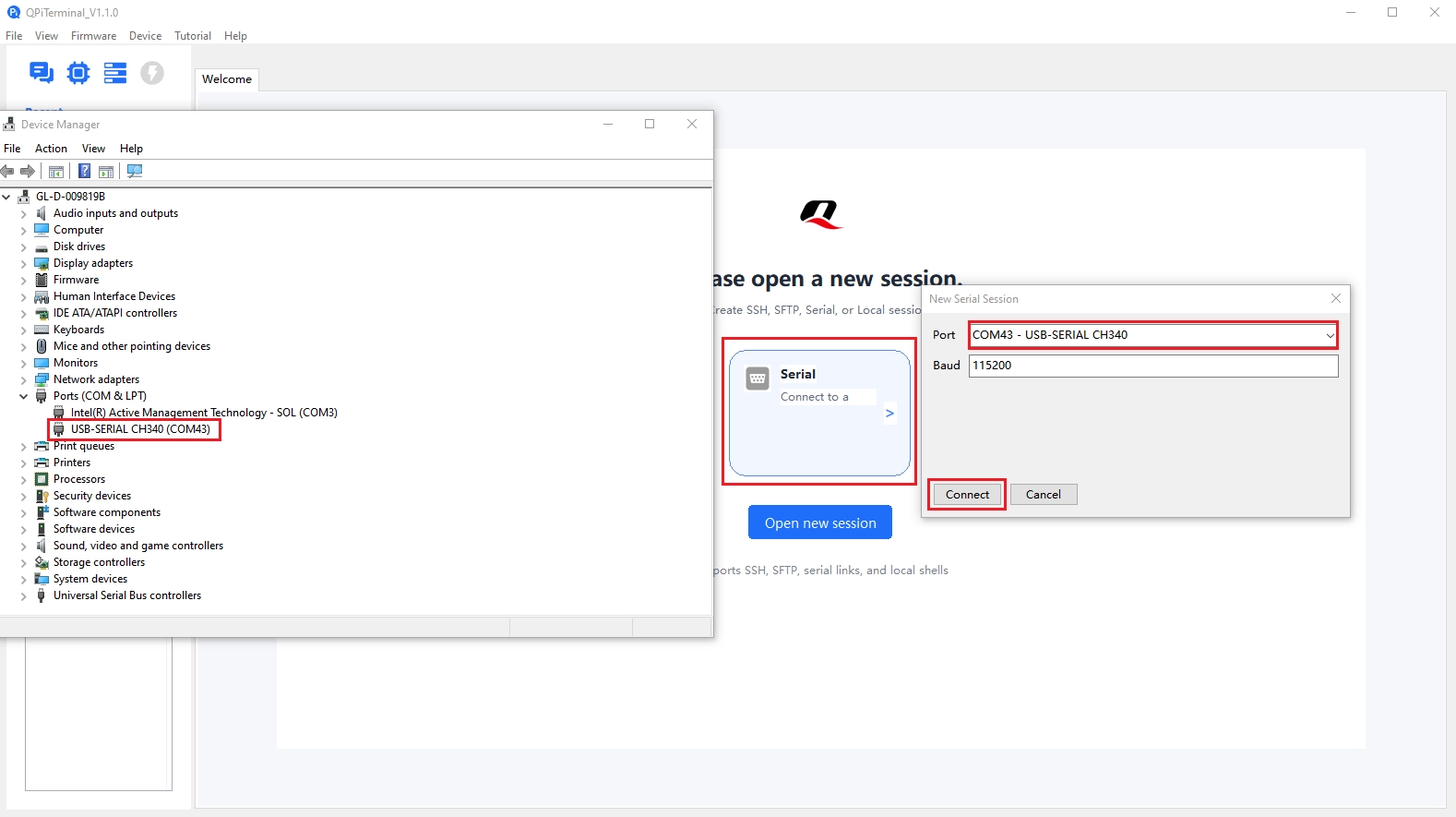
Open Device Manager to view the serial port.
Double-click to open QPiTerminal, select the USB serial port and set the baud rate to 115200, then click Connect.
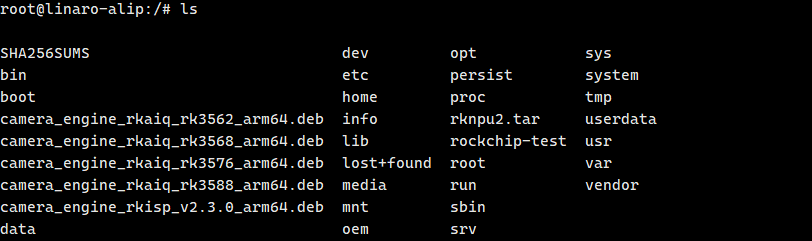
After entering the terminal, the default user is root. Enter ls to test. If the input is successful, it means that the serial port has been logged in normally. You can then view the logs and run commands through the serial port for debugging.
Purpose
The Serial Console is primarily used for viewing system logs, running commands for debugging via serial connection, and as a backup method for system access when the graphical interface is unavailable. It is an important tool for embedded system development and maintenance, particularly suitable for low-level debugging and troubleshooting.
SSH Connection to smart single-board computer
View Device IP Address
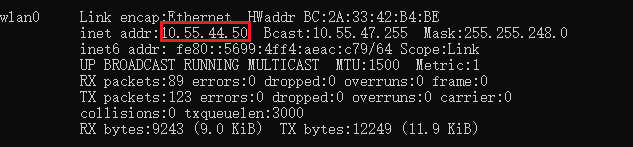
Execute the sudo ifconfig command in the smart single-board computer terminal to obtain the device’s IP address.
In this example, the device IP is 10.55.44.50.
Use QPiTerminal to SSH Connect to smart single-board computer
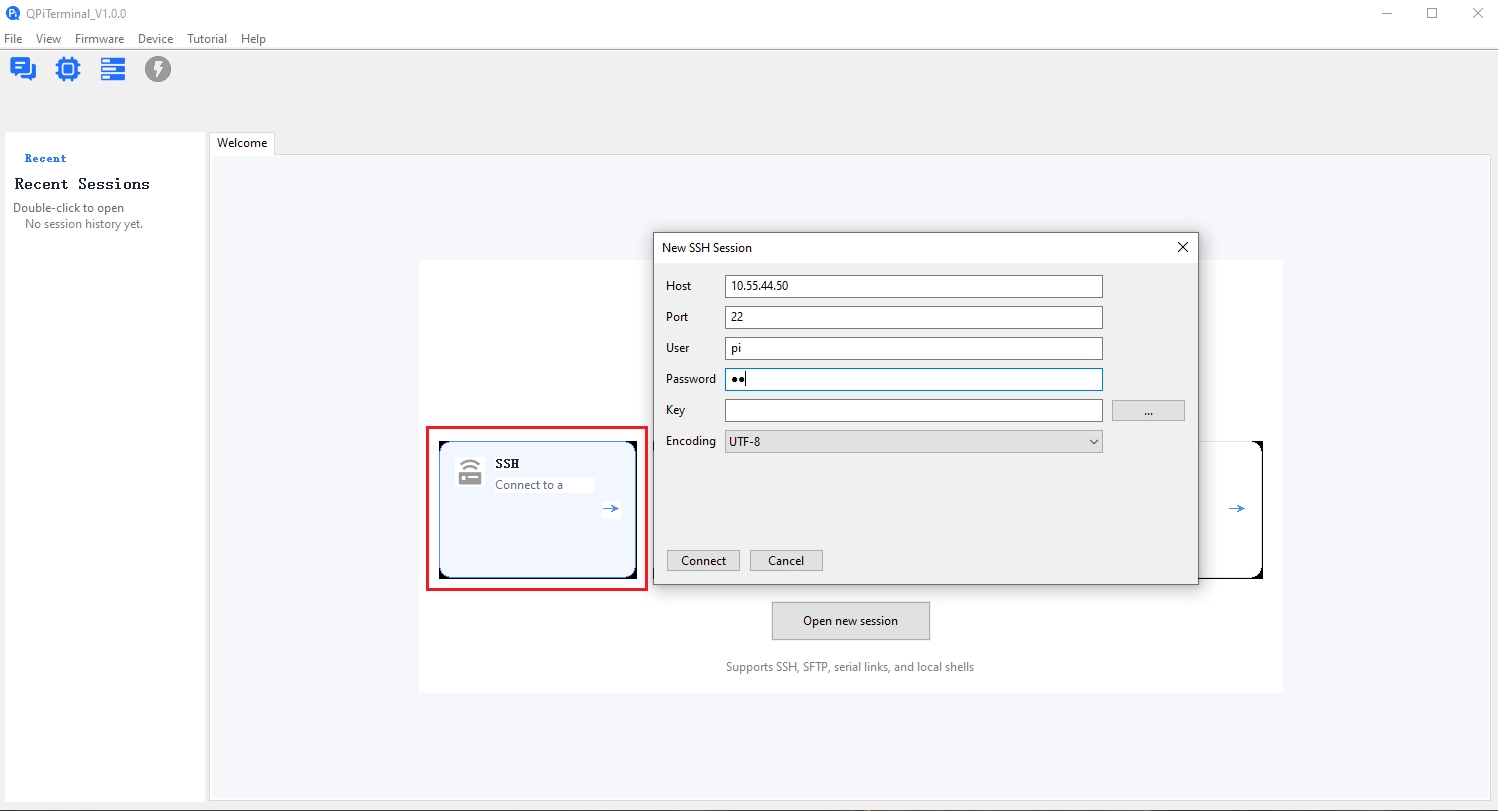
Open a new SSH session, enter the smart single-board computer’s IP address, username, and password, then click Connect.
System Health Check
After the system boots, use the qpi-config command in the terminal to quickly check the system status:
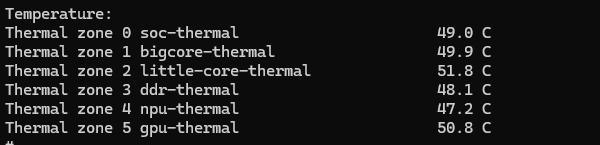
Check System Module Temperatures
sudo qpi-config dump temperature
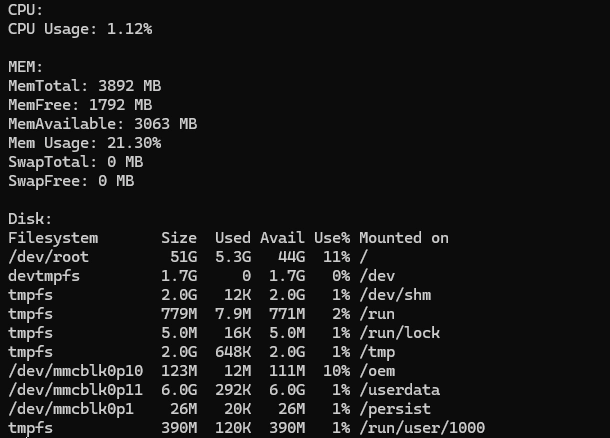
Check System CPU, Memory, and Storage Status
sudo qpi-config dump systemusage
Network Status Check
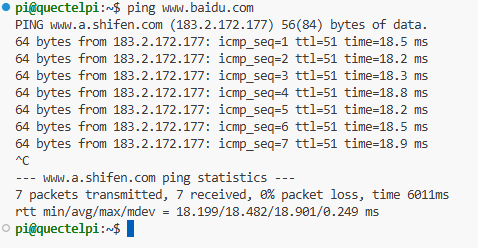
After connecting the device to the network via Ethernet cable or Wi-Fi, use the ping command to confirm the device can access external networks.
ping www.baidu.com
Normal connectivity output example:
PING www.a.shifen.com (183.2.172.177) 56(84) bytes of data.
64 bytes from 183.2.172.177: icmp_seq=1 ttl=51 time=18.5 ms
64 bytes from 183.2.172.177: icmp_seq=2 ttl=51 time=18.2 ms
64 bytes from 183.2.172.177: icmp_seq=3 ttl=51 time=18.3 ms
64 bytes from 183.2.172.177: icmp_seq=4 ttl=51 time=18.8 ms
64 bytes from 183.2.172.177: icmp_seq=5 ttl=51 time=18.2 ms
64 bytes from 183.2.172.177: icmp_seq=6 ttl=51 time=18.5 ms
64 bytes from 183.2.172.177: icmp_seq=7 ttl=51 time=18.9 ms

--- www.a.shifen.com ping statistics ---
7 packets transmitted, 7 received, 0% packet loss, time 6011ms
rtt min/avg/max/mdev = 18.199/18.482/18.901/0.249 ms
Field Descriptions:
64 bytes from ...— Received ICMP reply, indicating normal network connectivityicmp_seq— Sequence number; incrementing values indicate continuous responsesttl— Time to live; normal values are typically between 30~128time— Round-trip delay; lower values indicate better network quality0% packet loss— Packet loss rate is 0%, network is stable
Your First Hello World
Setting Up the Development Environment
After entering the Quectel Pi M2 smart single-board computer system, open a terminal window, enter the following command and press Enter to install the necessary development tools:
sudo apt update && sudo apt install gcc make
Compile and Run Hello World (C Version)
Open the system terminal and enter the command to create a hello.c file.
touch hello.c
Enter the following command to open the hello.c file with the vim editor.
sudo vim hello.c
Copy the following code into the hello.c file, press “ESC + Shift + :”, then type “wq” to save the code and exit the vim terminal.
#include <stdio.h>
int main(void)
{
    printf("hello world\r\n");
    return 0;
}
Execute the following command to compile the code:
gcc hello.c -o hello
Execute the following command to run the hello program:
./hello
Program output:
./hello
hello world
Compile and Run Hello World (Python Version)
In addition to C, you can also use Python to quickly implement a Hello World program. The system comes pre-installed with a Python environment — no additional interpreter installation is needed.
Open the system terminal and enter the command to create a hello.py file.
touch hello.py
Enter the following command to open the hello.py file with the vim editor. (On M1, you can also use the Files manager in the desktop environment to edit code.)
sudo vim hello.py
Copy the following code into the hello.py file, press “ESC + Shift + :”, then type “wq” to save the code and exit the vim terminal.
def main():
    print("Hello, World!")

if __name__ == "__main__":
    main()
Python is an interpreted language — no compilation needed, just run it directly:
python3 hello.py
Program output:
python3 hello.py
Hello, World!
Purpose
The Hello World program is primarily used to verify that the development environment has been set up successfully. By writing, compiling, and running a simple C/Python program, it tests the system’s basic functionality, including whether the compiler, runtime environment, etc. are working properly. It is a fundamental practice for getting started with embedded development.
Safe Shutdown and Restart
Quectel Pi M2 supports shutdown and restart via both the desktop and command line.
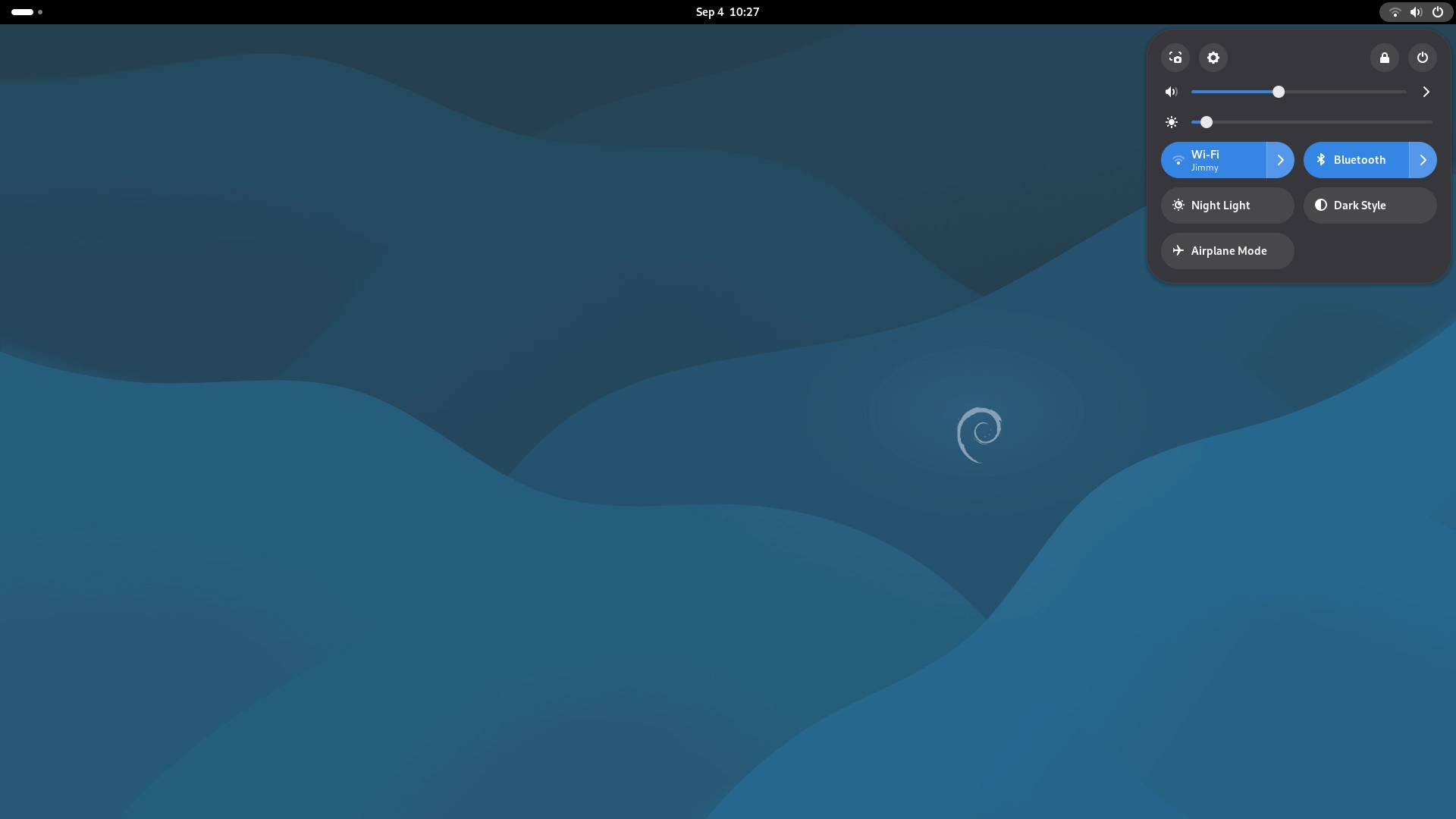
Shutdown via Desktop GUI
If you are using an external monitor and are in the desktop environment:
Click the top-right corner of the desktop.
Select Power Off or Restart.
Shutdown via Command Line
On the Quectel Pi M2, you can execute the following commands in the terminal (local terminal, SSH, or ADB shell):
Shutdown
sudo poweroff
Restart
sudo reboot
What’s Next?
After completing the introductory experience, you can continue to explore more features: