ADB terminal
Copyright © Quectel Wireless Solutions Co., Ltd. 2026. All rights reserved.
ADB stands for Android Debug Bridge, a set of command-line tools used for communication between a host computer and a device. Through ADB, users can view device connection status on the computer, enter the device Shell, transfer files, reboot the device, and execute debugging commands.
In the Quectel Pi M2 Debian system, ADB is mainly used for local debugging and fast file transfers during development. After connecting the development board to the computer with a double-headed Type-A USB cable, you can manage the device using commands such as adb devices, adb shell, adb push, and adb pull.
Preparation
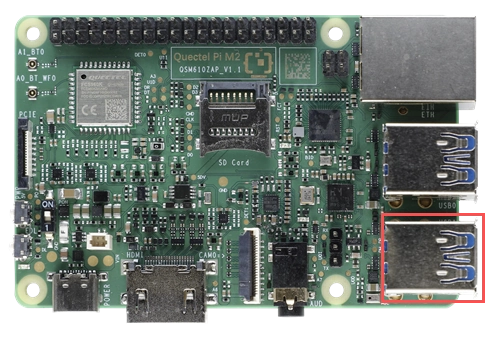
Prepare a double-headed Type-A USB cable. Connect one end to the USB port of the Quectel Pi M2 and the other end to the host computer.
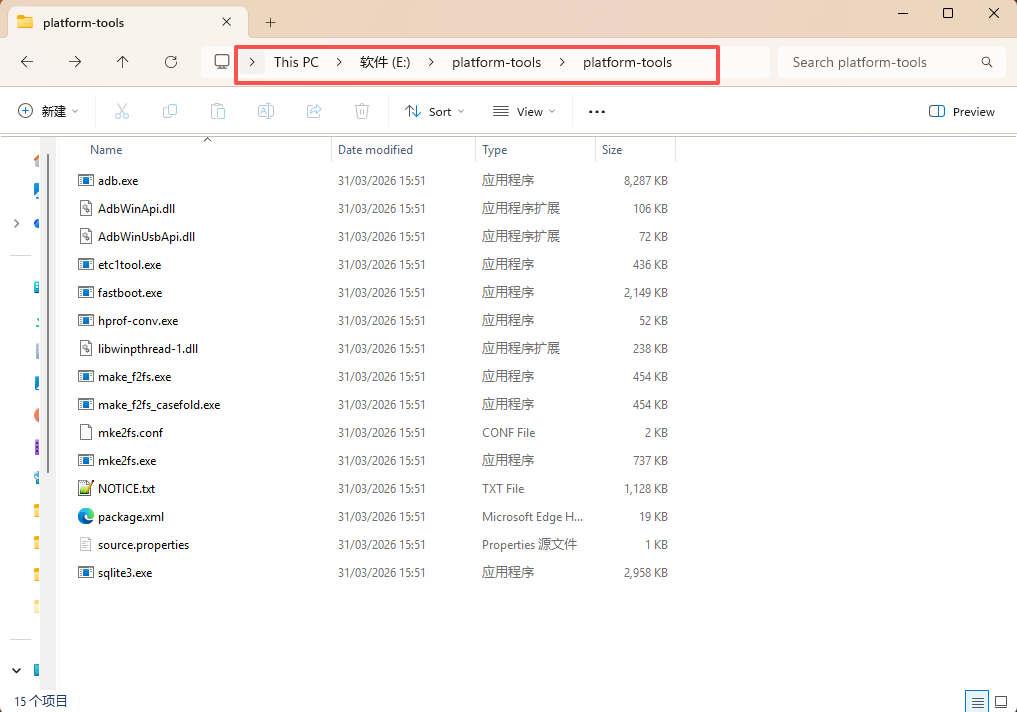
Download the platform-tools tool on the computer and extract it to a local directory.
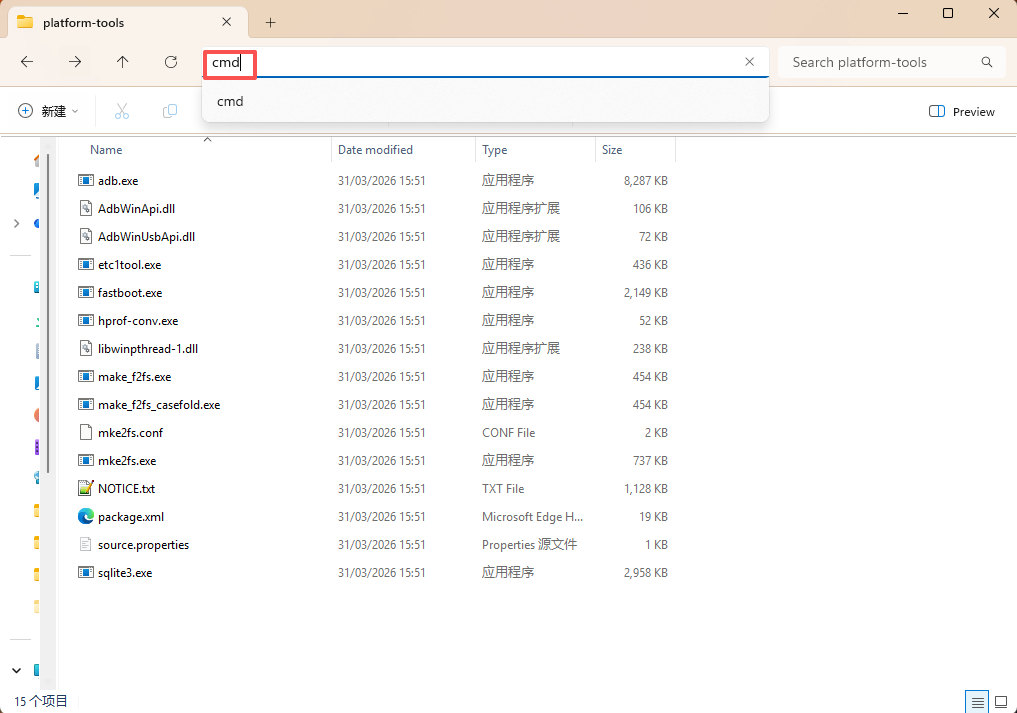
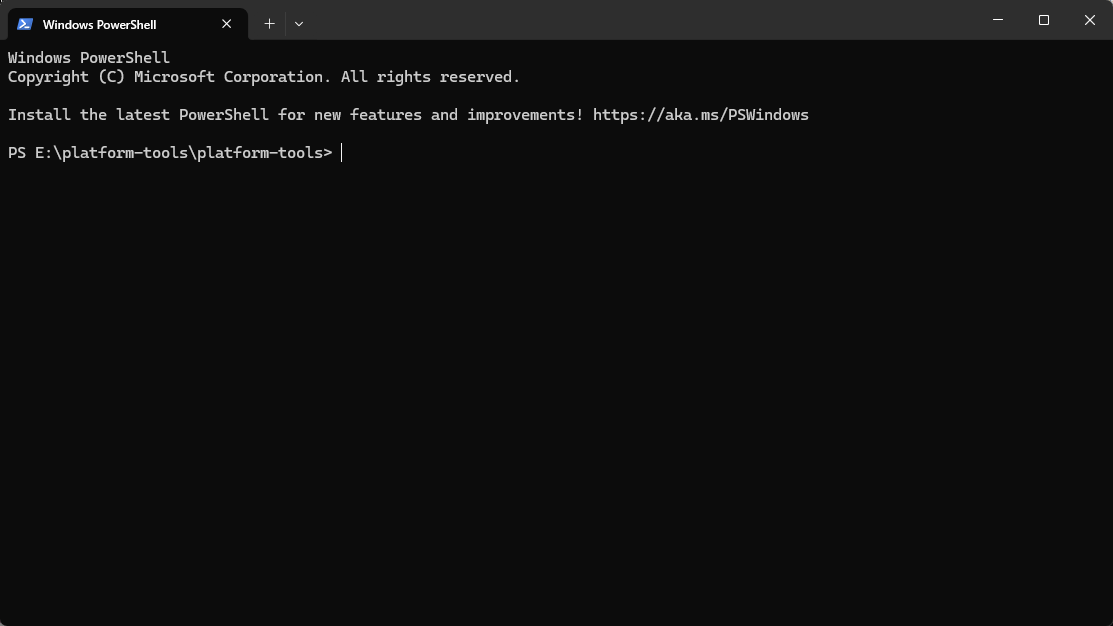
Open the folder where platform-tools is located, type cmd in the address bar at the top, and press Enter to open the ADB terminal.
Software Installation
The computer side needs to install or extract platform-tools, which contains the adb command.
The Quectel Pi M2 Debian system already has the ADB function integrated. It is managed by usbdevice.service, and the ADB program path is /usr/bin/adbd. Generally, no additional software packages need to be installed.
You can check the status of the USB device function service on the development board:
systemctl status usbdevice.service --no-pager -l
Software Configuration
The ADB function is managed by usbdevice.service. Common configuration and management methods are as follows:
Configuration Item |
Description |
|---|---|
Service Name |
|
Management Script |
|
ADB Program |
|
Connection Method |
Connect the host computer and the development board via a double-headed Type-A USB cable |
Typical Uses |
Shell debugging, file transfer, device status viewing |
To restrict ADB usage, you can stop or disable the USB device function service. After disabling, it is recommended to reboot the system to keep the state consistent:
sudo systemctl stop usbdevice.service
sudo systemctl disable usbdevice.service
sudo reboot
To re-enable the ADB function, you can execute:
sudo systemctl start usbdevice.service
sudo systemctl enable usbdevice.service
sudo reboot
Software Startup
Start the USB device function service:
sudo systemctl start usbdevice.service
Set it to start on boot:
sudo systemctl enable usbdevice.service
View the current status:
systemctl status usbdevice.service --no-pager -l
systemctl is-active usbdevice.service
Restart the service:
sudo systemctl restart usbdevice.service
ADB Debugging
View Connected Devices
Execute the following in the ADB terminal on the computer:
adb devices
If a device entry appears in the list and its status is device, it means the computer has recognized the development board.
Enter the Device Shell
Execute on the computer:
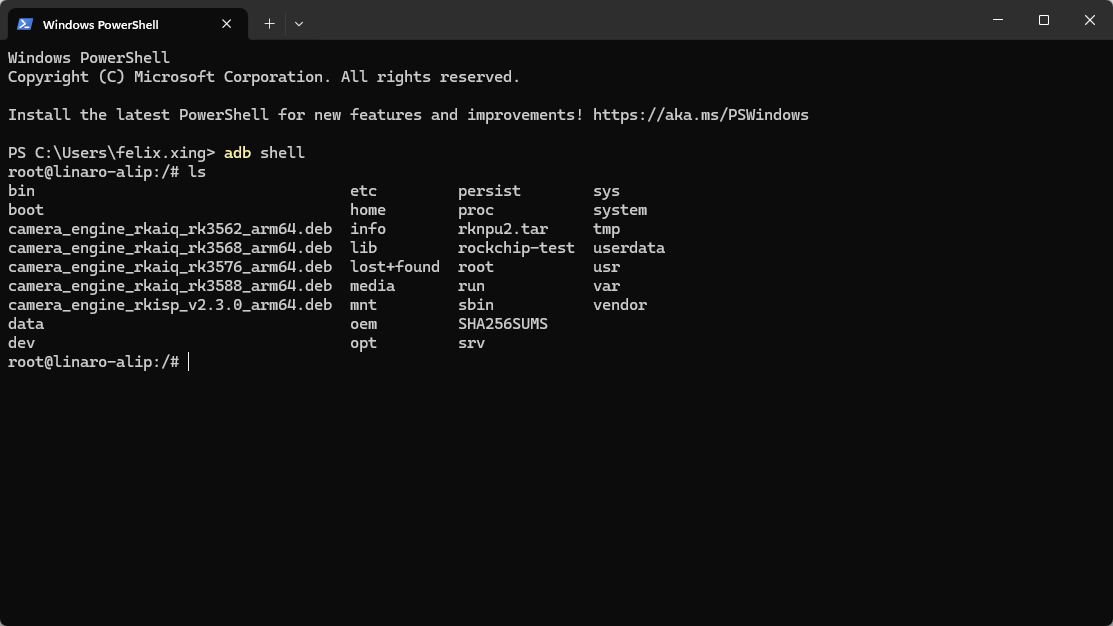
adb shell
After entering the Shell, you can execute common Linux commands on the development board system. You can first execute the following command to confirm the current user:
id
whoami
To exit the Shell, enter:
exit
Transfer Files from the Computer to the Device
# Usage: adb push <local file path on the computer> <destination path on the device>
adb push ./test.txt /data/local/tmp/
Transfer Files from the Device to the Computer
# Usage: adb pull <file path on the device> <destination path on the computer>
adb pull /data/local/tmp/test.txt ./
Here ./ indicates saving to the directory where the current ADB terminal is located.
Reboot the Device
adb reboot
Troubleshooting
Issue |
Troubleshooting Method |
|---|---|
|
Check whether the USB cable supports data transfer; confirm the cable is plugged into the M2’s USB port; unplug and replug, then run |
Device status shows |
Run |
No |
Confirm that platform-tools has been extracted, open a terminal in that directory, or add platform-tools to the system environment variables. |
The service is not running on the development board |
Run |
File transfer failed |
Check whether the target path exists and whether there is write permission. It is recommended to test using the |