Debug uart
Copyright © Quectel Wireless Solutions Co., Ltd. 2026. All rights reserved.
Debug Uart is the debug serial console of the Quectel Pi M2. It is used to connect to the development board via a USB-to-TTL serial tool, view boot logs on the computer, enter the system console, and execute debugging commands. Unlike network-based methods such as SSH and VNC, Debug Uart does not depend on a network or graphical interface, making it suitable for troubleshooting low-level issues such as system boot, network anomalies, and display anomalies.
Preparation
Prepare a USB-to-TTL serial adapter board and 3 DuPont wires. Please confirm that the serial adapter board supports the 3.3 V logic level.
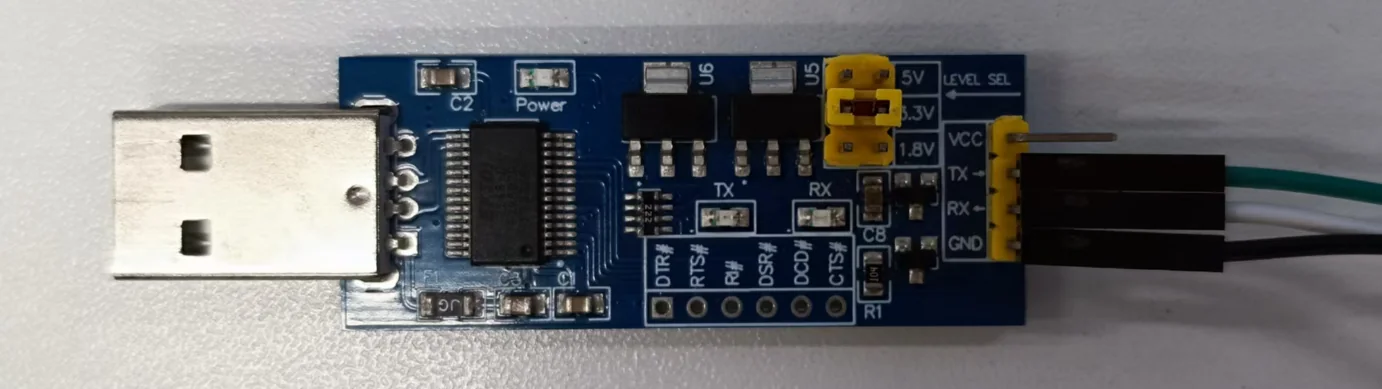
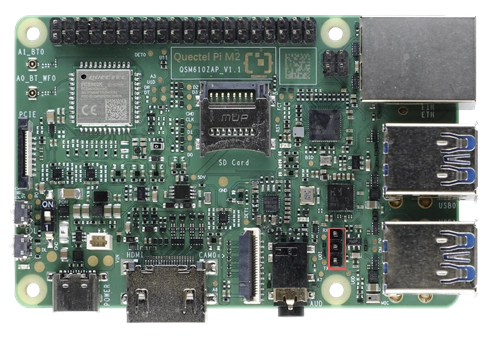
Confirm the location of the Debug Uart interface on the Quectel Pi M2, and connect the serial wires according to the wiring diagram.
💡 When connecting the USB serial data cable to the smart main control board, please confirm that the pins are connected correctly. Incorrect pin connections may cause serial communication to fail and, in severe cases, may damage the hardware.
Plug the USB-to-TTL serial adapter board into the computer, and confirm that the computer can recognize the serial port number.
Windows: View the serial port number in Device Manager, for example
COM8.Linux: Check the
/dev/ttyUSB*or/dev/ttyACM*device nodes.
Prepare serial terminal software. For Windows, QPiTerminal is recommended; for Linux,
picocomcan be used.
Software Installation
The computer side requires serial terminal software and the corresponding USB serial driver.
Windows
For Windows, QPiTerminal is recommended for serial connections. If the computer cannot recognize the USB-to-TTL serial device, please install the corresponding driver first, such as the CH340, CP210x, or FTDI driver, depending on the chip used on the serial adapter board.
After plugging in the USB-to-TTL serial adapter board, you can view the corresponding serial port number in Device Manager, for example COM8.
Linux
On the Linux computer, the device is usually recognized as a /dev/ttyUSB* or /dev/ttyACM* device. You can execute the following command to check:
ls /dev/ttyUSB* /dev/ttyACM* 2>/dev/null
To use picocom, you can install it:
sudo apt update
sudo apt install -y picocom
Software Configuration
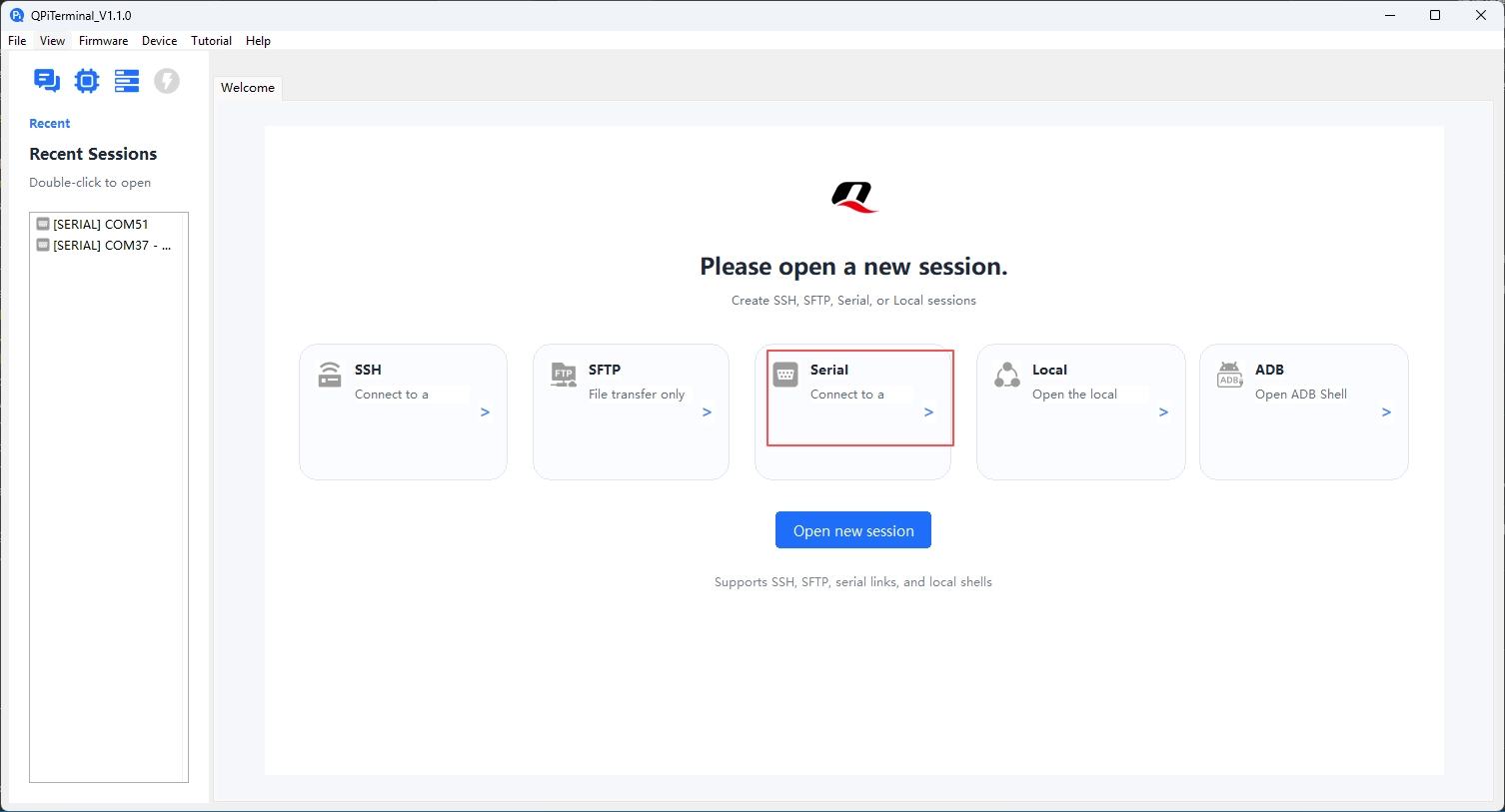
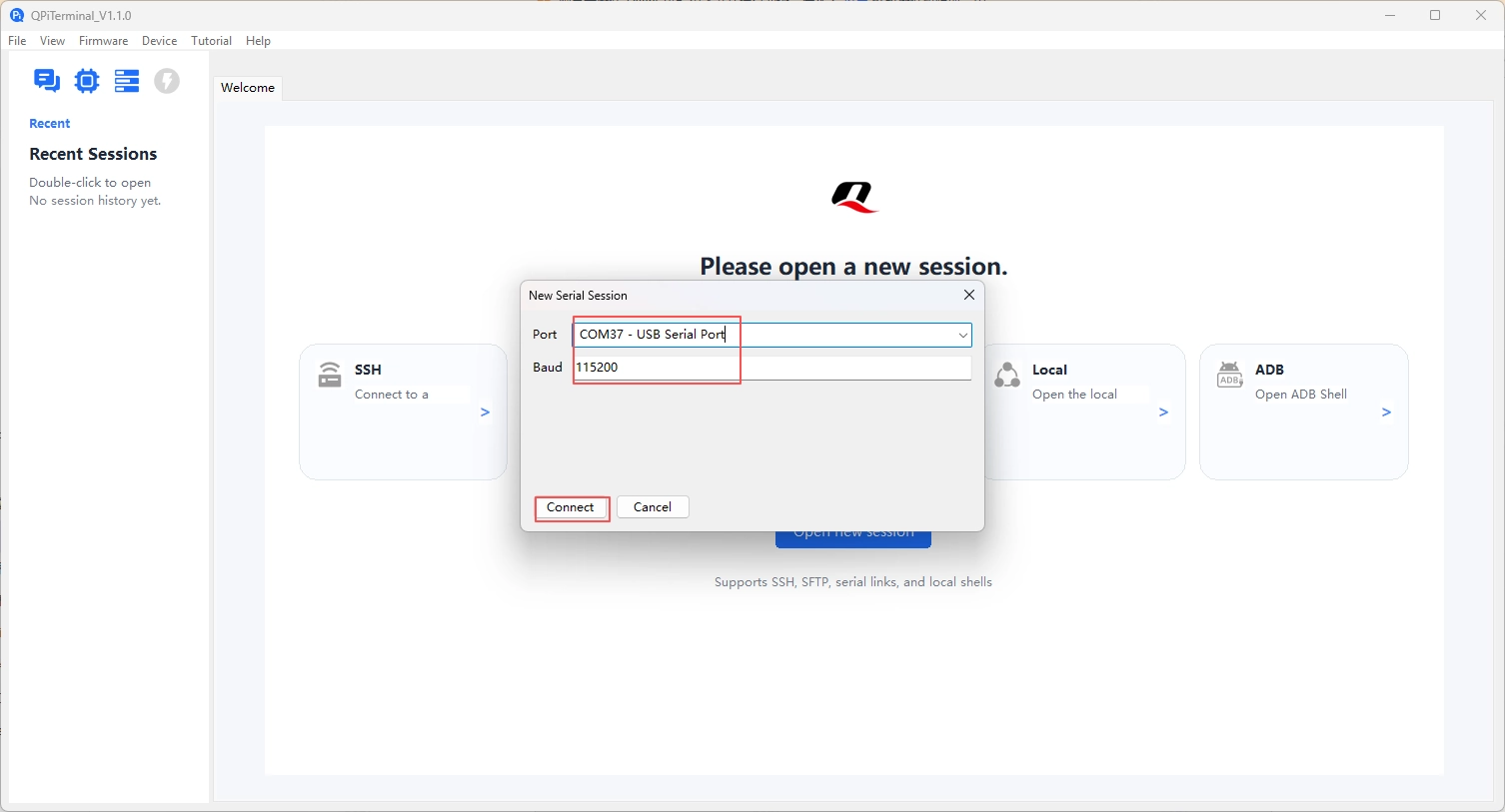
When using QPiTerminal, select the Serial connection method, click Open new session, and in the pop-up window select the serial port number recognized by Device Manager and set the baud rate to 115200.
In the New Serial Session window, confirm the serial port number and baud rate, then click Connect to establish the serial connection.
Software Startup
Debug Uart does not require starting a network service separately on the development board. As long as the hardware wiring is correct and the driver and serial terminal configuration on the computer are correct, you can use it by opening the serial terminal.
Starting QPiTerminal on Windows
Plug the USB-to-TTL serial adapter board into the computer.
Confirm the serial port number in Device Manager.
Open QPiTerminal and select the Serial connection method.
Click Open new session, select the serial port number, and set the baud rate to 115200.
Click Connect to open the serial port window.
Using picocom on Linux
Execute on the PC:
sudo picocom -b 115200 /dev/ttyUSB0
Here /dev/ttyUSB0 should be replaced according to the actual recognized device node.
To exit picocom, press:
Ctrl+A, then Ctrl+X
Serial Console
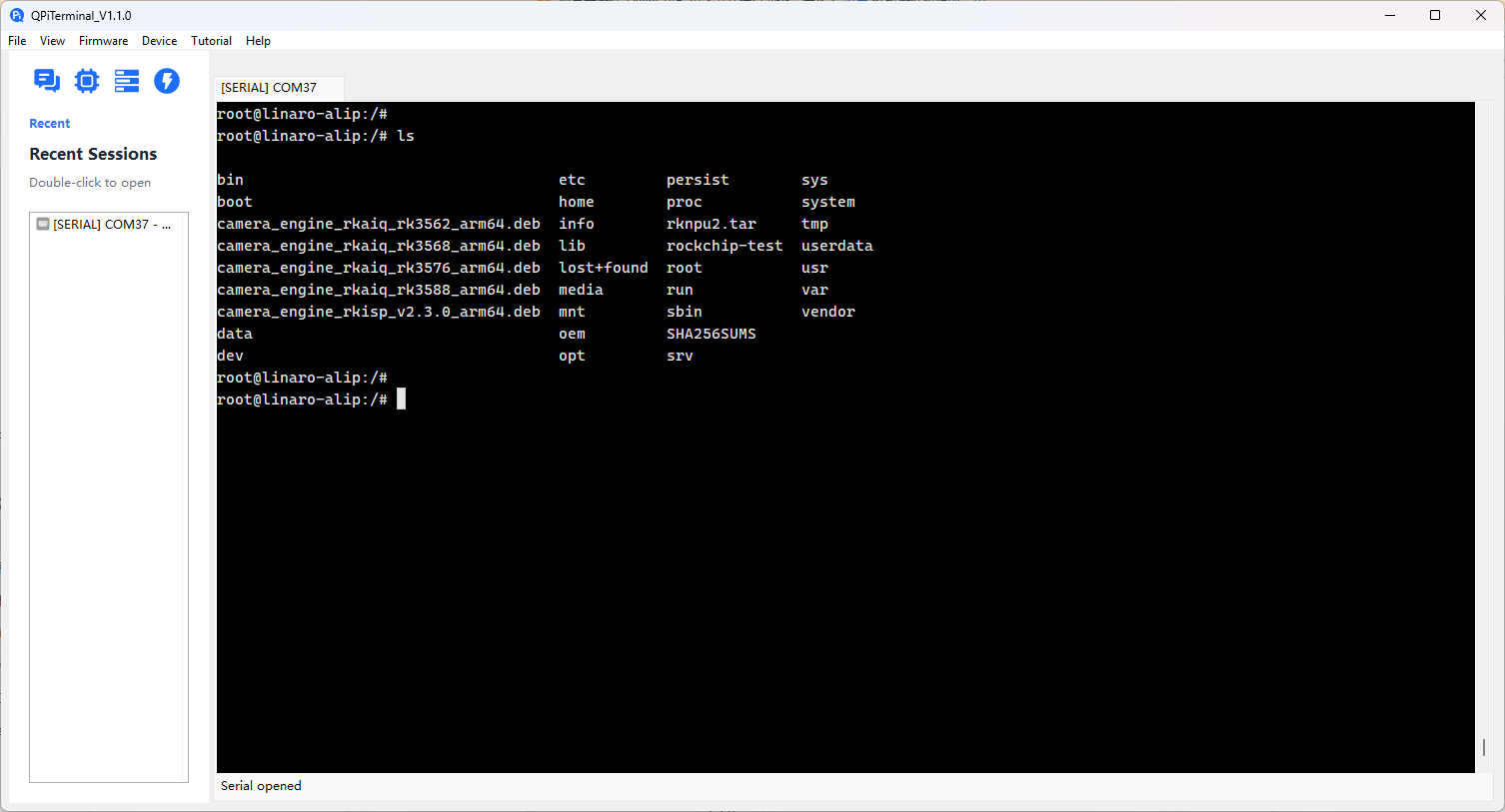
After opening the serial terminal, power on or reboot the development board to view the boot logs. After the system boot is complete, you can press Enter in the terminal interface, and then enter commands for testing.
ls
If you can see the system directory listing, the serial console is working properly.
Troubleshooting
Issue |
Troubleshooting Method |
|---|---|
No serial port number on the computer |
Check whether the USB-to-TTL serial adapter board is plugged in securely; confirm the corresponding driver is installed; try replacing the USB cable or USB port and try again. |
No output in the serial window |
Check whether GND, TXD, and RXD are connected correctly; confirm TXD is connected to RXD and RXD is connected to TXD; confirm the serial logic level is 3.3 V. |
Garbled output |
Check whether the baud rate is set to 115200. |
Only partial logs visible |
First open the serial terminal, then power on or reboot the development board to avoid missing early boot logs. |
Unable to enter commands |
Confirm that the system has finished booting; press Enter to activate the console; check whether the serial tool is in an input-capable state. |