TeamViewer remote Desktop
Copyright © Quectel Wireless Solutions Co., Ltd. 2026. All rights reserved.
TeamViewer is a cross-platform remote desktop tool that supports remote support, remote access, remote management, home office, and online collaboration. Unlike LAN-based connection methods such as SSH, Samba, and RDP, TeamViewer typically requires both the device and the controller to be able to access TeamViewer servers, making it suitable for cross-network remote maintenance of the Quectel Pi M2.
This document describes how to install TeamViewer Host on the Quectel Pi M2 Debian system and connect to the device from a Windows host via the TeamViewer client.
💡 Note: TeamViewer requires access to public internet services to generate a device ID. If the Quectel Pi M2 is only connected to an ADB virtual network interface, or the current network cannot access the internet, the TeamViewer service can start, but the TeamViewer ID may not be displayed in
sudo teamviewer info.
Prerequisites
Confirm the device environment:
Quectel Pi M2 has booted into the Debian graphical desktop
Quectel Pi M2 can connect to the internet normally
TeamViewer client is installed on the Windows host
Check the Quectel Pi M2 network status.
Run the following commands in the Quectel Pi M2 terminal:
hostname -I
ip route
ping -c 3 8.8.8.8
ping -c 3 linux.teamviewer.com
If both ping commands return time information, the network and domain name resolution are working normally.
Software Installation
TeamViewer officially provides Debian packages for the ARM64 architecture. When the Quectel Pi M2 is used as a remotely controlled device, it is recommended to install TeamViewer Host.
Update the package list:
sudo apt update
Download the TeamViewer Host package:
wget https://download.teamviewer.com/download/linux/teamviewer-host_arm64.deb
Install TeamViewer Host:
sudo apt install -y ./teamviewer-host_arm64.deb
If you used dpkg -i teamviewer-host_arm64.deb to install and encountered missing dependency errors, run the following command to fix dependencies:
sudo apt --fix-broken install
This document was tested on Debian 13. If offline installation reports missing libminizip1 or libxcb-xinerama0, prepare the corresponding ARM64 dependency packages first, then run:
sudo dpkg -i libminizip1t64_*.deb libxcb-xinerama0_*.deb
sudo dpkg --configure teamviewer-host
Software Configuration
After installation, you can set the TeamViewer background service to start automatically on boot:
sudo systemctl enable teamviewerd
To check the service running status, run:
sudo systemctl status teamviewerd --no-pager -l
Under normal conditions, you should see the active (running) status.
Software Startup
The basic startup and initialization flow for TeamViewer Host is as follows:
sudo systemctl start teamviewerd
sudo teamviewer license accept
sudo teamviewer passwd '<connection password>'
sudo teamviewer info
If sudo teamviewer license accept returns License agreement has already been accepted., the license agreement has already been accepted and you can proceed with the next steps.
<connection password> is the remote control password used when the Windows host connects to the Quectel Pi M2. TeamViewer validates password complexity. It is recommended to use a password containing letters and numbers with at least 8 characters, for example:
sudo teamviewer passwd 'Quectel2026'
If the command returns ok, the password has been set successfully.
If the network is working normally, sudo teamviewer info will display the TeamViewer ID. This ID is required when the Windows host connects remotely.
To restart the TeamViewer service, run:
sudo teamviewer --daemon restart
To open the graphical interface, open TeamViewer Host from the Quectel Pi M2 desktop application menu, or run the following command in the terminal:
teamviewer
On first use, follow the on-screen prompts to accept the license agreement and log in to your TeamViewer account or view the local connection information.
Remote Connection
Windows-side Preparation
Install the TeamViewer client on the Windows host.
Open TeamViewer and log in to your TeamViewer account.
Confirm that the Windows host can access the internet. First-time device login may require account verification; follow the prompts to trust the device.
Windows-side Connection
Run the following command on the Quectel Pi M2 to obtain the TeamViewer ID:
sudo teamviewer info
Enter the Quectel Pi M2’s TeamViewer ID in the Windows TeamViewer client and click Connect.
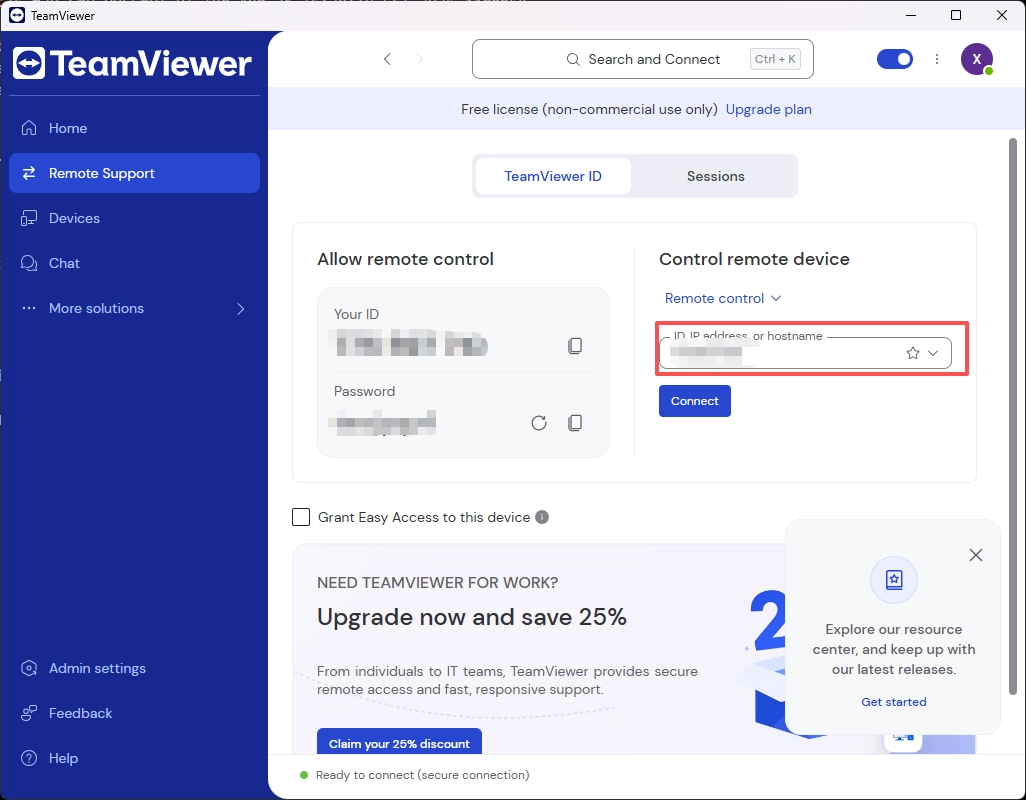
Enter the previously set connection password when prompted, or complete verification through the TeamViewer account authorization flow.
If a remote interaction confirmation window pops up on the Quectel Pi M2, click Share to allow remote control.
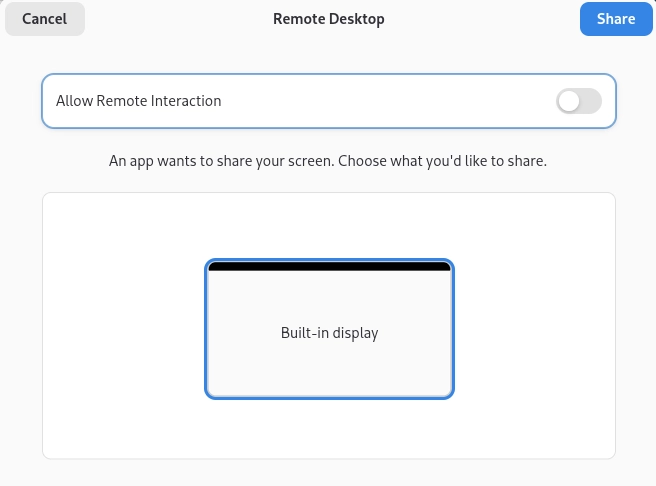
After a successful connection, you can remotely view and operate the Quectel Pi M2 Debian desktop from the Windows host.
Troubleshooting
Symptom |
Possible Cause |
Solution |
|---|---|---|
TeamViewer ID is empty in |
The normal user has no permission to read TeamViewer global configuration, or the Quectel Pi M2 currently cannot access the internet/DNS is unavailable |
First run |
Setting connection password fails with |
Password is too simple or does not meet TeamViewer complexity requirements |
Use a password containing letters and numbers with at least 8 characters and run |
TeamViewer service cannot start |
Package dependencies are not fully configured |
First use |
Windows client cannot connect |
Windows host or Quectel Pi M2 cannot access TeamViewer services |
Confirm both sides can access the internet and re-obtain the TeamViewer ID |
Windows client shows device is offline |
Quectel Pi M2 can access public IP but DNS cannot resolve TeamViewer domain |
Run |
Terminal gets stuck on status page after viewing service status |
|
Press |
Windows client prompts for verification |
First login or account security policy triggered verification |
Follow the TeamViewer client prompts to complete email, account, or device trust verification |
Screen is abnormal or cannot be controlled after connection |
Quectel Pi M2 graphical desktop is not logged in or current session is abnormal |
Confirm that the Quectel Pi M2 has entered the graphical desktop; if necessary, re-login to the desktop or restart the TeamViewer service |
ADB is available but TeamViewer has no ID |
Only the ADB virtual network interface exists; the device has no actual internet access |
Connect to Wi-Fi or wired network, then run |
Uninstall TeamViewer
To uninstall TeamViewer Host, run:
sudo systemctl stop teamviewerd
sudo apt remove teamviewer-host
If you also want to remove the unused installation package, you can manually delete teamviewer-host_arm64.deb from the download directory.