MIPI
Copyright © Quectel Wireless Solutions Co., Ltd. 2026. All rights reserved.
This document describes the connection, identification, brightness adjustment, touch usage, and video playback methods for the MIPI-DSI display screen under Quectel Pi M2 Debian. The Waveshare 8-inch DSI LCD (C) capacitive touch screen is used as an example.
Overview
MIPI-DSI is a high-speed serial display interface designed for display screens, suitable for embedded desktops, touch interaction terminals, industrial HMI, and media playback scenarios. Quectel Pi M2 provides one MIPI-DSI display interface that can connect to a compatible DSI screen to enter the Debian desktop environment. M2 enters the GNOME desktop by default.
The display-related interfaces on the Quectel Pi M2 are shown in the following table:
Interface |
Description |
|---|---|
MIPI-DSI |
1× FPC connector, based on the MIPI standard. The display mode measured on the example screen is |
Touch |
The example screen establishes touch input through the screen adapter board/flex cable. Once connected, it can be used directly in the Debian desktop. |
Hardware Interface
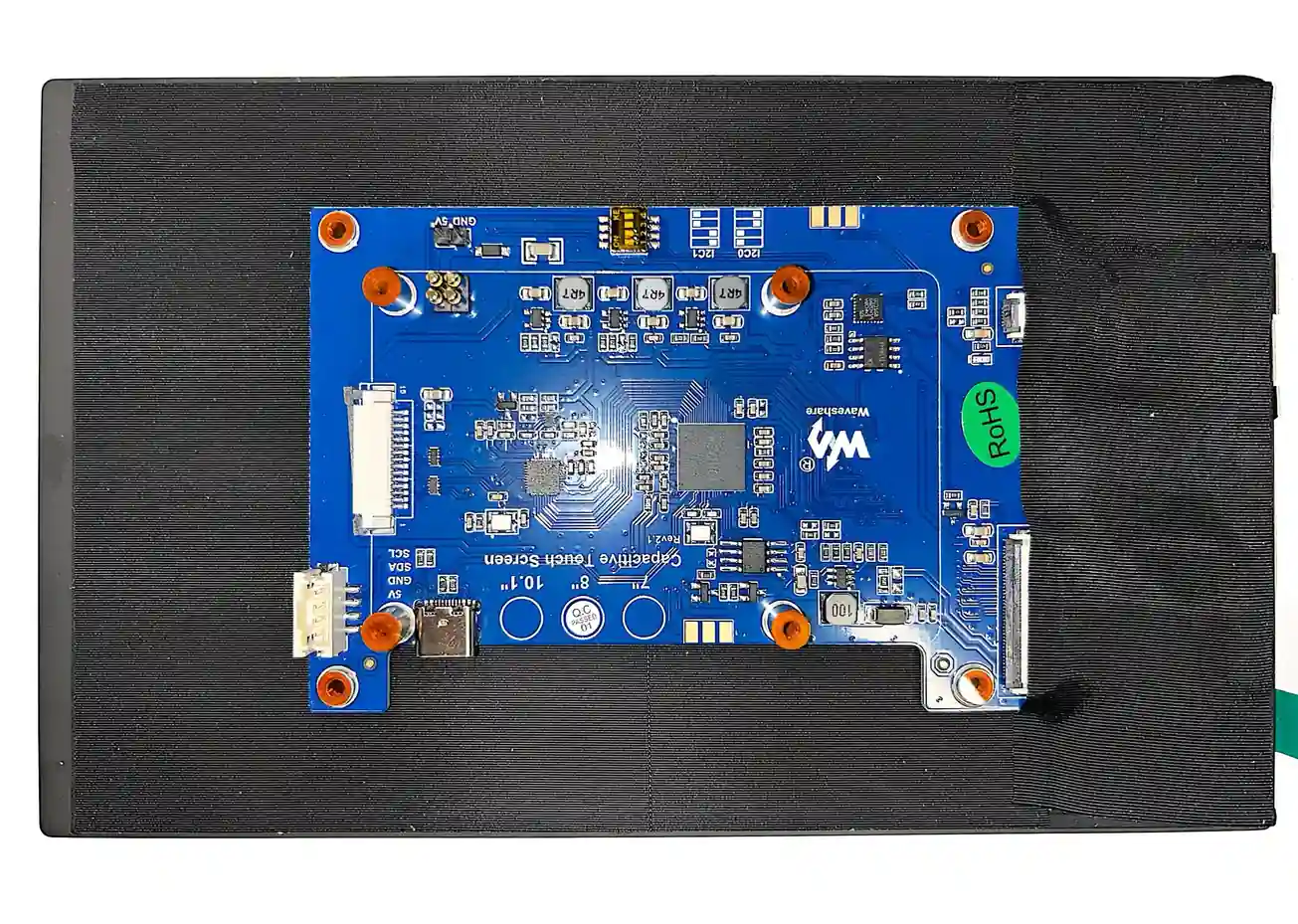
Screen Interface Description
The back of the Waveshare 8-inch DSI LCD (C) screen includes a DSI ribbon cable connector and power/touch-related interfaces. When connecting, pay attention to the cable direction, connector latch status, and screen power supply method.
M2 Interface Connection
Connect the MIPI-DSI ribbon cable to the MIPI-DSI FPC connector on the Quectel Pi M2, and confirm that the cable is fully inserted and the latch is pressed down. For screen power supply, follow the screen hardware instructions. Avoid plugging or unplugging the MIPI cable while the device is powered on.
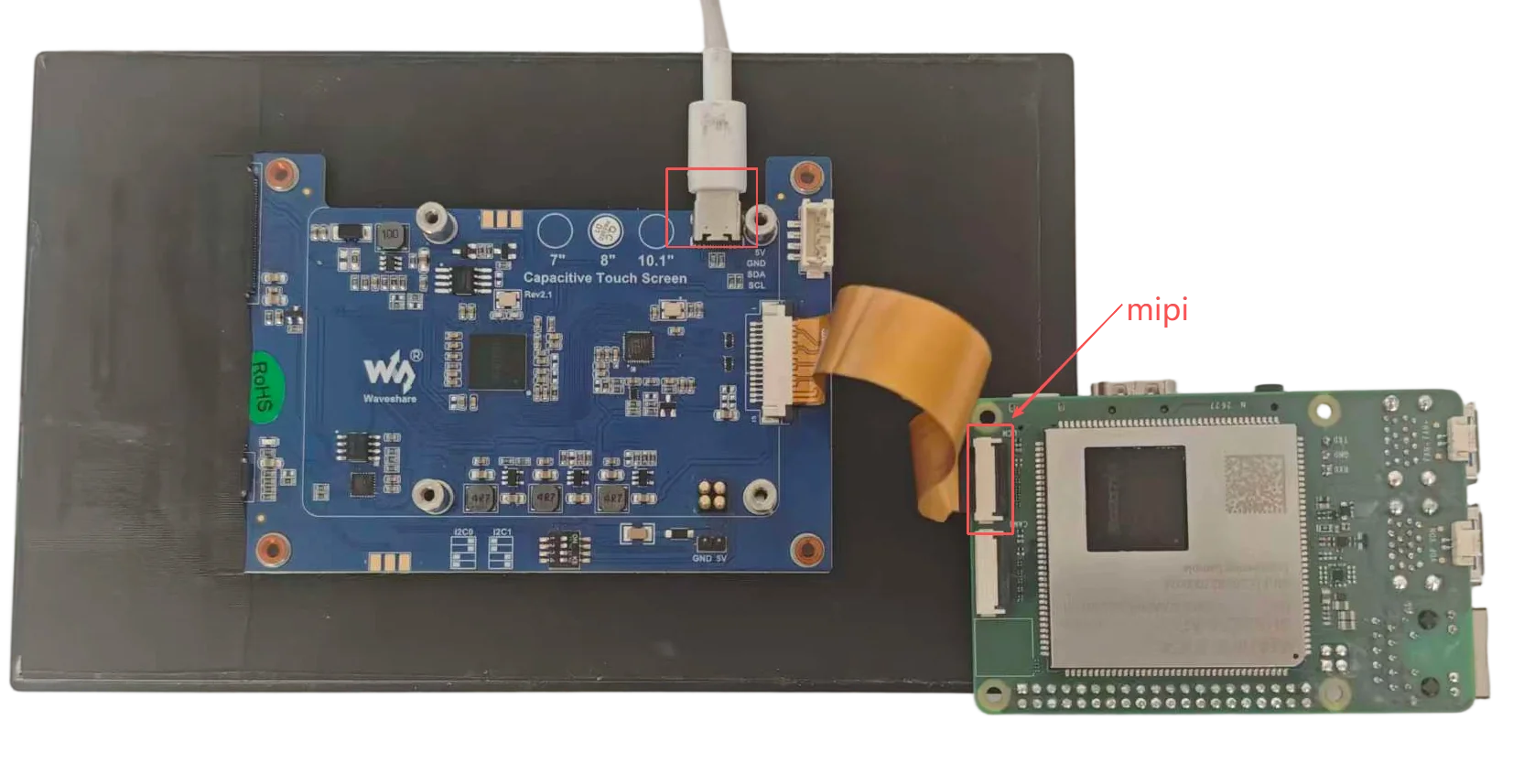
Connection notes:
Before connecting or disconnecting the MIPI cable, turn off the board power first.
Confirm that the cable contacts are oriented correctly to avoid reverse insertion.
Confirm that the FPC connector latch is fully pressed down to avoid black screen or touch malfunction after boot.
If the screen requires independent power, confirm that the power connector is securely attached.
Quick Start
Turn off the board power.
Connect the MIPI-DSI screen according to the hardware connection instructions.
Power on the screen, then power on the board.
After the system boots, enter the Debian desktop. The system enters the GNOME desktop by default.
To confirm system status, run the following commands in the board terminal:
hostname -I
cat /sys/class/drm/card0-DSI-1/status
cat /sys/class/drm/card0-DSI-1/modes
cat /sys/class/backlight/0-0045/brightness
cat /sys/class/backlight/0-0045/max_brightness
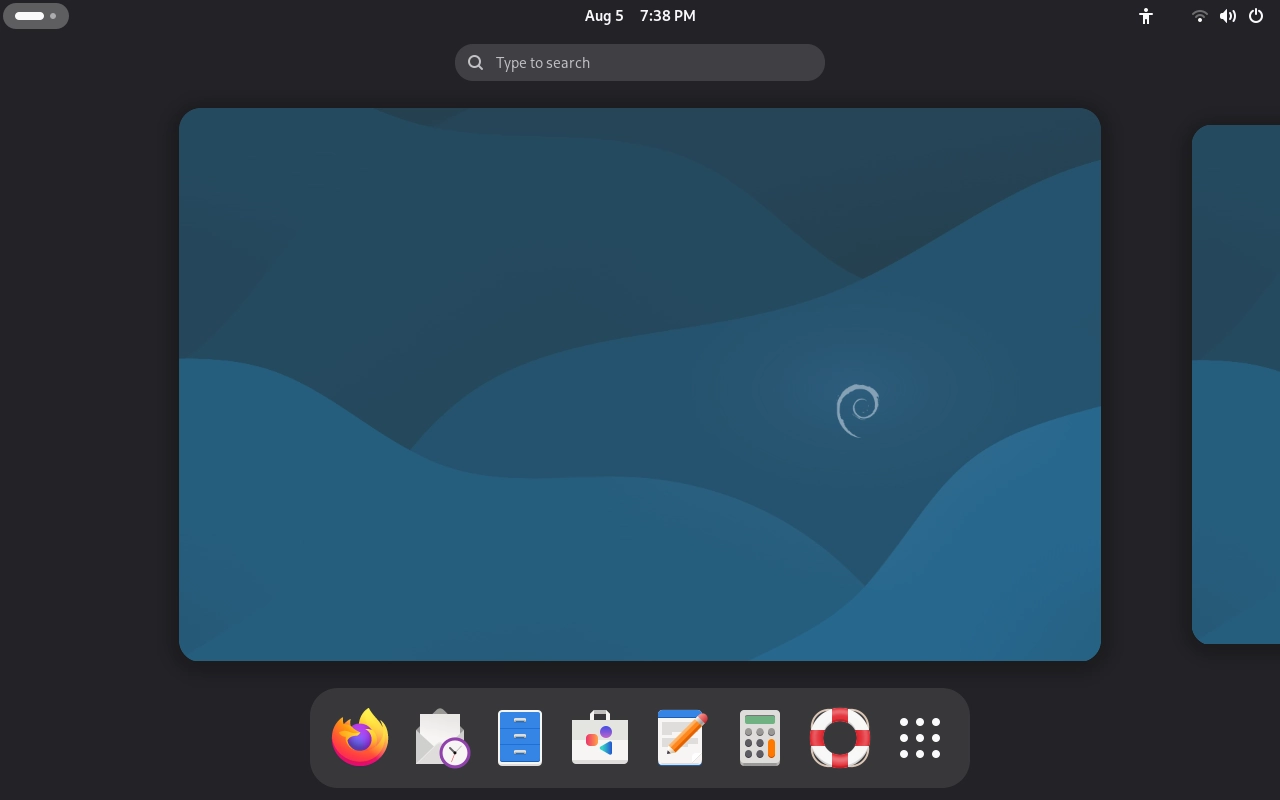
The measured MIPI display status is connected, and the display mode is 1280x800. The measured backlight node is /sys/class/backlight/0-0045/, with a current brightness of 199 and a maximum brightness of 255.
MIPI desktop display:
Feature Usage (GNOME)
Adjust Screen Brightness and Volume
After connecting the MIPI screen and entering the Debian desktop, click the status bar area in the upper-right corner of the desktop. You can drag the volume and brightness sliders in the quick settings panel to adjust the current audio output volume and screen brightness.
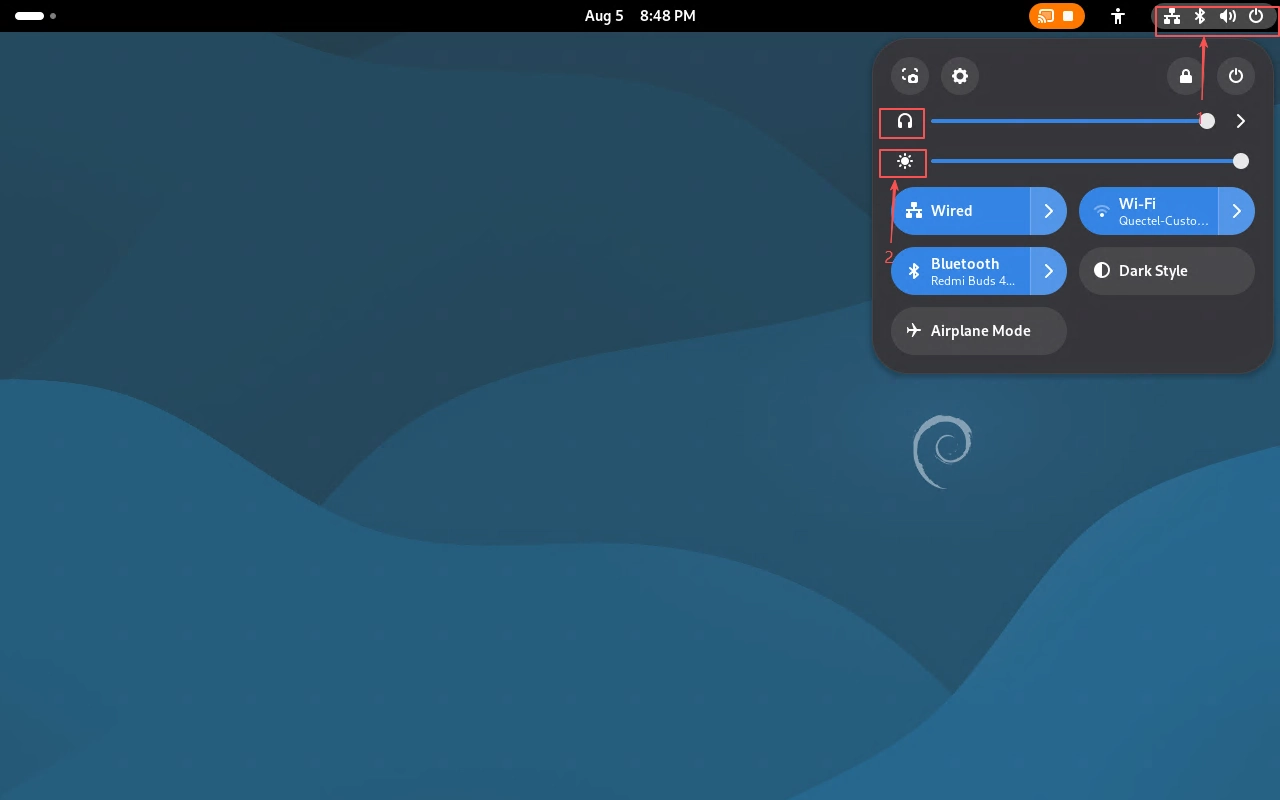
In addition to the desktop quick settings, the MIPI screen brightness can also be viewed through the system backlight node. The measured backlight node in this document is /sys/class/backlight/0-0045/:
cat /sys/class/backlight/0-0045/brightness
cat /sys/class/backlight/0-0045/max_brightness
To temporarily adjust the brightness, run the following command on the board. This example sets the brightness to 200:
echo 200 | sudo tee /sys/class/backlight/0-0045/brightness
To restore maximum brightness, run:
cat /sys/class/backlight/0-0045/max_brightness
sudo sh -c 'cat /sys/class/backlight/0-0045/max_brightness > /sys/class/backlight/0-0045/brightness'
Touch Function
After connecting the MIPI screen and entering the Debian desktop, you can directly use the screen touch function for clicking, swiping, and window operations. If the touch is unresponsive, first check whether the screen touch cable, power supply, and I2C/touch-related connections are secure.
Video Playback
You can first push a test video to the Videos directory on the board:
adb push /home/q/work/temp/test-1.mp4 /home/q/Videos/m1-mipi-display-test.mp4
Video playback via GUI: In the Debian desktop, you can use the file manager to navigate to the Videos directory and double-click m1-mipi-display-test.mp4 to play it.
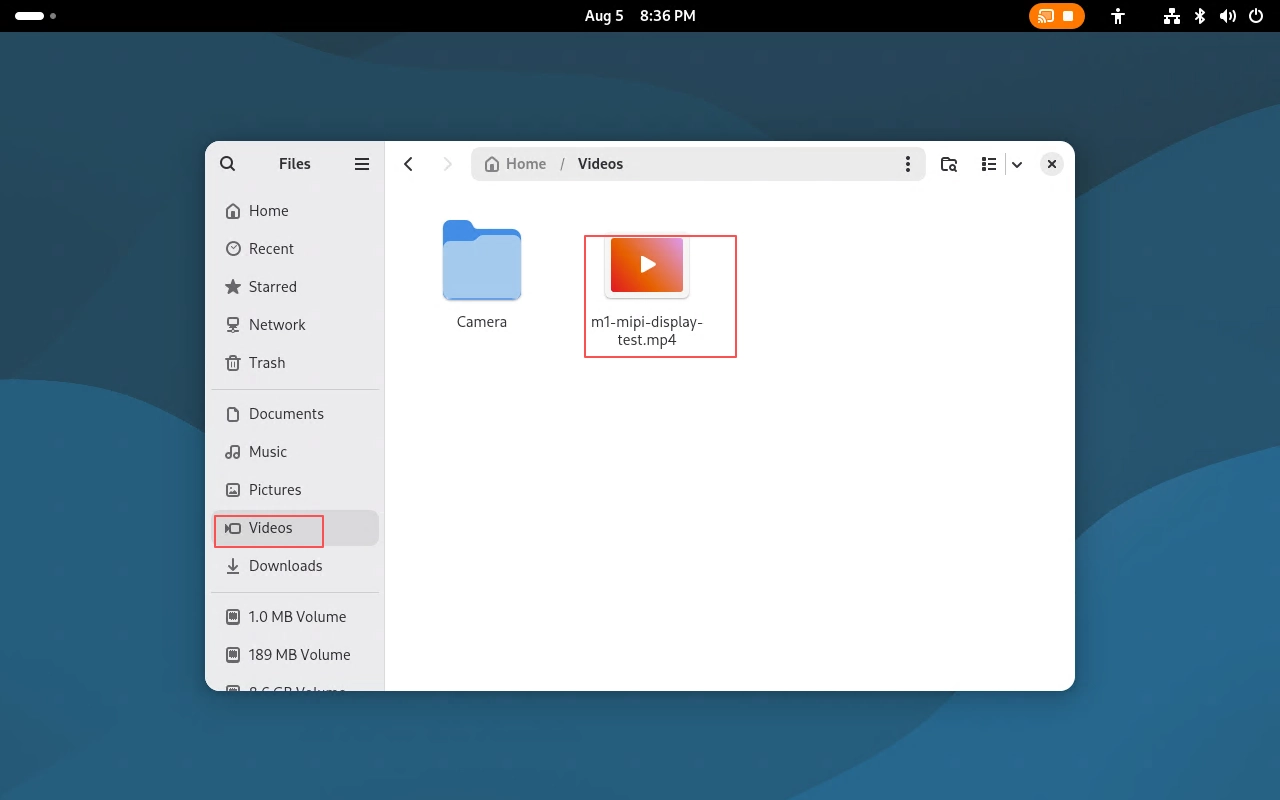
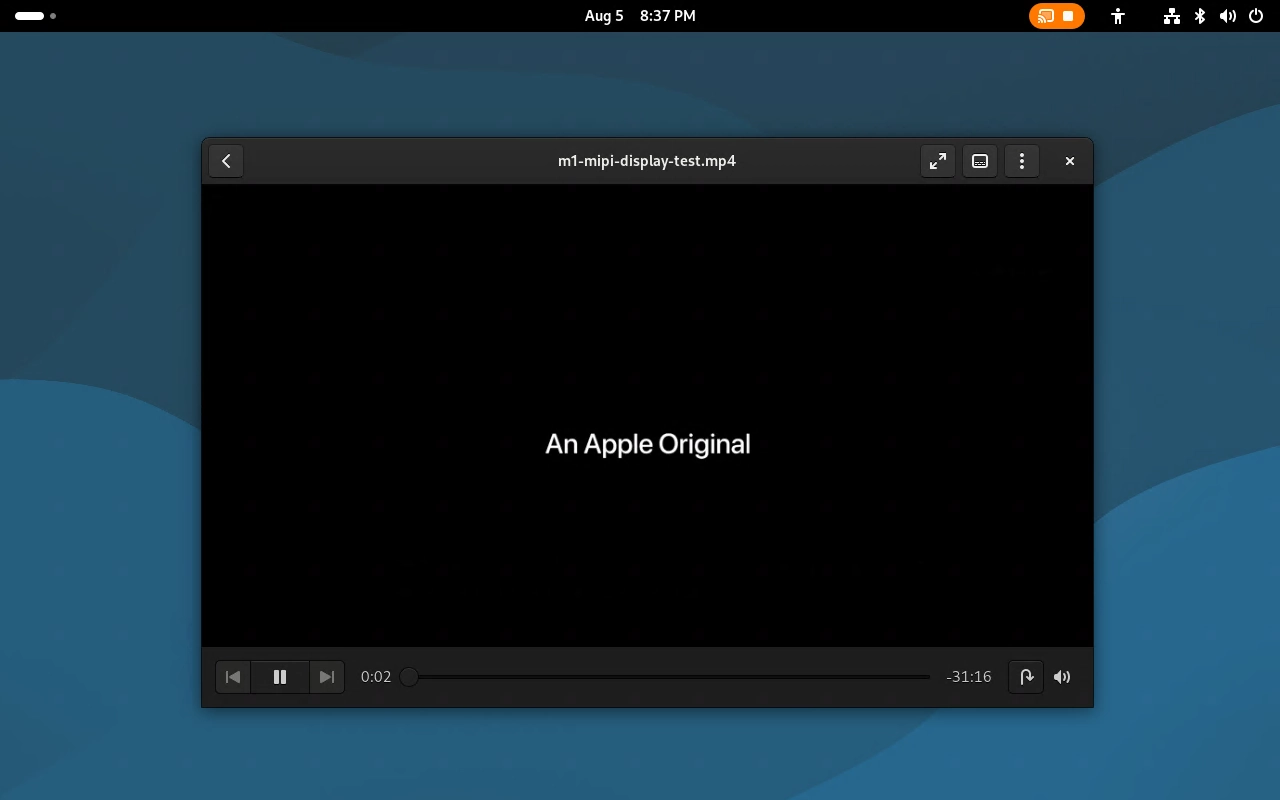
Video playback via GStreamer command line: When playing video from the command line, you can use the following command.
💡 It is recommended to run the following playback commands in the board’s graphical desktop terminal. If executed via an ADB root shell, playback may fail due to missing graphical desktop and audio session environment variables.
In the board’s graphical desktop terminal (logged in as the q user), you can directly run:
gst-launch-1.0 playbin uri=file:///home/q/Videos/m1-mipi-display-test.mp4
If executing via an ADB root shell or SSH root login, first switch to the q user, then set the graphical desktop session environment variables in order, and finally run the playback command:
su - q
export DISPLAY=:0
export WAYLAND_DISPLAY=wayland-0
export XDG_RUNTIME_DIR=/run/user/1000
export DBUS_SESSION_BUS_ADDRESS=unix:path=/run/user/1000/bus
gst-launch-1.0 playbin uri=file:///home/q/Videos/m1-mipi-display-test.mp4
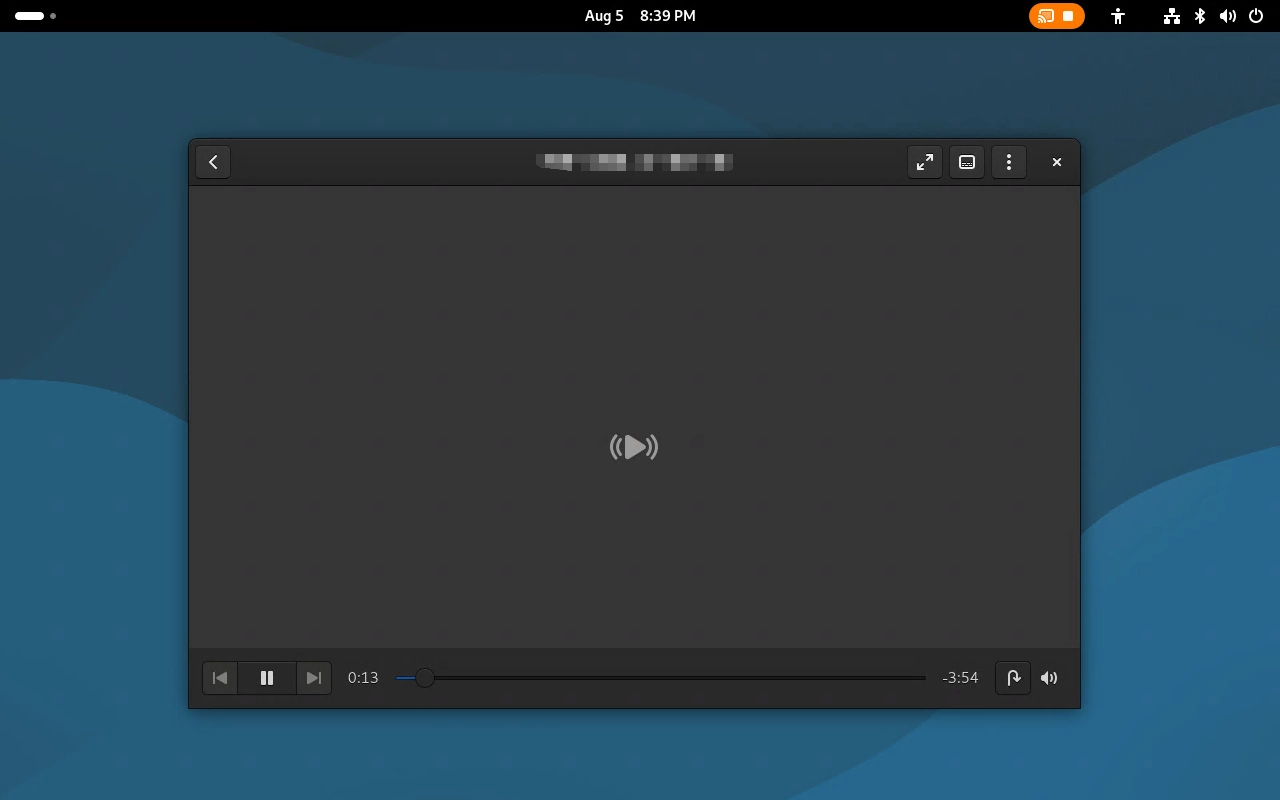
The following is a screenshot of video playback using the GStreamer command line.
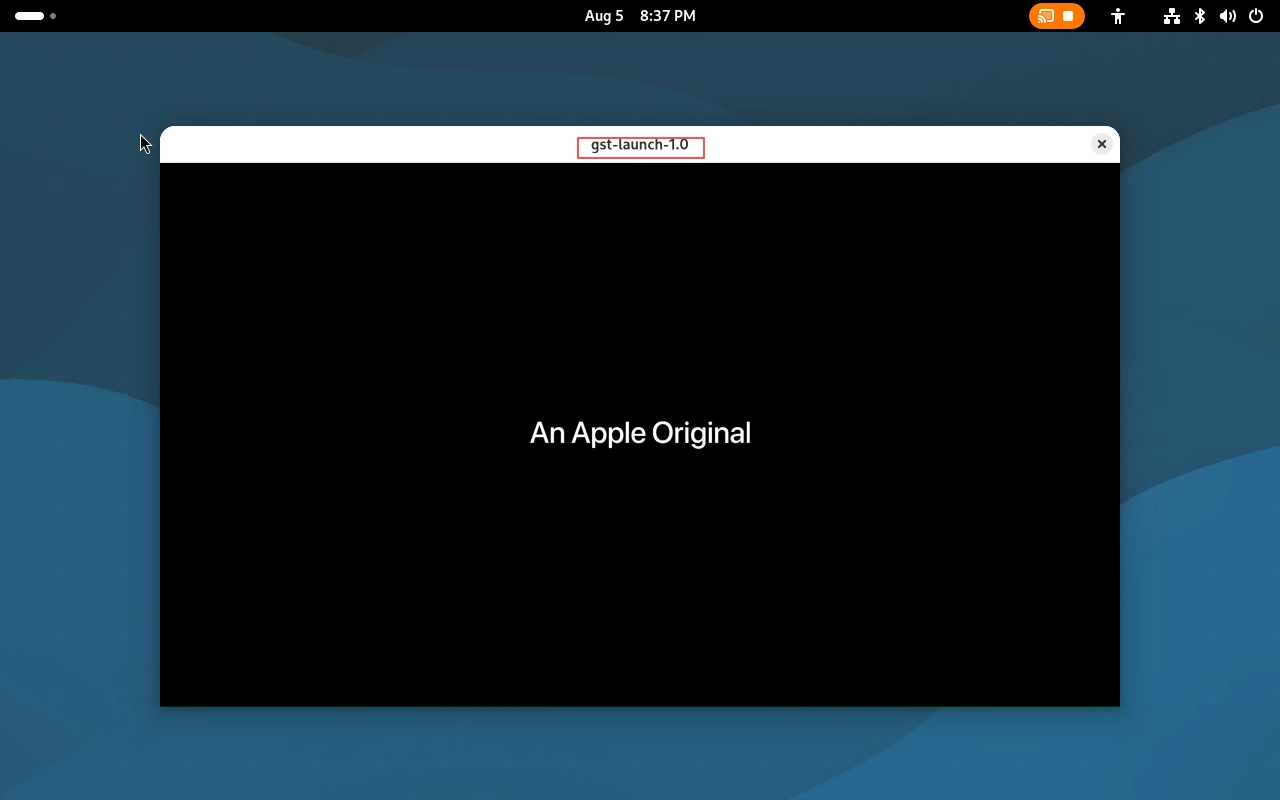
In this test, video playback via both the desktop file manager and GStreamer command line was verified, and the MIPI screen displayed video normally.
Audio Playback
You can first push a test audio file to the Music directory on the board:
adb push /home/q/work/temp/test.mp3 /home/q/Music/m1-mipi-audio-test.mp3
Audio playback via GUI: In the Debian desktop, you can use the file manager to navigate to the Music directory and double-click m1-mipi-audio-test.mp3 to play it.
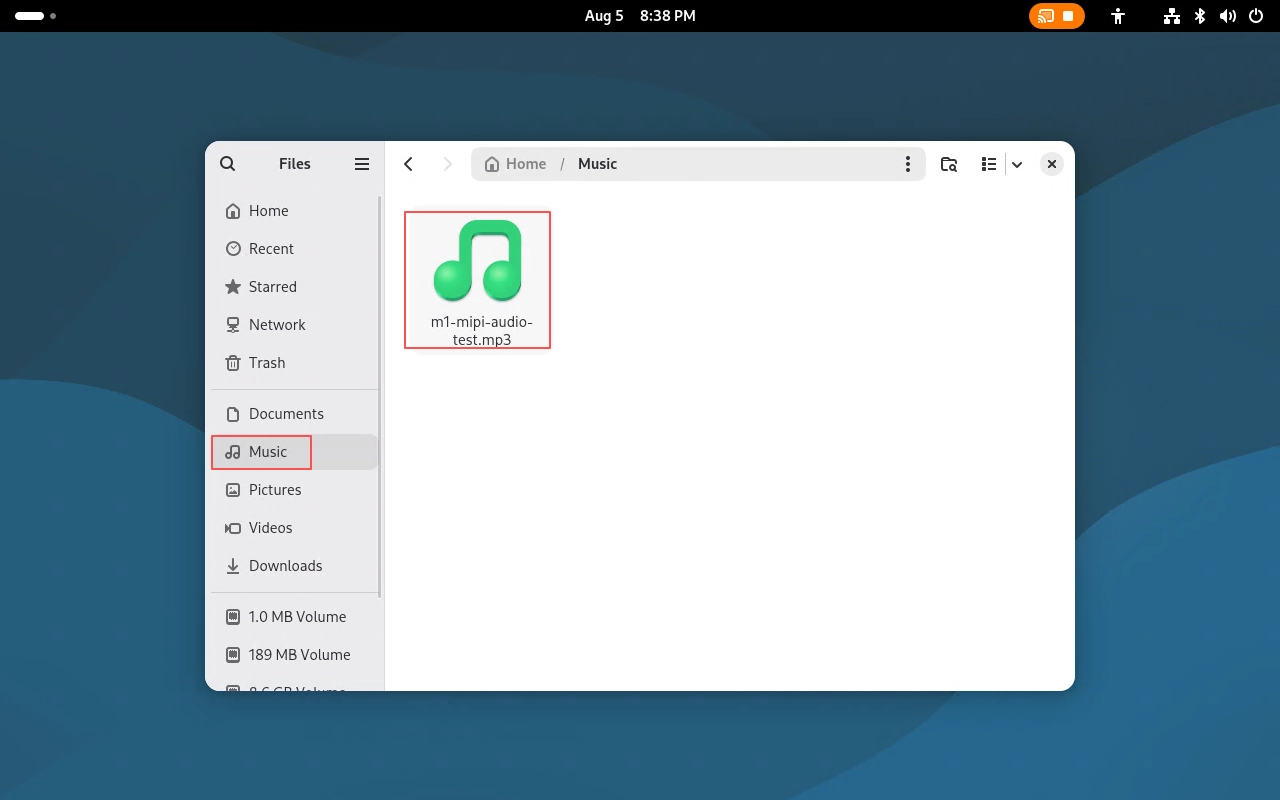
Audio playback via GStreamer command line: When playing audio from the command line, you can use the following command.
💡 It is recommended to run the following playback commands in the board’s graphical desktop terminal. If executed via an ADB root shell, audio playback may fail due to missing audio session environment variables.
In the board’s graphical desktop terminal (logged in as the q user), you can directly run:
gst-launch-1.0 playbin uri=file:///home/q/Music/m1-mipi-audio-test.mp3
If executing via an ADB root shell or SSH root login, first switch to the q user, then set the audio session environment variables in order, and finally run the playback command:
su - q
export DISPLAY=:0
export WAYLAND_DISPLAY=wayland-0
export XDG_RUNTIME_DIR=/run/user/1000
export DBUS_SESSION_BUS_ADDRESS=unix:path=/run/user/1000/bus
gst-launch-1.0 playbin uri=file:///home/q/Music/m1-mipi-audio-test.mp3
The following is a screenshot of audio playback using the GStreamer command line.
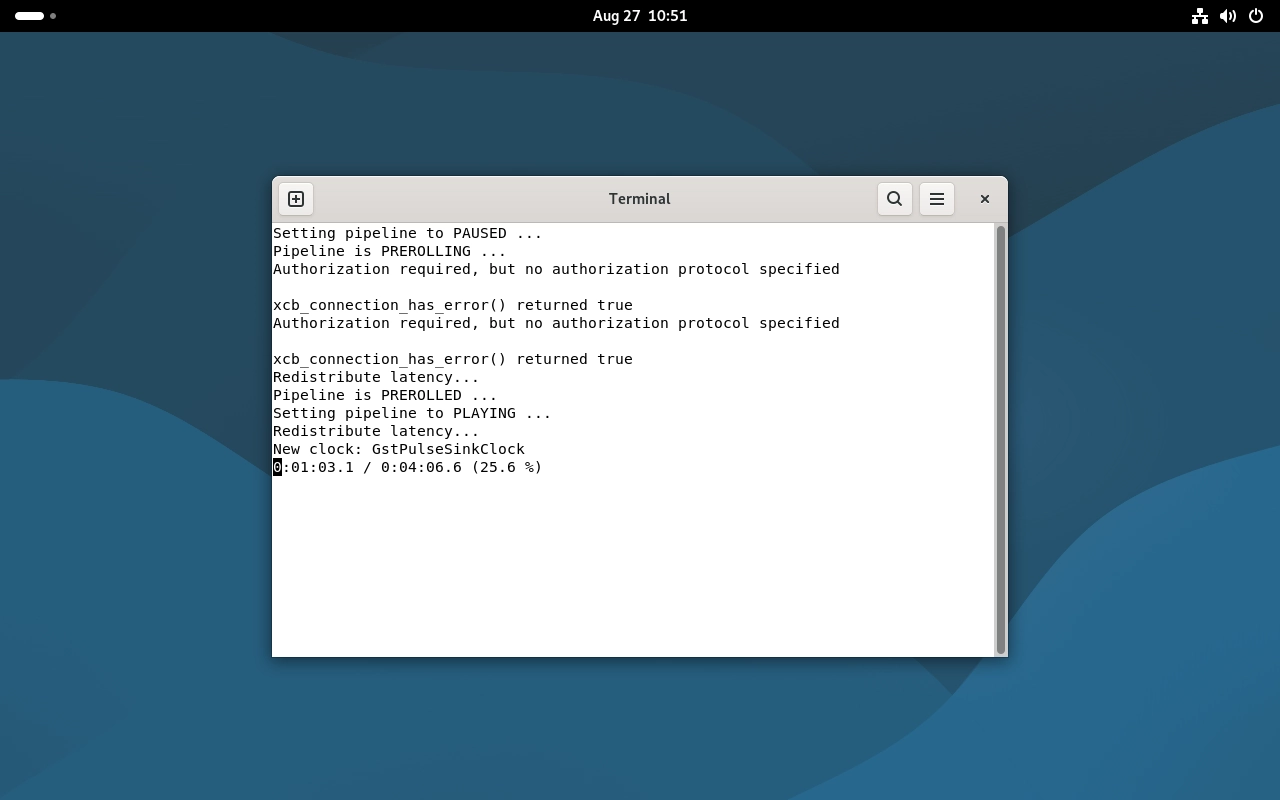
In this test, audio playback via both the desktop file manager and GStreamer command line was verified, and the current audio output device played sound normally. If using an external Bluetooth speaker or other audio device, please confirm that the system sound output device is correctly selected.
Audio Output Check
If there is no sound during video playback, you can check the audio service and default output device in the board’s graphical desktop terminal:
pactl info
If multiple audio output devices exist in the system, you can switch the output device in the GNOME desktop quick settings (upper-right corner), or go to Settings > Sound to view the audio output configuration.
Advanced Features
Automatic Display Mode
After the MIPI screen is connected, the system loads the display driver during the boot process and outputs the desktop image. Since MIPI-DSI is not a hot-pluggable interface, it is recommended to connect the ribbon cable while powered off, then power on.
Command-Line Status Check
Common troubleshooting commands:
# Check DRM display interfaces
ls /sys/class/drm/

# Check MIPI-DSI connection status and display modes
cat /sys/class/drm/card0-DSI-1/status
cat /sys/class/drm/card0-DSI-1/modes

# Check backlight nodes
ls /sys/class/backlight/

# Check backlight brightness and maximum brightness
cat /sys/class/backlight/0-0045/brightness
cat /sys/class/backlight/0-0045/max_brightness

# Check audio service and default output device
pactl info

# Check display-related information in system logs
journalctl -b | grep -Ei 'dsi|mipi|drm|panel|backlight'
Application Scenarios
Media entertainment terminal: Play video, music, or display images through the MIPI screen.
Industrial data visualization platform: Used for displaying device status, sensor data, dashboards, and alarm information.
Smart interaction terminal: Combine with a touch screen to implement local menus, control panels, and human-machine interaction interfaces.
Development and debugging display terminal: View the Debian desktop and debugging information without the need for an additional external display.
Troubleshooting
Symptom |
Possible Cause |
Solution |
|---|---|---|
Black screen after boot |
MIPI cable not fully inserted, incorrect direction, abnormal screen power, or the system failed to load the display driver properly |
After powering off, re-check the cable direction, FPC latch, and screen power; after re-powering, check system logs via serial port or ADB. |
Screen artifacts or flickering |
Poor cable contact, low cable quality, unstable screen power, or interference |
Re-plug and secure the cable, check the power supply, and keep the cable away from strong interference sources. |
Touch unresponsive |
Touch-related connections not properly attached, or touch driver not loaded correctly |
Check the screen touch cable and power supply; check touch/I2C-related errors in system logs. |
Brightness not adjustable |
Backlight node name differs from the example in this document, or the current system does not expose a backlight adjustment interface |
Run |
Video cannot play |
Video codec not supported by the current player, or incorrect file path |
Confirm the video file exists in |
Video has image but no sound |
Incorrect audio output device selected, volume muted, or audio device not connected |
Check the sound settings in the upper-right corner, run |