M.2 NVMe SSD
Copyright © Quectel Wireless Solutions Co., Ltd. 2026. All rights reserved.
The M.2 SSD connects to the board through the PCIe interface. This section describes the hardware installation, partitioning, formatting, mounting, and read/write testing of an NVMe SSD in the Linux system. The sample device name /dev/nvme0n1 is used as an example, and the partition is /dev/nvme0n1p1.
Hardware interface
The M.2 NVMe SSD connects to the single-board computer through the PCIe interface. Before installation, shut down the board and disconnect it from power, and make sure the PCIe adapter cable, GPIO adapter header, nylon standoffs, and screws are all available. If another PCIe device is already installed in the same PCIe/M.2 slot, remove it first and then install the SSD.
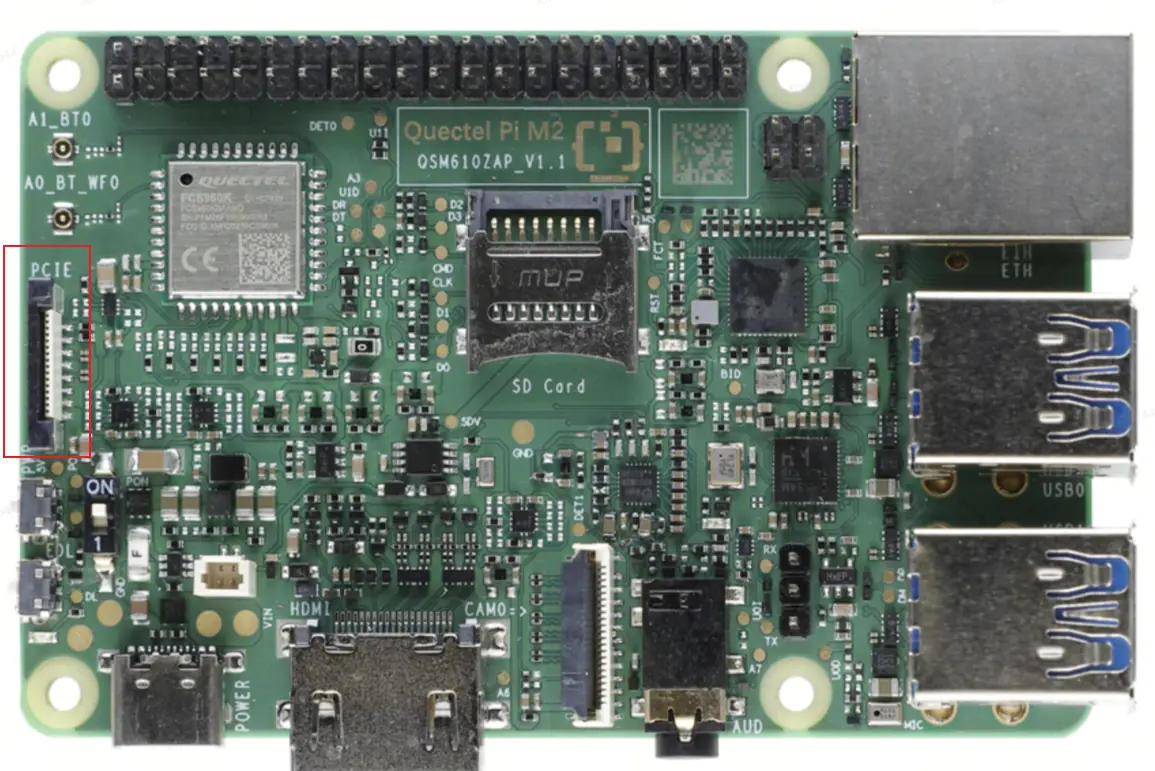
Quick installation guide
Fully and evenly insert the PCIe adapter cable into the PCIe connector of the single-board computer, then press the retaining brackets down from both sides to make sure the adapter cable is firmly secured.
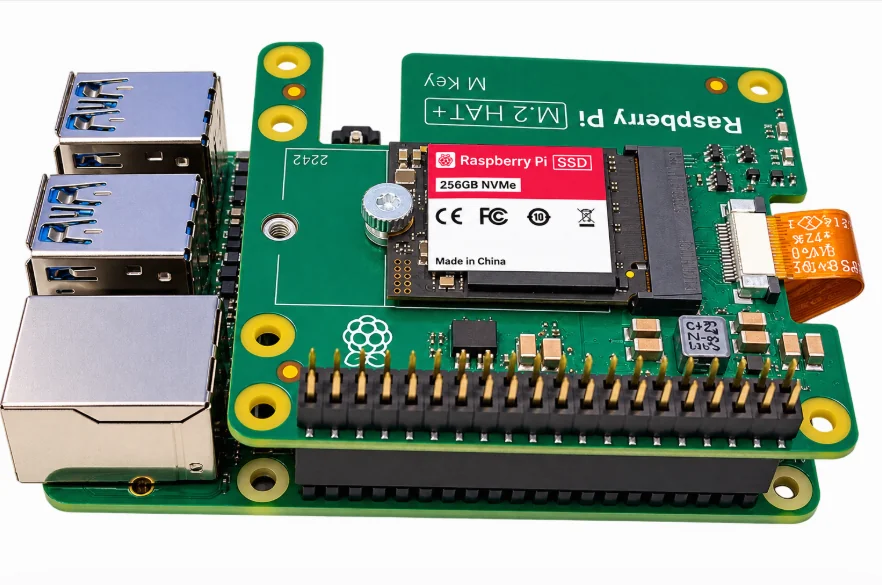
Insert the M.2 HAT+ into the 40-pin header of the M2 device.
Insert the M.2 NVMe SSD, and power on the board only after confirming that the SSD and the HAT+ are firmly seated.
[Front view after installation]
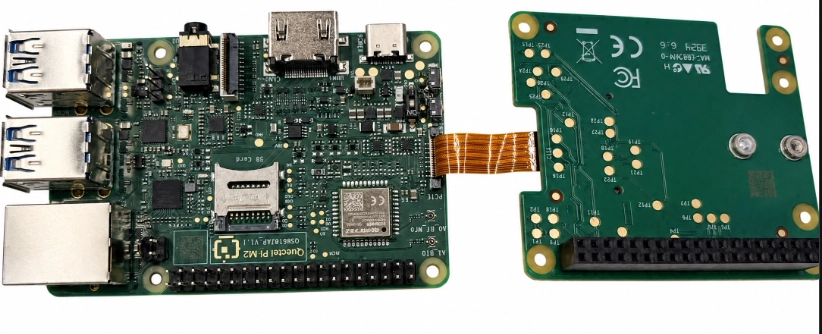
[Rear view after installation]
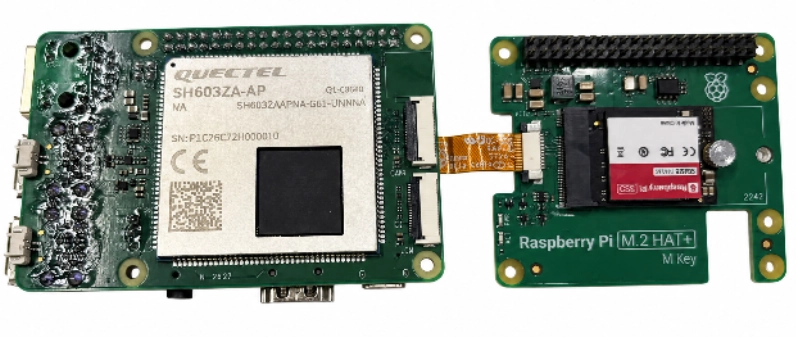
[Side view after installation]
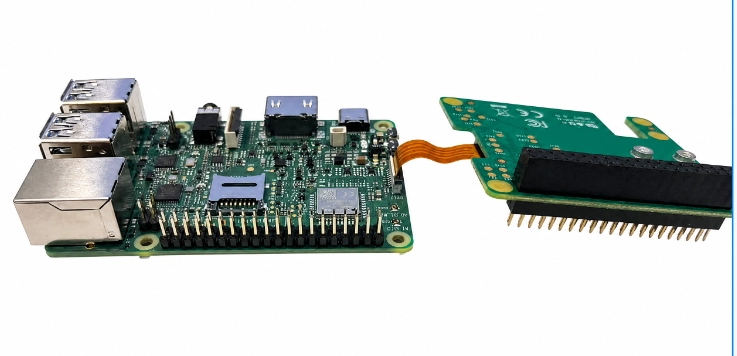
[M.2 HAT+ fully secured]
💡 Partitioning, formatting, and raw-disk writes will erase the existing data on the SSD. If the SSD is not a blank disk, back up your data first. When in doubt, only perform device identification and read-only checks.
Software usage
Verify the NVMe device
After the system boots, first confirm that the PCIe device and the NVMe block device are recognized. Normally /dev/nvme0 and /dev/nvme0n1 are created; if the SSD already has partitions, partition nodes such as /dev/nvme0n1p1 are also created.
lspci -nn
00:00.0 PCI bridge [0604]: Rockchip Electronics Co., Ltd RK3576 [1d87:3576] (rev 01)
01:00.0 Non-Volatile memory controller [0108]: Samsung Electronics Co Ltd NVMe SSD Controller 980 (DRAM-less) [144d:a809]
ls -l /dev/nvme*
crw------- 1 root root 238, 0 Sep  3 09:48 /dev/nvme0
brw-rw---- 1 root disk 259, 0 Sep  3 09:48 /dev/nvme0n1
brw-rw---- 1 root disk 259, 1 Sep  3 09:48 /dev/nvme0n1p1
lsblk -o NAME,MAJ:MIN,RM,SIZE,RO,TYPE,MOUNTPOINT,FSTYPE,MODEL /dev/nvme0n1
NAME        MAJ:MIN RM   SIZE RO TYPE MOUNTPOINT FSTYPE MODEL
nvme0n1     259:0    0 238.5G  0 disk                   SAMSUNG MZ9LQ256HBJD-00B
└─nvme0n1p1 259:1    0 238.5G  0 part            ext4
fdisk -l /dev/nvme0n1
Disk /dev/nvme0n1: 238.47 GiB, 256060514304 bytes, 500118192 sectors
Disk model: SAMSUNG MZ9LQ256HBJD-00BVL
Units: sectors of 1 * 512 = 512 bytes
Sector size (logical/physical): 512 bytes / 512 bytes
I/O size (minimum/optimal): 16384 bytes / 131072 bytes
Disklabel type: gpt
Disk identifier: 49D7C880-46CB-4694-AE9C-DBC36EEC5709

Device         Start       End   Sectors   Size Type
/dev/nvme0n1p1  2048 500117503 500115456 238.5G Linux filesystem
Partitioning (fdisk)
A new or wiped SSD may only have the whole-disk node /dev/nvme0n1; create the partition table and partitions first. Run the following command to enter the fdisk interactive interface:
fdisk /dev/nvme0n1
In the fdisk interactive interface, enter the following in order:
g      # Create a GPT partition table
n      # Create a new partition; keep the defaults for partition number, start and end sectors
w      # Write the partition table and exit
After the operation, the system creates the first partition /dev/nvme0n1p1. If the partition node does not appear immediately, run partprobe and check again.
partprobe /dev/nvme0n1
ls -l /dev/nvme0n1p1
lsblk /dev/nvme0n1
Format the partition (EXT4)
Use mkfs.ext4 to format the new partition as an EXT4 file system:
mkfs.ext4 /dev/nvme0n1p1
Mount the partition manually
Create a mount directory and mount the partition to /mnt/myssd:
mkdir -p /mnt/myssd
mount /dev/nvme0n1p1 /mnt/myssd
findmnt /mnt/myssd
TARGET     SOURCE         FSTYPE OPTIONS
/mnt/myssd /dev/nvme0n1p1 ext4   rw,relatime,stripe=32

df -h /mnt/myssd
Filesystem      Size  Used Avail Use% Mounted on
/dev/nvme0n1p1  234G  2.1M  222G   1% /mnt/myssd
If the df -h output contains /dev/nvme0n1p1 and /mnt/myssd, the mount is successful.
Configure automatic mounting (optional)
To mount automatically after reboot, append the mount configuration to the end of /etc/fstab. Writing the device name directly is intuitive, but for mass production or long-term use, use the UUID instead to avoid mount failure caused by device name changes.
# Query the partition UUID first
blkid /dev/nvme0n1p1

# Edit /etc/fstab and append one of the following lines to the end of the file (choose ONE; do not add both)
# Method 1: mount by device name
/dev/nvme0n1p1  /mnt/myssd  ext4  defaults  0  2

# Method 2: mount by UUID (recommended; replace xxxxx with the actual UUID)
UUID=xxxxxxxx-xxxx-xxxx-xxxx-xxxxxxxxxxxx  /mnt/myssd  ext4  defaults,nofail  0  2

# Save the file, then verify
mount -a
df -h /mnt/myssd
Performance test (read/write speed)
On the mounted file system, use dd to test the read/write speed, and delete the temporary file after the test.
dd if=/dev/zero of=/mnt/myssd/testfile bs=1G count=1 oflag=direct
1+0 records in
1+0 records out
1073741824 bytes (1.1 GB, 1.0 GiB) copied, 3.31848 s, 324 MB/s
dd if=/mnt/myssd/testfile of=/dev/null bs=1G iflag=direct
1+0 records in
1+0 records out
1073741824 bytes (1.1 GB, 1.0 GiB) copied, 2.50334 s, 429 MB/s
# Clean up the test file
rm -f /mnt/myssd/testfile
sync
Unmount and removal
After testing, or before removing the SSD/HAT+, sync the data and unmount the file system first, then shut down the board and disconnect it from power.
sync
umount /mnt/myssd