Thermal solution
Copyright © Quectel Wireless Solutions Co., Ltd. 2026. All rights reserved.
Thermal Design Overview
The high-performance M2 development board generates considerable heat from the core module on its underside during prolonged high-load operation. Installing a heatsink improves heat dissipation and ensures stable device operation.
Heatsink Mounting Options
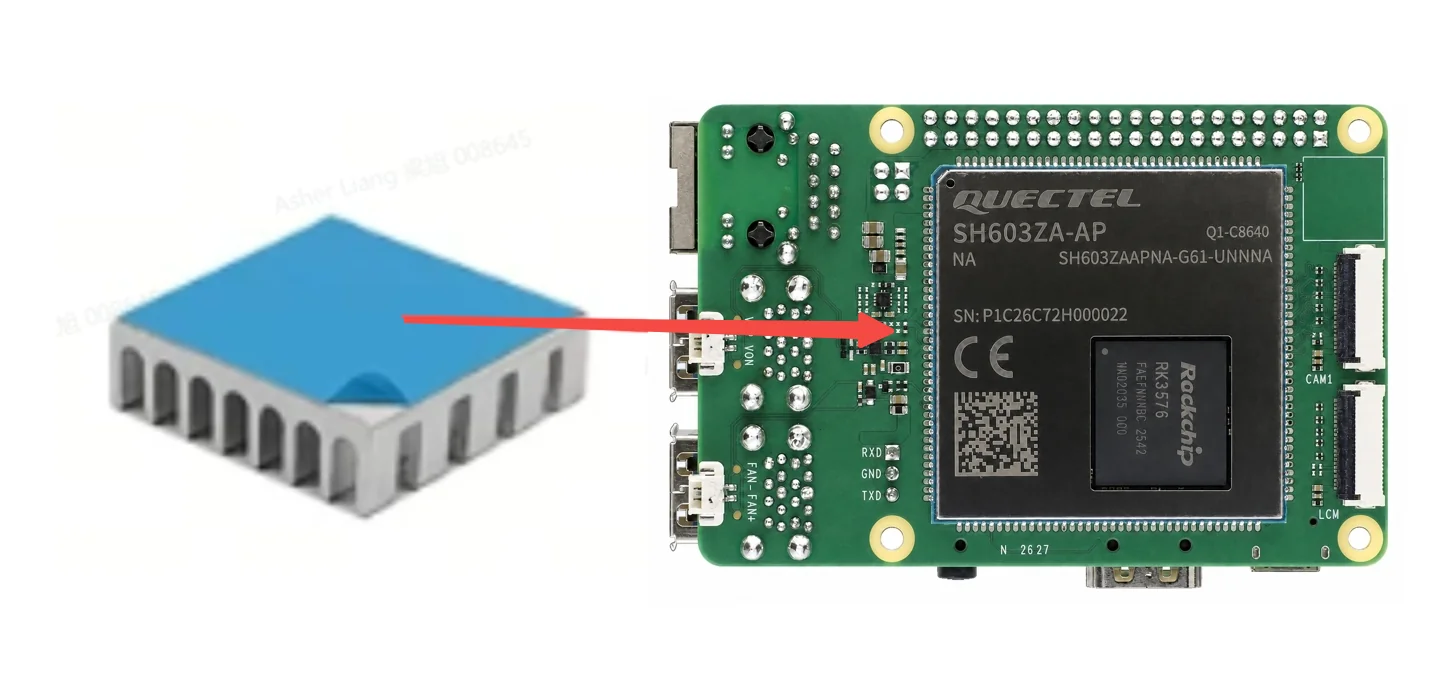
Use a self-adhesive heatsink and attach it to the primary heat source.
Secure the heatsink using the mechanical mounting holes around the development board. Refer to the dimensional drawing below for the mounting-hole locations.
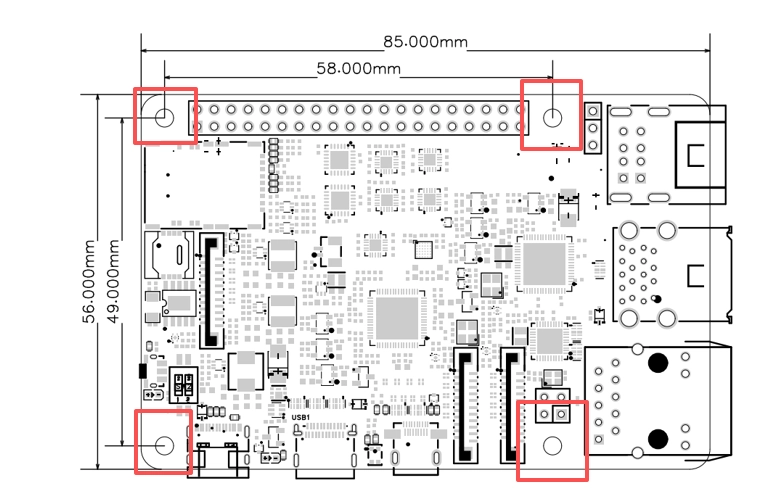
PS: For better heat dissipation, it is recommended to apply a thermal pad or thermal grease between the heatsink and the heat source.
Passive Cooling Example
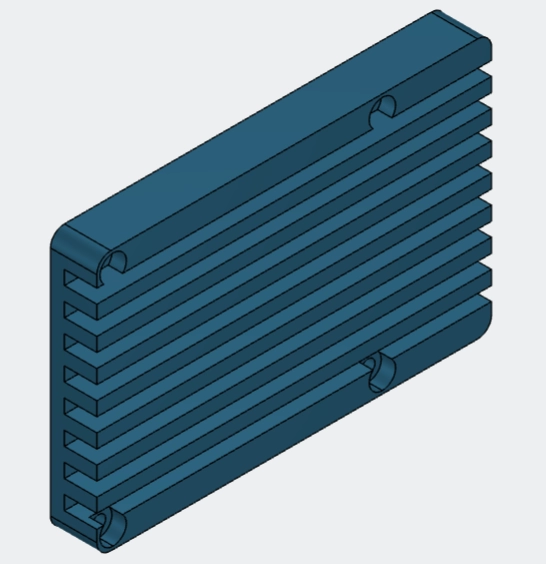
The following introduces a simple passive heatsink as a design reference for developers. The heatsink is installed using the mechanical mounting holes on the development board.
PS: This part must be customized by Quectel and is not a standard part.
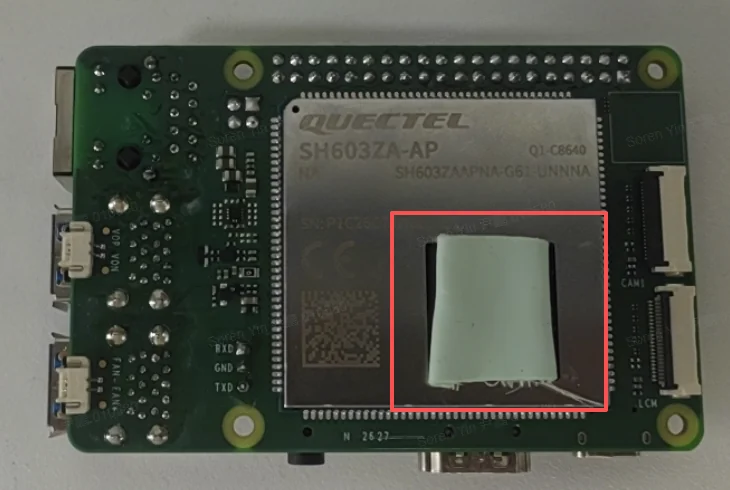
Install a thermal pad on the exposed chip area of the module on the underside.
Align the heatsink with the mounting holes on the development board, then secure it with four M2.5*14 nuts to complete the installation.
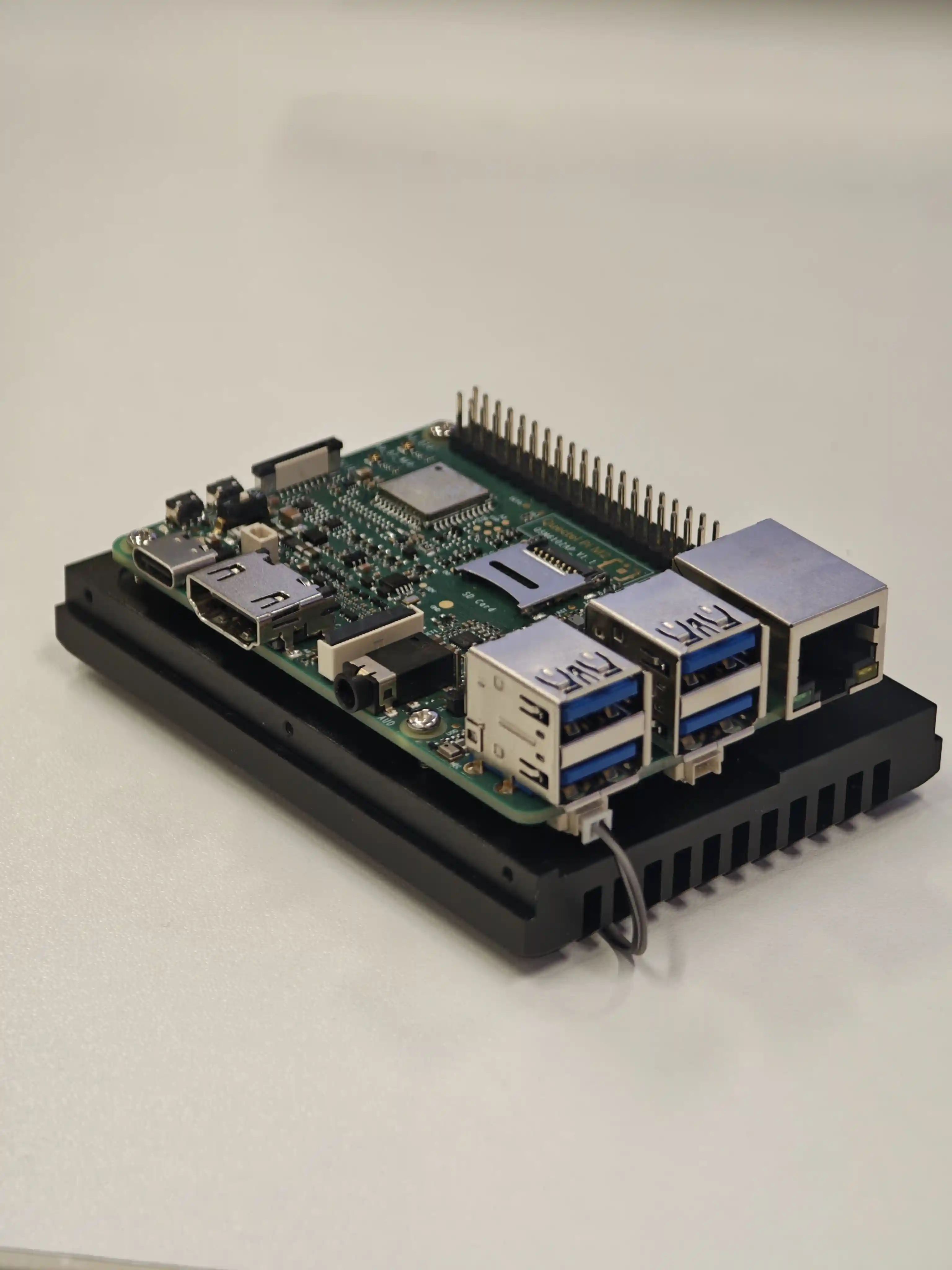
Note: This heatsink is provided solely as a design-reference demo. Developers must evaluate whether it meets the thermal and cost requirements of their specific application.
Active Cooling
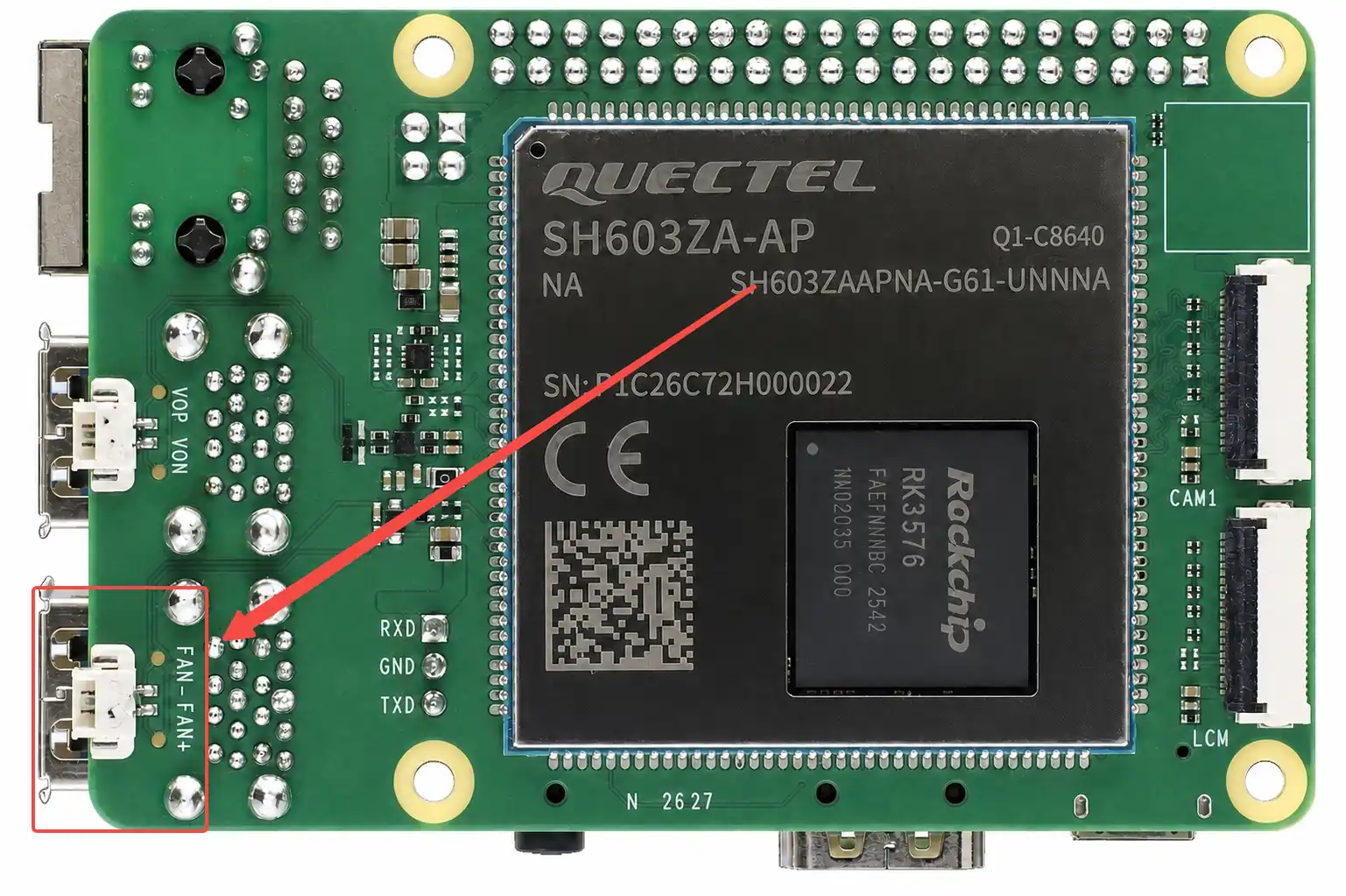
Hardware Interfaces
The M2 development board provides dedicated interfaces for a cooling fan.
Variable-Speed Fan Control
The background process monitors /sys/class/thermal/thermal_zone*
It polls the temperatures of multiple CPU cores, uses the highest reading, and sets the fan PWM duty cycle based on that temperature.
Monitored Temperature (Maximum Across All Thermal Zones) |
Level |
PWM Value |
Duty Cycle |
|---|---|---|---|
< 30°C |
0 |
0 |
0% (Stopped) |
30 ~ 40°C |
1 |
64 |
25% |
40 ~ 50°C |
2 |
128 |
50% |
50 ~ 60°C |
3 |
192 |
75% |
≥ 60°C |
4 |
255 |
100% |
Test Procedure
Because the temperature-controlled fan starts automatically at power-on, open two terminals: use one to monitor the current PWM duty cycle and the other to raise the temperature.
watch -n 1 'echo PWM=$(cat /sys/class/hwmon/hwmon6/pwm1); for z in /sys/class/thermal/thermal_zone*; do echo $(cat $z/type) $(($(cat $z/temp)/1000))C; done'
for i in 1 2 3 4; do yes > /dev/null & done    # Four yes processes raise the big-core temperature to 61~62°C in about 100s
killall yes                                     # Must terminate the processes after the test
Expected behavior: 128 → 192(≥50°C)→ 255(≥60°C),killall drops back to 192 → 128。
Notes
The hwmon number is dynamically assigned; it is normally 6. If it is different, use
grep -l pwmfan /sys/class/hwmon/hwmon*/nameto find the actual path.Level changes are not immediate: after the big core reaches 60.08°C, it takes about 27s to switch to 255 because of the system_monitor polling interval and hysteresis. Do not misinterpret this delay during observation.
During cooling, the little cores cool more slowly than the big cores, so the PWM remains at 192 for longer and decreases only after all thermal zones have cooled. This is normal behavior because the maximum temperature is used.
To reach the 60°C level faster, run eight
yesprocesses (fully loading four big cores and four little cores).